


If you work with Stripe in QuickBooks Online, reconciliation usually looks straightforward but can create issues later. A payout hits the bank, the amount seems close enough, but once you open the books, the pieces don’t quite connect. Payments, fees, refunds, and disputes are all mixed together, and the trail back to Stripe isn’t always clear.
This isn’t a small-scale issue either. Stripe is used by 62% of Fortune 500 companies, so the same payout logic applies whether you’re processing a handful of payments or thousands a day.
That’s the moment most teams slow down. You start cross-checking Stripe reports, scanning transactions, and confirming what actually landed in QuickBooks. This guide walks through how to reconcile Stripe payments using Synder, with a setup that keeps Stripe activity, payouts, and bank deposits tied together so the numbers hold up without extra back and forth.
TL;DR
- Stripe payouts bundle payments, fees, refunds, and disputes, which makes manual reconciliation in QuickBooks harder than it looks.
- Reconciliation works best when Stripe activity is recorded before payouts reach the bank, not after.
- Clearing accounts help reflect how Stripe actually moves money and keep balances easy to follow.
- Synder connects Stripe and QuickBooks so payouts, clearing accounts, and bank deposits are connected automatically.
Why Stripe reconciliation in QuickBooks needs a third-party app
Stripe and QuickBooks are built for different jobs. Stripe focuses on moving money. QuickBooks focuses on recording it. When they connect directly, some gaps are hard to avoid, especially once transaction volume increases.
A third-party app becomes necessary because:
- Stripe groups activity into payouts, while QuickBooks expects transactions to line up with deposits.
- Fees, refunds, and disputes don’t always arrive on the same timeline as payments.
- Native connections offer limited control over how and when data is recorded.
- High-transaction volume makes manual checks unreliable over time.
Using a dedicated reconciliation tool like Synder helps bridge these differences, so Stripe activity follows a structure that QuickBooks can work with.
Why use Synder for Stripe QuickBooks integration?
Synder is an accounting automation platform designed to connect sales and payment systems with accounting software in a consistent, controlled way. For Stripe QuickBooks integration, it focuses on keeping payment activity, fees, refunds, and payouts aligned so the books stay readable as volume grows.
Key capabilities that matter in practice:
- Complete Stripe data support. Payments, processing fees, refunds, disputes, and payouts are all handled within one workflow, without side processes or manual follow ups.
- Configurable sync structure. Stripe activity can be synced as individual transactions or grouped into summaries, depending on how much detail you want to see in QuickBooks Online.
- Payout-focused reconciliation. Stripe payouts are created from the underlying activity and matched directly to bank deposits, so clearing accounts behave as expected.
- Smart Rules for transaction routing. Stripe data such as currency, payment method, or product details can be used to route transactions to the correct accounts, which helps when one Stripe account supports multiple business lines.
- Historical data synchronization. Past Stripe transactions can be imported using the same structure as current data, which helps when catching up books or reviewing earlier periods.
- Audit-friendly activity tracking. Each entry synced into QuickBooks can be traced back to the original Stripe event inside Synder, making reviews and follow-ups more straightforward.
This setup gives teams a stable way to manage Stripe accounting without reworking entries as transaction volume or business complexity increases.
Step by step: reconciling Stripe and QuickBooks with Synder
1. Connect Stripe and QuickBooks Online in Synder
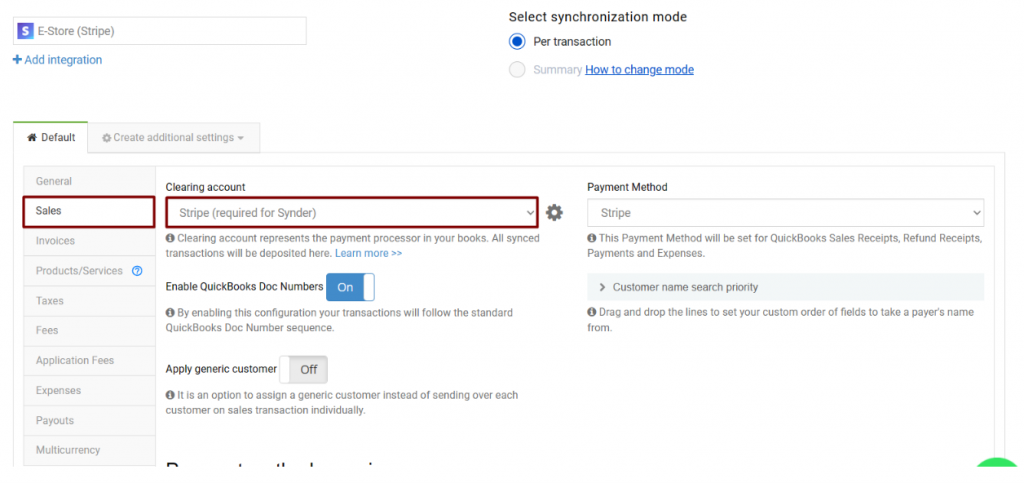
This is the point where the whole flow is decided. Once you’re in Synder, you connect your Stripe account and your QuickBooks Online company. It only takes a few clicks, but the way data starts moving after that is what really matters.
Synder pulls Stripe activity as it actually happens. Each payment, fee, refund, dispute, and payout comes through as its own event, not as a compressed total. So when a deposit later appears in QuickBooks, you’re not guessing what’s inside it. You can see exactly how that number was built.
Next, you’ll choose how detailed those Stripe entries should be once they land in your books.
2. Choose how Stripe transactions are synced
Once Stripe and QuickBooks Online are connected, you need to decide how Stripe activity should show up in the books. This isn’t a technical detail you set and forget, as it shapes how easy the books are to read and how much time reconciliation takes later.
Synder gives you two ways to sync Stripe data.
Per Transaction:
- Each Stripe payment is recorded separately in QuickBooks
- Processing fees, refunds, and chargebacks appear as their own entries
- Works well if you review activity often or rely on detailed transaction history
- Makes it easier to follow clearing account balances during the month
Summary Sync:
- Stripe activity is grouped into one entry per payout, day, week, month, or custom period
- Payments, fees, and refunds are still included, just combined
- A good fit when volume is high and detail isn’t reviewed daily
- Keeps the books lighter without losing financial accuracy
Once you’ve made that call, the next step is making sure Stripe money flows into the right accounts automatically.
3. Map Stripe payments, fees, and refunds to the right accounts
When Stripe data starts flowing in, QuickBooks needs to know exactly where each piece belongs. If that isn’t clear, income looks fine on the surface, but fees and refunds drift out of place.
In Synder, you set this logic once. Stripe payments go to the income accounts you actually use. Processing fees land in a dedicated expense account. Refunds and disputes follow the same path every time, so you’re not fixing them manually weeks after the fact.
Smart Rules help when Stripe activity isn’t all the same. You can route transactions based on currency, payment method, product, or other details passed from Stripe. This is especially useful if you sell through multiple channels or run more than one revenue stream through a single Stripe account.
4. Enable automatic syncing and keep Stripe data up-to-date
When automatic syncing is turned on, Stripe activity doesn’t pile up waiting for attention. Payments, fees, refunds, and disputes are recorded in QuickBooks as they occur, not days later when a payout lands.
This makes a difference during the month. Clearing account balances stay honest. Income and fees reflect what actually happened, even if the cash hasn’t reached the bank yet. If you open the books mid-month, you’re looking at real numbers, not partial ones.
Synder’s activity log also helps when something needs a closer look. You can open a QuickBooks entry and trace it back to the exact Stripe event that created it. That’s useful when volumes grow or when you’re reviewing older periods and need answers fast.
With syncing running in the background, the last thing to handle is payouts. That’s where Stripe combines everything, and where reconciliation either stays clean or starts to unravel.
5. Match Stripe payouts with bank deposits in QuickBooks
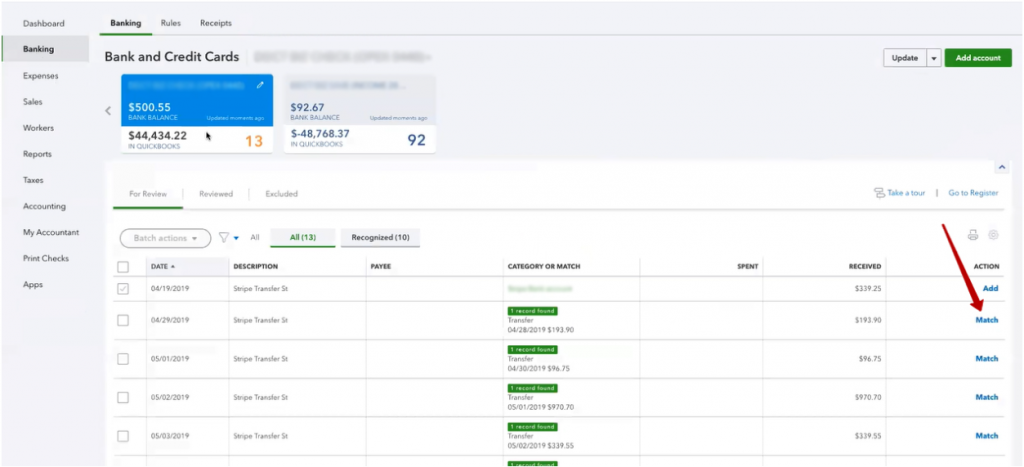
Payouts are usually where things get uncomfortable. You see a deposit hit the bank, open QuickBooks Online, and pause for a second because the number doesn’t match what you expected. That’s normal. Stripe payouts combine payments from different days, take fees out first, and fold in refunds or disputes along the way.
Synder takes that payout apart and puts it back together in a way QuickBooks understands. Each payout is built from the underlying Stripe activity and clears the Stripe balance in one go. When the bank deposit arrives, it lines up with that payout directly. As a result, you don’t need to split deposits or dig through Stripe reports to see what’s missing.
Once payout matches one bank deposit, and you can move on. If something doesn’t arrive on time or a transfer fails, it’s immediately visible and can be investigated individually, without disrupting reconciliation of other transactions.
How Synder uses clearing accounts for Stripe payouts
Earlier in the guide, the clearing account came up as part of payout reconciliation. This is where it’s worth slowing down for a moment and explaining what that actually means in practice.
Stripe payouts don’t move money in a straight line, and Synder doesn’t try to force them to. A clearing account acts as a short stop where Stripe activity can wait until the payout actually reaches the bank.
Here’s how it plays out:
- Stripe payments, fees, and refunds are first recorded to a Stripe clearing account.
- When a payout arrives, Synder moves the net amount from the clearing account to the bank in QuickBooks.
- After the payout, the clearing account settles, so nothing is left hanging.
This follows how Stripe sends money in real life, which is why reconciliation stays calm even when payouts combine activity from different days. For a closer look at how clearing accounts work, check out our dedicated article.
Tired of revisiting Stripe numbers after close? Try Synder for free or book a quick demo to see how Stripe payments, fees, and payouts stay connected in QuickBooks.
Conclusion: Stripe reconciliation you don’t have to babysit
When Stripe reconciliation is set up through Synder, it stops demanding attention. You’re not circling payouts, rechecking totals, or keeping notes about what still needs to be fixed later. You open QuickBooks and the Stripe numbers are already where you expect them to be.
That reliability is what Synder gives you over time. Month-end doesn’t depend on memory or cleanup work, and questions that come up later can be answered directly from the books. Stripe accounting becomes something you trust, not something you revisit.
FAQ
How do I reconcile Stripe payouts in QuickBooks Online?
To reconcile Stripe payouts in QuickBooks Online, each payout needs to match a single bank deposit and clear the Stripe balance correctly. With Synder, payouts are created from the underlying Stripe activity and matched directly to bank deposits, so reconciliation can be completed in one step.
What is the best Stripe QuickBooks integration for accurate reconciliation?
The best Stripe QuickBooks integration is one that records payments, fees, refunds, and payouts as connected entries. Stripe activity synced through Synder keeps these elements linked, which prevents mismatches between Stripe reports, QuickBooks balances, and bank deposits.
Can Stripe fees and refunds be recorded separately in QuickBooks?
Yes, Stripe fees and refunds can be recorded as separate entries in QuickBooks. This allows gross sales, processing fees, and refunds to stay clearly separated, making both reconciliation and financial reporting easier to review.
Does Synder support Per Transaction and Summary Sync for Stripe and QuickBooks?
Yes, Synder supports both Per Transaction sync and Summary Sync for Stripe QuickBooks integration. You can choose detailed entries for each payment or grouped totals for a day, month, or custom period, while payouts still reconcile cleanly in either setup.
Can I sync historical Stripe transactions into QuickBooks Online?
Yes, historical Stripe transactions can be synced into QuickBooks Online using Synder. This helps when catching up past periods, cleaning up older reconciliations, or reviewing Stripe activity from previous months or years.