.png)

The global buy now, pay later market is valued at $343.52 billion in 2025, which explains why installment payments now feel normal at checkout. For many Shopify stores, Klarna is the go-to option for offering that flexibility without taking on payment risk or cash-flow headaches.
This guide breaks down how to integrate Klarna with Shopify, which setup option to choose, and what to expect after Klarna goes live. You’ll also see how to handle payouts, fees, and reconciliation so Klarna stays a growth tool, not an accounting problem.
TL;DR
- Klarna lets Shopify customers split purchases into installments while merchants get paid upfront.
- Shopify stores can enable Klarna through Shopify Payments (most regions) or the Klarna Payments app (other regions).
- Klarna increases conversion rates and average order value, especially for higher-priced products.
- Klarna payouts arrive net of fees and refunds, which complicates manual accounting.
- Synder automates Klarna accounting by syncing payouts, fees, and refunds into QuickBooks, Xero, NetSuite, or Sage Intacct.
What is Klarna and how does it work?
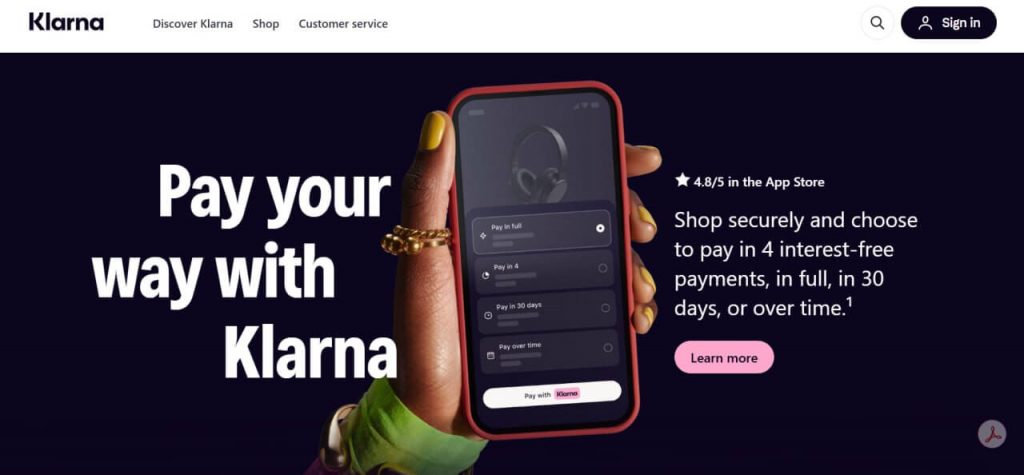
If a credit card asks customers to borrow money, Klarna asks them to split a purchase. In other words, Klarna is a buy now, pay later (BNPL) payment method that lets customers split purchases into installments while merchants get paid upfront.
At checkout, shoppers can choose to:
- Pay in full within 30 days (interest-free).
- Split the purchase into four equal biweekly payments.
- Finance larger orders over 6–24 months (interest applies).
Klarna makes real-time credit decisions during checkout, pays the merchant upfront, and collects installments directly from the customer. You don’t manage repayment schedules or customer credit risk.
For merchants, Klarna charges a transaction fee, typically around 3–6%, depending on volume and industry. Customers generally pay no fees if they pay on time; late fees may apply for missed payments.
Why Klarna works well for Shopify merchants
Klarna changes how customers evaluate price. Breaking a $200 purchase into four $50 payments lowers friction and reduces cart abandonment, especially for higher-priced items.
Key benefits for Shopify merchants:
- Higher average order value and improved conversion: Klarna reports a 40% increase in average order value and a 20% increase in conversion rates among companies using their services.
- Younger buyer appeal: Gen Z and millennials actively seek BNPL options and often prefer them over credit cards. During the 2024 holiday season, 54% of Gen Z used BNPL, surpassing credit card usage (50%) for the first time.
- No payment risk: Klarna assumes customer non-payment risk and pays you in full regardless of installment completion.
- Predictable cash flow: Funds are received upfront, even though customers pay over time, eliminating working capital gaps while still offering payment flexibility.
Klarna is particularly effective for Shopify stores selling fashion, electronics, furniture, and other higher-ticket or discretionary products.
How to integrate Klarna with Shopify step by step
Setting up Klarna on your Shopify store follows one of two paths, depending on your location. The process is straightforward, but the setup differs slightly by region.
Option 1: Shopify Payments (most regions)
This applies if your store is based in the United States, Canada, United Kingdom, Australia, New Zealand, or most European countries.
Steps:
- Go to Settings → Payments in your Shopify admin.
- Make sure Shopify Payments is active.
- Enable Klarna under Additional payment methods.
For eligible merchants, Klarna may be enabled automatically when Shopify Payments is activated. Once enabled, Klarna appears at checkout for customers in supported regions.
Option 2: Klarna Payments app (direct integration)
Some regions require a direct Klarna integration using the Klarna Payments app.
Steps:
- Log in to your Klarna Merchant Portal.
- Go to Integration guides.
- Select Shopify and click Install Klarna Shopify Application.
- Complete the installation in Shopify when redirected.
- Generate API credentials.
- Verify the integration.
- Activate Klarna in your Shopify checkout settings.
Testing the integration
After the setup:
- Add a product to your cart.
- Proceed to checkout.
- Confirm Klarna appears as a payment option (it won’t show if you’re logged into Shop Pay)
- Complete a test transaction to verify the payment flow.
Here’s a quick look at how these two Klarna integration options compare:
| Integration method | Best for | Separate Klarna account required |
| Shopify Payments | US, UK, Canada, Australia, most of Europe | No |
| Klarna Payments App | All other eligible regions | Yes |
Accounting note: Connecting Klarna and Shopify to your accounting software
Getting Klarna live in Shopify is only half the setup. The other half is recording Klarna transactions correctly in your accounting system.
Klarna payouts don’t arrive as clean gross sales. You receive net deposits (gross sales minus Klarna fees and any refunds), which makes manual reconciliation slow and error-prone. Proper ecommerce accounting requires accurate revenue categorization, fee tracking, and deposit matching.
Without automation, this usually means:
- Downloading Klarna settlement reports
- Manually entering data into QuickBooks or Xero
- Investigating differences when bank deposits don’t match expected revenue
How Synder handles Klarna transactions
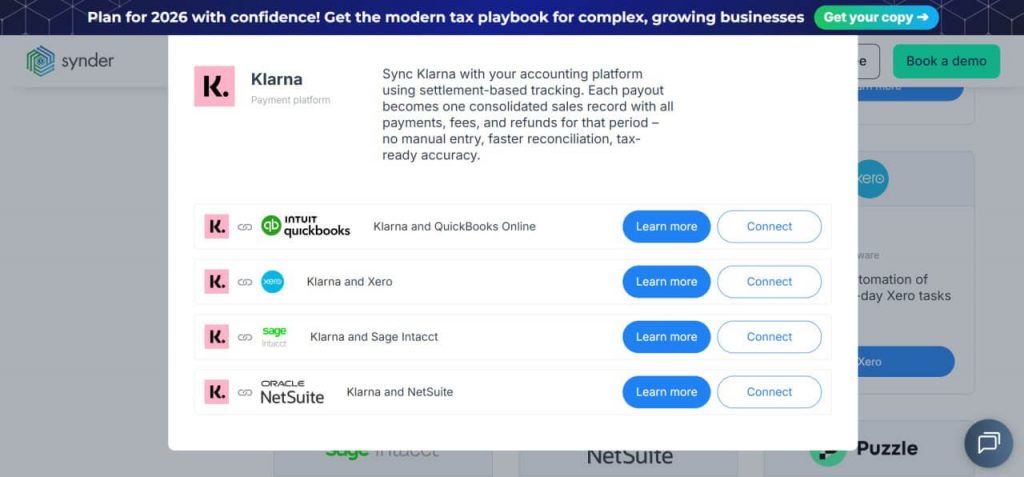
Synder automates Klarna accounting by connecting directly to your Klarna account and importing settlement payouts into QuickBooks, Xero, NetSuite, or Sage Intacct.
For each Klarna payout, Synder creates a detailed sales receipt in your accounting system that includes:
- Gross Klarna sales
- Refunds or returns affecting the payout
- Klarna processing fees
- The final deposit amount received in your bank
Each line item is categorized automatically: revenue is posted to sales accounts, fees to expense accounts, and the total is matched to the bank deposit.
This removes guesswork from revenue recognition. Instead of recording only net deposits, your profit and loss report reflects true gross revenue, with Klarna fees clearly separated as operating expenses. Bank reconciliation is faster because deposits already match.
For merchants selling across multiple platforms, Synder also syncs transactions from Shopify, Amazon, and other sales channels into the same accounting system, giving you a unified, year-round view of your business.
Why Shopify merchants choose Synder
For Shopify stores using Klarna and other payment processors, Synder replaces daily manual reconciliation with automated sync.
What businesses get in practice:
- Time savings: Merchants report 10–15 hours saved per month by eliminating CSV downloads and manual entry from Shopify, Klarna, PayPal, and other platforms. For a business, that might be $1,000–$1,500 in monthly value recovered.
- Higher accuracy: Manual entry error rates are removed, reducing month-end discrepancies and cleanup.
- Multi-channel clarity: Sales from Shopify, Faire, PayPal, and other channels sync into one system, making it easier to compare profitability after fees.
- Fee visibility: Klarna fees, Shopify fees, and gateway charges are automatically categorized as expenses, improving pricing and margin analysis.
- Faster bank reconciliation: Deposits match automatically, turning reconciliation from hours into minutes.
In a nutshell, Synder enables merchants managing multiple channels and payment methods, to keep books accurate without adding operational overhead.
Ready to stop manually reconciling Klarna payouts? Try Synder free for 15 days to see how automation handles multi-channel accounting, or book a demo to discuss your specific Shopify setup with our team.
Common Klarna Shopify integration issues and best practices
Most Klarna setup issues on Shopify fall into a few predictable categories. Here’s how to identify them and what to check.
- Problem: Klarna doesn’t appear at checkout
Best practice: Confirm Shopify Payments is fully verified and your store location matches a Klarna-supported country. Check Settings → Payments and verify your business address. - Problem: Klarna shows for some products but not others
Best practice: Make sure product prices fall within Klarna’s transaction limits for your region. In the US, Klarna typically supports orders between $35 and $10,000. - Problem: Klarna fees are higher than expected
Best practice: Review your merchant services agreement. Fees vary by industry, average order value, and monthly volume, with new merchants often starting at higher rates. - Problem: Customers can’t complete Klarna checkout
Best practice: Keep alternative payment methods visible. Klarna’s credit decisions are handled internally and can’t be overridden by merchants. - Problem: Klarna transactions are difficult to reconcile in accounting
Best practice: Automate your accounting workflow so Klarna payouts, fees, and refunds sync directly into your accounting system. For merchants using Synder, Klarna transactions flow alongside other payment methods without manual entry.
Alternatives to Klarna for Shopify
While Klarna is popular, several other buy now, pay later providers integrate with Shopify through similar processes. Afterpay and Affirm are the primary alternatives, both offering installment payment options that work through Shopify Payments or standalone integrations.
Afterpay focuses specifically on the four-installment model with no interest charges. It’s particularly popular with fashion and beauty brands targeting younger customers. The service is available in the United States, Canada, United Kingdom, Australia, and New Zealand.
Affirm offers more flexibility with financing options ranging from four interest-free payments to 36-month installment plans with interest. It works well for higher-priced items and provides more financing options for customers with varying credit situations. Affirm integrates directly with Shopify through a dedicated app.
PayPal Pay Later is another option that many Shopify merchants already have access to through their existing PayPal integration. It offers similar pay-in-4 functionality and may be convenient if you’re already processing PayPal payments.
The choice between providers often comes down to your target market, average order value, and which service has better brand recognition among your customers.
Conclusion: Klarna works best when the full workflow is in place
Integrating Klarna with Shopify gives merchants a proven way to reduce checkout friction, increase average order value, and reach customers who prefer installment payments. The technical setup is straightforward, whether Klarna is enabled through Shopify Payments or through a direct integration.
A complete setup goes beyond checkout. Klarna payouts arrive net of fees and refunds, which requires accurate tracking to keep books clean and reconciliation fast. Using Synder alongside Klarna ensures transactions, fees, and deposits sync automatically into your accounting system, even as order volume increases.
When Klarna, Shopify, and Synder work together, payment flexibility at checkout is supported by reliable, scalable accounting behind the scenes.
FAQ
How do I integrate Klarna into my website if I’m not on Shopify?
If you’re using a different ecommerce platform, Klarna offers direct merchant integrations and APIs. Visit Klarna’s merchant portal to apply for a dedicated account. You’ll complete a business verification process and receive integration credentials to add to your website’s checkout. Most major platforms like WooCommerce, Magento, and BigCommerce have Klarna plugins available, while custom websites can use Klarna’s REST API for integration.
How do I add Afterpay and Klarna to Shopify?
Both services integrate through Shopify Payments’ accelerated checkout section. Go to Settings > Payments, ensure Shopify Payments is active, then scroll to Additional payment methods. Enable both Afterpay and Klarna from the available options. Keep in mind that offering multiple buy now, pay later services may split your transaction volume and affect the preferential rates you receive from each provider.
How much does Shopify take from a $100 sale when using Klarna?
Shopify’s transaction fees depend on your plan (2.9% + 30¢ for Basic Shopify on online sales). Klarna adds its own merchant service fee of approximately 3-6% on top of that. So a $100 sale might incur $2.90 + $0.30 in Shopify fees plus $3-6 in Klarna fees, resulting in total payment processing costs of roughly $6.20-9.20, leaving you with $90.80-93.80. Exact fees vary based on your plan, sales volume, and merchant agreement terms.
Does Klarna work with Shopify POS for in-store payments?
No, Klarna isn’t currently available through Shopify POS for in-person transactions at physical retail locations. The integration only works for online checkout through your Shopify web store. If you need buy now, pay later options for brick-and-mortar sales, you’d need to explore Klarna’s standalone POS solutions or alternative providers that specifically support in-store installment payments.
Can I offer Klarna only on certain products or collections?
No, Shopify doesn’t provide built-in controls to show Klarna selectively by product or collection. Once activated, Klarna appears at checkout for all eligible transactions within the supported price range. If you need more granular control, you’d need custom development or apps that modify your checkout experience, though this level of customization may not be supported through Shopify’s standard integration.
Is Klarna part of Shopify Payments?
Yes, Klarna is integrated within Shopify Payments as an accelerated checkout option. You can’t add Klarna separately as it requires Shopify Payments to be active. If you use third-party processors like Authorize.net, you’ll need to switch to Shopify Payments first.