

Synder’s Excel import feature lets you import transaction data directly into QuickBooks or Xero. Use it when a payment or sales platform does not integrate directly with your accounting software. Instead of manual data entry, Excel acts as a bridge between your systems.
- Adding an Excel import option to your Synder profile
- Import Excel to QuickBooks or Xero
- How to fill the import template with your data
- Importing transfers (payouts)
- Useful tips on Excel bulk import to accounting software
What problem does this solve
Specifically, this feature addresses the following issues:
- No direct integration between certain payment platforms and accounting software (QuickBooks or Xero)
- Difficulty importing large volumes of historical transaction data manually
- Fragmented financial data across multiple tools
Adding an Excel import option to your Synder profile
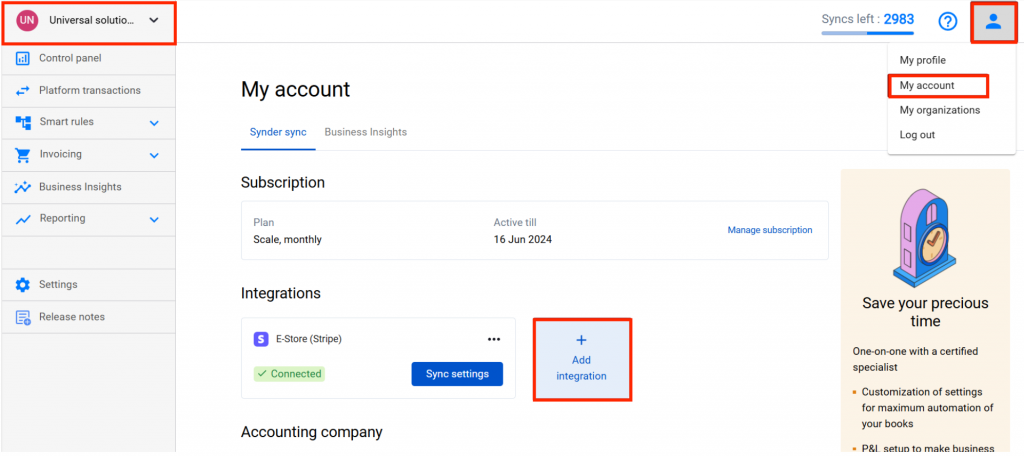
Step 1: Switch to the required organization in the top-left corner of the Synder page. Click the Person icon in the upper-right corner and select Organization settings. In the Integrations section, click Add integration.
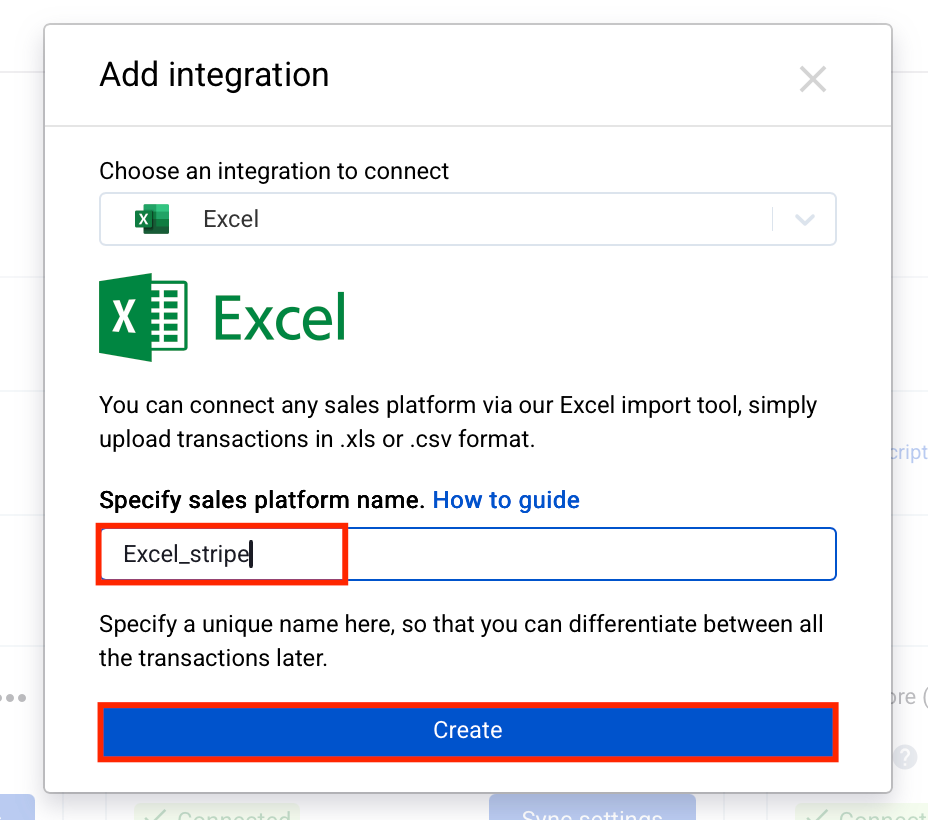
Step 2: Select Excel in the Add integration dropdown. Enter the provider name for Excel. Click Create.
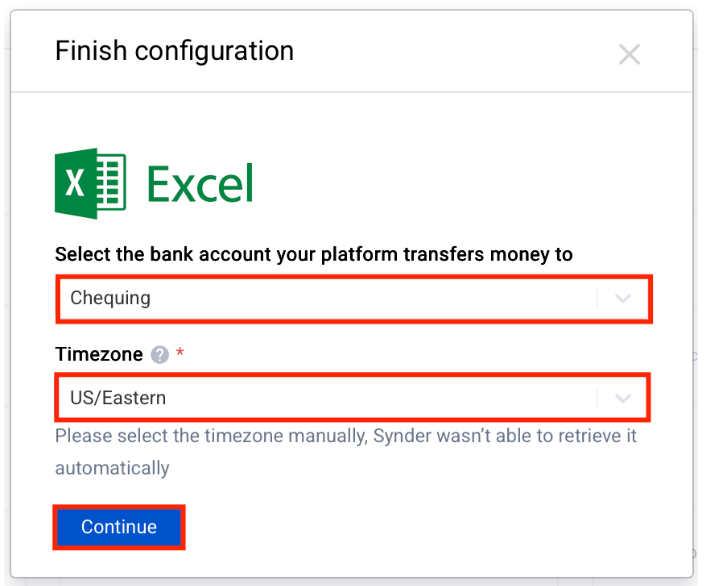
Step 3: Find the newly added integration and click Finish configuration. Select an account for payouts, then set the timezone. Click Continue to complete the setup.
Import Excel to QuickBooks or Xero
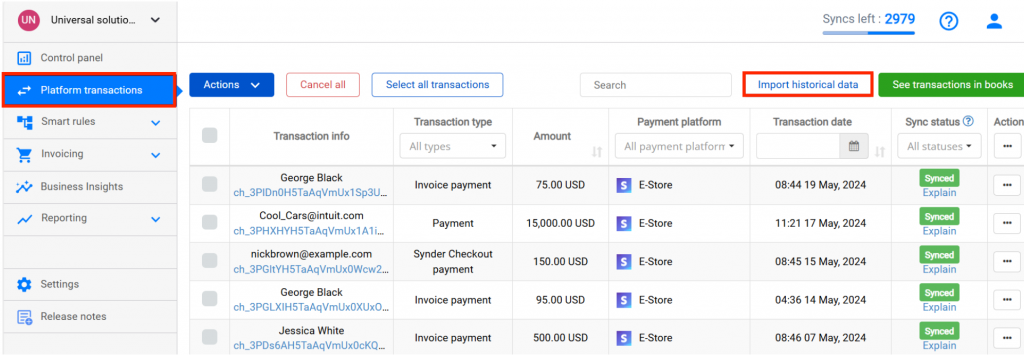
Step 1: Go to the Platform transactions tab and click Import historical data.
Step 2: Next, under Select integrations you would like to import data from, select All. Click Import next to Import Excel spreadsheet.
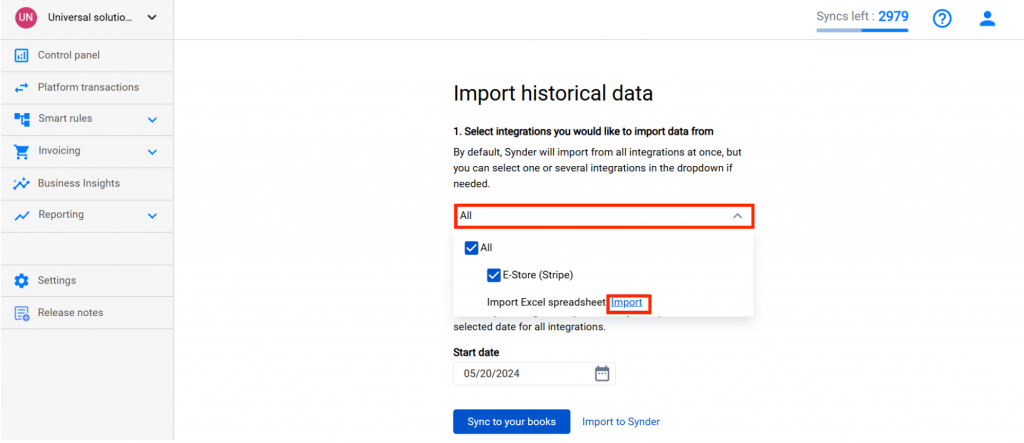
Step 3: Click Download template. Download the file and populate it with data exported from the unsupported payment processor.
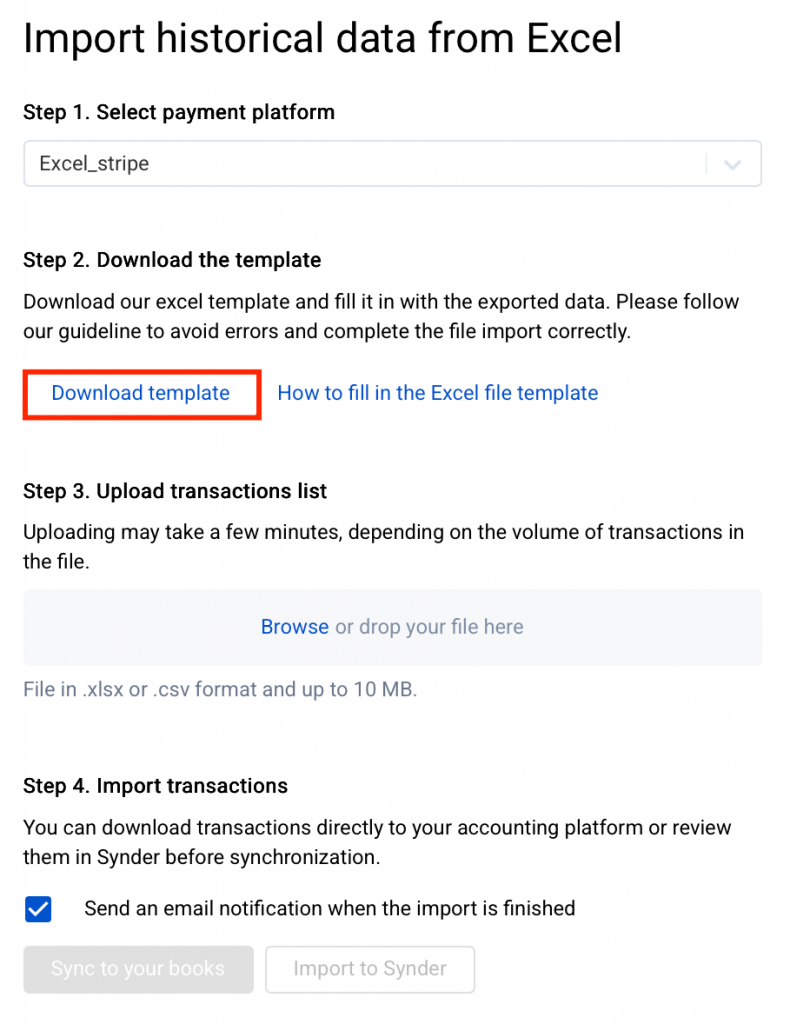
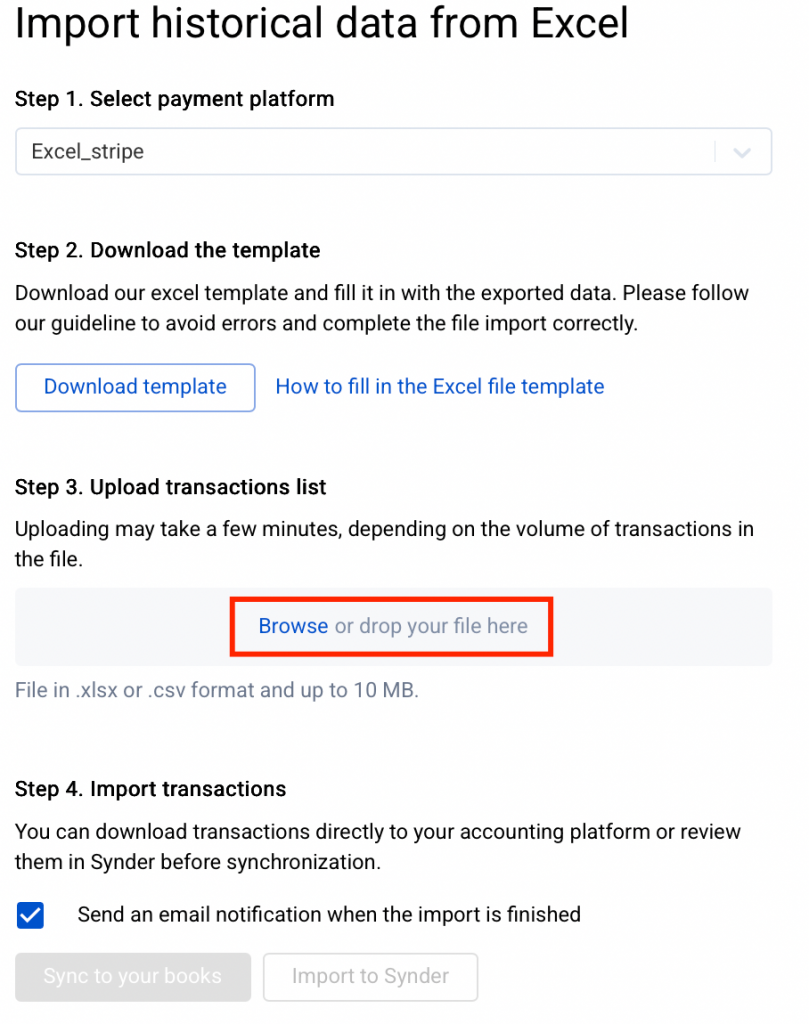
Step 4: Click Browse to upload the completed Excel file from your computer. Use the file after filling in the template. Once the template is completed, upload it to QuickBooks or Xero.
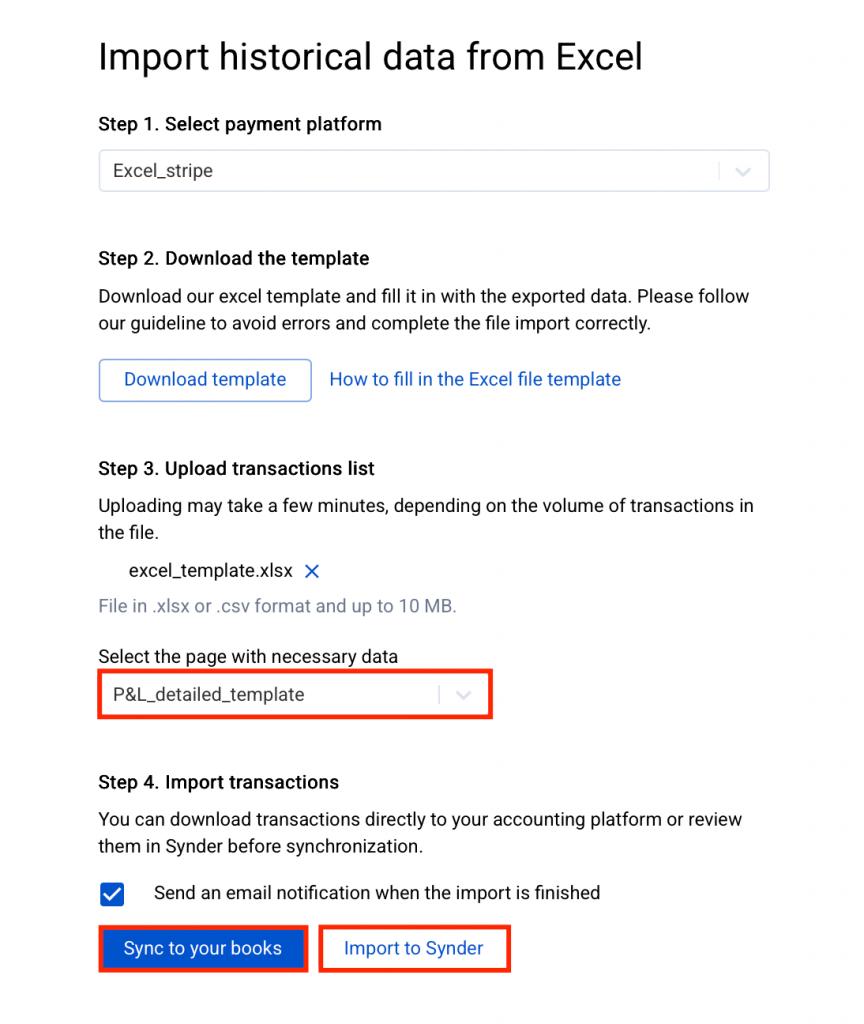
Step 5: After uploading the file, select the sheet containing the required data. Two options are available:
- Select Import to Synder to import transactions from the spreadsheet into Synder before syncing them to the accounting platform.
- Select Sync to your books to upload transactions directly from the Excel file to the accounting system without prior confirmation.
Finally, you can optionally enable Send an email notification when the import is finished.
How to fill the import template with your data
The template supports five transaction types that can be synced to QuickBooks or Xero. Therefore, ensure that transaction type names match exactly before importing.
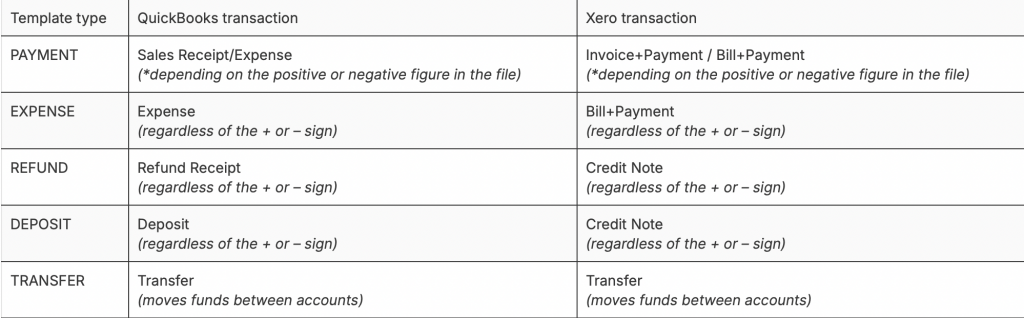
Useful notes:
- Note that required fields are marked with *; fill them in before the import.
- The “Number” column will be synced to your accounting as the reference number of the transaction.
- The “Transaction ID” field is used to join several product lines to a single transaction. For instance, you can use the order number and paste it to several lines in a row to make sure the app knows these lines compose a single order.
- If you specify a value in the “Fee amount” column in addition to the sale amount, the app will create both income and expense transactions during the synchronization (for example, Sales Receipt for total sale amount and Expense for fee amount)
- If you fill in the amount, you should specify the currency for that amount (like if you specify the “Fee Amount” field, then fill in the “Fee Currency” field)
- If you leave the “Exchange rate” field blank and the currency differs from your home currency, an exchange rate will be automatically assigned by your accounting platform based on the date of the transaction. The exchange rate will be sourced from your accounting platform

Importing transfers (payouts)
To import a transfer or payout, use “TRANSFER” as the transaction type. Synder then creates a transfer that moves funds between two accounts in your books.
Specifically, here is how Synder determines the accounts:
- The “From” account is the clearing account associated with your Excel integration.
- The “To” account is the payout account you selected during the Excel integration setup (Step 3 of the connection guide above, in the “Adding Excel Import option to your Synder profile” section).
- If you need to change these accounts, go to the Settings → Excel integration → Payouts.
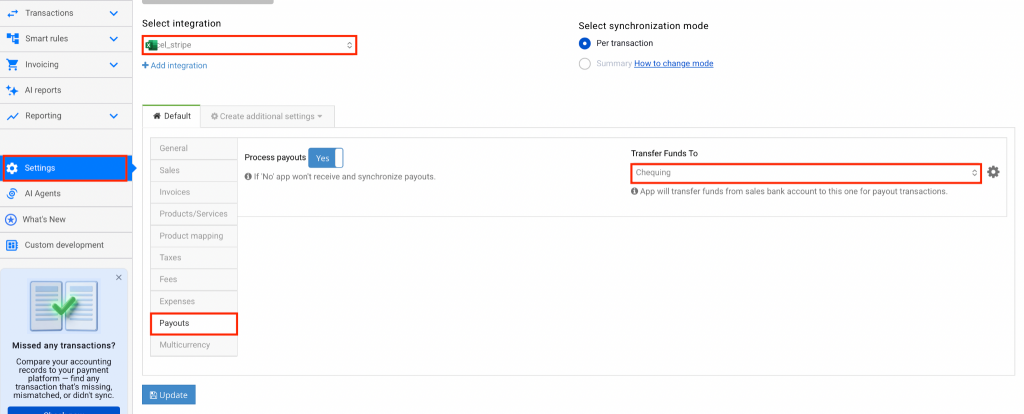
Required fields:
- Transaction ID
- Type (set to TRANSFER)
- Gross Total
- Currency
- Date
- Person Name (e.g., the payment processor name like “Stripe”)
Optional fields:
- Fee Amount, Fee Currency, Fee Description — to record processing fees alongside the transfer
- Line Amount, Line Quantity, Line Unit Price, Line Description
Example:
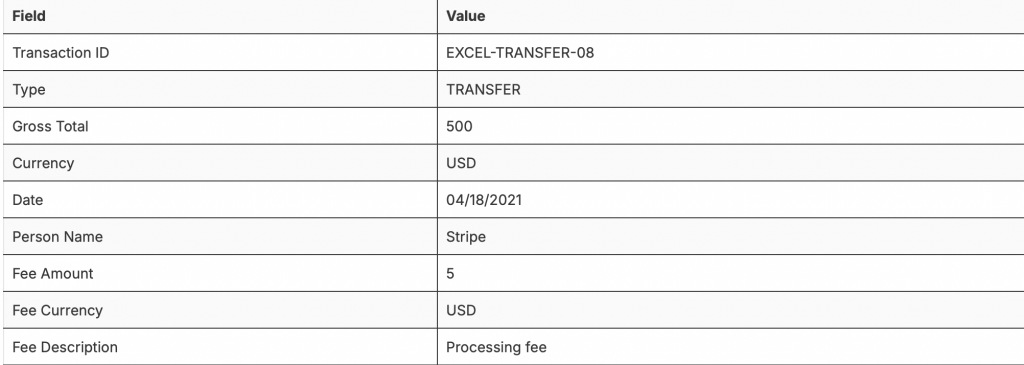
Note: Unlike other transaction types, the Number field is not required for transfers.
Useful tips on Excel bulk import to accounting software
Note 1: Closing or reloading the page does not interrupt the upload. Instead, the upload continues in the background.
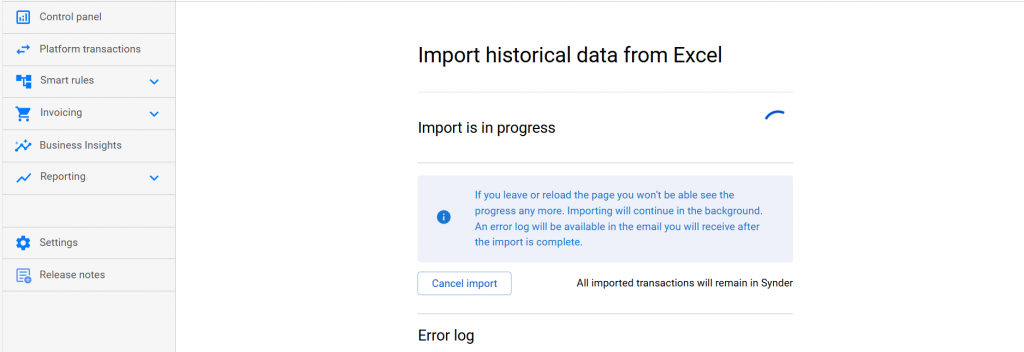
Note 2: Check transactions in the transaction list in Synder. Manage synchronization as usual.
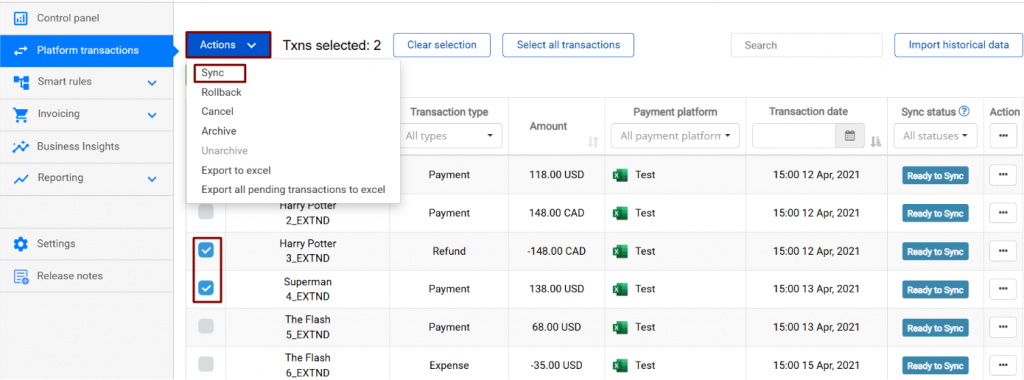
Note 3: Synder skips transactions with duplicate “Transaction ID” values. However, if you need to re-import the same transactions with different settings, follow these steps:
- Archive unneeded transactions from Synder (select them → click Actions → select Archive)
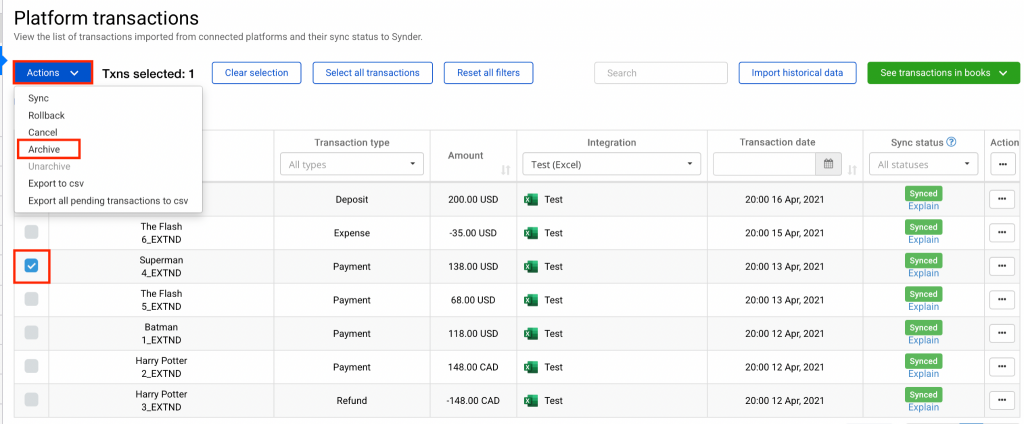
- Open your Excel file and change the Transaction ID to a value not previously used
- Follow the steps described above in this guide to import the file again
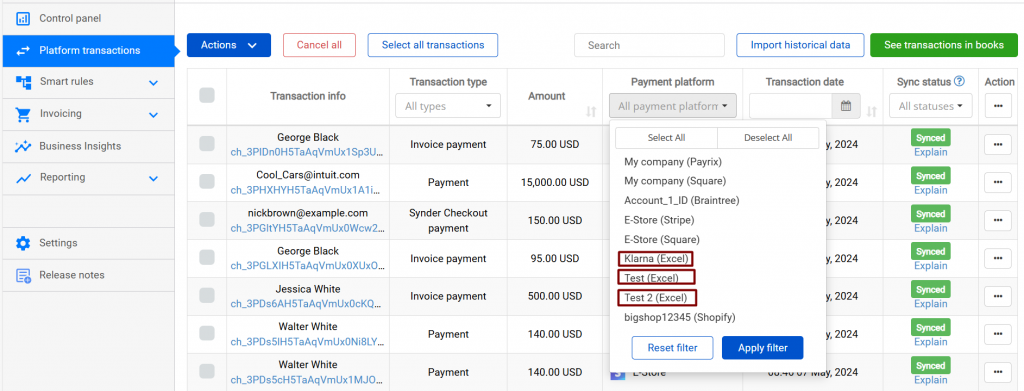
Note 4: You can also connect Excel multiple times if you have several unsupported platforms. Furthermore, each connection can be differentiated and configured separately.
Reach out to the Synder Team via online support chat, phone, or email with any questions you have – we’re always happy to help you!

Quáổn, cảm ơn synder.com nhiều nhiều nha
Hello, thank you so much for your feedback. We really appreciate it!
Magnificent website. Lots of helpful info here. I am sending it to a few buddies
ans also sharing in delicious. And obviously, thanks on your effort!
Hello, thank you for your kind words! We’re glad you find the info helpful. Thanks for sharing it with your friends. If you have any questions, feel free to reach out!