

- What “Scheduled” means
- How QuickBooks Desktop auto-sync works
- What to check first
- How to confirm it worked
- If transactions are still Scheduled
- If the Synder Connector does not open, shows a blank screen, or displays an invalid access key
- If Auto-sync is turned off or the connection shows “Disconnected” / “Connection lost”
- If QuickBooks Desktop needs to be reconnected to the Synder Connector
- Still need help?
This article explains why QuickBooks Desktop transactions may stay in the “Scheduled” status in Synder. Read it before reconnecting or reinstalling anything.
Use this article if your QuickBooks Desktop transactions are stuck in the sync queue instead of moving to “Synced.”
This article applies only to QuickBooks Desktop sync through the Synder Connector. It does not cover QuickBooks Online, Xero, transactions that already show an error/failed status, or first-time QuickBooks Desktop connection setup.
What “Scheduled” means
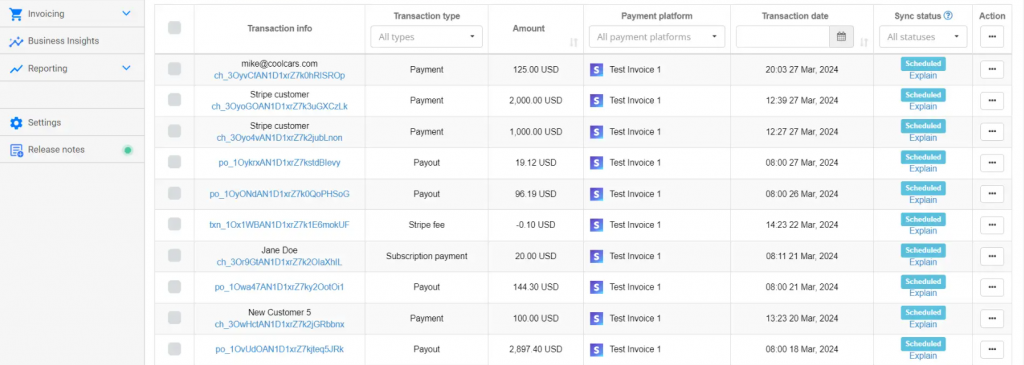
The “Scheduled” status means transactions are already in the sync queue, waiting for the Synder Connector to process them.
With QuickBooks Desktop, auto-sync works differently than QuickBooks Online or Xero. QuickBooks Desktop is installed locally on your computer or server, so Synder cannot send transactions directly to your accounting system.
Instead, Synder uses the Synder Connector app to pass transactions to your open QuickBooks Desktop company file.
As a result, the Synder Connector can only process transactions when the required apps are running and a stable connection is available.
How QuickBooks Desktop auto-sync works
The Synder Connector checks whether there are transactions waiting to be synced and sends them to QuickBooks Desktop.
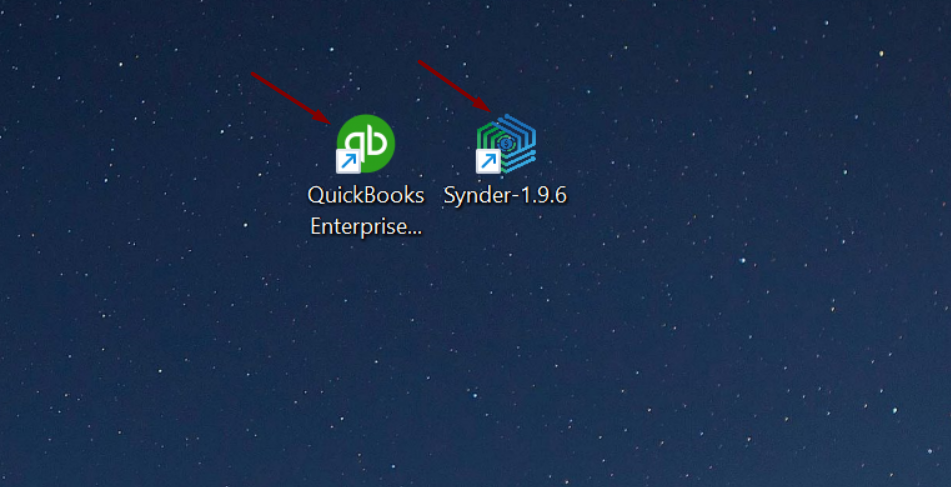
The Synder Connector processes transactions one by one. Therefore, QuickBooks Desktop sync may take longer than QuickBooks Online or Xero, especially when syncing a large batch of transactions.
For better performance, we recommend syncing transactions in batches of 100–200.
What to check first
Before reconnecting or reinstalling anything, check the local QuickBooks Desktop sync setup:
- Open the QuickBooks Desktop company file you connected to Synder.
- Open the Synder Connector app.
- Open Synder in your browser.
- Make sure your computer or server stays awake during synchronization.
- Check that your internet connection is stable.
- Make sure antivirus or firewall software is not blocking the Synder Connector.
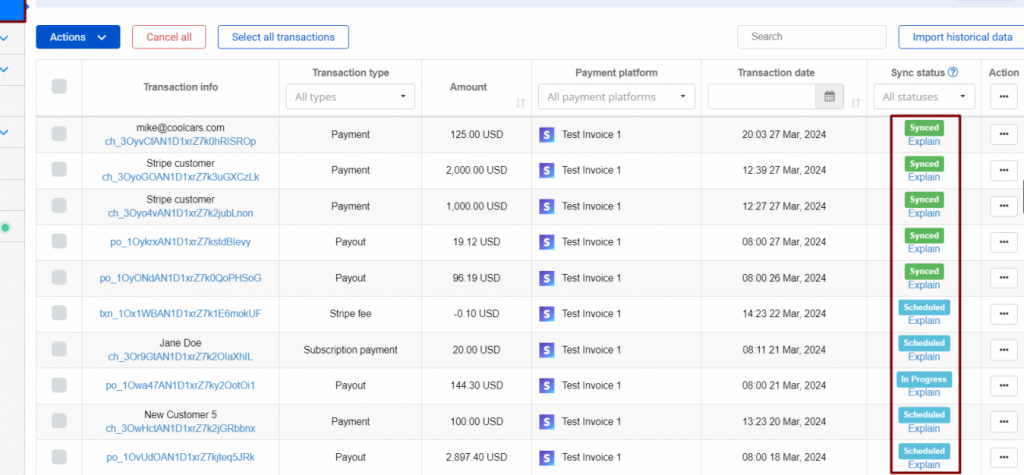
- Refresh the Platform Transactions page and check whether transactions start moving from “Scheduled” to “Synced.”
How to confirm it worked
The fix is working when transactions start moving from “Scheduled” to “Synced” and the sync queue continues processing.
If transactions are still Scheduled
Still, if transactions remain “Scheduled” after the checks above, use the guide that matches your case.
If the Synder Connector does not open, shows a blank screen, or displays an invalid access key
Follow this guide: Quick Fix Guide: Troubleshooting Your QuickBooks Desktop Connector
It covers Connector-specific issues: launch problems, blank screens, invalid access key errors, administrator mode, antivirus interference, and reinstallation.
If Auto-sync is turned off or the connection shows “Disconnected” / “Connection lost”
Follow this guide: What Should I Do if Auto-Sync Gets Disabled?
Use it to check whether Auto-sync was disabled, your accounting company was disconnected, or Auto-sync needs to be re-enabled.
If QuickBooks Desktop needs to be reconnected to the Synder Connector
Follow this guide: How to Connect QuickBooks Desktop to Synder Connector
Use it to reconnect QuickBooks Desktop to Synder, activate the Connector with the access key, and complete the reconnection flow.
After reconnecting, return to Platform Transactions and sync a few transactions to test the connection. If successful, continue syncing the remaining transactions in batches of 100–200.
Still need help?
If transactions remain “Scheduled” after you complete the checks and follow the matching guides, contact the Synder Support Team.
To help us investigate faster, please include:
- the QuickBooks Desktop company file name;
- whether the Synder Connector is open;
- whether Synder is open in your browser;
- any Connector error message you see.
Reach out to the Synder Team via email with any questions you have — we’re always happy to help you!
