

- Set up Smart Rules for your Journal Entries
- Step 1: Open Smart Rules
- Step 2: Select Journal Entry as a trigger
- Step 3: Add Condition (Trigger)
- Step 4: Set Action
- Step 5: Save and Test
- Troubleshooting
- If the rule does not apply
- If you are on the Pro plan, rules might be locked off
- Useful Material
This guide shows how to automatically apply Class, Location, or change Accounts on Journal Entries created by Revenue Recognition in per-transaction (PT) mode using Smart Rules.
Use this when recognized revenue must appear correctly on your Profit & Loss by Class or Location report.
This article applies only to QuickBooks Online users using Per-Transaction mode
If you use Summary mode, use Mapping Groups instead.
Use this guide if:
- You use Revenue Recognition in Per-Transaction (PT) mode
- Synder creates Journal Entries (JEs) in QuickBooks Online
- You need revenue split by Class or Location
- You want this applied automatically
Important:
- Smart Rules apply to all synced Journal Entries that meet the rule condition
- Rules work at the line level only
After successfully running this setup:
- Each Revenue Recognition Journal Entry line will automatically:
- Apply the correct Class
- Apply the correct Location
- Or change the Account
- Revenue will appear correctly on Profit & Loss by Class/Location
Set up Smart Rules for your Journal Entries
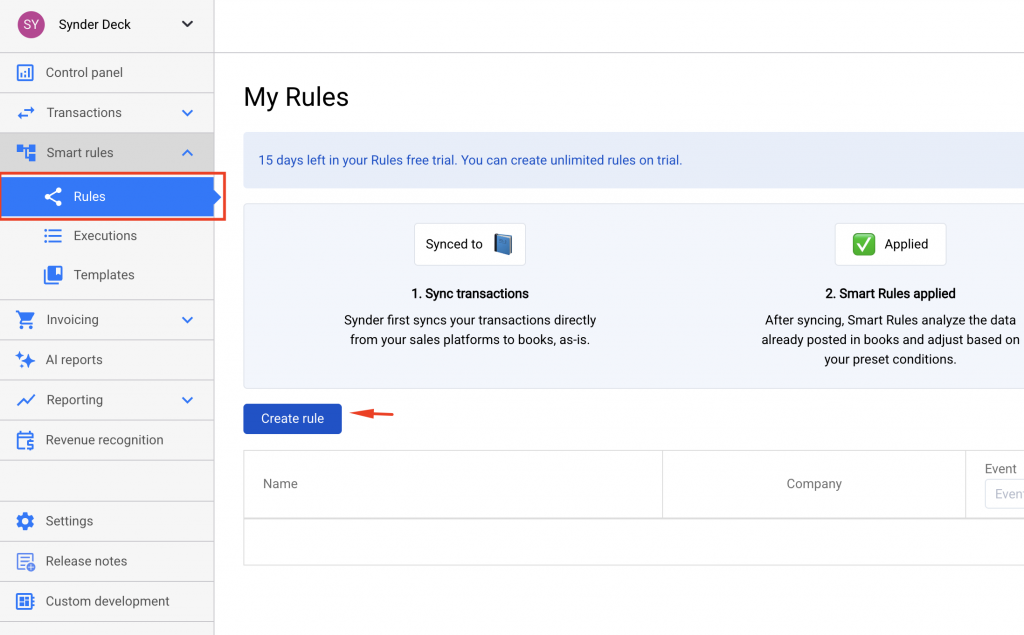
Step 1: Open Smart Rules
Go to Smart Rules and click Create rule
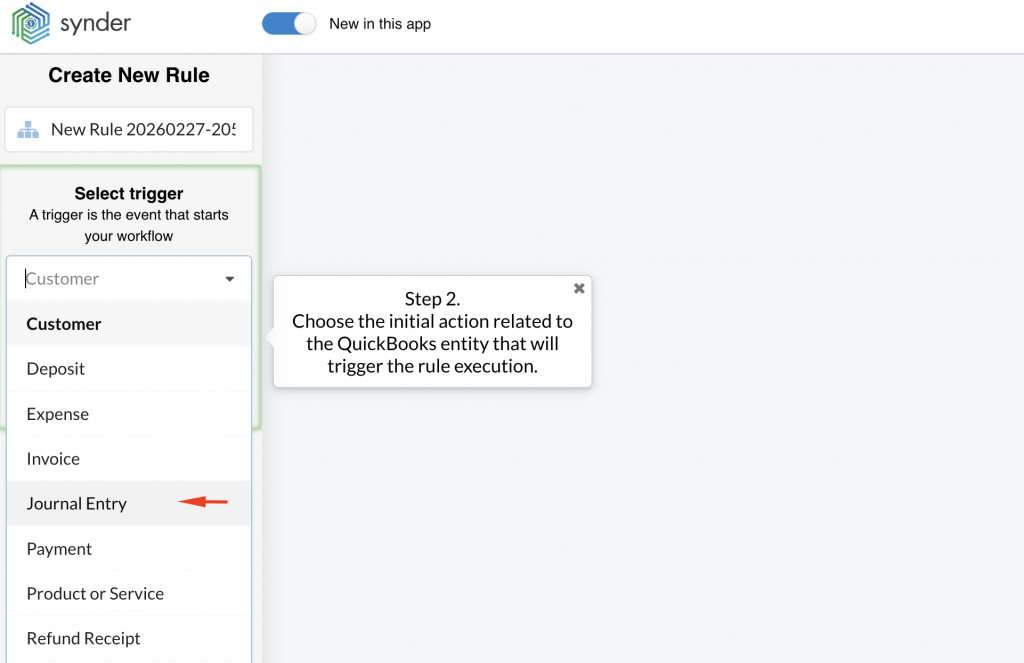
Step 2: Select Journal Entry as a trigger
Choose Journal Entry as the transaction type for the trigger
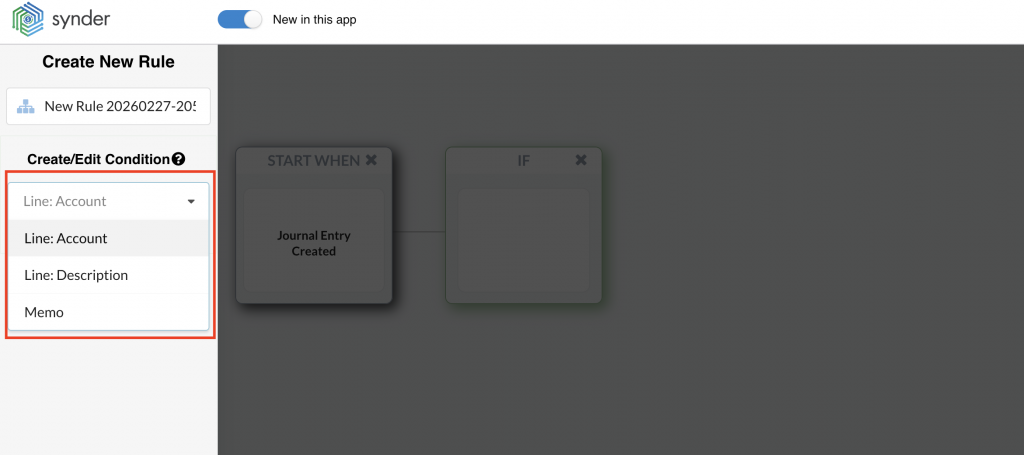
Step 3: Add Condition (Trigger)
You can use these line-level fields:
- Line Account
- Line Description
- Memo field (field name may vary in QBO)
Example conditions:
- Line Description contains “Subscription A”
- Line Account equals “Subscription Income”
- The memo contains “product name”
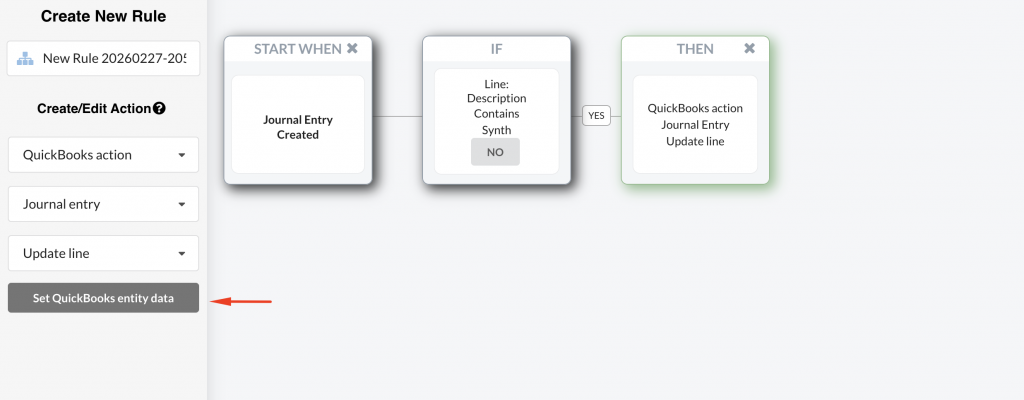
Step 4: Set Action
Choose what should happen when the condition matches:
- Apply Class
- Apply Location
- Change Account
Select the correct value.
You can set multiple condition and action combinations in the same rule for different lines in the Journal Entry
Step 5: Save and Test
- Save the rule.
- Run Revenue Recognition in PT mode.
- Open the created Journal Entry in QBO.
- Confirm the correct Class/Location appears on the relevant line.
Troubleshooting
If the rule does not apply
- Go to Smart Rules → Executions
- Find the Journal Entry
- Confirm:
- The condition matches the actual JE line
- The correct transaction type (Journal Entry) was selected
- The rule is active
If the execution shows “Not matched,” review the exact wording in:
- Line Description
- Line Account
- Memo field
Conditions must match the JE exactly.
If you are on the Pro plan, rules might be locked off
You cannot edit Smart Rules directly.
Send a request to:
Include:
- Example Journal Entry (screenshot or details)
- Exact condition (e.g., product name in description)
- What Class/Location should apply
Useful Material
- Synder RevRec – Per Transactions Sync
- How to use Mapping Groups in Summary mode
- How Smart Rules work in Synder
Reach out to Synder Team via online support chat or email with any questions you have – we are always happy to help you!
