

This guide helps you resolve Square payments stuck in a pending status in Synder. If your Square orders show as pending, follow the steps below to fix them and keep your books accurate.
What This Article Does Not Cover
This guide does not cover:
- How to reconcile already synced transactions in Synder.
- Issues unrelated to order status (e.g., failed payments, refunds).
- Advanced Square or Synder features outside of order completion and syncing.
Why Payments Appear as Pending in Synder
Synder only syncs Square payments when the order status in Square is completed.
- If an order in Square is open, new, or not completed, Synder imports it as pending.
- This is by design. Pending orders can still change or get deleted in Square. Synder waits for the final status to keep your accounting records accurate.
How to Resolve Pending Square Payments
To move pending orders to completed and sync them properly, follow these steps:
Step 1: Find the pending order
- Open Synder and look for the order marked as pending.
- In Square, this same order will show an open, new, or other non-completed status.

Step 2: Log into Square
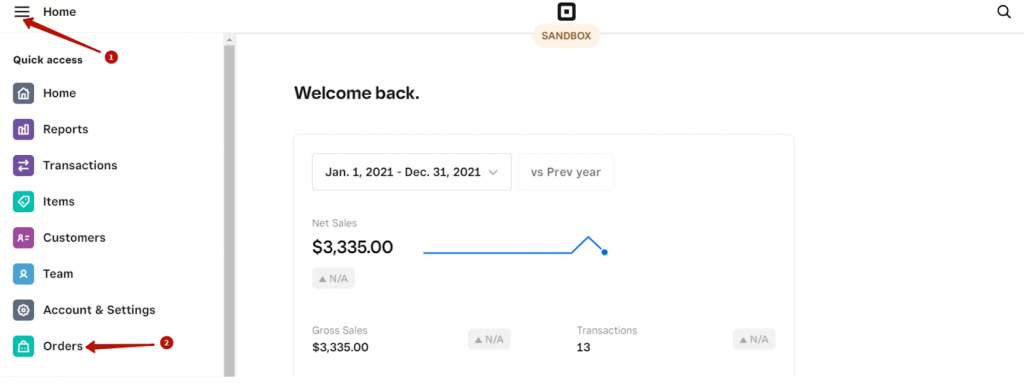
- Go to your Square account. Select Orders from the left-hand menu.
Step 3: Complete the order
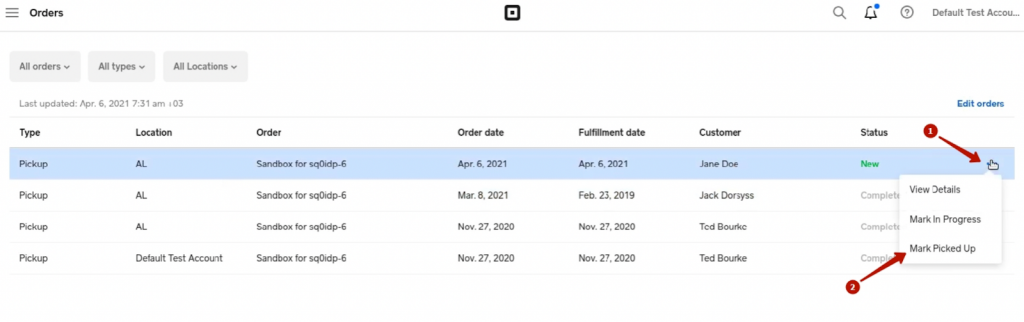
- Click the three dots next to the order.
- Select Mark Picked Up.
- The order status in Square changes to Completed.
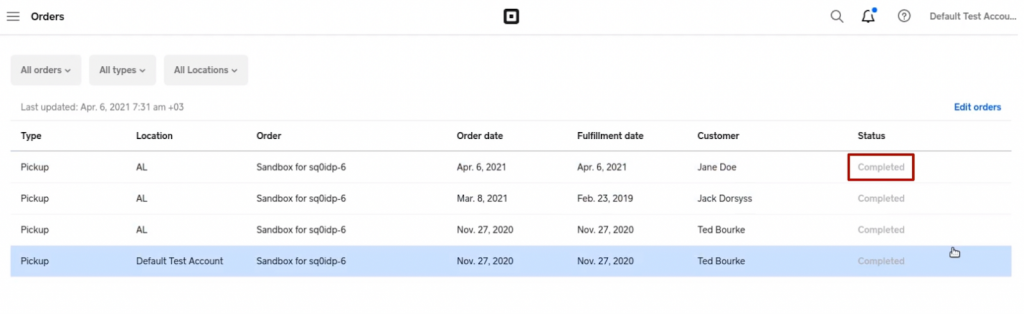
Once the order is marked as Completed in Square:
- If Auto-sync is enabled in Synder, the pending payment syncs automatically.
- If Auto-sync is off, go to Import Historical Data in Synder and run a manual import.
Don’t worry — any transactions already in Synder won’t be duplicated during this process.
Reach out to the Synder team via online support chat, phone, or email with any questions you have – we’re always happy to help you!
