

Every recognition schedule in Synder RevRec has to start on some date. That first day decides which month your revenue begins releasing from Deferred Revenue into income. The Schedule start date setting is where you choose that date, and Synder gives you two ways to set it: Invoice date or Payment date.
However, the two aren’t interchangeable. Your choice depends on how you handle open (unpaid) invoices, and on whether you recognize revenue on an accrual or a cash basis. Pick the wrong one for your setup, and your Synder numbers won’t match your QuickBooks reports. So this guide explains the difference, shows exactly how each option behaves, and tells you which one to use for your workflow.
What you’ll find in this guide
- What the Schedule start date setting controls
- Schedule start date options: Invoice date vs Payment date
- Schedule start date example: Invoice date vs Payment date
- Which Schedule start date should you choose?
- Schedule start date vs RevRec start date — don’t confuse them
- Important notes
- Related revenue recognition settings guides
- FAQ
What the Schedule start date setting controls
You’ll find Schedule start date in your Revenue Recognition configuration. In short, it tells Synder which date a subscription’s recognition schedule should begin from:
- Invoice date — the schedule starts on the date Stripe created the invoice.
- Payment date — the schedule starts on the date the customer paid the invoice.
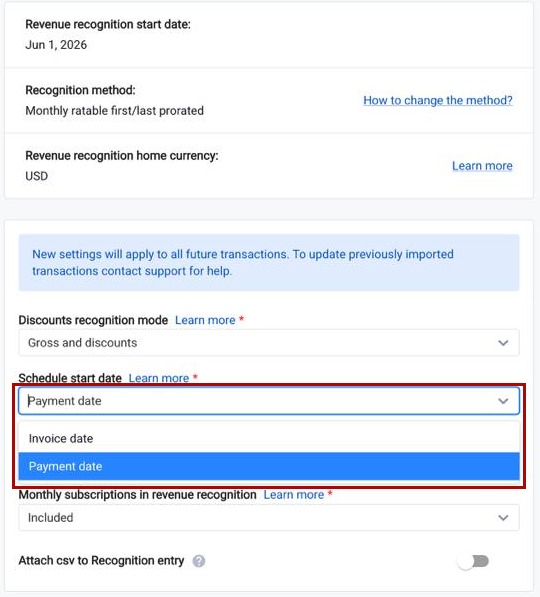
This is a foundational setting. Because revenue recognition leans heavily on historical data, the Synder Team usually sets your Schedule start date once during your RevRec setup, based on your preferences. It also works hand-in-hand with the Sync open invoices setting in your Synder settings. Changing it later means restarting the setup and re-syncing, so it pays to get this right the first time.
Schedule start date options: Invoice date vs Payment date
Invoice date
Here, Synder starts recognition as soon as you issue the invoice, whether or not the customer has paid. In other words, this is the accrual approach.
- Revenue begins releasing from the invoice date, following the subscription’s service period.
- Synder recognizes open invoices too. It treats an open invoice as if the customer will pay, and it tracks Accounts Receivable. Then, if you later void the invoice or mark it uncollectible, Synder writes off any revenue it already recognized to Bad Debt.
- Pairs with Sync open invoices = ON. You also pick a Bad Debt account in your Synder settings.
Payment date
Here, Synder starts recognition only after the customer pays the invoice. In other words, this is the cash-collected approach.
- While an invoice stays open, Synder recognizes nothing and creates no journal entries. Once the payment lands, the schedule begins from the payment date.
- Synder simply doesn’t sync unpaid invoices. As a result, voided or uncollectible invoices never touch your books, and you have no Bad Debt to manage.
- Pairs with Sync open invoices = OFF.
Schedule start date example: Invoice date vs Payment date
Say you create a 3-month subscription for $300 ($100/month). Stripe creates the invoice in December, but the customer’s payment goes through in January. Here’s how each setting recognizes the revenue:
| Month | Invoice date method | Payment date method |
|---|---|---|
| December | $100 recognized | $0 (invoice still unpaid) |
| January | $100 recognized | $200 (December + January, once paid) |
| February | $100 recognized | $100 recognized |
Either way, you recognize the full $300. The difference is when, and from which starting month. Invoice date spreads it evenly from December, while Payment date holds everything until the January payment and then catches up.
Which Schedule start date should you choose?
Choose Invoice date if…
- You recognize revenue on an accrual basis, and you want it to start when you issue the invoice rather than when the cash arrives.
- Your books need to track Accounts Receivable and reflect open invoices.
- Automatic Bad Debt write-offs matter to you when you void an invoice or it becomes uncollectible.
- Your Sync open invoices setting is ON.
Choose Payment date if…
- You want to recognize revenue only after you collect payment.
- A simpler setup appeals to you — no open-invoice tracking, and no Bad Debt account.
- Your Sync open invoices setting is OFF.
Keep the pair matched. Invoice date goes with Sync open invoices ON, while Payment date goes with Sync open invoices OFF. If you mix them — for example, Payment date with open-invoice sync ON — you can create discrepancies between your Synder and QuickBooks Online reports, so we don’t recommend it. For the full breakdown of how each combination behaves, see the Synder RevRec: Open Invoices Processing guide.
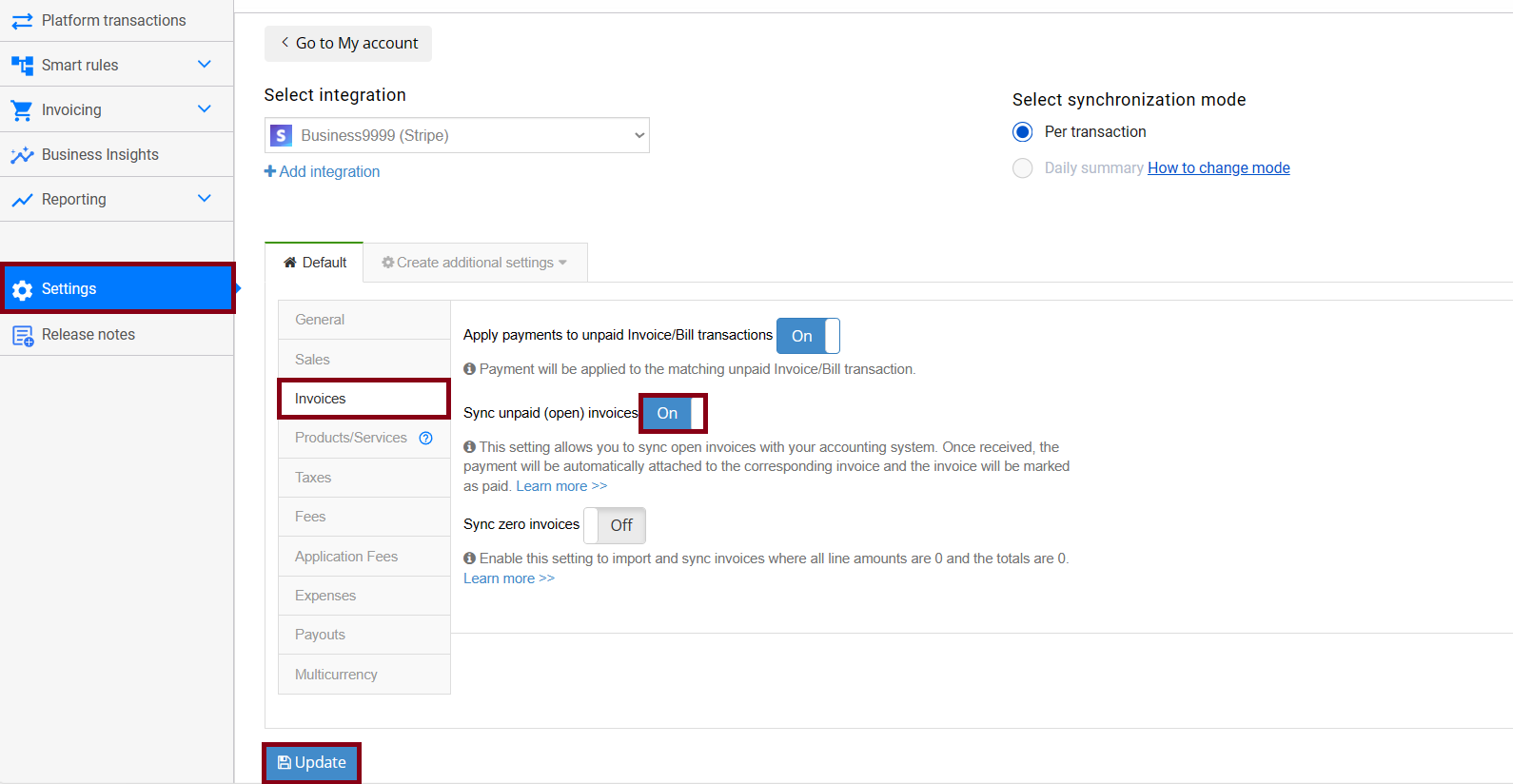
You’ll find Sync unpaid (open) invoices in your Synder settings under Settings → Invoices:
Schedule start date vs RevRec start date — don’t confuse them
These two sound alike, yet they do very different jobs:
- RevRec start date — a single, one-time cut-off date that you set when you enable Revenue Recognition. Synder ignores anything before it for recognition entirely. In effect, it answers: “from which date should Synder begin recognizing at all?”
- Schedule start date (this guide) — the rule for which date each individual schedule begins from, namely the invoice date or the payment date. Instead, it answers: “for a given subscription, what’s day one of its schedule?”
In short: the RevRec start date is the line in the sand for the whole account, while the Schedule start date is the starting day of every schedule after that line.
Important notes
- We set it during setup. If you enabled Revenue Recognition through a call with the Synder Team, we configure the Schedule start date for you based on your preferences.
- It’s not a casual toggle. Because recognition relies on historical data, switching methods later means you restart the setup and re-sync from scratch. So reach out to the Synder Team before you change it.
- One-time invoices stay unaffected. Synder always recognizes a one-time product in the period it occurs, because it has no service period to spread across — regardless of the Schedule start date. See Synder RevRec: Stripe One-Time Invoices.
- Backdated and future-dated service periods follow their own logic on top of this setting. For those, the Open Invoices Processing guide walks through the details.
Related revenue recognition settings guides
The Schedule start date is just one of several settings that shape how Synder RevRec behaves. So explore the rest here:
- Synder RevRec — Per Transactions Sync: Getting Started — the basics, and how to enable RevRec.
- Revenue Recognition Methods in Synder RevRec — the Daily Rateable, Monthly, and Hybrid methods that decide how much Synder recognizes each month.
- Synder RevRec: Open Invoices Processing — the companion to this guide, covering how Synder handles open, voided, and uncollectible invoices.
- Synder RevRec: Discounts Recognition — recognize discounts separately, or net.
- Synder RevRec: Exclude Monthly Subscriptions from Recognition — keep short recurring invoices out of recognition.
- Revenue Recognition Simplified: Group Journal Entries — one grouped entry per period, versus one per subscription.
FAQ
Can I change the Schedule start date after RevRec is running?
Not freely. Because recognition depends on historical data, switching from Invoice date to Payment date (or back) means you restart the setup and re-sync. So contact the Synder Team before you make the change.
What happens to open invoices under each method?
With Invoice date, Synder recognizes open invoices on schedule, and it writes them off to Bad Debt if you later void them or they become uncollectible. With Payment date, however, Synder recognizes open invoices only after the customer pays. For the full picture, see Open Invoices Processing.
Does this setting change how much revenue is recognized each month?
No. Your recognition method (Daily Rateable, Monthly, or Hybrid) decides that. The Schedule start date only sets when the schedule begins.
Why don’t my Synder numbers match QuickBooks?
Often, the cause is a mismatched pair — for example, Payment date selected while Sync open invoices stays ON. So confirm that your Schedule start date and Sync open invoices settings line up, exactly as described above.
Reach out to the Synder Team via online support chat, phone, or email with any questions — we’re always happy to help!
