

The “Business Validation Error: Product can’t be processed since it’s attached to a large number of transactions” error appears in Synder’s Sync issues when a product in QuickBooks Online is linked to too many transactions. As a result, QuickBooks Online can no longer accept new transactions for that product.
The fix has three main parts. First, deactivate the affected product in QuickBooks Online. Next, create a replacement product. Then retry the failed transactions in Synder.
How to fix the “product can’t be processed” error
Follow these steps in order for the most reliable resolution.
Step 1: Deactivate the product in QuickBooks Online
The first step is to deactivate the product that’s causing the error. This frees it from the transaction limit so a replacement can take over.
- Log in to QuickBooks Online.
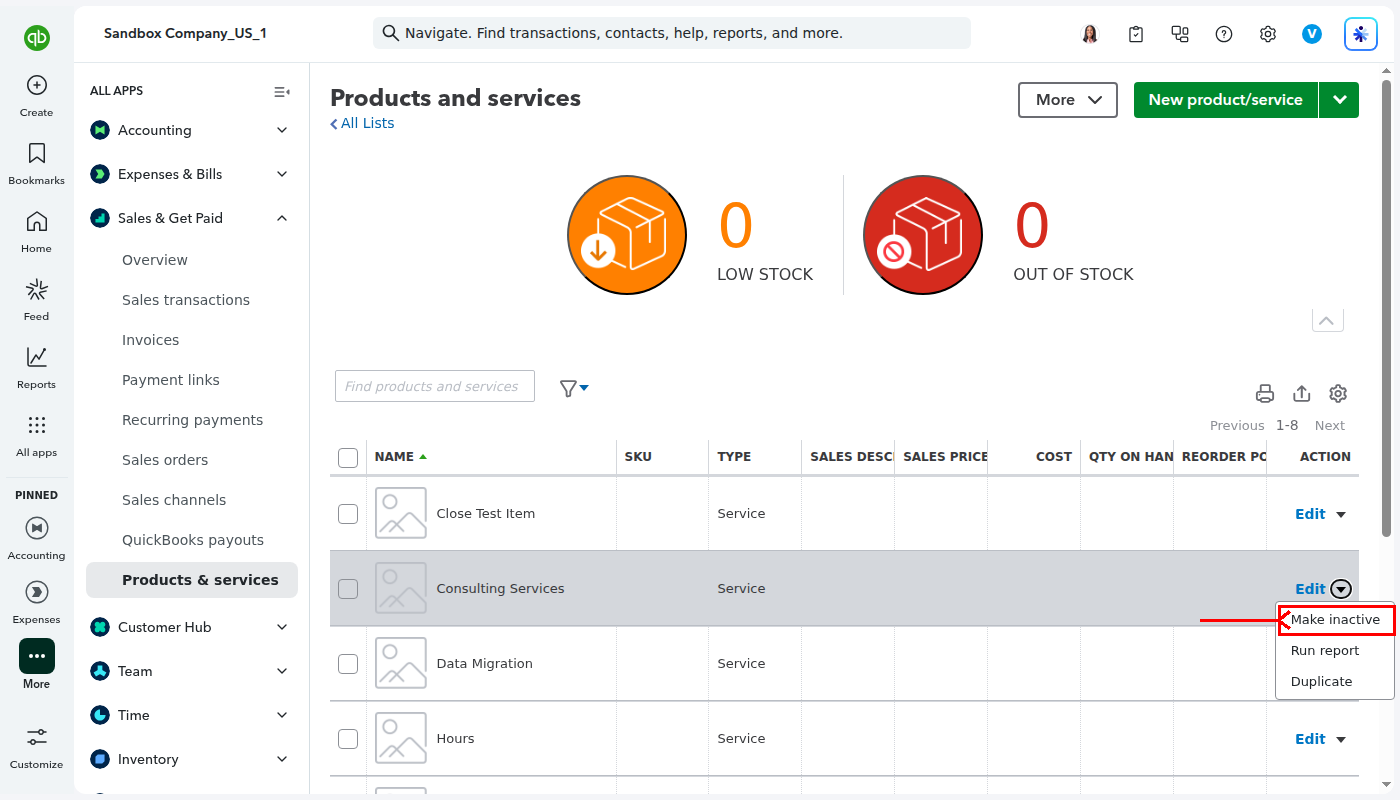
- Go to Sales → Products & services.
- Locate the affected product in the list.
- Click the dropdown arrow next to the product and select Make inactive.
Step 2: Create a new product in QuickBooks Online
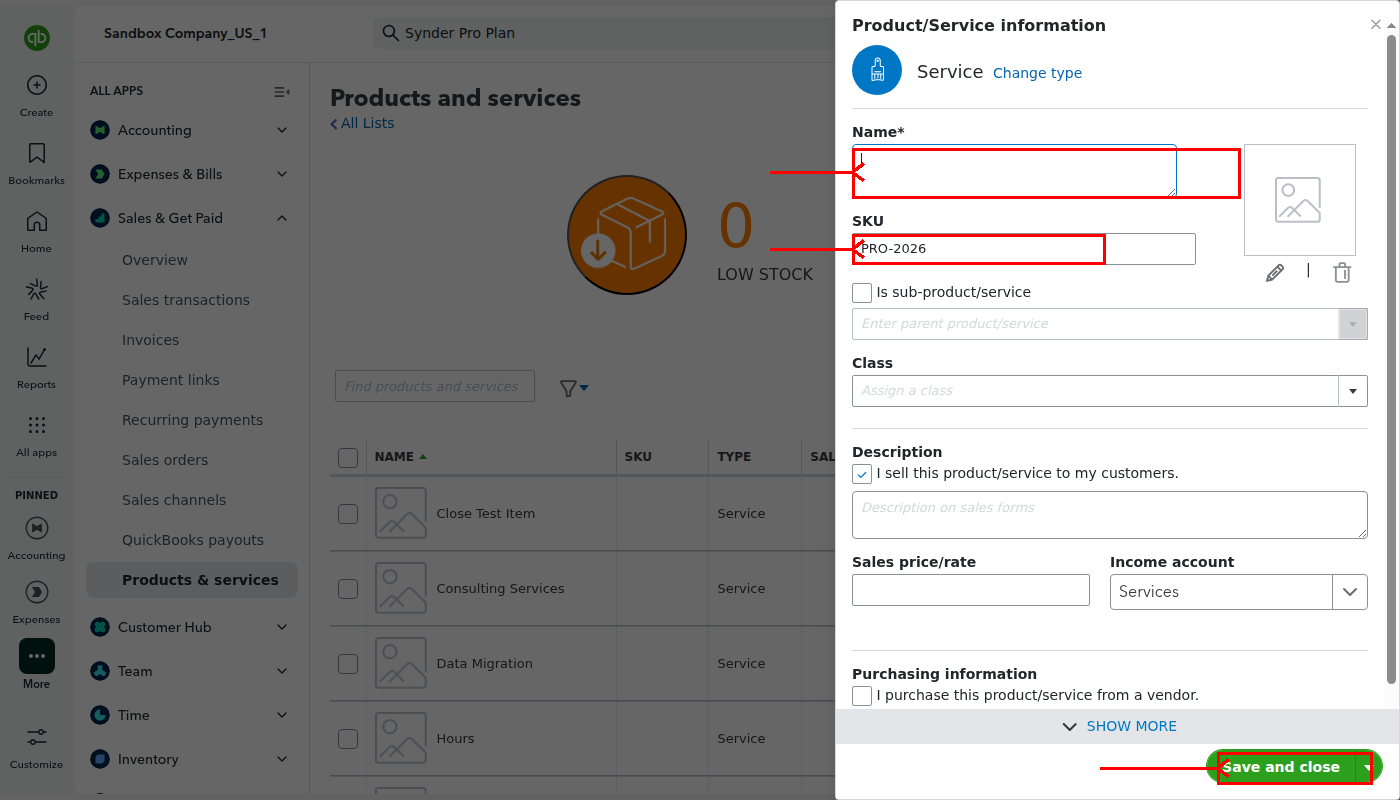
After deactivating the old product, create a direct replacement. It’s important to use the same name and SKU so Synder can match transactions correctly.
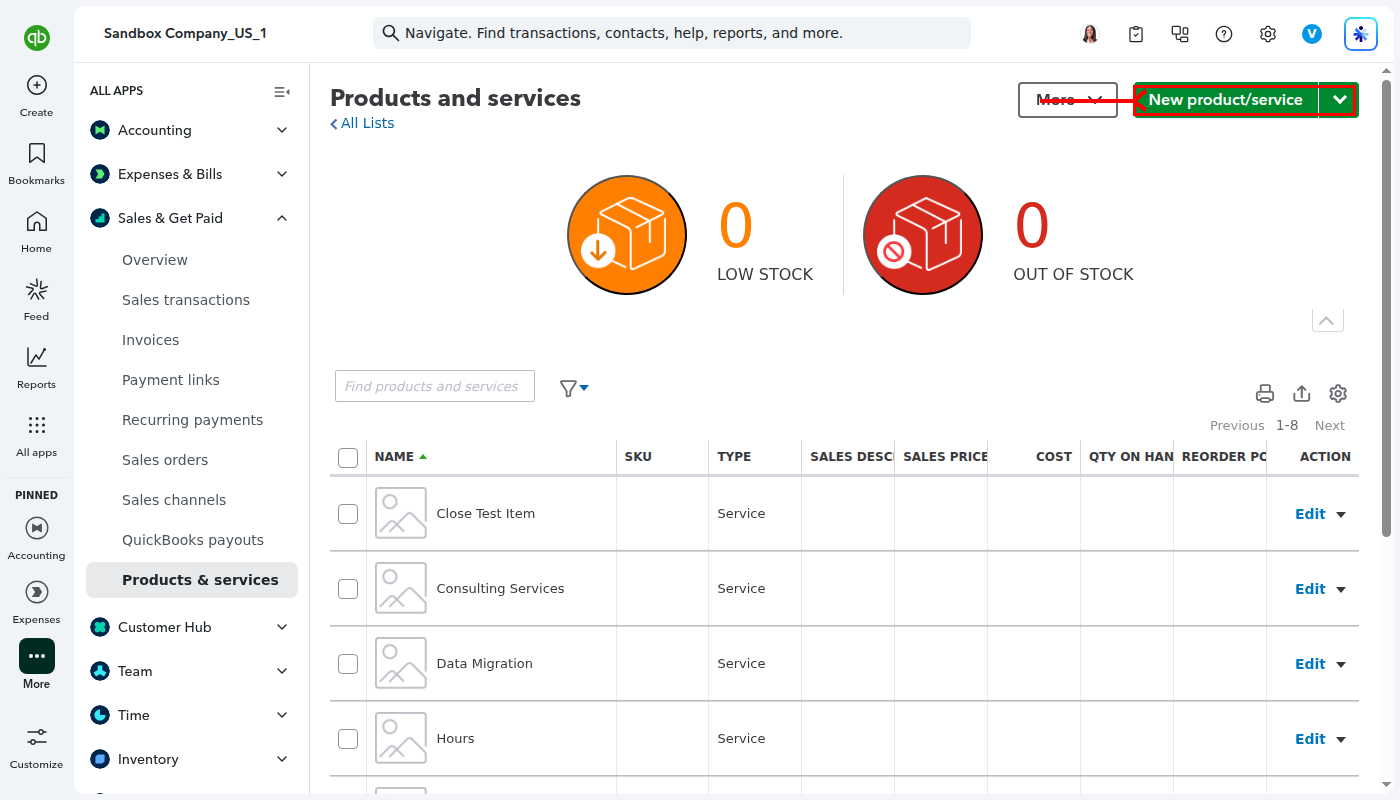
- In QuickBooks Online, click the Settings (gear icon) in the top-right.
- Under Lists, select Products and services.
- Click New.
- Enter the product details. Use the same name and SKU as on your sales platform.
- Click Save and close.
Step 3: Retry the failed transaction in Synder
Once the new product exists in QuickBooks Online, go back to Synder and retry the failed transaction.
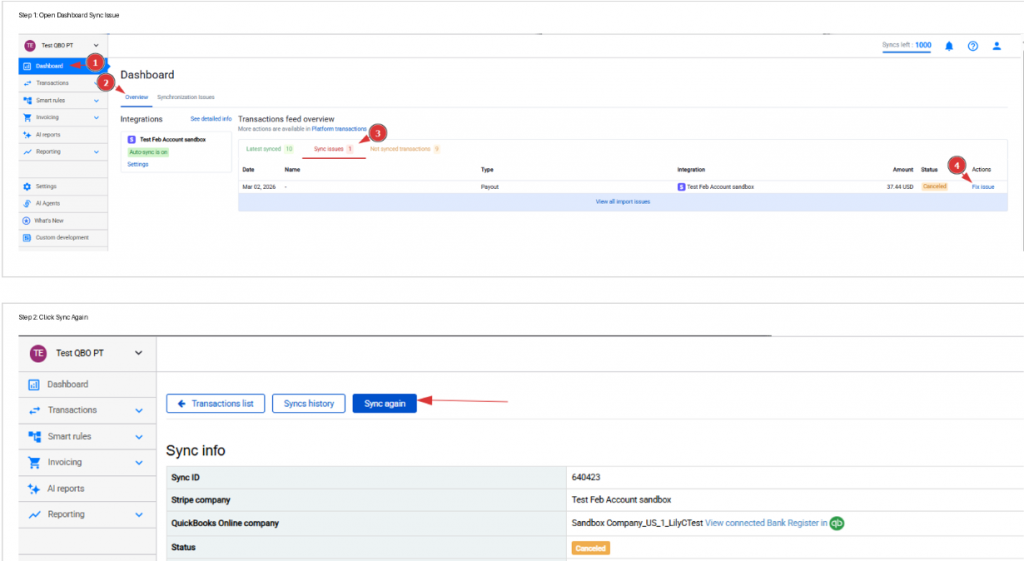
- Open the Synder Dashboard.
- Go to Overview → Transactions feed → Sync issues.
- Locate the failed transaction.
- Click Fix → Sync Again.
Optional: Review the error details before retrying
If you want to confirm the error type before retrying, you can inspect the transaction first.
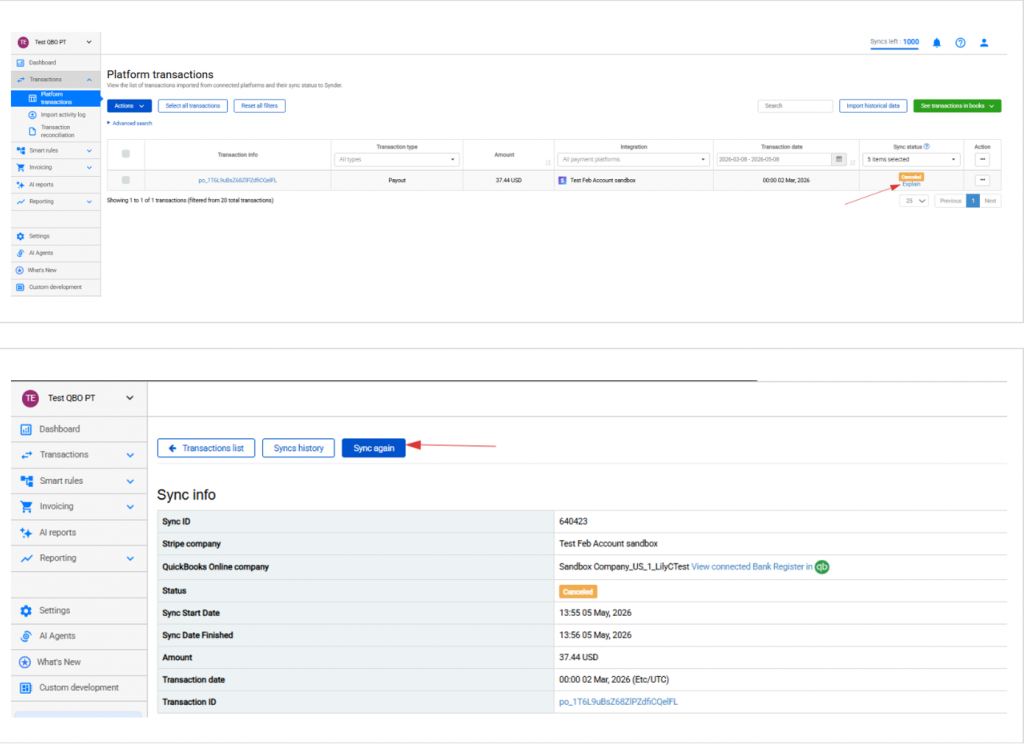
- Locate the transaction in the Platform Transactions tab.
- Click Explain to see the full error message.
- Confirm it’s the product-related error.
- Then click Sync Again.
Step 4: Fix multiple failed transactions at once (bulk retry)
If several transactions share the same error, you can fix them all in one action.
- Open Synchronization Issues.
- Filter by the error: Business Validation Error: Product can’t be processed since it’s attached to a large number of transactions.
- Click See related transactions.
- Select all relevant transactions.
- Click Sync.
Step 5: Use Product Mapping instead (alternative)
If you don’t want to recreate the product, you can use Product Mapping to redirect future transactions to a different QuickBooks Online product. This option is available on Essential, Pro, and Premium plans.
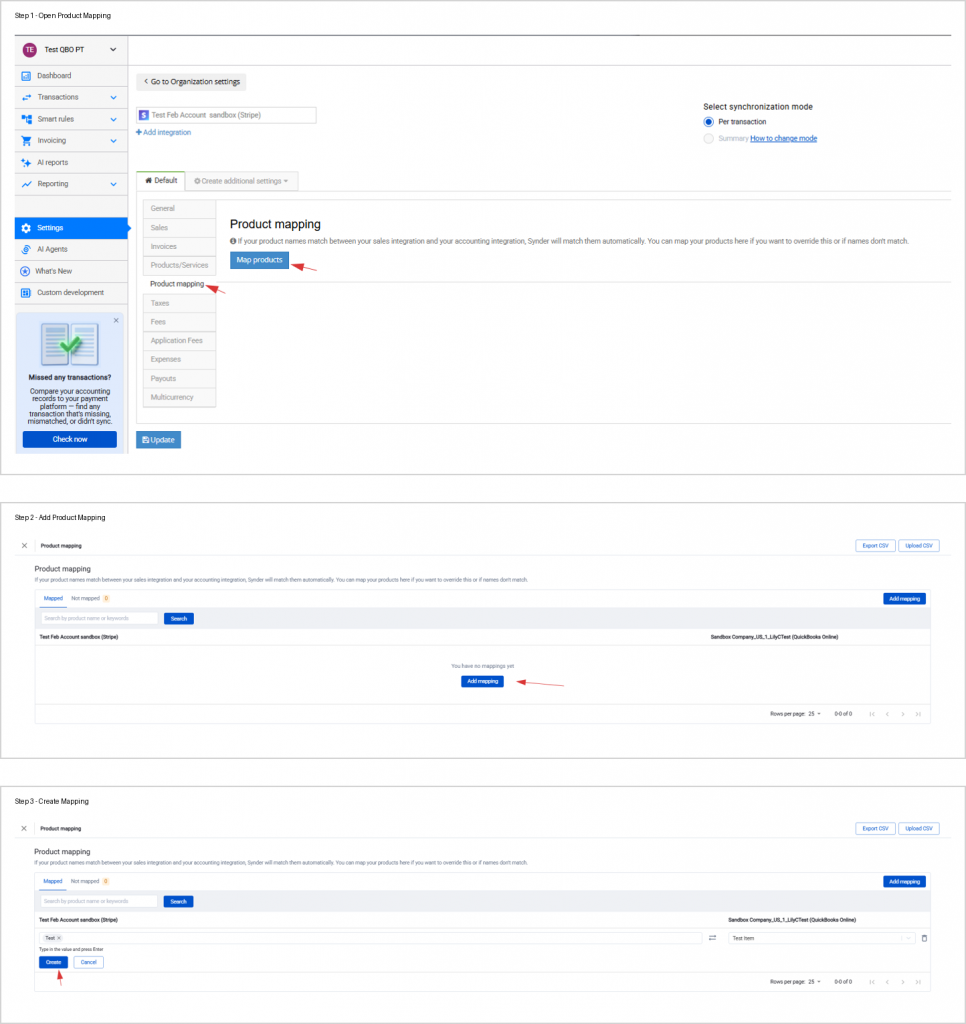
- Go to Synder Settings → Product Mapping → Map Products.
- Click Add Mapping.
- In the left field, enter the exact product name from your sales platform. Match it precisely, including symbols and spacing.
- In the right dropdown, select the target QuickBooks product.
- Click Create.
- Return to the failed transaction and resync it.
- Finally, verify the result in QuickBooks Online.
How to confirm the error is resolved
The issue is resolved when all three of these are true:
- The transaction status changes to Synced
- The transaction appears correctly in QuickBooks Online
- The error no longer shows in Synder’s Sync Issues feed
If the error persists after following these steps, reach out to the Synder support team via chat or email.
