

This guide explains how to resolve QuickBooks Online sync failures caused by the error: Line.SalesItemLineDetail.ItemRef: Invalid Reference Id.
This guide applies to:
- Transactions with Failed or Canceled sync status
- Sync issues caused by missing or invalid Product/Service references in QuickBooks Online
- Transactions that need validation and a retry after item or mapping correction
What this error means
This error means the Product/Service used in the transaction is missing, inactive, or no longer matches the corresponding item in QuickBooks Online. QuickBooks identifies Products/Services using an ItemRef value. If that reference becomes invalid, the sync fails.
Common causes include:
- The Product/Service is missing or inactive in QuickBooks Online
- The item was renamed or replaced
- The transaction references an outdated or duplicate copy of the item
- The mapping in Synder no longer matches QuickBooks Online
- Temporary QuickBooks validation delays
How to fix the Invalid Reference Id error
Follow these steps in order.
Step 1: Verify the Product/Service in QuickBooks Online
Before retrying, check that the Product/Service is set up correctly in QuickBooks Online:
- Confirm the item exists in QuickBooks Online
- Confirm the item is active
- Verify the item matches what Synder is using in its mapping
- Confirm the item has not been replaced, recreated, or duplicated
If the item is missing, inactive, or mismatched, restore or correct it before continuing.
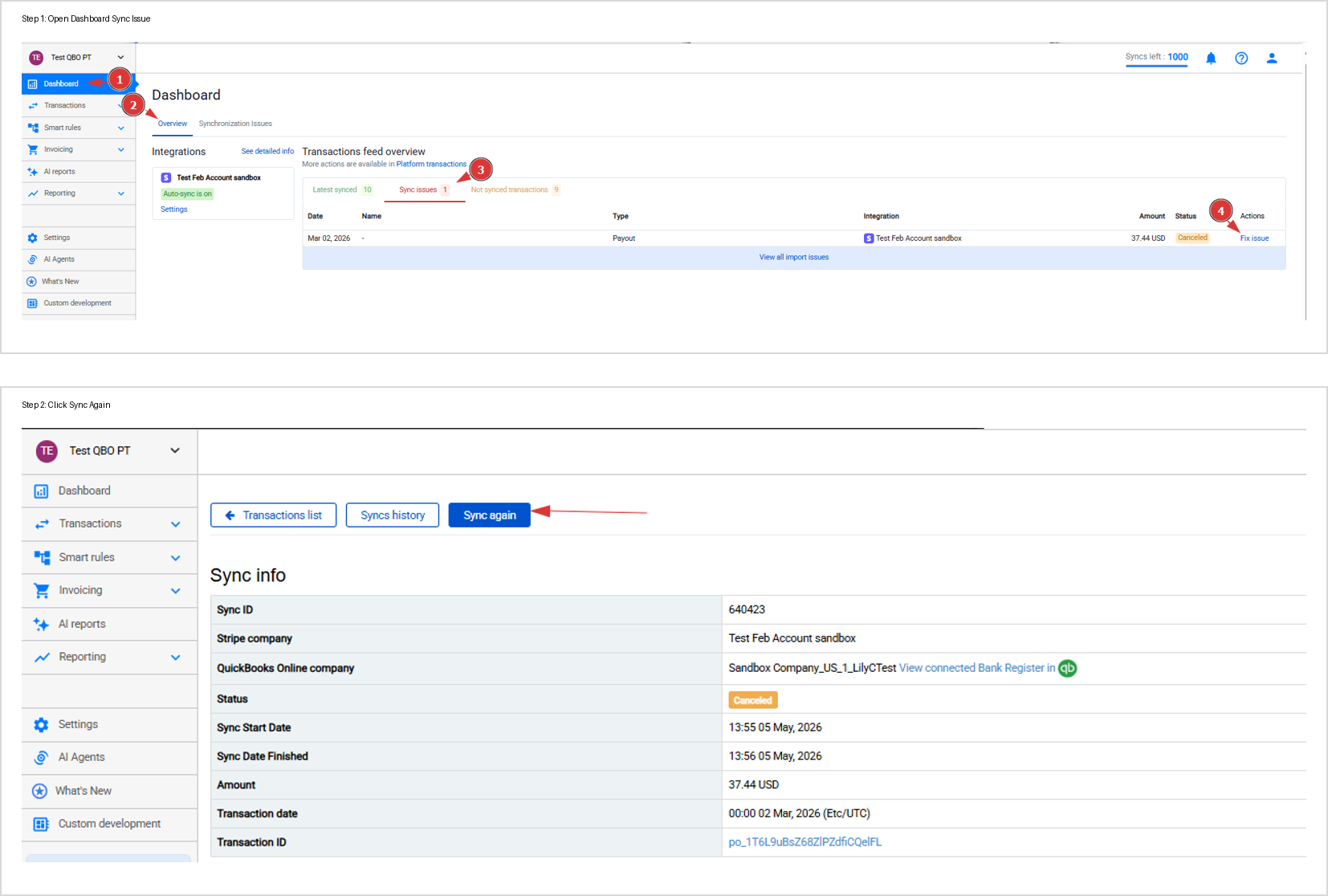
Step 2: Retry the sync for a single transaction
- Go to the Synder Dashboard.
- Then navigate to Overview → Transactions feed → Sync issues.
- Locate the affected transaction.
- Click Fix, then select Sync Again.
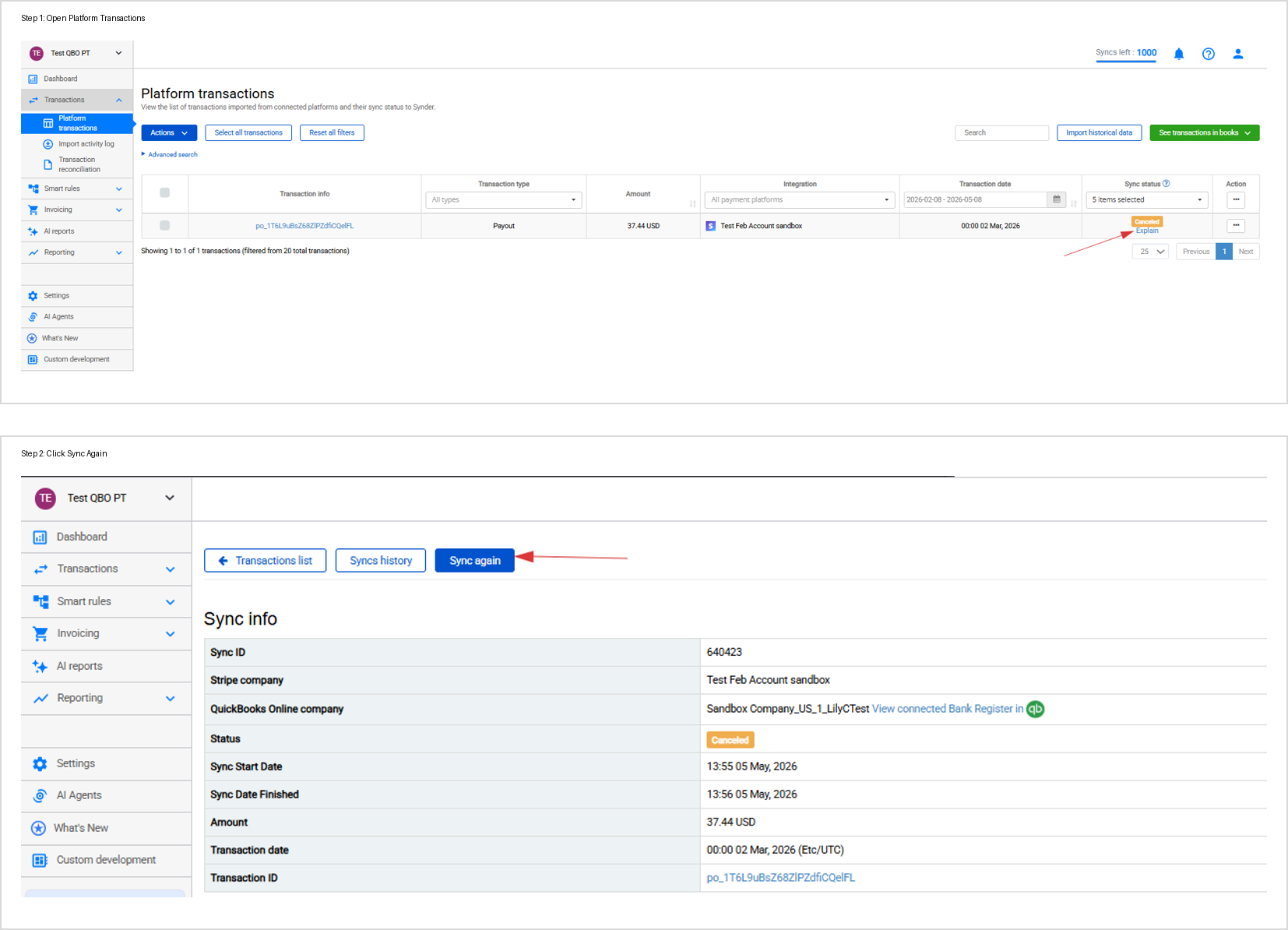
Alternative: Retry via the Platform Transactions tab
- Open the affected transaction.
- Click Explain to confirm the ItemRef error.
- Then click Sync Again.
Step 3: Retry multiple transactions at once (bulk)
- Go to Synder Dashboard → Synchronization Issues.
- Filter by error: Line.SalesItemLineDetail.ItemRef: Invalid Reference Id.
- Click See related transactions.
- Select all relevant transactions.
- Click Sync.
How to confirm the error is resolved
The issue is resolved when all three of these are true:
- The transaction status changes to Synced
- The transaction appears in QuickBooks Online
- The error no longer shows in Sync Issues
If the error returns after syncing, check that the Product/Service mapping in Synder is still aligned with the item in QuickBooks Online.
Key takeaway
This error is caused by a broken or missing ItemRef link between Synder and QuickBooks Online. Therefore, the fix is always the same: verify the product exists and is active in QuickBooks Online, then retry the sync. If the issue persists, reach out to the Synder support team.
