

This guide explains how to improve your QuickBooks inventory tracking workflow with Synder Smart Rules, using Recipes. By following the steps below, you will set up automatic email alerts when a product’s stock falls below a set threshold
Can be used if:
- You track inventory in QuickBooks Online and want automated low-stock email notifications.
- You sell on multiple platforms (e.g., Amazon, Shopify, eBay) and need centralized stock monitoring.
New to sync modes? See How Smart Rules Work in Synder.
Before You Start
- Your inventory must be tracked in QuickBooks Online.
- Synder must be connected to your QuickBooks Online account.
- You need to know the stock threshold you want to trigger the alert (e.g., fewer than 10 units).
How to Set Up the Low Stock Alert Recipe
Below are the detailed steps on how to set up a Smart Rule automatically for low stock alerts using Recipes:
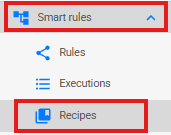
- In Synder, go to Smart Rules in the left menu, then select Recipes.
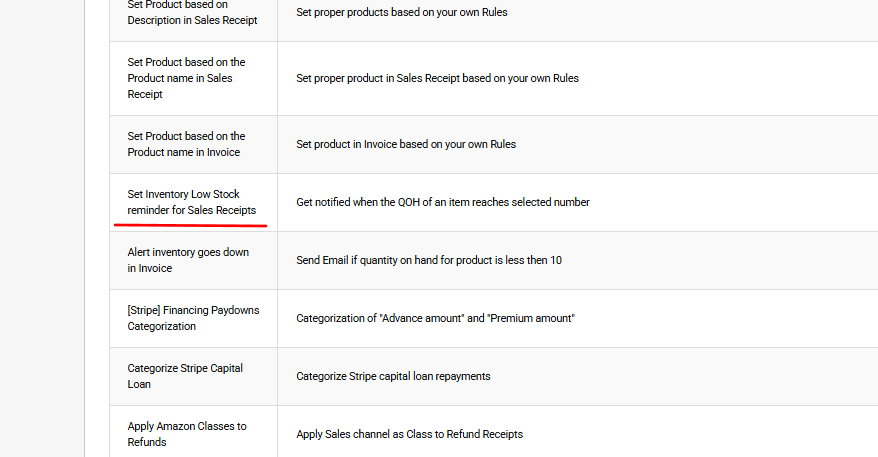
- Find the Set Inventory Low Stock reminder for Sales Receipts recipe. Click Try it out on the right end of the line to start the rule setup.
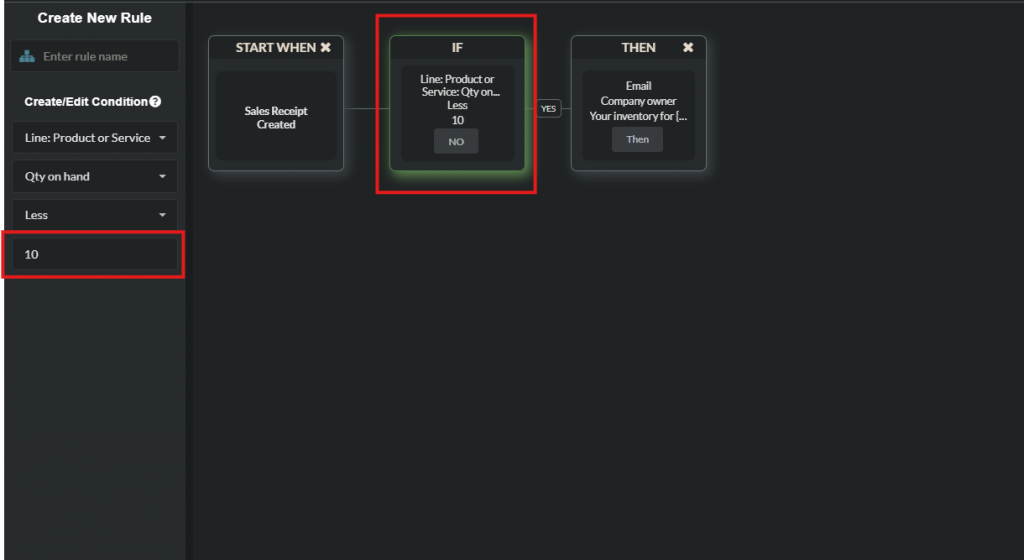
- In the IF block, set your condition: Line: Product or Service → Qty on Hand → Less Than → [your threshold]. For example, enter 10 to be alerted when stock drops below 10 units.
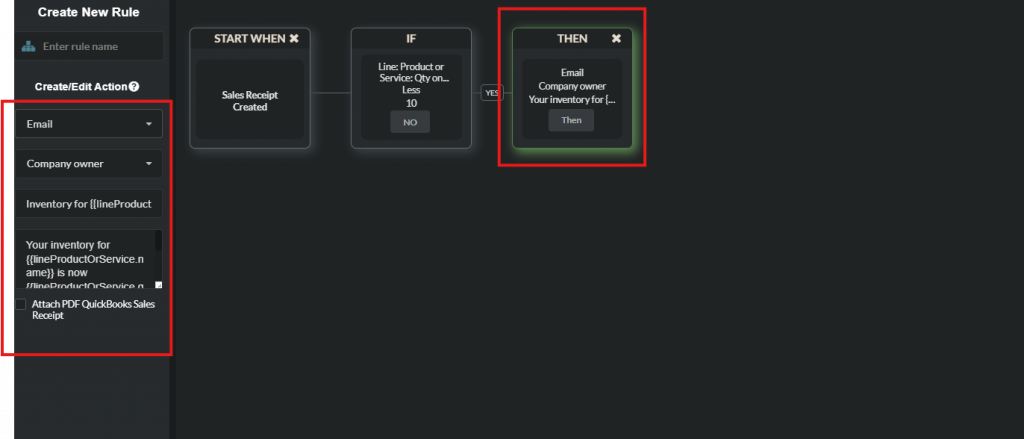
- In the THEN block, set the action to Email → Company Owner and write your alert message. For example: “Inventory for {{lineProductOrService.name}} went down to {{lineProductOrService.qtyOnHand}}. Please repurchase.”
- Click Save & Close Rule to activate the rule.
How to Confirm It Worked
After the rule is active, wait for a transaction to sync that brings a product’s quantity below your threshold. You will receive an email notification automatically.
To verify manually: go to Smart Rules → Executions and check that the rule has fired. The log will show the timestamp, the product, and the quantity that triggered the alert.
Limitations & Important Notes
- QuickBooks Online only: Low stock alerts via Recipes are currently available for QuickBooks Online only, as this feature relies on QuickBooks Online inventory tracking.
- Trigger is Sales Receipt: The alert fires when Synder creates a Sales Receipt in QuickBooks Online. It does not monitor inventory changes made directly in QuickBooks Online.
- Threshold is per rule: If you want different thresholds for different products, create separate rules for each.
- Email recipient: The alert goes to the company owner’s email set in your QuickBooks Online account.
FAQ
Can I set different thresholds for different products?
Yes. Create a separate rule for each product and set a different quantity threshold in each IF block.
Can I alert someone other than the company owner?
At this time, the email action is sent to the company owner. You can customize the message content, but not the recipient.
Where can I check if the rule has fired?
Go to Smart Rules → Executions. Each execution is logged with the rule name, trigger time, and outcome.
What if my stock shows incorrectly in the alert?
Make sure inventory tracking is enabled for the product in QuickBooks Online. Synder reads the quantity on hand directly from QuickBooks Online.
Does this work if I sell on multiple platforms?
Yes. As long as your sales channels sync to QuickBooks Online through Synder, the rule monitors the combined quantity on hand in QuickBooks Online.
Reach out to the Synder team via online support chat, phone, or email with any questions you have – we’re always happy to help you!
