

- Step 1 — Open PayPal Developer Dashboard
- Step 2 — Create a Synder app
- Step 3 — Disable all Payment capabilities and save
- Step 4 — Copy your Client ID and Secret Key
- Step 5 — Paste Client ID and Secret into Synder
PayPal API is Synder’s premium PayPal integration, offering deeper sync capabilities than the standard PayPal connection. This guide walks you through connecting PayPal API to Synder.
Please note: PayPal API Connection is only available for Pro and Premium users.
Step 1 — Open PayPal Developer Dashboard
- Go to https://developer.paypal.com/ and log in with your PayPal business account.
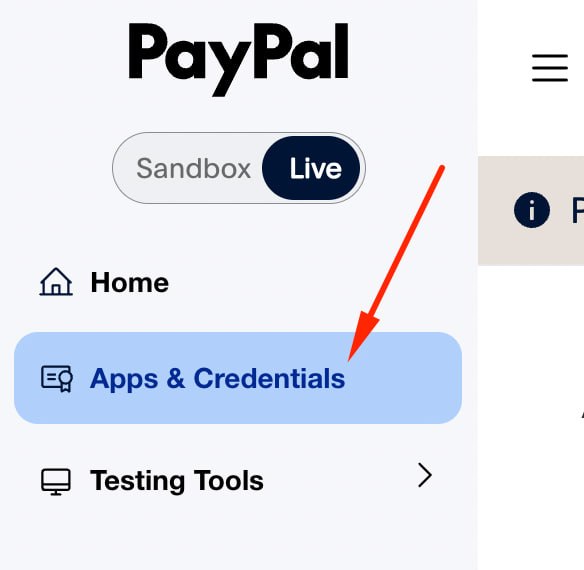
- Toggle the environment switch to Live (not Sandbox).
- Open Apps & Credentials from the left sidebar.
Step 2 — Create a Synder app
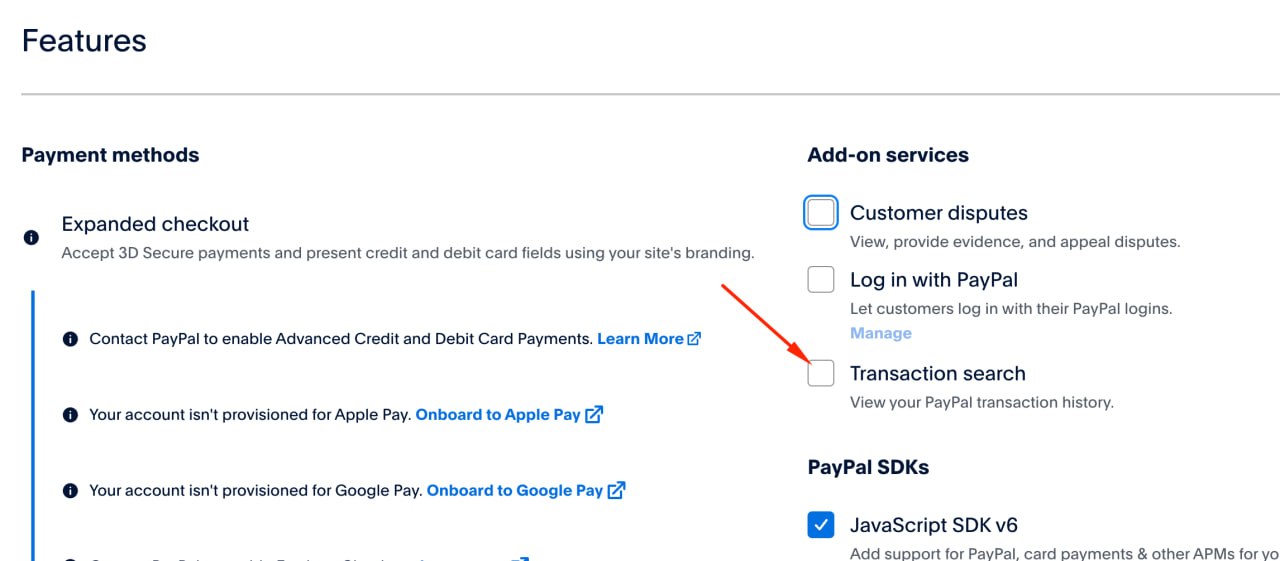
- Click Create App and name it Synder.
- Once the app is created, scroll down to the Features section and enable Transaction search under Add-on services.
Step 3 — Disable all Payment capabilities and save
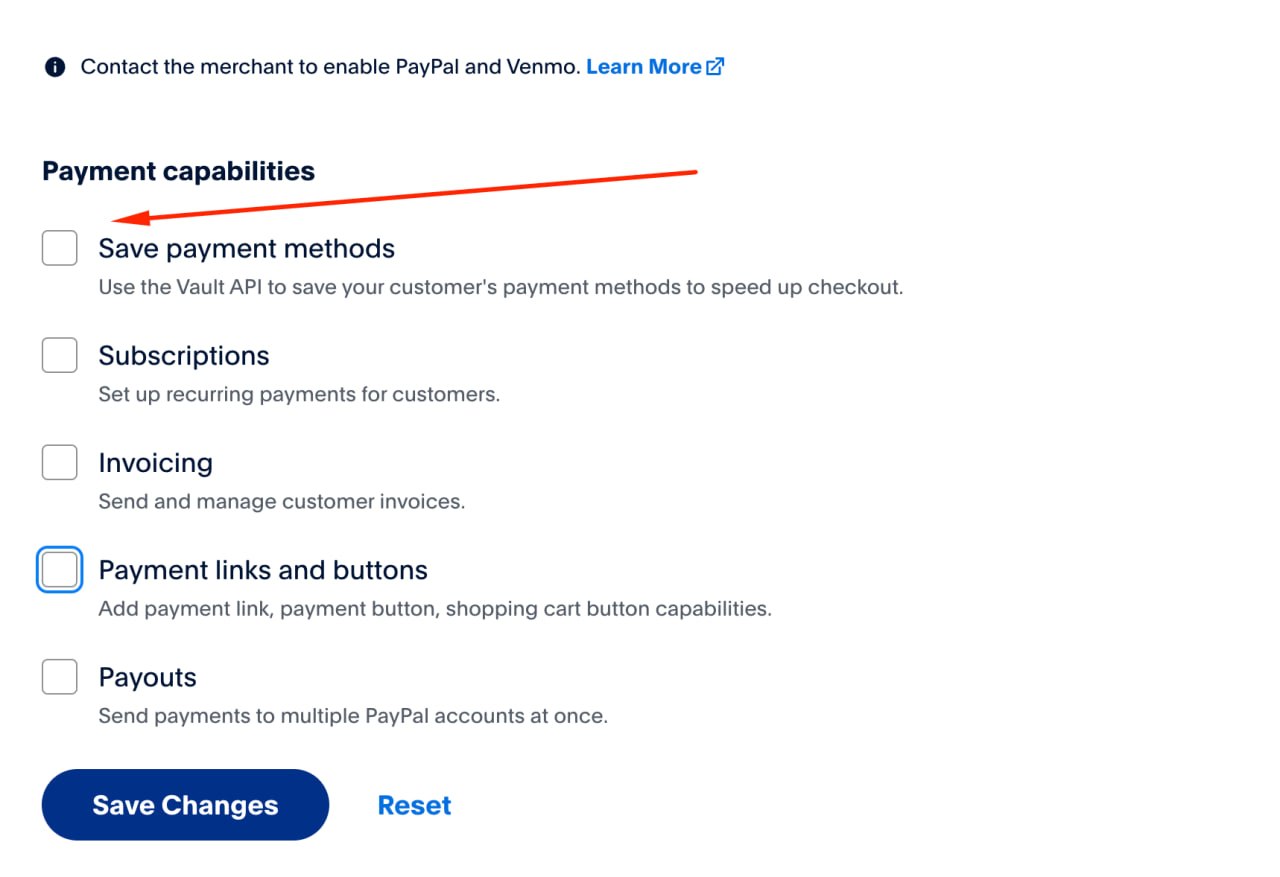
Scroll down to the Payment capabilities section and uncheck every box:
- Save payment methods
- Subscriptions
- Invoicing
- Payment links and buttons
- Payouts
Click Save Changes.
Step 4 — Copy your Client ID and Secret Key
After saving, scroll back to the top of the app page and copy your Client ID and Secret Key — you’ll paste both into Synder in the next step.
Step 5 — Paste Client ID and Secret into Synder
In Synder, click Add integration and choose PayPal API from the “Choose an integration to connect” dropdown.
- Paste the Client ID you copied from PayPal into the “Provide your PayPal API Client ID” field.
- Paste the Secret Key into the “Provide your PayPal API Client Secret” field.
- Click Connect.
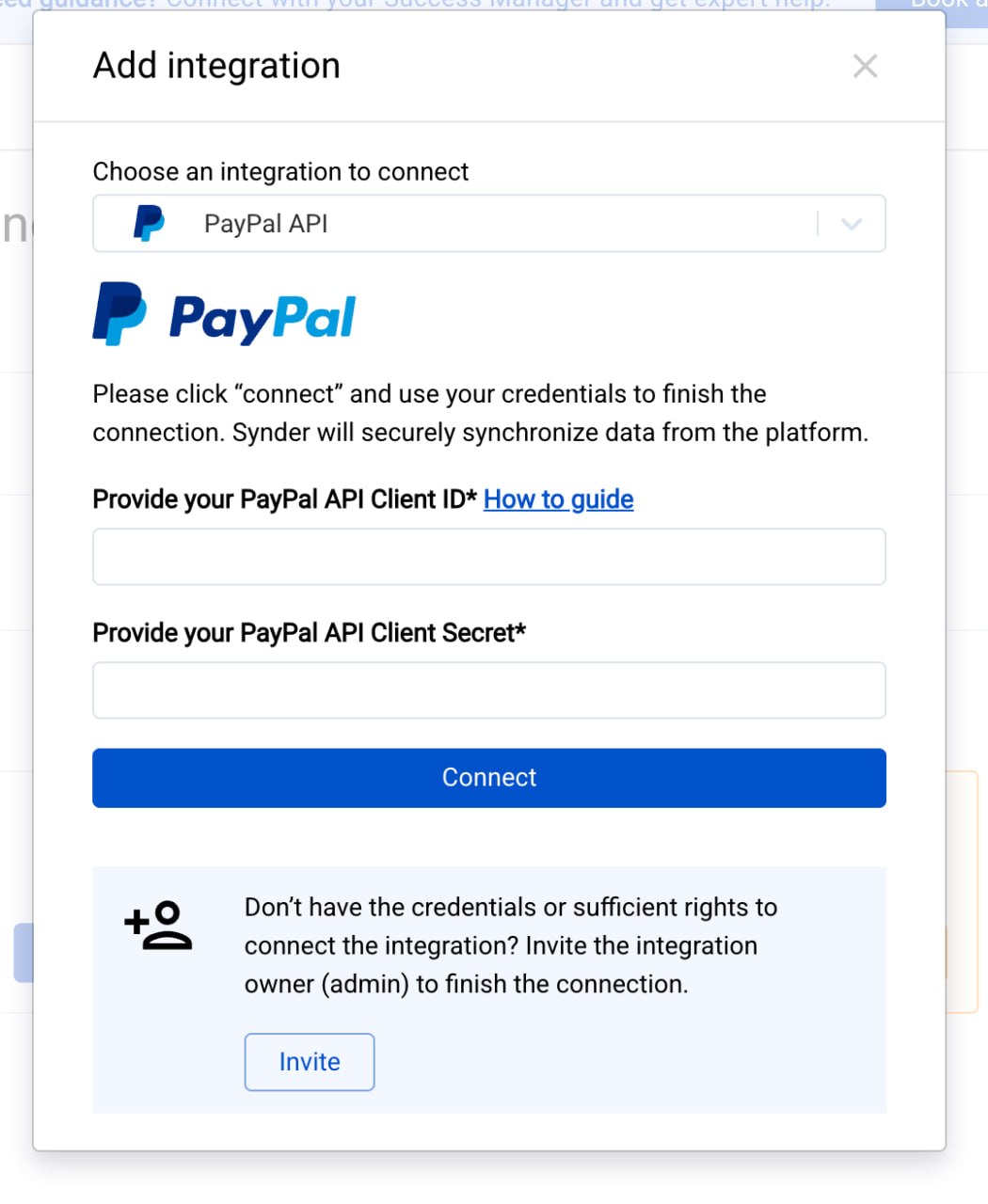
Synder will validate the credentials and start syncing your PayPal transactions. If you don’t have admin rights to connect the integration yourself, use the Invite button at the bottom of the form to invite the integration owner to finish the connection.
