

Let’s learn how to integrate Klarna with your Synder account, allowing you to sync Klarna order payment and general financial data with your accounting software seamlessly.
Setting up the Klarna integration from scratch
1. Create an account
If you are getting started with Synder, you will need to create a free trial account first.
Note: If you want to integrate your payment platform with QuickBooks Online or Xero, check out this guide. For connecting your QuickBooks Desktop company, refer to this article.
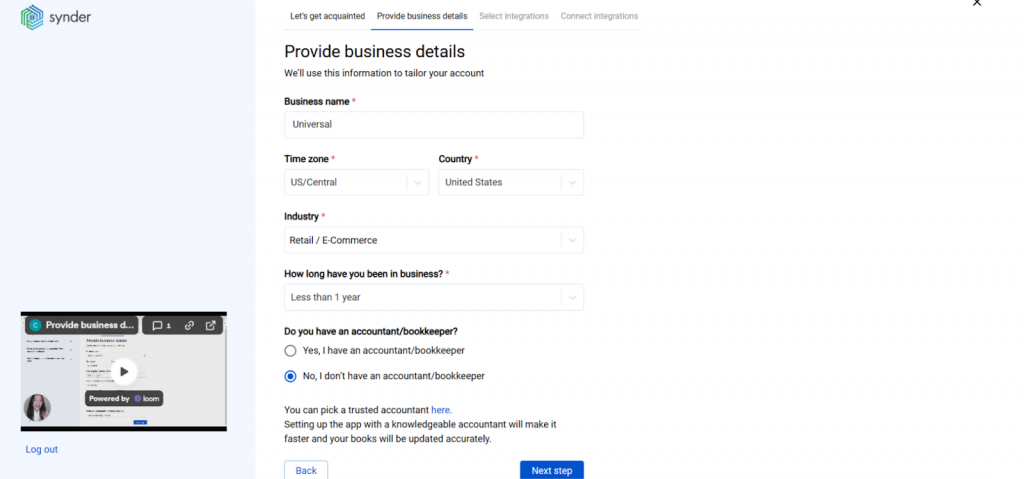
2. Provide your business details
Then, fill out the information about your business and hit the “Next step” button.
3. Select the platforms you would like to integrate
Now you need to select the platforms you would like to connect to Synder. Click “View all integrations” to see the list of all available platforms and select Klarna.
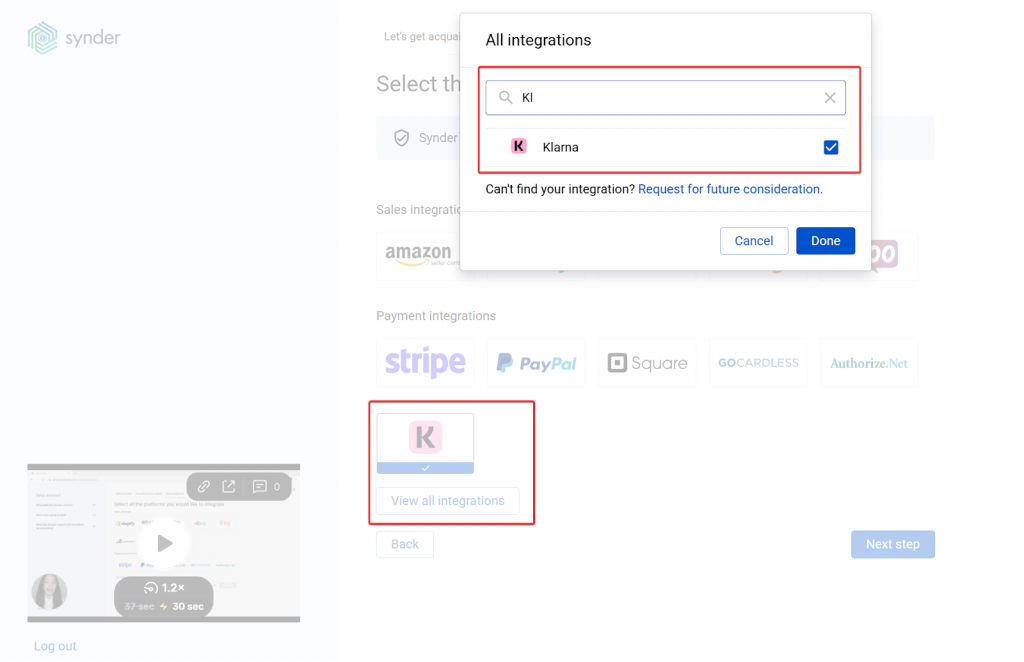
Note 1: Select all the services you use to receive payments. You can integrate them now or skip this step and invite someone with admin access to set them up later.
Note 2: When you integrate your payment platforms, such as Karna to Synder, the system automatically creates a clearing account for each integration. This clearing account functions as a holding account, representing your actual payment provider within your accounting system.
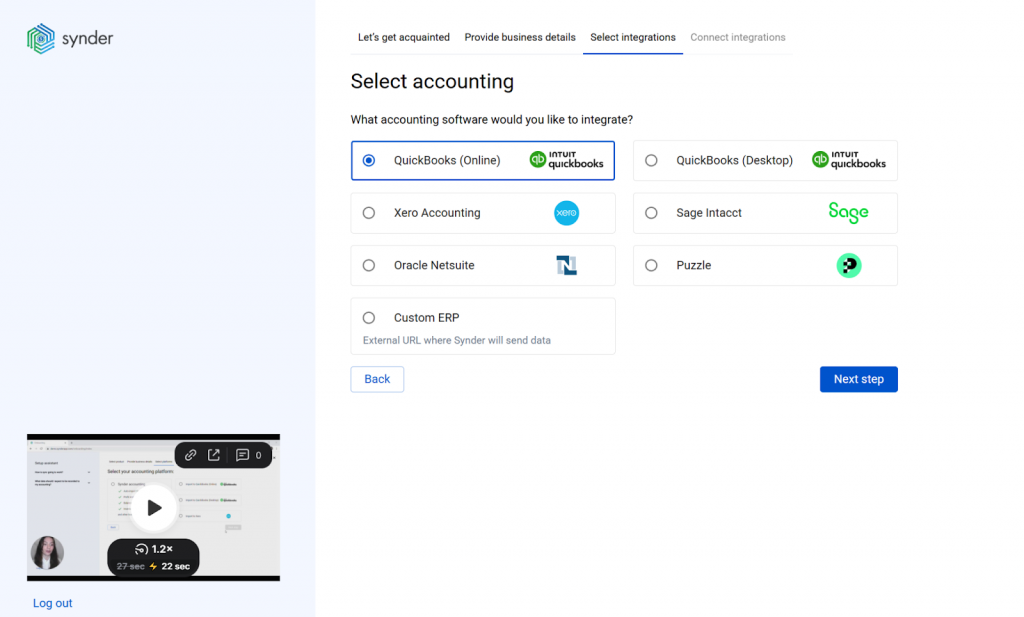
4. Connect your accounting platform
Select the accounting company you would like to connect to Synder and click on the “Next step”.
Note: If you are connecting to QuickBooks Online or Xero, you will be prompted to select the sync mode. Proceed with the desired option.
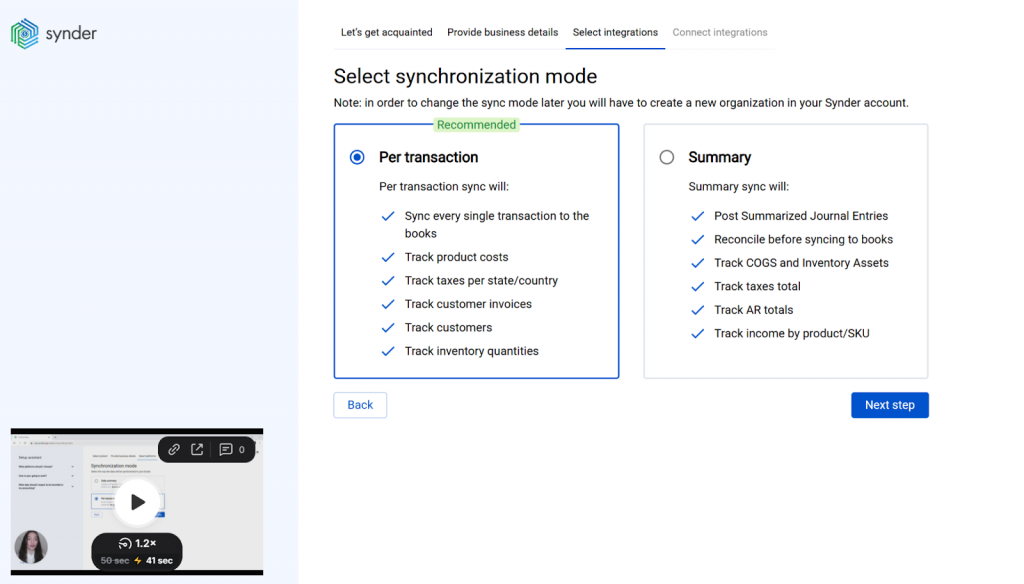
Click on the “Next Step” to link your accounting company.
5. Generate Klarna API Keys
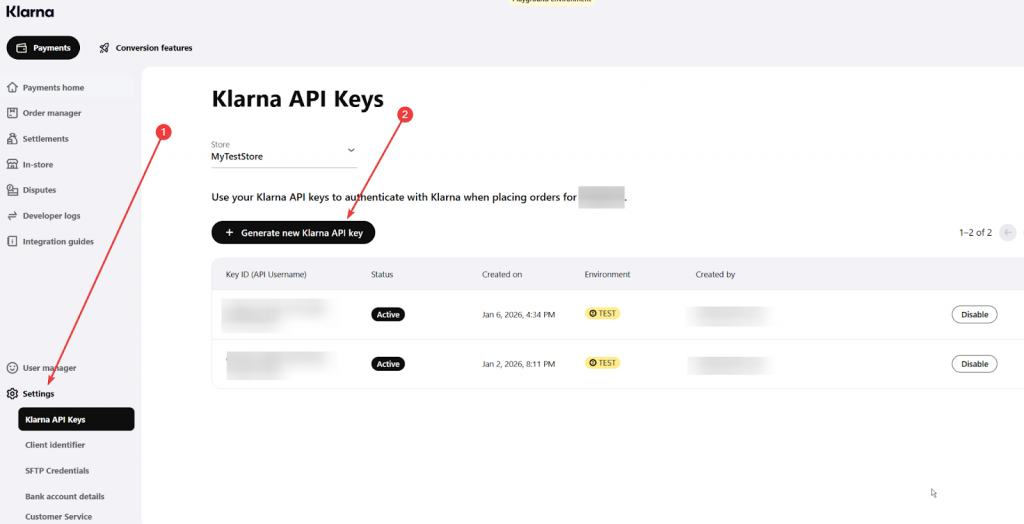
In another browser tab, open your Klarna account and navigate to settings. By default, it will open the Klarna API Keys tab, where you will need to click on “Generate new Klarna API Key”.
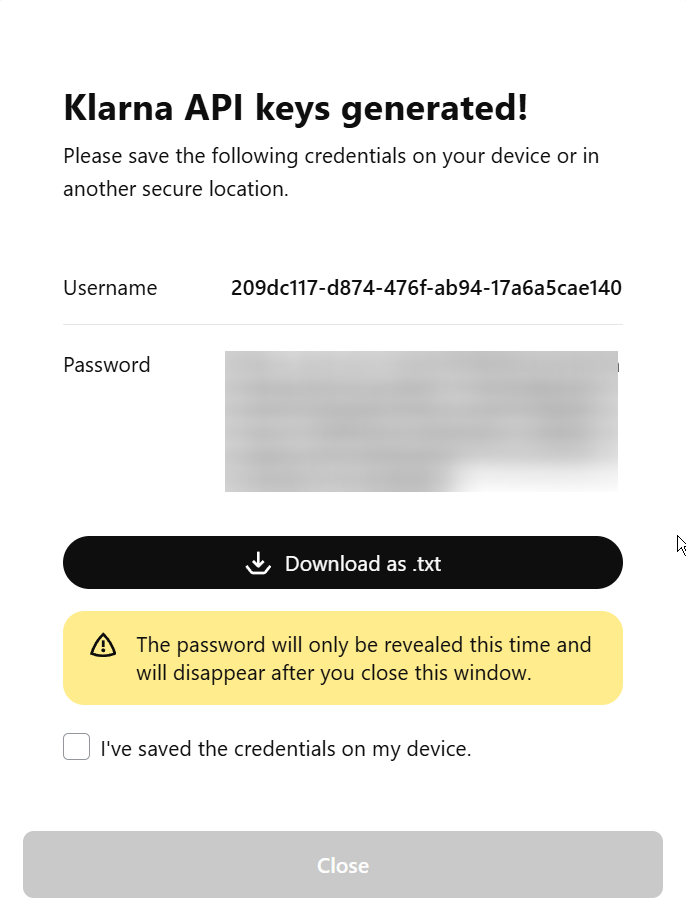
You will be presented with a username and a password. Make sure to save the API Username and API Password somewhere, as they are necessary for the next step.
6. Connect your Klarna account
Almost there! To complete the setup, you need to connect your Klarna and other payment platforms to Synder.
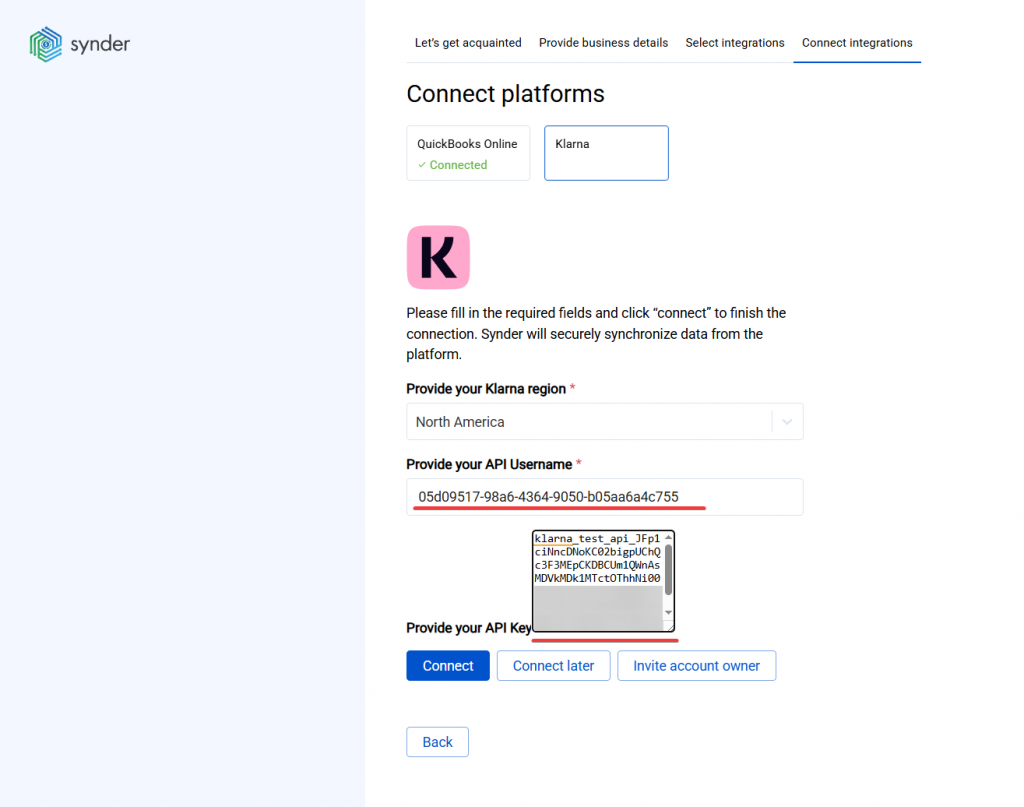
Get back to your Synder website tab, where you will be asked to provide API Username and API key.
Copy and paste your saved API Username into the Provide your API Username field.
Then copy your saved API Password and paste it into the Provide your API Key field. Click “Connect”.
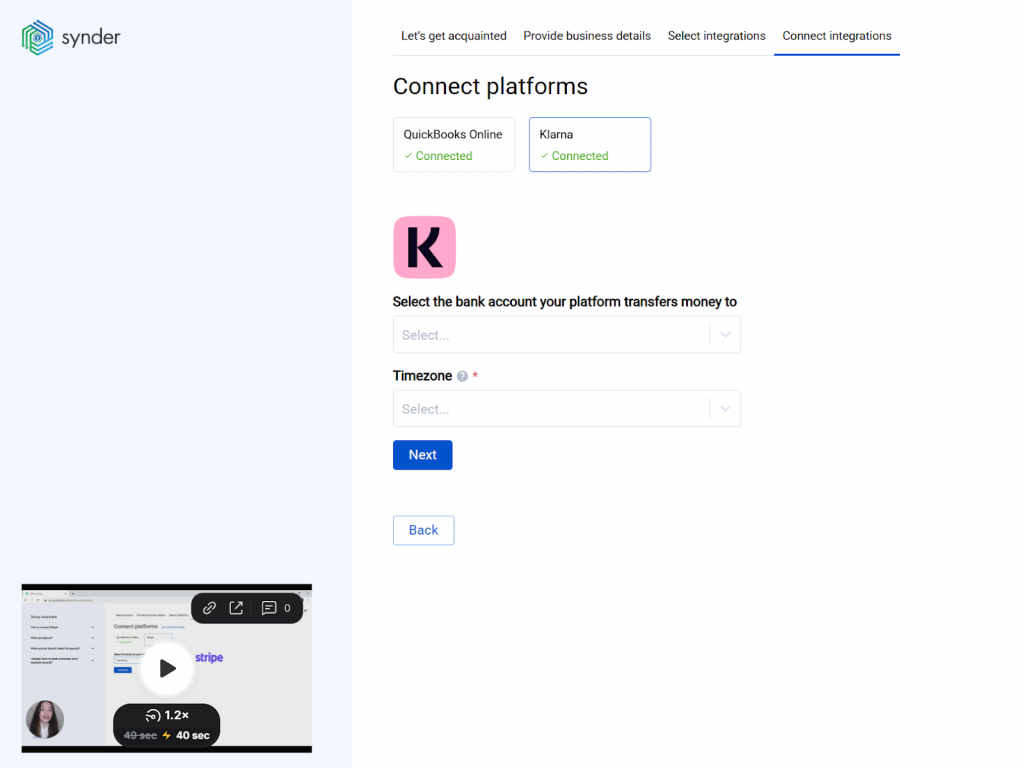
Select your bank account and Timezone and click “Next”.
7. Check the result
Once you’ve connected Klarna, Synder will import and sync the most recent orders with your accounting system.
You can see the imported orders in the “Transactions” → “Platform transactions” tab. To see more details, click on “Explain” under the synced order.
Scroll down the page and click “Show in QuickBooks/Xero” to view the result.
Connecting Klarna to an already existing account
If you already have a Synder account and would like to integrate Klarna, follow the steps below:
- Switch to the needed Organization in the top-left corner of the Synder page.
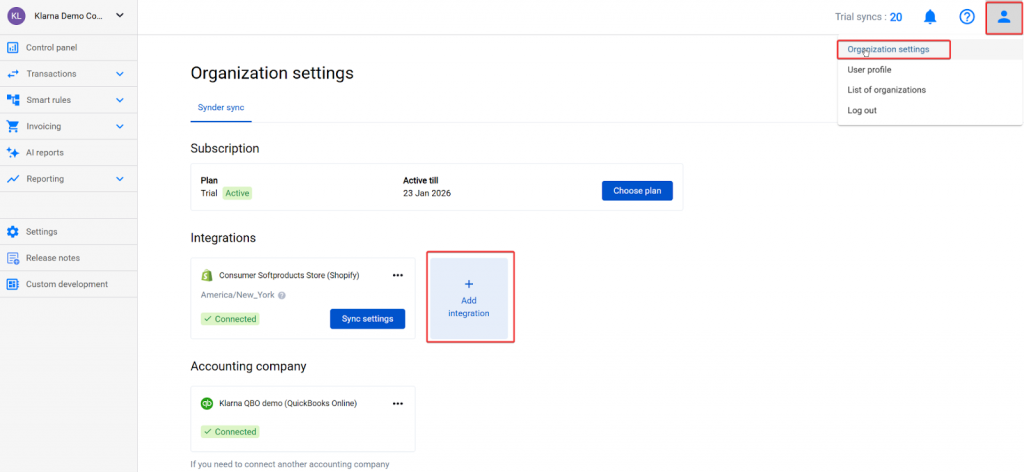
- Click on the Person icon in the upper-right corner and select “Organization settings”.
- In the “Integrations” section, click “Add integration”.
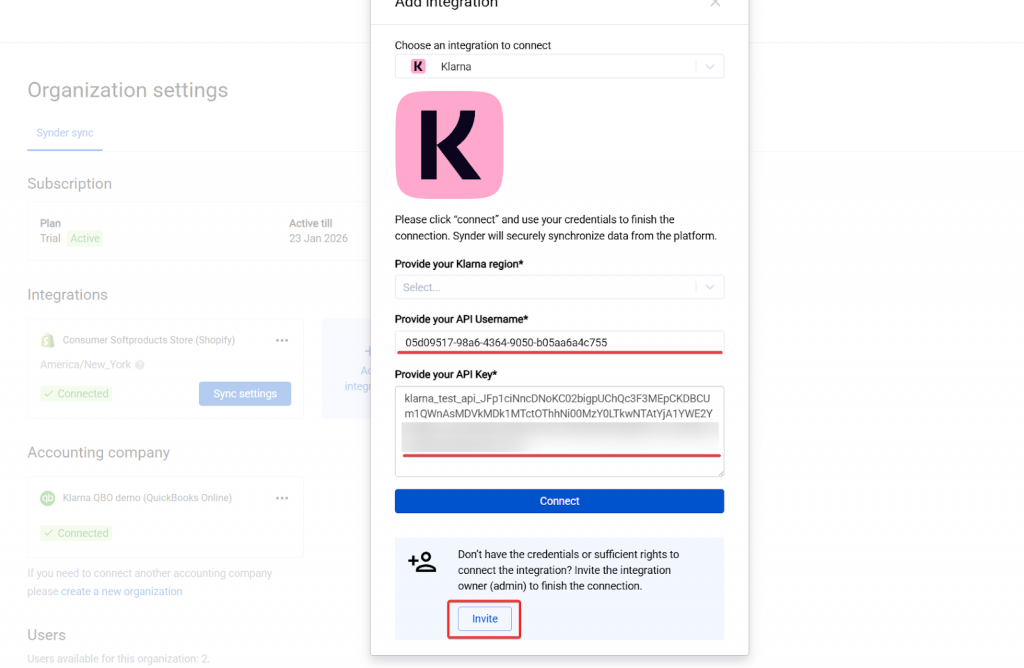
- Select Klarna.
- Enter the API Username and API Password that you’ve generated in step 6 above and click on “Connect”. If you do not have the admin rights, send an invitation to the account owner.
That’s it! You can now start automating your Klarna transaction entry.
For more information about Klarna integration or other Synder features, visit our Help Center or reach out to Synder Team via online support chat or email.
