

A refund is a return of money initiated by the merchant (business). However, customers can also initiate a money return. In this case, it is called a dispute, or a chargeback. Chargebacks always have a negative part (treat them in the same way as a refund). But occasionally, it may have a positive side too — when the disputed money is returned to the business.
Overview:
New to sync modes? See How Smart Rules Work in Synder.
How disputes work
When the customer opens the dispute
As an example, let’s take a look at the current dispute flow in Stripe (it can vary in different platforms) with Synder Sync. Stripe documents its own side of the process in Disputes and fraud.
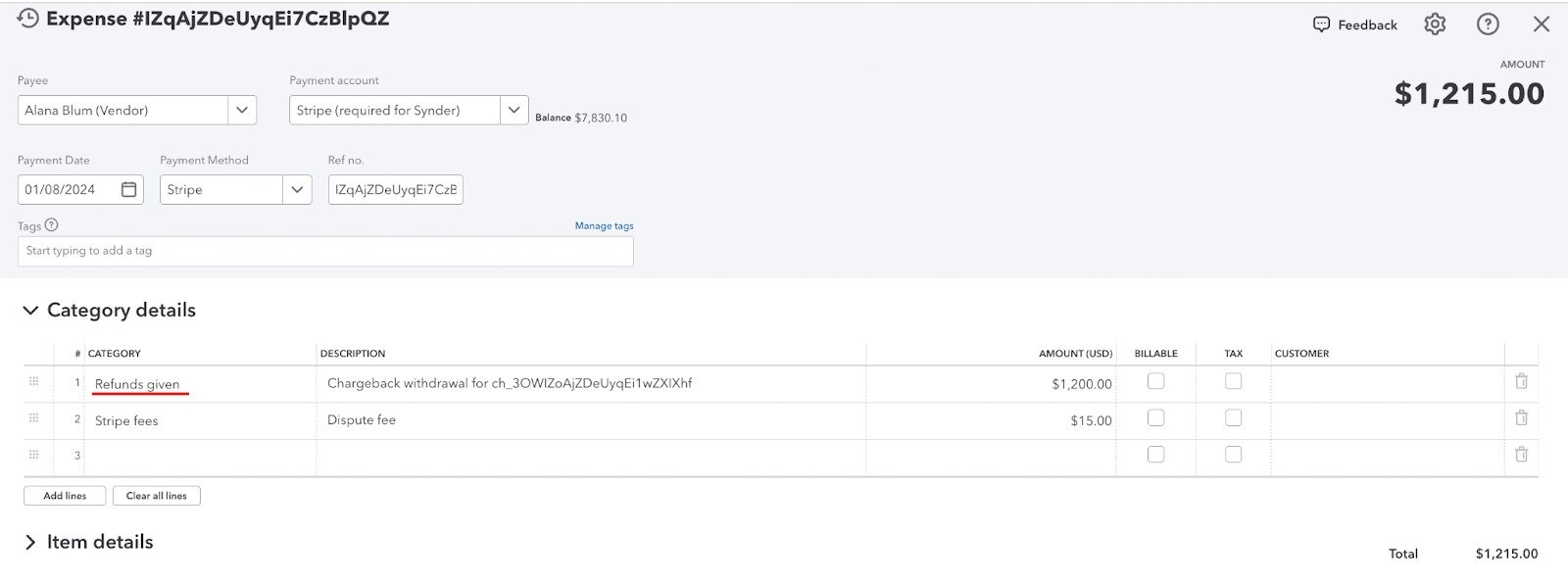
- The end customer requests their money back (initiating a dispute). At the same moment, Stripe withdraws money from the merchant’s account. In Synder you will see an “Adjustment”, a transaction type which will create an “Expense” with the Stripe fees expense account and a unique description in QuickBooks Online for the full amount of the payment.
Note that Stripe takes a $15 commission for reviewing a dispute covered by the merchant.
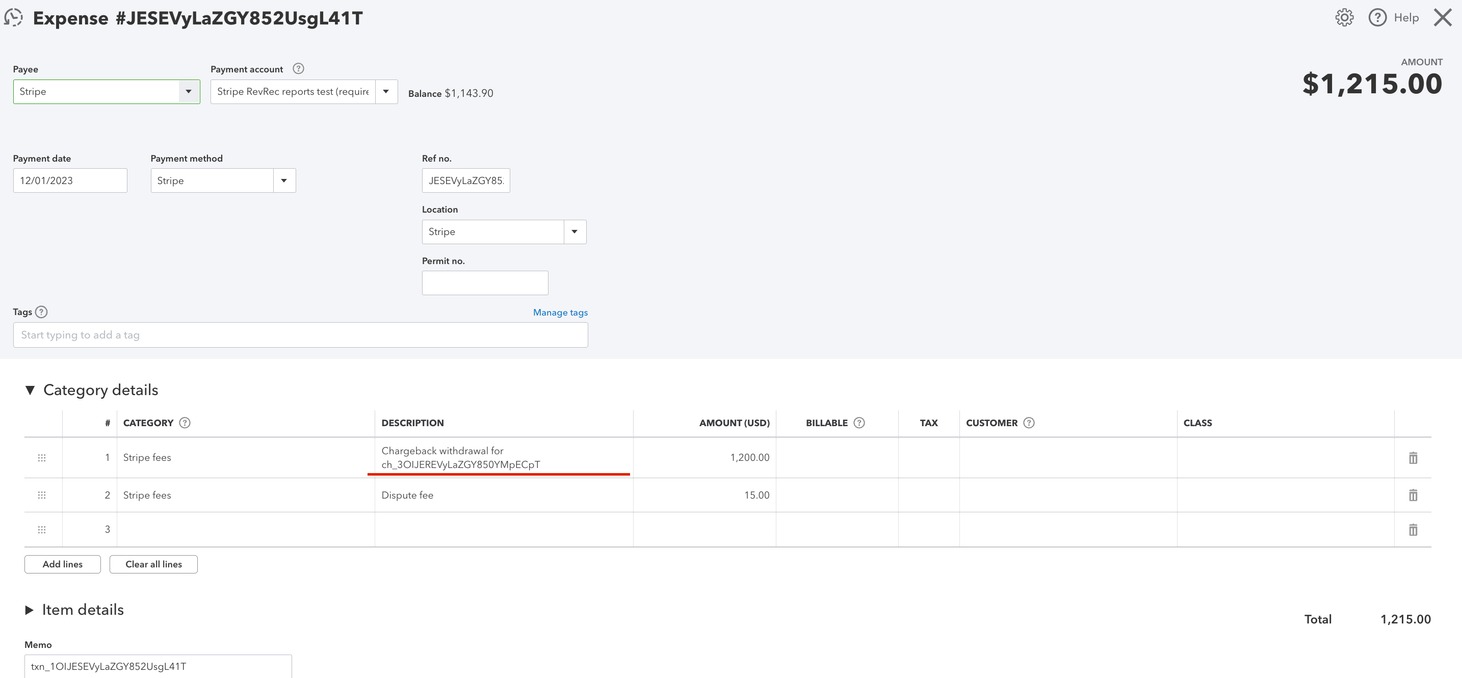
Synced expense for chargeback withdrawal in QuickBooks Online
What happens next
- The business can see this in their Stripe account, where they have 2 options:
- To accept the dispute (then Stripe will give the money back to the customer, in which case there will be no changes for the merchant in the books).
- To “fight” for the money – submitting evidence that the charge was valid. Then Stripe reviews the case and makes a decision within 90 days. Stripe may either:
– return the money to the end customer (nothing changes in the books for the merchant in this case);
– return the money to the merchant (then we will sync another “Adjustment” transaction creating a “Deposit” in QuickBooks Online to return the money to the Stripe fees expense account).
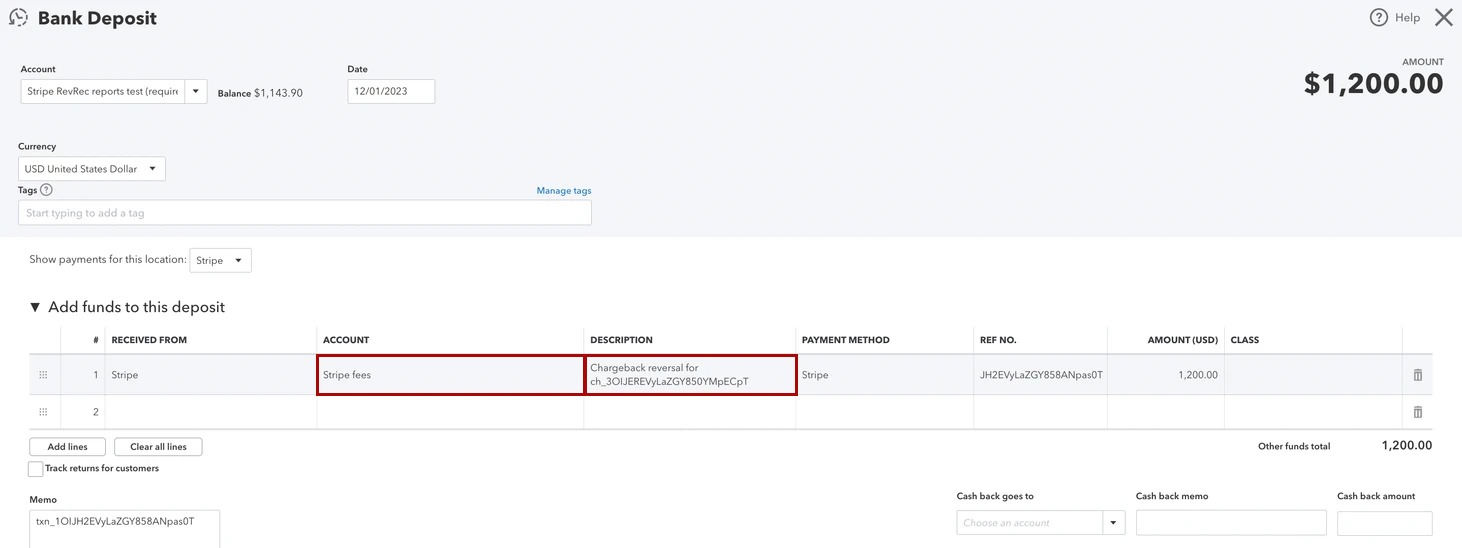
Example of deposit for chargeback reversal in QuickBooks Online
How to categorize chargebacks with Smart Rules
By default, Synder syncs chargebacks to the default Fee expense account. However, if you want to track the disputed money differently, you can set up a Smart Rule in Synder to allocate the line amount based on the description to the needed account in the books.
You’ll need 2 rules: one to categorize Expense lines, and another one to categorize Deposit lines. A rule starts from a single trigger entity, and a dispute can produce two different ones — an Expense when the money is withdrawn, and a Deposit if it comes back. Therefore one rule cannot cover both.
Build the two chargeback rules
Follow the steps below:
- Open your Synder account → Smart Rules left-hand side menu tab → Rules.
- Start a rule trial if this is your first time using Rules. Click Create Rule.
- Set a starting trigger by selecting Expense or Deposit Entity created event.
- Then set up a condition to check Line: Description → Contains. You can type in any word that is located in the line description. In the below screenshot examples, the description contains the word “chargeback”, so we are going to use it.
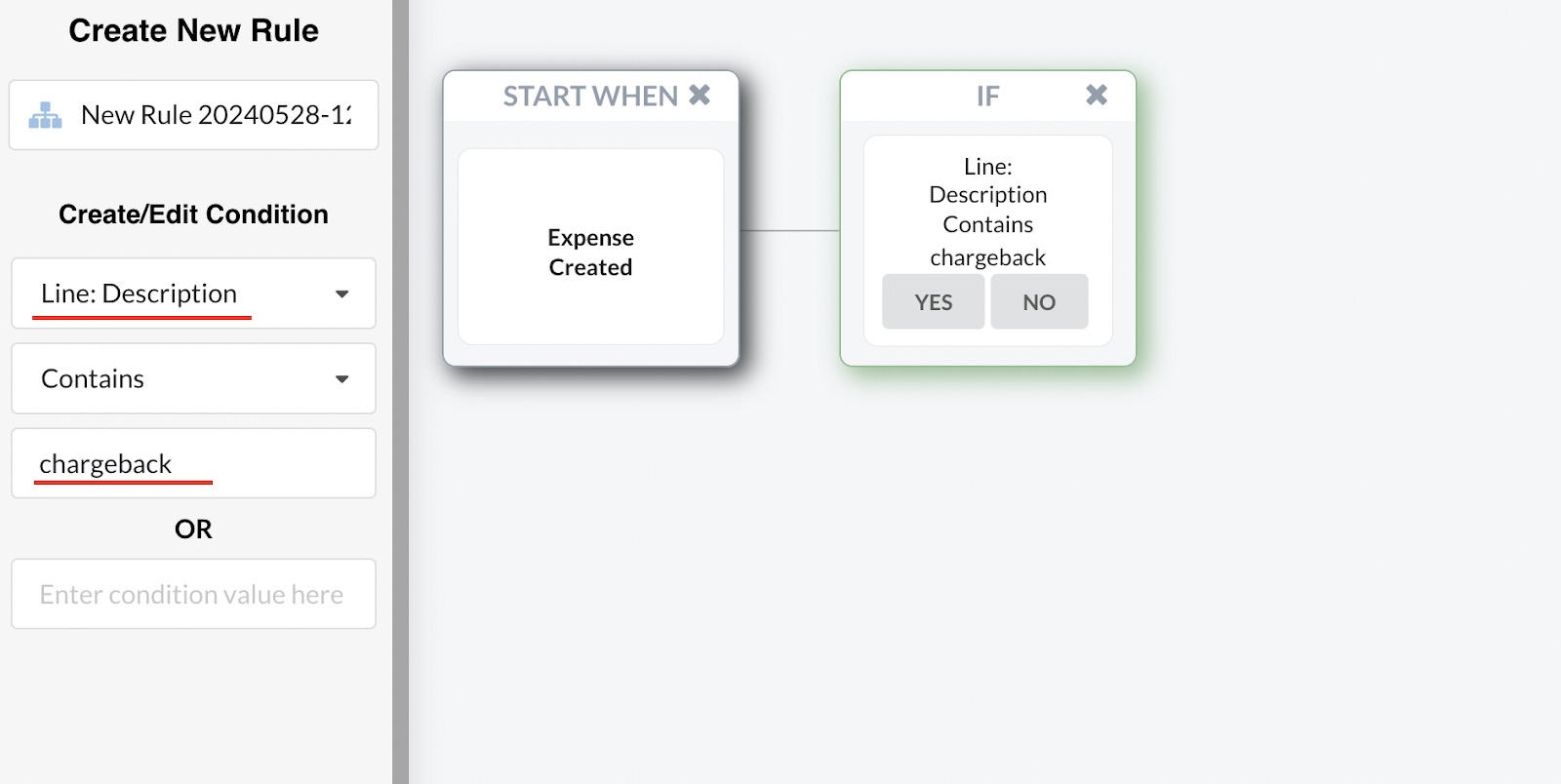
- Then select Yes to continue building blocks.
- We are going to need the Action block now → QuickBooks action → Expense → Update line → Set QuickBooks Entity Data.
- In the pop-up window with fields, select the needed Category (it will give you the Chart of Accounts list from your bookkeeping platform).
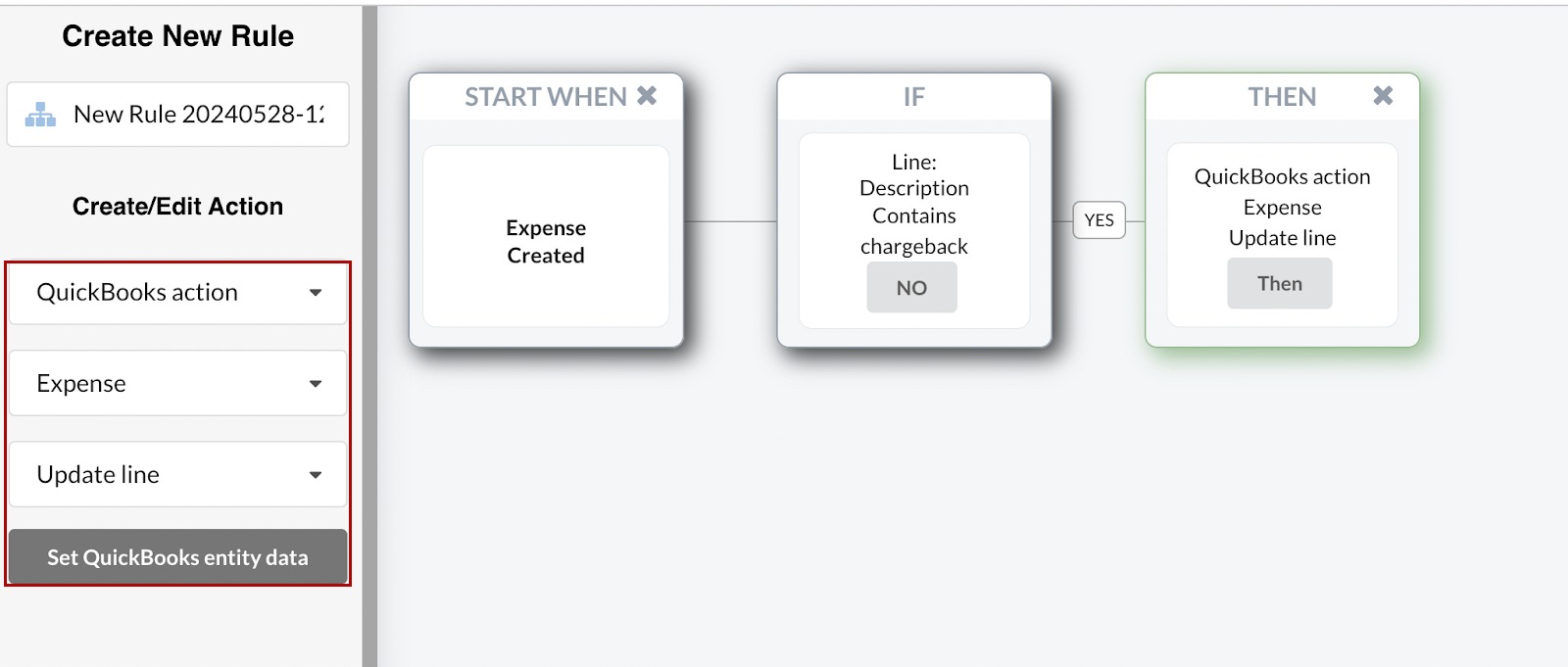
- Do the same thing for both “Deposit” and “Expense” transaction types.
Check the result on your chargebacks
Once both rules are ready, roll back and sync again any of the Adjustments for your chargebacks and check out the results in the accounting platform. You should be able to see that the line with the word “chargeback” is categorized properly this time!
Disputes in Xero
The steps above are for QuickBooks Online. Xero has no Expense or Deposit entity, so chargebacks land differently:
- The chargeback withdrawal arrives as a Bill.
- If you win the dispute and the money comes back, Xero receives a credit note.
You can automate the withdrawal, but not the return. Smart Rules can update a Bill, so a rule with a Bill trigger and a Line: Description condition sets the account exactly as the QuickBooks example does above.
Credit notes work differently. In Xero, Smart Rules cannot update a credit note at all, and the only action available on it is Send email. Therefore you have to categorize the returned amount by hand in Xero.
For the full list of Xero entities, actions and limits, see Smart Rules for Xero: Entities, Actions and Limitations. For how rules work in general, see How Smart Rules Work in Synder.
Reach out to the Synder team via online support chat, phone, or email with any questions you have – we’re always happy to help you!
