

- What it means to connect your AI assistant to Synder
- Before you start
- Step 1. Create your Synder access token
- Step 2. Add Synder to your AI assistant
- What your AI assistant can do in Synder
- How Synder keeps you in control
- Frequently asked questions
Synder now lets you connect your AI assistant to Synder so it can do real work for you. Once you connect it, you can simply ask your assistant to check how your account is doing, explain why a sync failed, run a reconciliation, build a Smart Rule, or pull a quick report — all using your own Synder access. Best of all, it always asks for your confirmation before it changes anything.
In other words, this gives your AI assistant a set of Synder tools to work with. There is no new screen to learn. You keep chatting in the assistant you already use, and it quietly handles the Synder side for you.
What it means to connect your AI assistant to Synder
The connection uses MCP (Model Context Protocol), an open standard that lets AI assistants connect safely to outside tools. Synder provides an MCP server, so any assistant that supports MCP can connect to it. For example, this works with Claude Code, Claude Desktop, Cursor, and ChatGPT.
To set it up, you create a personal access token in Synder and add it to your assistant. After that, your assistant acts on your behalf, and it can only do what your token allows. From then on, you talk to it in everyday language — for instance, “What’s broken in my account?”, “Why did this sync fail?”, or “Book the pending Stripe sales” — and it takes care of the work in Synder for you.
Before you start
You’ll need two things before you connect:
- A Synder account. Your assistant works with the same organizations and data your Synder login can already reach. If you’re new to Synder, first connect your sales channels and payment platforms.
- An AI assistant that supports MCP. For example, this includes Claude Code, Claude Desktop, Cursor, and ChatGPT. Any MCP-capable assistant will work.
Step 1. Create your Synder access token
The Synder side of the setup is the same for every assistant. You create one personal access token, choose how much access it has, and then use it to make the connection.
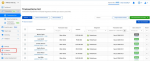
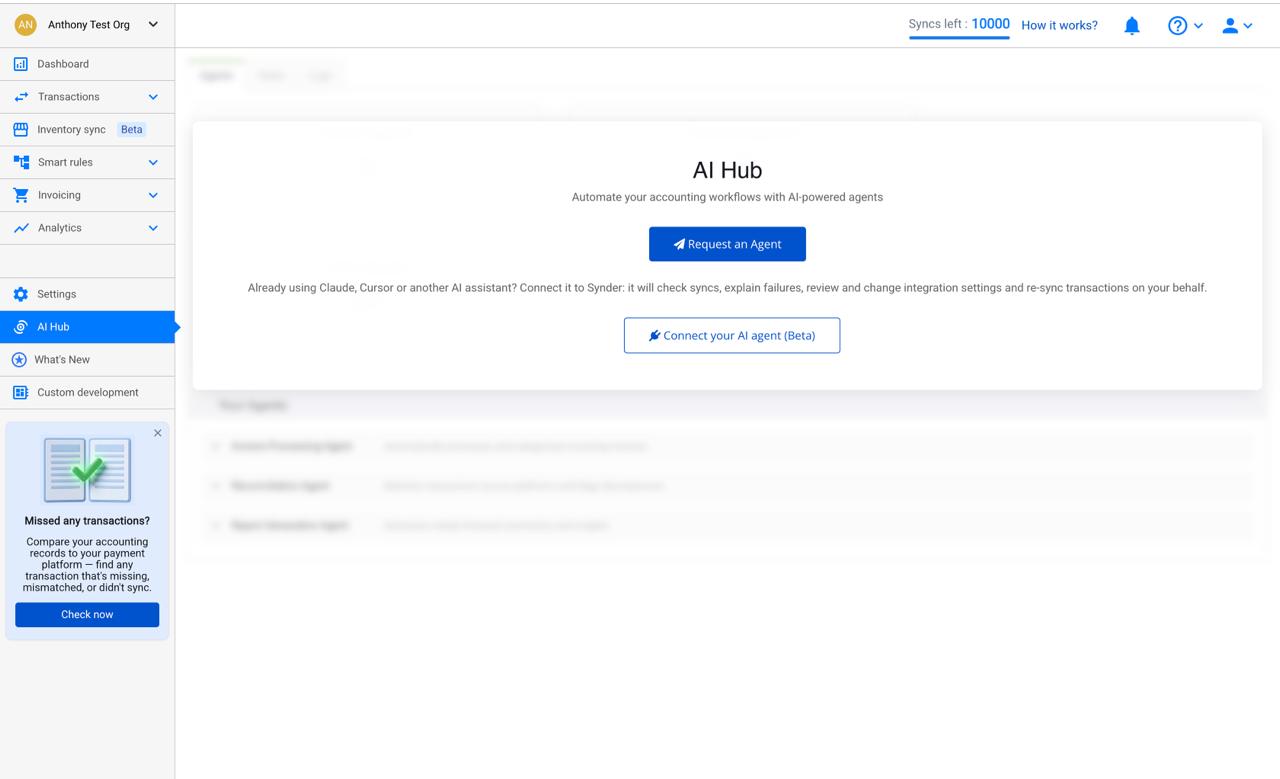
- In Synder, open AI Hub from the left-hand menu.
- Select Connect your AI agent (Beta).
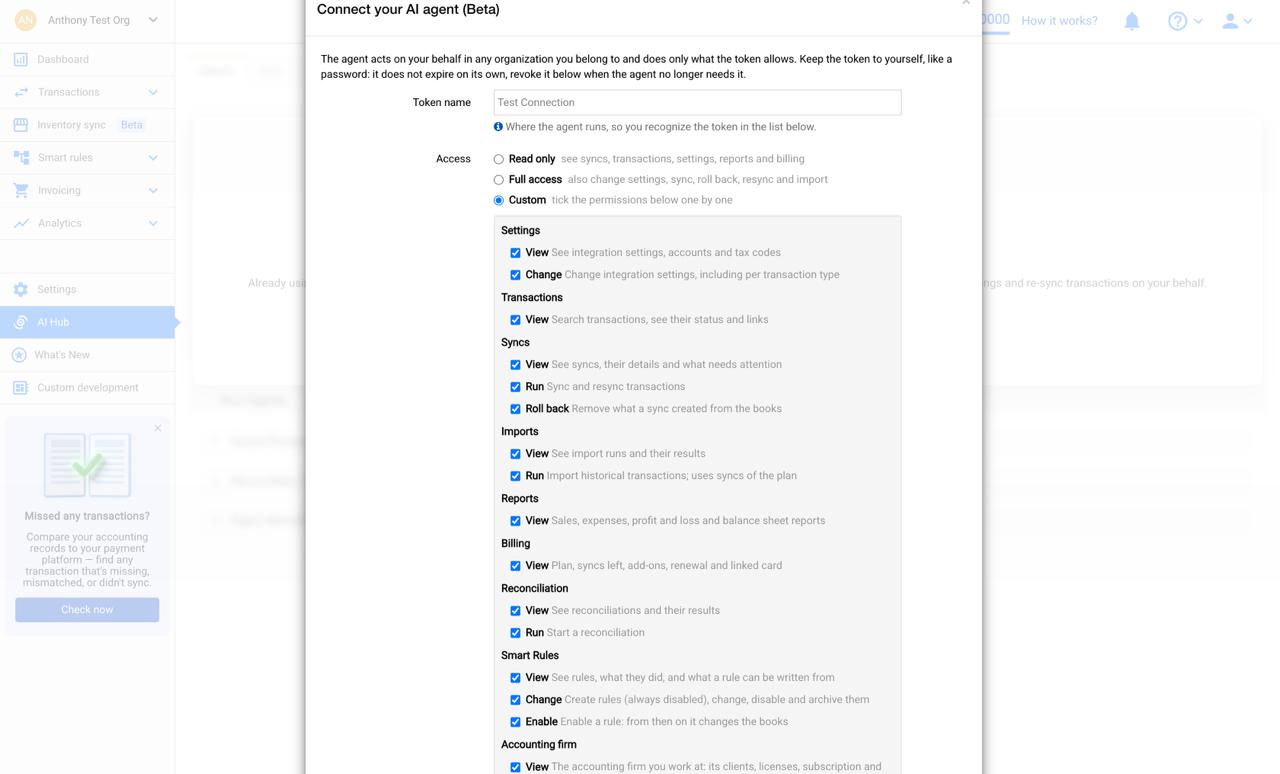
- Give the token a Token name you will recognize later (for example, the assistant you are connecting).
Next, choose the access level for the token. This controls exactly what your assistant is allowed to do on your behalf:
- Read only — the assistant can only look: syncs, transactions, settings, reports, and billing. It cannot change anything.
- Full access — everything in Read only, plus the ability to change settings, sync, roll back, resync, and import.
- Custom — tick the exact permissions you want, one by one (Settings, Transactions, Syncs, Imports, Reports, Billing, Reconciliation, Smart Rules, and Accounting firm).
When you create the token, Synder shows the full token only once. Copy it and keep it safe — treat it like a password, because it lets your assistant act as you. The token does not expire on its own; you can revoke it from the same place whenever the assistant no longer needs it.
Step 2. Add Synder to your AI assistant
Once your token is issued, Synder gives you ready-made connection details for the most common assistants. In the same window, pick the tab for your assistant — Claude Code, Claude Desktop, ChatGPT, or Cursor and others — and follow the short instructions shown there.
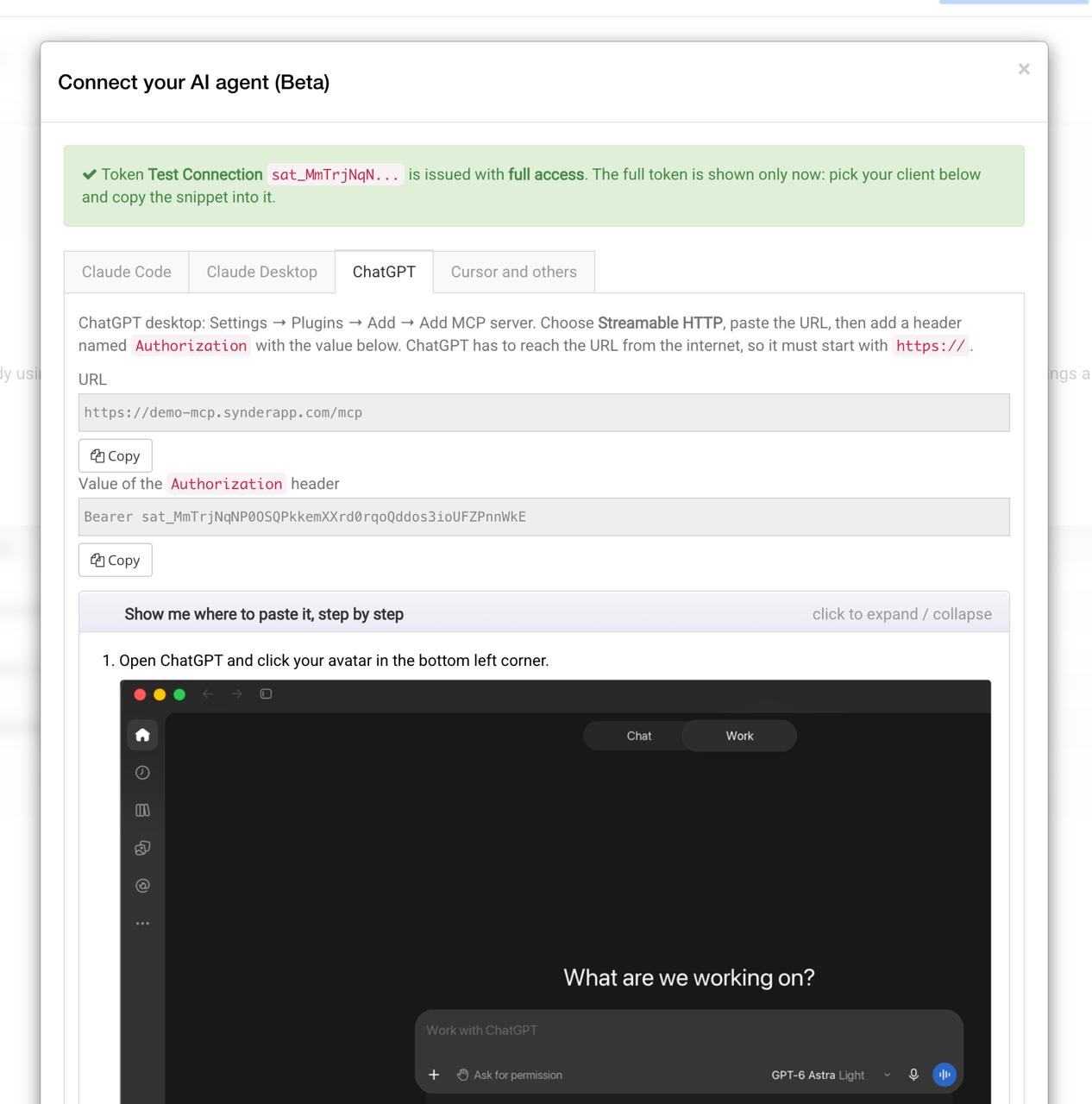
Each tab gives you exactly what that assistant needs — typically the Synder MCP URL and an Authorization value that already includes your token — each with its own Copy button. A Show me where to paste it, step by step section expands into a short, illustrated walkthrough for that specific app.
As soon as the connection is in place, you’re done — you can start giving Synder-related instructions in plain language. If your assistant is not listed, use the Cursor and others tab, which covers any MCP-capable app, or simply ask your assistant where to add a Synder MCP connection and paste the details Synder gave you.
What your AI assistant can do in Synder
Once you’re connected, your assistant can help across all the organizations your login can reach, and it can do so in a single conversation. Here’s what you can ask it to handle.
Get a clear picture of your account
Your assistant can tell you who it’s acting for, what your token is allowed to do, and which organizations and plan you’re on. In addition, it can show your connected payment and ecommerce platforms along with their status, and hand you a link to connect or reconnect a platform when you need one (you then finish that part in your browser). It can also give you a read-only view of your billing — your plan, whether you’re on a trial or paying, your price and renewal date, your remaining syncs, your add-ons, and your linked card — exactly as the billing page shows it.
Check the health of your account
Whenever you want a quick pulse check, just ask “How are things?” for one organization or all of them at once. Your assistant then points out anything that needs attention, such as lost connections, failed syncs, transactions that haven’t been booked yet, imports that ran into trouble, and any warnings. On top of that, it explains those in-app warnings in plain words and links you to the right help.
Manage your syncs and transactions
Your assistant can review your syncs, break them down by status or platform, and open any single sync to explain what happened. When a sync fails, it walks you through the cause and the fix. It can also search your transactions and then, at your request, sync, resync, or roll them back — one at a time or up to 100 together — or sync everything that’s still pending across one organization or all of them. Because these actions change your data, your assistant always asks you to confirm first.
Adjust your integration settings
You can ask your assistant to read your current integration settings, suggest a setup based on a description of your business, update those settings, or copy them from one organization to another. It can look up your accounts and tax codes by name, and if you describe how you’d like your sales booked, it turns that into a clear plan for you to approve. As with syncs, any change here waits for your confirmation before it’s applied.
Pull the reports you need
Need a quick number? Your assistant can pull your sales and expenses by day or by month, and it can produce a Profit & Loss or balance sheet straight from QuickBooks Online.
Run imports and reconciliation
Your assistant can kick off a historical import and then show you how each import run went. It can also reconcile your Stripe, Shopify, or Amazon activity against your QuickBooks Online clearing account and walk you through the results. Since both starting an import and running a reconciliation are actions that do real work, your assistant checks with you before it begins.
Build Smart Rules and work with Firms
Finally, you can lean on your assistant to help you build Smart Rules, so automating how your transactions are categorized becomes a simple conversation. If you work in Firms, your assistant supports those workflows through the same connection.
How Synder keeps you in control
Handing tasks to an AI assistant should never mean giving up control, so Synder builds in three safeguards:
- Your token sets the limits. Your assistant can only use what your token allows, and nothing beyond that.
- You approve every change. Before any action that changes your data, your assistant shows you a plan and waits for your go-ahead. Simply reading or explaining never touches your data.
- Everything is on the record. Synder logs your own words next to whatever the assistant did, so you always have a clear trail.
Frequently asked questions
Which AI assistants can I connect?
Any assistant that supports MCP. The most common examples are Claude Code, Claude Desktop, Cursor, and ChatGPT. In every case, the Synder side of the setup is the same.
Where exactly do I paste my Synder token?
That depends on your assistant, because each one adds connections in its own way. The quickest route is to ask your assistant directly where to add a Synder MCP connection and where the token goes. It will then guide you through its own setup.
Can my assistant change my data without asking?
No. Any action that changes something — such as syncing, rolling back, updating settings, starting an import, or running a reconciliation — always asks you to confirm first. Reading and explaining, on the other hand, never change your data.
Can it manage my billing?
Only to show it. Billing is read-only, so your assistant can display your plan, remaining syncs, add-ons, renewal date, and linked card. However, it cannot subscribe, upgrade, or make any purchases for you.
Does this work across multiple organizations?
Yes. Your assistant can move across every organization your login can reach, all within a single conversation. This is especially handy when, for example, an accountant needs to review several clients one after another.
