

When a Stripe customer has account credits (a positive balance), those credits can be used to pay invoices instead of — or alongside — a card payment. This guide explains how Synder handles these transactions and what to expect in your accounting system.
Overview:
- What is customer balance in Stripe?
- Invoice fully paid with customer balance
- Invoice partially paid with customer balance
- Important limitation: balance adjustments
- Where to track applied balances in your accounting system
- FAQ
What Is Customer Balance in Stripe?
The customer balance in Stripe acts like a wallet tied to a specific customer record. It can hold a positive balance (credit) or a negative balance (outstanding debt):
- Positive balance (credit): The customer has funds available — for example, from a refund issued to their balance or a manual credit you applied. Stripe can automatically apply this toward their next invoice.
- Negative balance (debt): The customer has an outstanding amount owed. This appears until the invoice is paid.
You can find the customer balance in the customer’s profile on the Stripe Dashboard.
[SCREENSHOT 1 — Stripe customer profile showing a positive credit balance in the “Balance” field]
Invoice Fully Paid With Customer Balance
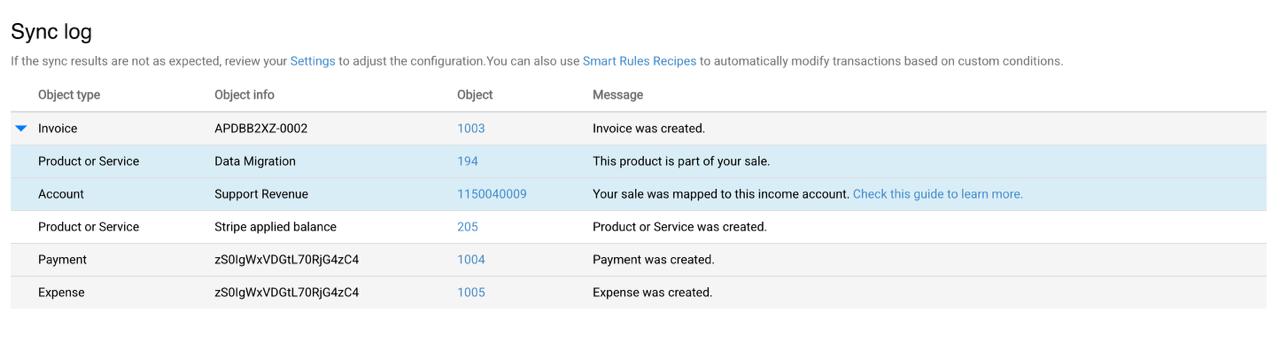
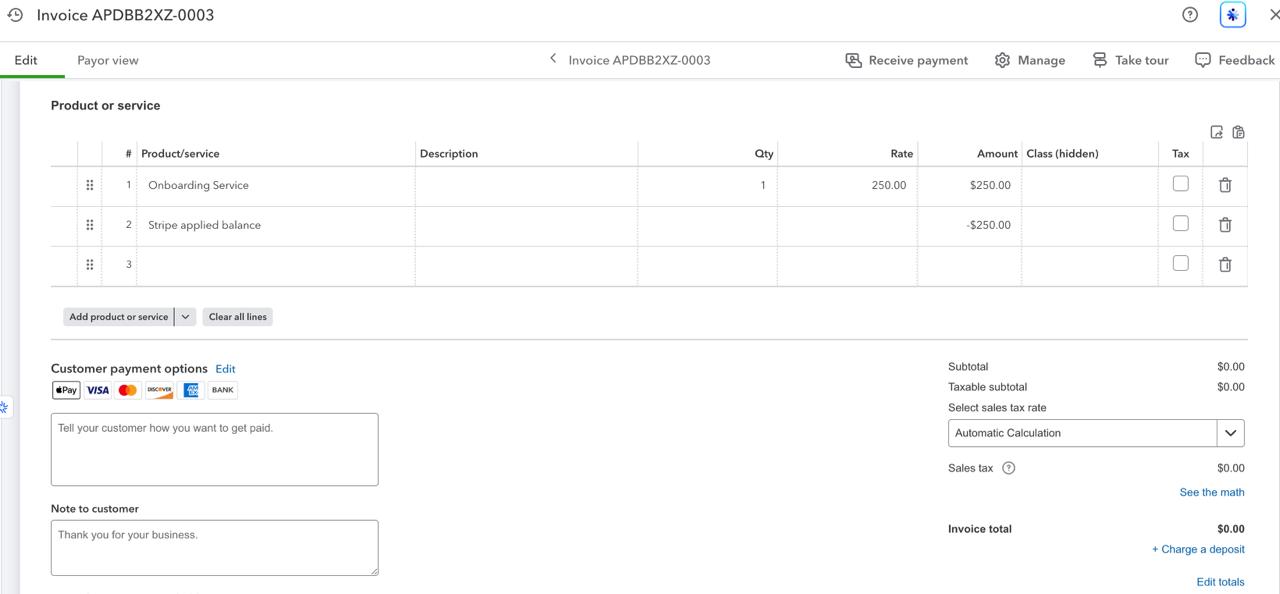
When a Stripe invoice is fully covered by the customer’s credit balance, no card payment or bank transaction occurs. Here is how Synder handles it:
- Synder creates an invoice in your accounting system for the full amount (e.g., $100)
- A negative line item (e.g., −$100) is added to the invoice, labeled “Stripe Applied Balance”, to reflect the credit that was used
- The invoice total becomes $0 — it is automatically closed with no payment needed
- No separate payment transaction is created, because no money changed hands
[SCREENSHOT 2 — Stripe: invoice showing it was paid using customer balance (no card charge shown)]
Invoice Partially Paid With Customer Balance
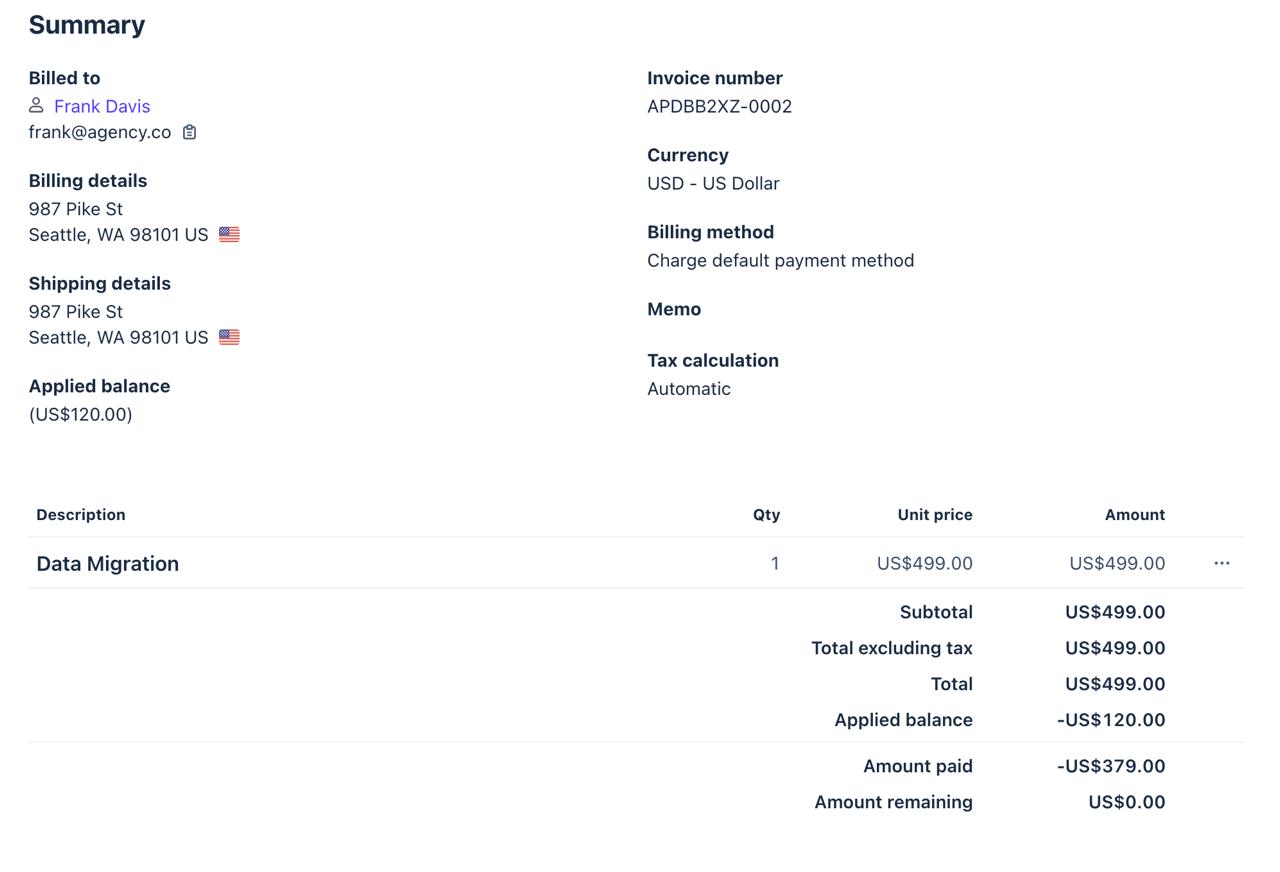
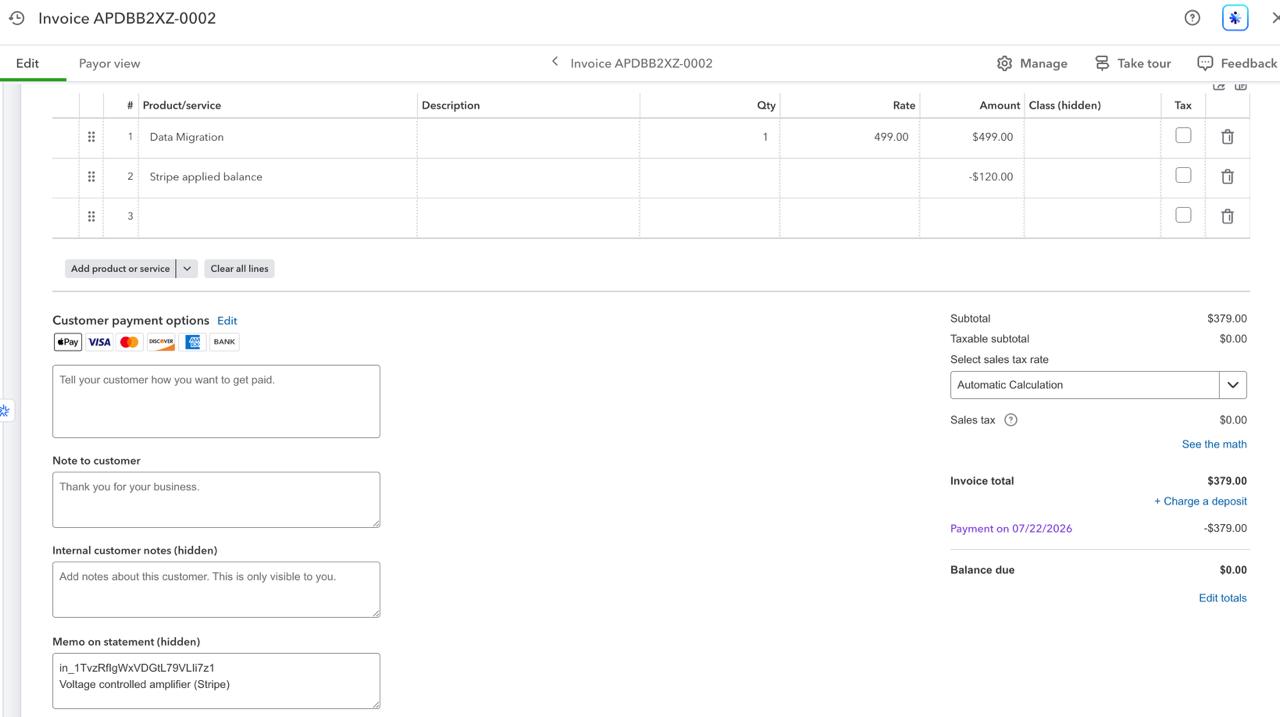
When only part of the invoice is covered by the customer’s credit balance, with the remainder paid by card or bank transfer, Synder records both:
- A payment transaction for the card/bank portion
- A negative line item on the invoice for the credit portion (labeled “Stripe Applied Balance”)
For example: $100 invoice, $70 paid by card, $30 paid by credits → invoice shows a $70 payment + a −$30 line. The invoice closes at $0.
Important Limitation: Balance Adjustments Are Not Synced
If a customer balance is manually adjusted or refunded directly in Stripe (not applied to an invoice), Synder will not sync this adjustment. Synder only reflects credits at the moment they are applied to an invoice.
If you need to record a balance adjustment in your books, you will need to do this manually in your accounting system.
Where to Track Applied Balances in Your Accounting System
Synder maps the “Stripe Applied Balance” line to an account in your accounting system. By default this goes to the income account set in your Products & Services settings. You can change it if needed — always check with your accountant on where this should be categorized.
QuickBooks Online
- Log in to QuickBooks Online
- Click the gear icon in the top-right corner
- Select Products and Services
- Find the Stripe Applied Balance item
- Click Edit
- In the Income account field, select the account where you want to track the applied balance
- Check “Also update this account in historical transactions” to apply the change to past records
- Click Save and close
[SCREENSHOT 6 — QBO: Products and Services list showing the “Stripe Applied Balance” item with the Edit option]
Xero
In Xero, the applied balance line is mapped via the Synder Settings → Products/Services mapping. To change which account it posts to:
- In Synder, go to Settings → Products/Services
- Find the Stripe Applied Balance item
- Update the mapped account to the correct one in Xero
- Save the changes
[SCREENSHOT 7 — Xero: the resulting invoice showing the negative “Stripe Applied Balance” line]
FAQ
Where is the credit memo? I don’t see one in my accounting system.
Stripe customer credits do not create a separate credit memo or credit note in Synder. Instead, the credit is reflected as a negative line item directly on the invoice at the moment it is applied. If you are looking for a credit memo, this is by design — the invoice itself shows a $0 balance, which means the credit was accounted for correctly.
Why is there no payment transaction for this invoice?
When an invoice is fully paid using customer balance, no actual money moves between accounts — the credit offsets the invoice directly in Stripe. Because there is no payment charge in Stripe, Synder has nothing to sync as a payment. The invoice closes at $0 via the negative “Stripe Applied Balance” line.
The invoice in my books shows a balance due — something looks off.
This can happen if the “Stripe Applied Balance” item in your Products & Services settings is mapped to an account type that doesn’t properly close the invoice (e.g., it’s mapped to the wrong account). Check that the account is set correctly and matches your accountant’s recommendation. You can update it in QBO under Products and Services, or in Synder under Settings → Products/Services for Xero.
My customer’s balance was adjusted directly in Stripe — why doesn’t it appear in my books?
Synder does not sync standalone customer balance adjustments made in Stripe. Only when the balance is applied to an invoice does it appear in your accounting system. If you need to record the adjustment, you will need to do this manually in QBO or Xero.
Credits were applied but the invoice in Synder is still showing as unpaid.
Make sure “Sync Open Invoices” is enabled in your Synder settings (Settings → Invoices → Sync unpaid open invoices). Without this setting, Synder will not process invoice-level credit applications. If the setting is already on, try rolling back and resyncing the transaction.
Reach out to the Synder team via online support chat, phone, or email with any questions you have – we’re always happy to help you!
