

📋 In This Guide
- 1. Upgrade Your Plan
- 2. How to Cancel Your Subscription
- 3. Find Your Invoices & Receipts
- Downgrade Your Plan
- Plan Comparison
- Common Billing Questions
This guide covers everything you need to manage your Synder subscription and billing — finding invoices, upgrading, downgrading, and canceling. If you’ve landed here from a broken link, welcome — you’ve found the right place.
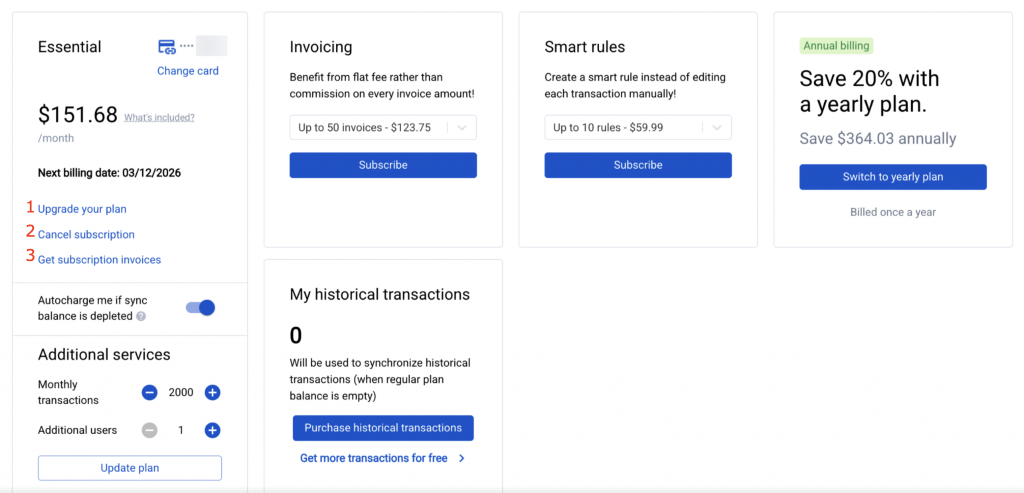
1. Upgrade Your SubscriptionPlan
You can upgrade your plan at any time. The upgrade takes effect immediately and you’ll see new features unlock right away.
- Go to Manage Subscription Person icon → Organization Settings → Manage Subscription
- Select your new plan. Review the plan options. See the comparison table below if you’re not sure which to choose.
- Choose monthly or annual billing. Annual billing saves 20% compared to monthly. You’ll be billed for the full year upfront.
- Confirm payment. Enter and confirm your payment method and complete the upgrade.
⚠️ Upgrading to Pro? Read This First
When you upgrade to Pro, Synder temporarily pauses auto-sync until you complete an onboarding call with your Customer Success Manager (CSM). This is intentional — it protects you from syncing incorrectly configured transactions.
You’ll receive a welcome email with a link to schedule your onboarding call. If you prefer to enable auto-sync immediately without the call, email [email protected].
2. How to Cancel Your Subscription
You can cancel your Synder subscription at any time. Your account remains active until the end of your current billing period, and Synder does not charge you again after cancellation.
Standard Cancellation (Most Users)
- Go to your subscription settings Person icon (top right) → Organization Settings → Manage Subscription
- Click “Cancel Subscription” and Follow the prompts. You may be asked for feedback on why you’re leaving — this is optional.
- Confirm the cancellation You’ll see your subscription end date. Your account remains active until then.
- Export your data (if needed) Before your account expires, you can export your transaction history. Contact [email protected] if you need help with this.
🚨 Clover Subscribers — Different Process
If your Synder subscription was set up through Clover (the Clover App Market), you cannot cancel from within Synder. You must cancel from your Clover Dashboard:
Clover Dashboard → Apps → Select Synder → Remove
Once uninstalled, your subscription will be cancelled and you’ll return to trial status. If you’re unsure whether you subscribed through Clover, contact [email protected].
ℹ️ Can’t Find the Cancel Button?
If the cancel button isn’t visible or is grayed out, email [email protected] with your account email and subject line “Cancellation Request.” The support team will process it immediately and send you a confirmation.
3. Find Your Invoices & Receipts for your Subscriptions
You can download your invoices directly from your Synder account without contacting support.
Person icon (top right)
→ Organization Settings → Manage Subscription → Get Subscription Invoices
ℹ️ Can’t Find Your Invoice?
If you can’t locate the invoice download button, email [email protected] with your account email and billing period. The support team can send the invoice directly.
Downgrade Your SubscriptionPlan
Downgrading is not self-service — it requires contacting our billing team. Here’s why: downgrading may affect your transaction limits, active Smart Rules, and other configured features, and we want to make sure the transition is smooth.
- Email the billing team Contact [email protected] and mention “subscription downgrade request” in the subject.
- Specify what you want to move to Let us know which plan you’d like. If you’re unsure, ask for a recommendation based on your transaction volume.
- The billing team will handle the rest Usually processed the same business day. You’ll receive a confirmation email when done.
ℹ️ Pro-Rated Credits
If you’re on an annual plan and downgrade mid-cycle, unused time may be applied as a credit toward your new plan. The billing team will provide details specific to your account.
Plan Comparison
| Feature | Essential | Pro |
|---|---|---|
| Auto-Sync | ✅ Self-service | ✅ Unlocked after onboarding call |
| Smart Rules | Add-on: $59.99/mo (10 rules) | ✅ Included |
| Configuration/Onboarding Call | ❌ Not included | ✅ Required & included |
| Dedicated Customer Success Manager | ❌ | ✅ |
| Monthly Account Health Checks | ❌ | ✅ |
| Historical Syncs | ✅ | ✅ (unlocked at onboarding) |
| Multicurrency | ✅ | ✅ |
| Support | Email + Chat | Email + Chat + Zoom |
| Annual discount | 20% off with annual billing | 20% off with annual billing |
ℹ️ What Are “Smart Rules”?
Smart Rules are automation rules that categorize and transform your transactions as they sync. Example: automatically map all Walmart discount transactions to a “Promotions” account, or separate fees from two different platforms. See the Smart Rules guide for full details.
Common Billing Questions
❓ Why did my price increase?
If you were on a legacy plan (Large, Scale, or Medium), Synder has retired those plans and moved customers to the current lineup (Essential or Pro). The new plans have different pricing — typically the Pro plan replaces the legacy higher-tier plans.
You should have received advance notice of this change. If you did not receive information about your migration or have questions about it, email [email protected] and include “Legacy Plan Migration” in the subject line.
❓ Do you offer nonprofit or startup discounts?
We don’t currently offer special pricing for nonprofits or startups. However, annual billing saves 20% compared to monthly billing. If cost is a concern, switching to an annual plan is the best way to reduce your bill.
❓ Can I get a refund?
As outlined in our Terms of Service, all purchases are final and non-refundable. That said, if a billing error occurs or Synder charges you for a feature you didn’t expect, email [email protected] and include the details. The billing team reviews each case individually.
❓ I was charged after I thought I canceled — what do I do?
First, check your Synder account to confirm the subscription status. If Synder shows your subscription as canceled but still charges you, email [email protected] and include your order or invoice number. The billing team will investigate and correct any errors.
Note for Clover subscribers: If you uninstall Synder from Clover but Clover still charges you, Clover may not have properly canceled your subscription. Contact Clover support as well as Synder at [email protected].
❓ How do I change my payment method?
Go to: Person icon → Organization Settings → Manage Subscription → Update Payment Method.
If you don’t see this option, contact [email protected] and the billing team can assist.
❓ Can I transfer my subscription to a different organization?
Yes — the billing team can transfer subscriptions between organizations. This often helps when you switch from Per Transaction to Daily Summary sync mode, which requires you to create a new organization. Email [email protected] with the old and new organization details.
❓ I’m leaving — will I lose my data?
Your data is preserved until the end of your billing period. After that, you can contact [email protected] to request a data export. Transactions already synced to QuickBooks or Xero will remain there — canceling Synder doesn’t affect your accounting software.
📚 Related Guides
- → Understanding Your Plan: Essential vs Pro (Full Feature Breakdown)
- → Smart Rules: What They Are and What They Cost
- → Managing Your Business Importer Subscription
- → Synder Setup Guide: Your First 30 Minutes
Reach out to Synder Team via online support chat or email with any questions you have – we are always happy to help you!
