

The Group by region feature in Synder Summary Sync splits your journal entry lines by the shipping region (state or province) of each transaction. Instead of one combined Sales line, you get a separate line per region. For example, you will see lines like Sales – US-CA, Sales – US-NY, and Sales – US-TX.
Use this guide if you:
- Sell to customers in multiple states or provinces and need state-level sales tax tracking. See also: How to Track Sales Taxes in QuickBooks Online with Summary Sync
- Want to track whether you’ve reached sales tax nexus thresholds in specific states
- Need regional P&L reporting to see how much revenue comes from each geographic area
- Use Summary Sync and want a geographic breakdown in your journal entries
Before you start, make sure you have:
- Summary Sync mode enabled in Synder
- Transactions that include shipping address data. Transactions without a shipping region will appear under “Unknown” or “N/A”
- At least one payment or e-commerce integration connected
How to enable Group by region in Summary Sync
Step 1: Open the grouping settings from the Mappings list
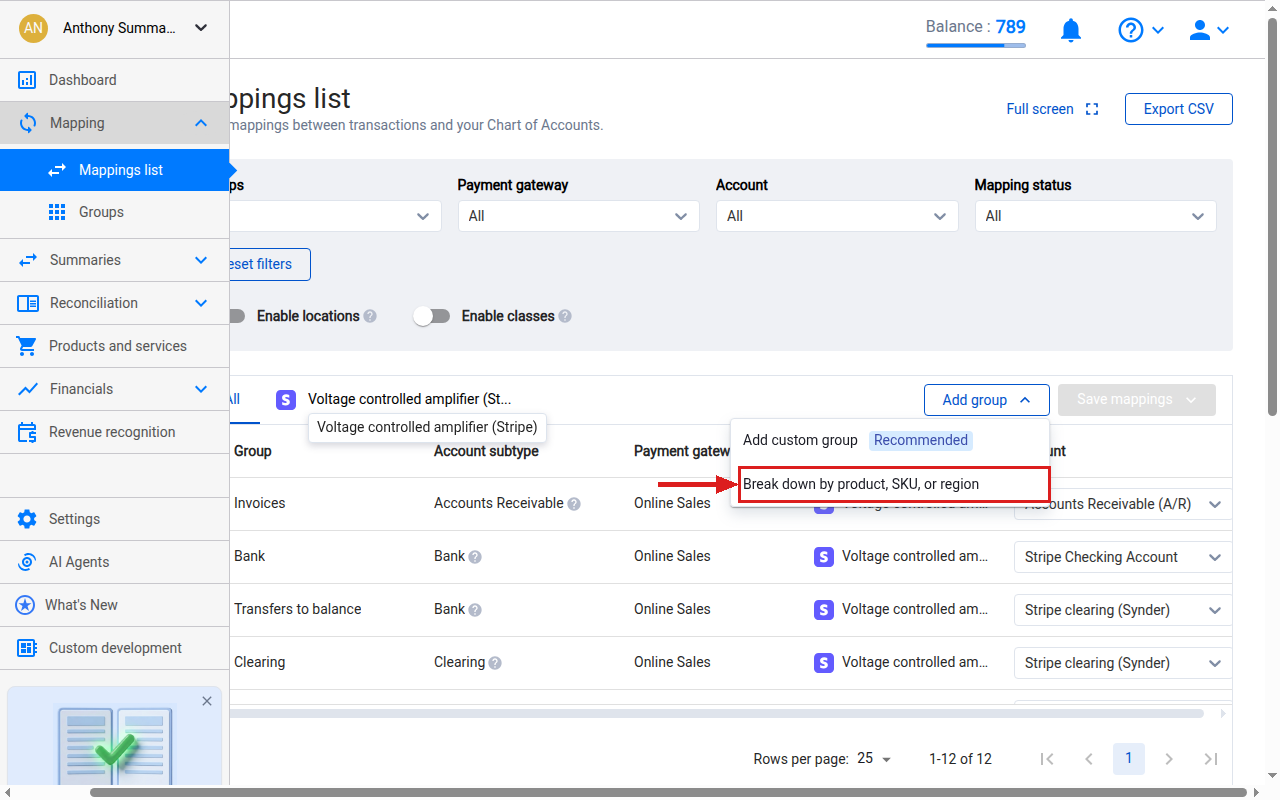
- Click Mapping in the left sidebar, then click Mappings list.
- Next, click the Add group button in the top-right area of the page.
- From the dropdown that appears, select “Break down by product, SKU, or region”.
Step 2: Enable the Group by region toggle in Settings
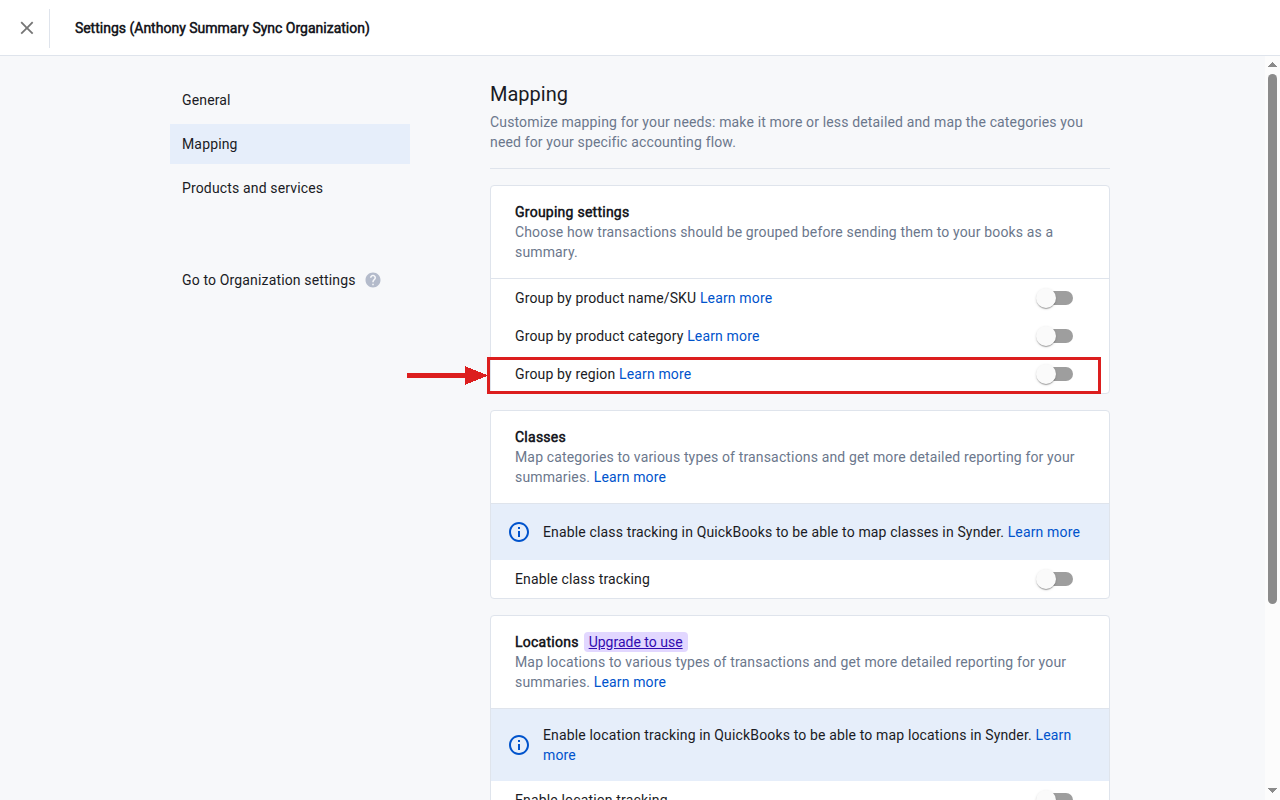
- Selecting that option takes you to Settings → Mapping.
- There, find the Grouping settings section.
- Finally, enable the toggle next to Group by region.
Step 3: Map regions to income accounts
- Return to Mapping → Mappings list.
- You will now see separate lines for sales and taxes payable for each region found in your transactions. For example: Sales – US-CA, Taxes Payable – US-NY.
- Assign each region line to the correct income account in your Chart of Accounts.
- Then click Save mappings.
What it looks like in QuickBooks Online
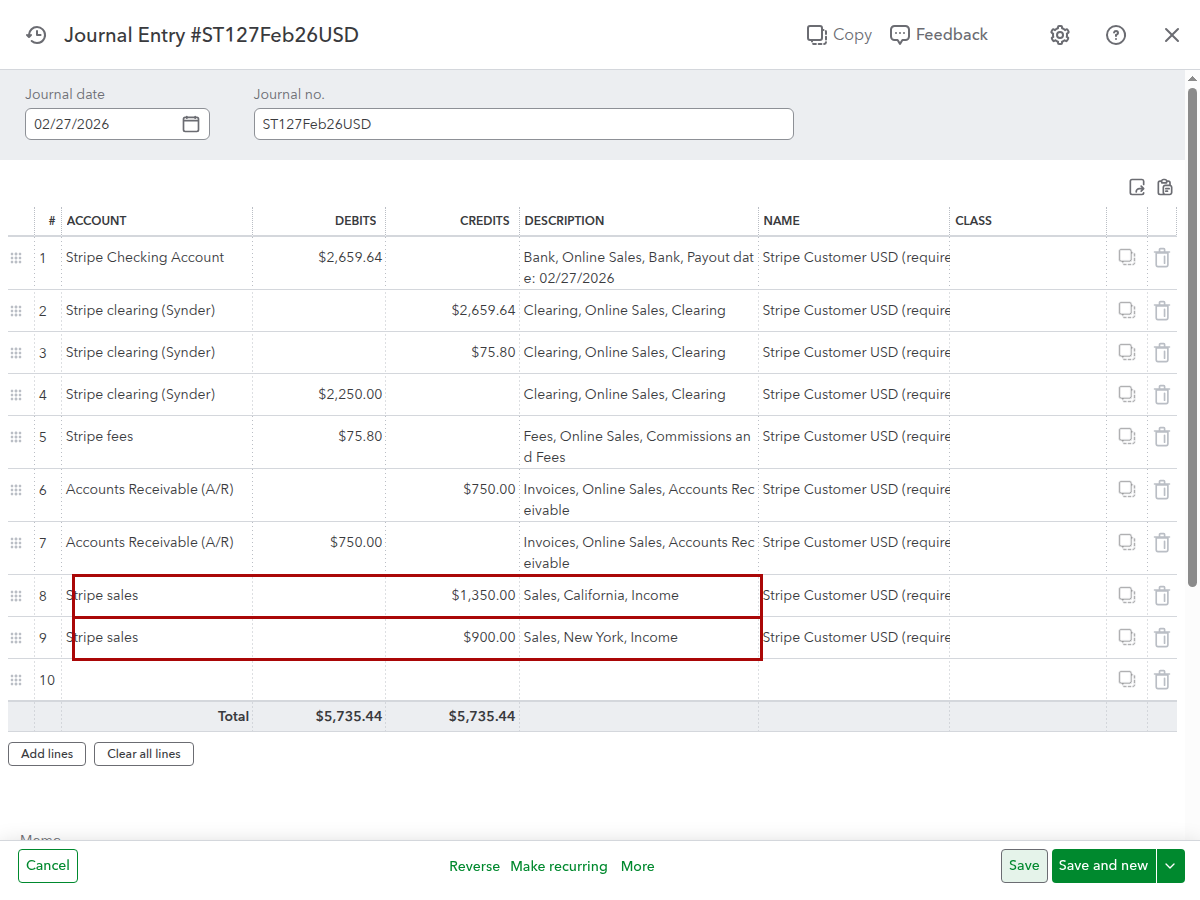
With Group by region enabled, Synder splits the summary’s sales into a separate income line per region:
Tip:
- Transactions without a shipping region appear under “Unknown” or “N/A”. You can map these to a general income account to keep things balanced.
- Check this link for more details on How to Track Sales Taxes in QuickBooks Online with Summary Sync.
How to apply Group by region to existing summaries
When you enable Group by region, the change applies to new summaries and summaries with Ready to sync status only. Summaries already synced to your books will not update on their own.
To apply the change to previously synced summaries, you need to rebuild them. This means rolling them back and regenerating them before re-syncing. For detailed steps, see: Summary Sync: How to Rebuild Summaries.
Important notes
- Only one grouping method can be active at a time. Therefore, enabling Group by region will replace any active grouping by product name/SKU or product category.
- Region data comes from the shipping address on each transaction, not the billing address.
- Transactions missing a shipping address will always appear under Unknown or N/A. This is expected behavior and not an error.
- Changing the grouping setting does not affect summaries that are already synced. Use the rebuild feature to update those.
Reach out to the Synder Team via online support chat or email with any questions you have – we are always happy to help you!
