

- Overview
- How Fees are processed in Summary Sync Mode
- VAT and Taxes on Fees
- Segment Fees Using Mapping Groups
- Verify Configuration
- Limitations and Edge Cases
- Troubleshooting
- FAQ
This guide explains how to split fees into separate accounts in Summary Sync mode using Mapping Groups. It also describes how fees are recorded by default.
This guide does not cover general Mapping Groups functionality.
Use this guide if:
- You have Summary Sync mode
- You want to understand how fees appear in summaries
- You need to separate fees into different accounts
Do not use this guide if:
- You want to change which transaction lines appear in your summaries → Refer to Understanding Mapping Groups
- You do not incur fees from the e-commerce platforms or from payment gateways
Overview
The goal of the guide is for you to understand how Fees function in Summary Sync Mode and use it to choose the approach that best fits your needs.
Keep the default setup – If you don’t need a detailed fee breakdown. Fees are recorded under the default Fees group.
Segment individual fee categories into separate accounts – If you need a detailed breakdown by fee type, follow the steps in this guide to configure Mapping Groups and map each fee type to a dedicated account.
How Fees are processed in Summary Sync Mode
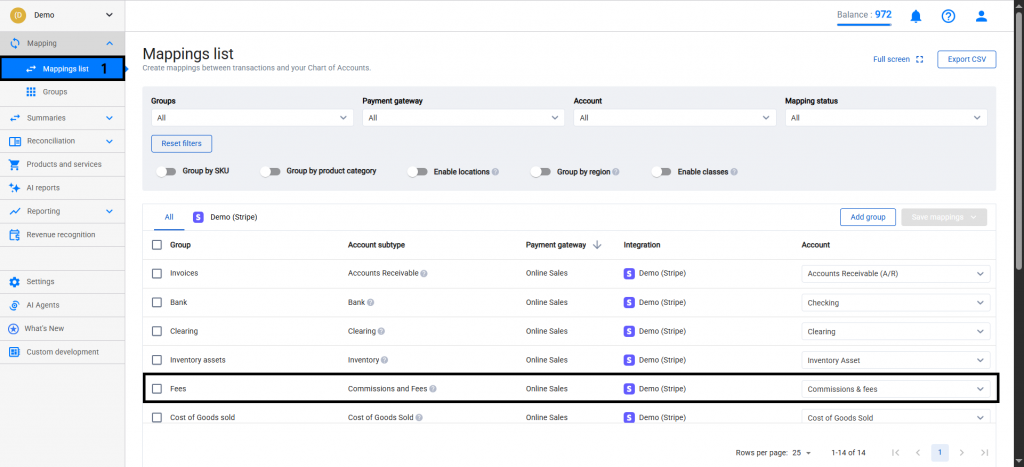
When a summary is synced, fees are grouped under the default Fees group within the Commissions and Fees account subtype. These fees are mapped to a selected account.
Multiple fee groups may be automatically created to include application fees, processing fees, and other charges reported by the payment platform.
To segment fees, create Mapping Groups with conditions that match specific fee types and map them to the appropriate accounts.
VAT and Taxes on Fees
Synder does not automatically calculate or apply taxes on fees in Summary Sync mode. However, you have two options to account for taxes on your fees:
• Record taxes on fees manually: Calculate the applicable tax percentage on your total fees for the period and post the amount directly to your Taxes Payable account in your accounting software. For example, if your fees for the period total $500 and your VAT rate is 20%, you would record $100 as a manual journal entry to Taxes Payable.
• Switch to Per Transaction Sync mode: If you need Synder to handle taxes on fees automatically, consider using Per Transaction mode, which supports tax calculations on fees at the individual transaction level. To learn more, see How Per Transaction Sync Works
Segment Fees Using Mapping Groups
By default, all fees are recorded using the default Fee groups that Synder creates during synchronization. To create a detailed breakdown, configure Mapping Groups and use conditions in order to split the fees into multiple groups.
Important: Changes apply only to new summaries. Existing summaries must be rebuilt.
Refer to:
How to Rebuild Summaries
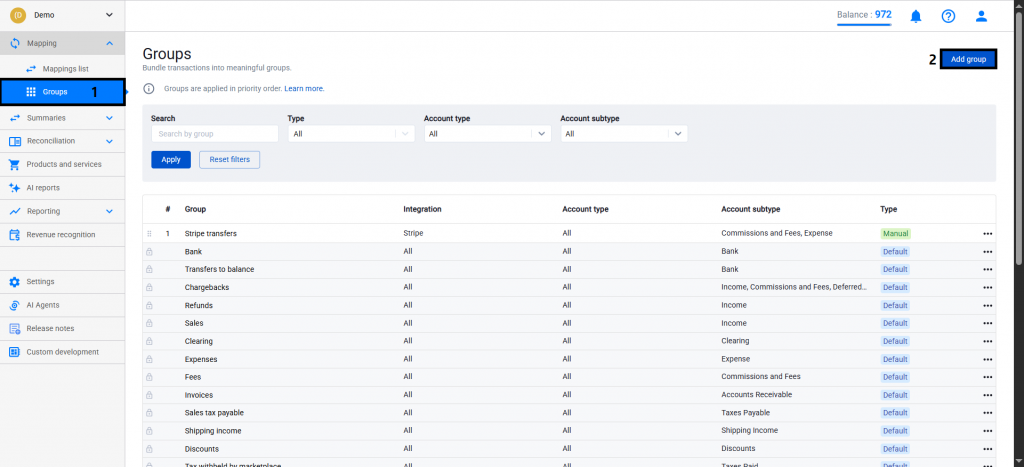
Step 1: Open Groups
- Go to Mapping → Groups.
- Click Add group.
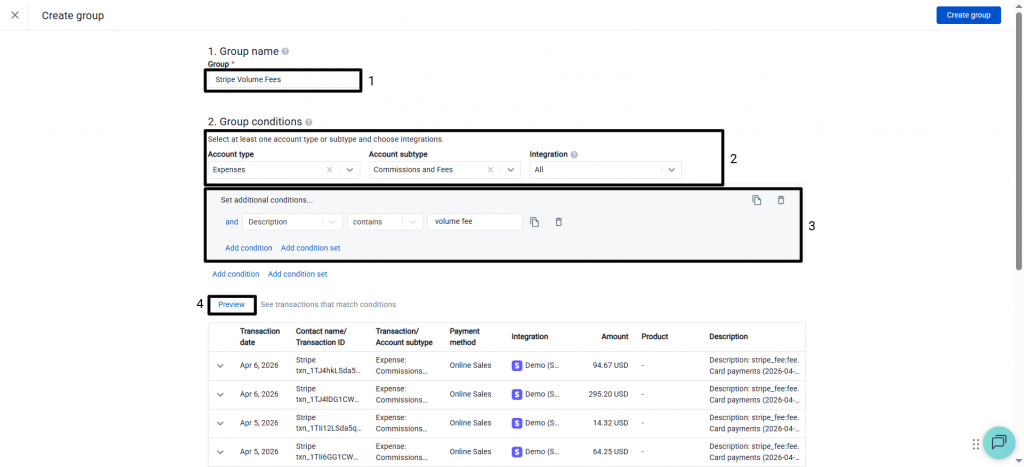
Step 2: Define Group Conditions
- Enter a descriptive group name (for example, “Stripe Volume Fees”).
- Select the appropriate Account type and Account subtype.
- Configure conditions (example):
- Description → contains → “volume fee.”
Add additional conditions if required.
- Click Preview to verify matched transactions.
- Click Create group.
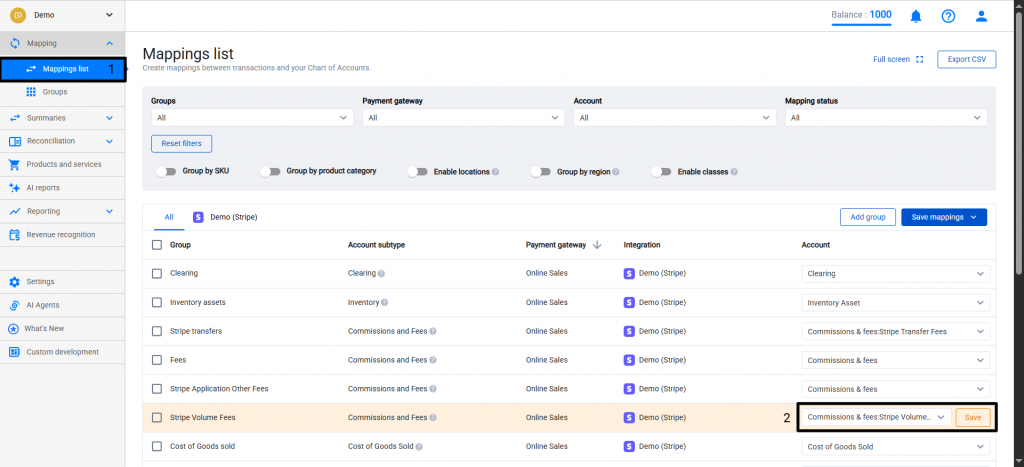
Step 3: Map the Group
- Go to Mapping → Mappings list.
- Locate the new group.
- Assign the target account.
- Click Save.
Verify Configuration
After rebuilding and syncing a summary:
- Open the summary.
- Go to Summary Page → Aggregated View.
- Verify the amount for the mapped fee account.
Optional:
- Open the journal entry by clicking See in books.
- Confirm the total fee amount is mapped to the selected account.
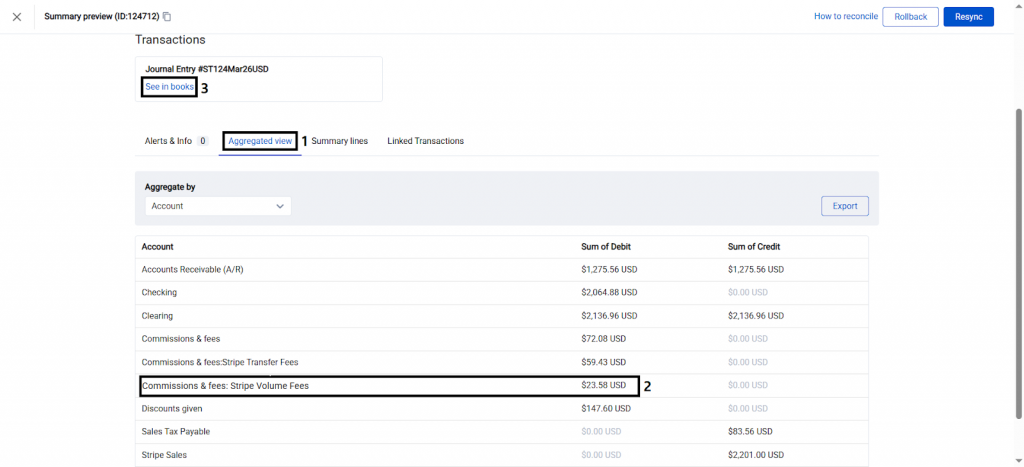
If multiple Mapping Groups are configured, each fee group appears as a separate line in the Journal Entry.
Limitations and Edge Cases
- Taxes are not applied to fees in Summary Sync mode.
- Custom fee groups apply only to new summaries. Existing summaries must be rebuilt.
- Each Mapping Group is assigned to one account based on priority order.
- If a fee matches multiple groups, it is assigned to the highest-priority group.
- Default groups cannot be edited or deleted.
- Custom groups override default groups when conditions are met.
Troubleshooting
What to do if fees are not assigned to the new group
- Validate group conditions using Preview
- Ensure the group is positioned above other groups
- Rebuild the summary
What to do if fees do not appear on already synced Journal Entries
- Rebuild the summary
FAQ
Will all fees stop going to the default Fees group after creating a custom group?
No. Only fees that match the custom group conditions are reassigned. All other fees remain in the default Fees group.
Do I need to create custom groups to start syncing fees?
No. Fees are recorded automatically under the default Fees group. Custom groups are optional.
How to account for VAT or GST/HST on fees?
Synder does not calculate these taxes in Summary Sync mode. Apply taxes manually using the Tax Codes feature or within the accounting platform.
Reach out to the Synder Team via online support chat, phone, or email with any questions you have – we’re always happy to help you!
