

Smart Reconciliation connects your payments with the matching orders from your online store. It enriches the synced transaction with full order details. Instead of syncing only a payment amount and date, the transaction includes products, taxes, shipping, discounts, and customer information.
This guide explains where Smart Reconciliation is available and which platform combinations it supports.
Where Smart Reconciliation is available
Smart Reconciliation is included in the standard Synder functionality, even on trial. The feature is not available if your organization uses Synder Summary Sync mode.
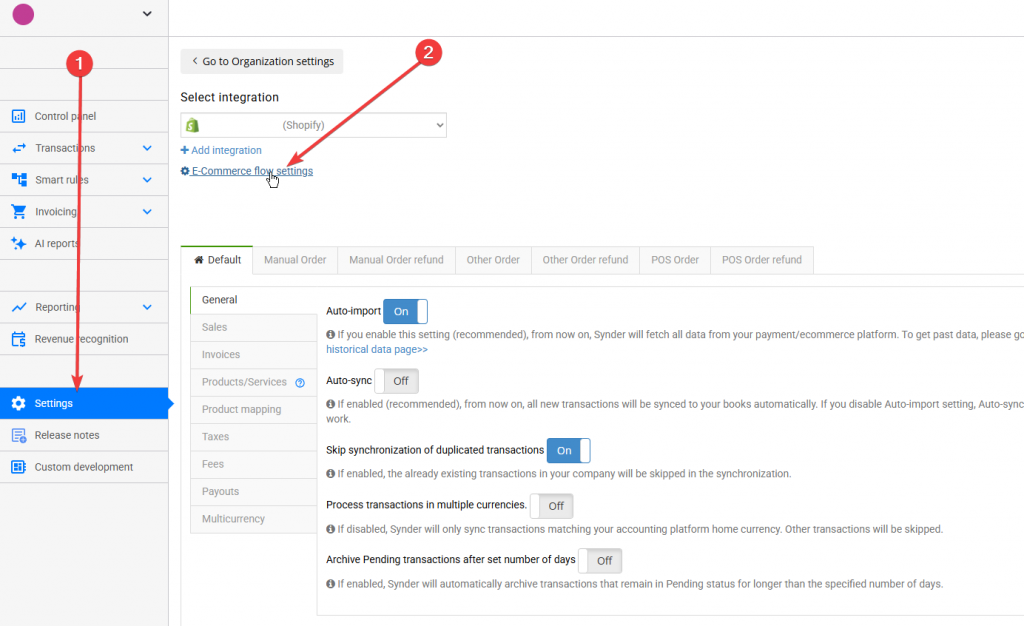
You can check whether Smart Reconciliation is active for your organization by following these steps:
- Go to your main settings.
- Click E-commerce flow settings.
Please note that the settings link appears only when:
- Smart Reconciliation is enabled for the organization.
- The ecommerce platform supports Smart Reconciliation (Shopify, WooCommerce, BigCommerce, eBay, Ecwid, Wix, Squarespace).
- At least one compatible payment processor is connected.
Supported platform combinations
| E-commerce platform | Supported payment processors | Matching notes |
| Shopify | Stripe; PayPal; Square; Authorize.net; Braintree; Affirm; Afterpay/Clearpay; Amazon Pay | Standard matching using available order and payment identifiers |
| WooCommerce | Stripe; PayPal; Square; Authorize.net; Affirm; Afterpay; Amazon Pay | Standard matching using available order and payment identifiers |
| BigCommerce | Stripe; PayPal; Square; Authorize.net; Braintree; Affirm; Afterpay; Amazon Pay | Standard matching using available order and payment identifiers |
| eBay | PayPal | Matches by buyer username within a short date window |
| Ecwid | Stripe; Square | Uses direct order ID matching |
| Wix | PayPal | Uses direct order ID matching |
| Squarespace | Stripe | Standard matching |
How to control which combinations are active
You can manage Smart Reconciliation settings by going directly to your settings and clicking E-commerce flow settings.
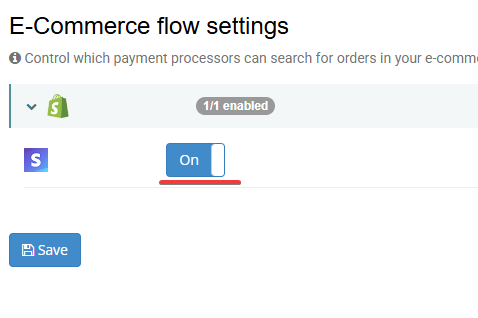
From the settings page, you can enable or disable individual payment processor and ecommerce platform combinations using toggles. If you disable a combination, Synder will skip order matching for that pair and sync only payment-level data.
If you have not changed any settings yet, all valid combinations are enabled by default. An “X/Y enabled” counter shows how many available combinations for each platform are currently active.
Common customer questions
Is Smart Reconciliation included in my plan?
Smart Reconciliation is included in Pro and Enterprise plans. Availability on Trial and Basic plans depends on your specific configuration. You can confirm this in your subscription details.
I use Summary Sync. Can I use Smart Reconciliation?
No. Smart Reconciliation is not available when Summary Sync is enabled.
Which platforms and payment processors are supported?
Major ecommerce platforms and payment processors are supported, as listed above. The official Confluence documentation contains the most current and complete list.
Can I enable only specific combinations, such as allowing Stripe but disabling PayPal for the same store?
Yes. You can enable or disable individual combinations through the E-commerce flow settings link in your store settings.
Why don’t I see the E-commerce flow settings link?
The link appears only when Smart Reconciliation is available on your plan, your organization is not using Summary Sync, your ecommerce platform supports the feature, and at least one compatible payment processor is connected.
Will changing the toggles affect past transactions?
No. Changes apply only to future syncs. Previously synced transactions remain unchanged.
Reach out to the Synder Team via online support chat, phone, or email with any questions you have – we’re always happy to help you!
