

This guide explains how Klarna sales sync into your Accounting Software automatically via Synder, accurately reflecting revenue, refunds, fees, and net deposits.
- Overview
- How Klarna Transactions Are Recorded
- Line Items Explained
- How It Appears in Reports
- Important Limitations
- Additional Notes
Overview
- Each Klarna settlement automatically creates a single Invoice+Payment in your accounting software, or a Refund Receipt if the settlement is negative.
- Line items represent sales, returns, fees, and deposits matching bank statements.
- The integration supports settlement-level accounting only; it does not include order-level details.
Limitations
- Does not sync individual orders, products, or customers.
- Does not provide Smart Reconciliation with Shopify or other platforms.
- Payouts do not sync automatically – Please refer to this guide discussing integrations without payout support
Connecting Klarna
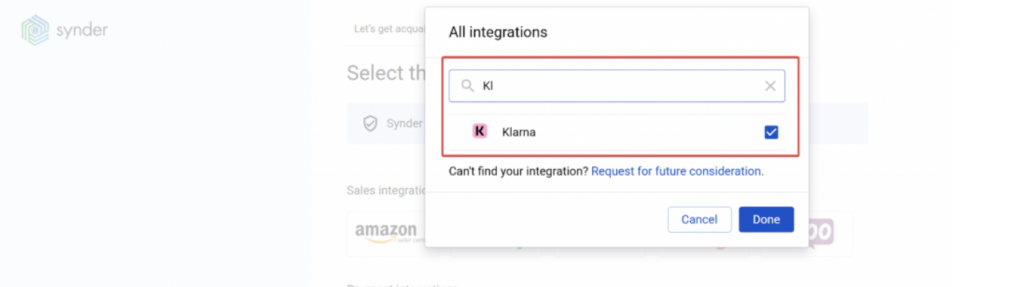
If you haven’t connected Klarna to Synder, follow the connection guide before proceeding.
How Synder Records Klarna Sales
For each settlement of your sales, Synder creates Invoice+Payment with a detailed settlement breakdown.
Example: Klarna Settlement $850.00
| Line Item | Amount | Account Type |
| Klarna sales | $1,000.00 | Sales/Revenue |
| Klarna returns | -$100.00 | Sales/Revenue |
| Klarna fee | -$50.00 | Klarna Fees (Expense) |
| Deposit Total | $850.00 | Bank Account |
Line Items Explained
Let’s discuss the type of line items you will see on the Invoice from Klarna and what they mean.
| Line Item | Meaning |
| Klarna sales | Total captured orders paid via Klarna |
| Klarna returns | Refunds issued to customers |
| Klarna fee | Klarna platform/processing fees |
| Klarna tax | VAT/GST on fees (if applicable) |
| Klarna holdback | Reserve held for risk protection |
| Klarna release | Previously held reserve released |
| Klarna adjustments | Chargebacks, disputes, corrections |
How It Appears in Reports
Profit & Loss Report
- Sales and refunds are posted to the Klarna Sales account.
- Expenses and taxes on fees are posted to the Klarna Fees account.
- Users can select the specific accounts used for profit and loss posting:
To change the sales and refund account, adjust the Income Account on the product Klarna Sales.
For the fees account, adjust the Klarna Fee product Income Account
Balance Sheet
Synder posts the entire transaction to the Clearing Account specified in Settings → Sales.
Important Limitations
Settlement-Level Only
- No order-level or per-product detail
- No individual customer info
- Each entry combines multiple orders according to the settled amount
No Smart Reconciliation with Shopify
Klarna transactions cannot be matched to individual Shopify orders using Synder’s Smart Reconciliation. This means:
- If you activate both Klarna and Shopify integrations and use Klarna as a Shopify payment gateway, Synder may create duplicate revenue entries.
- Smart Reconciliation (Synder’s automated payment-to-order matching feature) only works for supported combinations of payment processors and e-commerce platforms. Klarna + Shopify is not supported. Learn more about Smart Reconciliation here: What Is Smart Reconciliation and How Does It Work?
Mitigation Options:
- If you are on the Pro plan, Synder can provide custom development to Sync only Klarna fees from Klarna integration and Sales data (of Klarna) from Shopify
- If this feature is a reason to upgrade to Pro, you can contact sales here: Talk to Synder Sales
Regions Supported
- Europe: UK, Germany, Sweden, Netherlands, Austria, Belgium, Denmark, Finland, France, Ireland, Italy, Norway, Poland, Portugal, Spain, Switzerland
- North America: United States, Canada
- Oceania: Australia, New Zealand
Additional Notes
- You may encounter Negative Payouts: If fees + refunds exceed sales → Synder creates a Refund Receipt instead of an Invoice
- Holdbacks & Releases: Reserve funds held by Klarna appear as separate line items when released
Reach out to Synder Team via online support chat or email with any questions you have – we are always happy to help you!
