

- Set Up Tracking Categories
- Step 1: Create Tracking Categories in Xero
- Step 2: Enable and Map Categories in Synder
- Example: Invoice in Xero With Tracking Categories
- Example: Profit & Loss Report by Tracking Category
- Important Notes
- FAQ
This guide explains how to assign Xero tracking categories to summary lines in Synder. By doing so, you can break down your sales data by channel, region, product group, or any other dimension you need.
Use this guide if:
- You use Xero as your accounting system.
- You sync data in Summary mode.
- You want to track performance by specific categories (for example, sales channel, region, country, product group, payment method, or warehouse).
After completing the setup, Synder will include a tracking category on each summary line in Xero. As a result, you will be able to run Profit & Loss reports broken down by category.
Set Up Tracking Categories
Using Xero tracking categories in Synder summary sync helps you break down summarized sales data more efficiently. To get started, complete the following steps in Xero and Synder.
Step 1: Create Tracking Categories in Xero
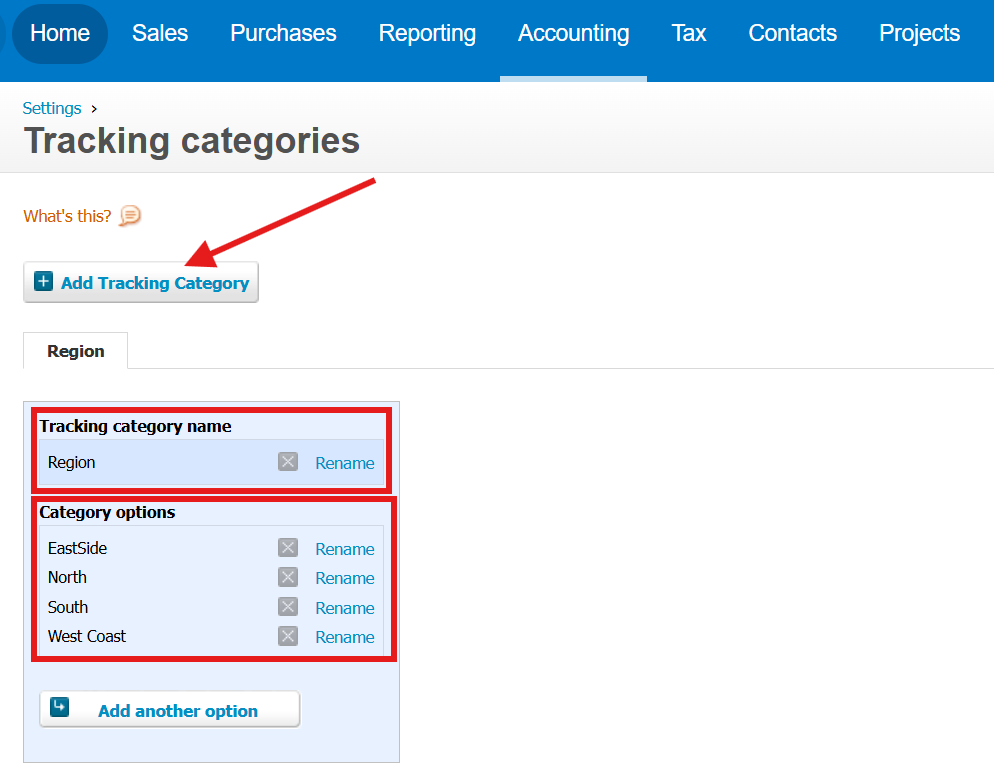
- Open the Accounting menu.
- Select Accounting Settings.
- Click Tracking Categories.
- Click Add Tracking Category.
- Enter the category name (for example: Sales Channel, Region).
- Add the category options (for example: Shopify, Stripe, Amazon).
- Click Save.
Step 2: Enable and Map Categories in Synder
Once you have created the tracking categories in Xero, follow these steps in Synder:
- Open the Mapping dropdown in the top-left menu.
- Select Mappings list.
- Enable Tracking Categories.
- In the Tracking category column, assign a category to each mapping group.
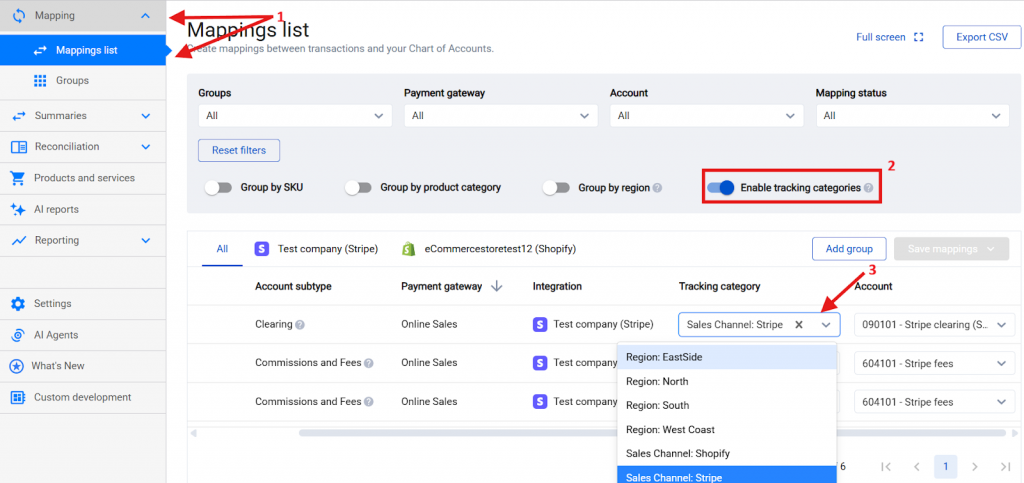
That’s it! After completing these steps, Synder will assign tracking categories to all mapped summary lines. If you have already synced summaries, resync them to apply the updates.
Example: Invoice in Xero With Tracking Categories
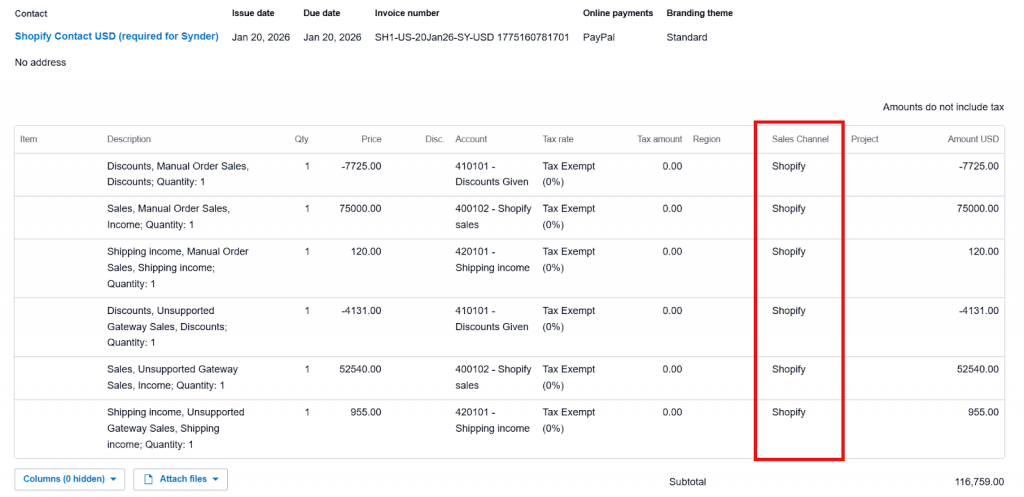
Here is how a summary invoice looks in Xero after you assign tracking categories:
Example: Profit & Loss Report by Tracking Category
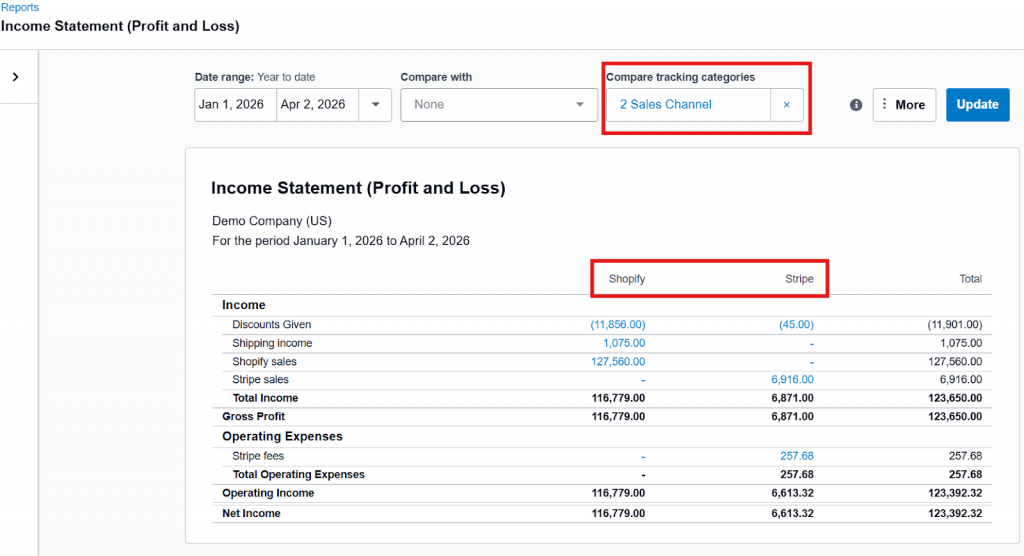
With tracking categories in place, you can generate a Profit & Loss report broken down by category. In the example below, the report shows columns grouped by Sales Channel:
Important Notes
- Xero supports up to 4 category groups (for example, Location, Department, Channel, Payment Method). Each group can contain multiple options. However, in Summary sync mode, you can only assign one category per line.
Example: If your categories include Region (US, CA) and Channel (Shopify, Amazon), you can only choose one of them per summary line. - If you want to track multiple dimensions at once, consider one of these approaches:
- Create manual mapping groups based on the conditions you need, then assign categories accordingly. For example, create groups that divide sales per region and assign tracking categories per sales channel. Check out this guide to learn how to create mapping groups.
- Alternatively, combine dimensions into one category group manually. For example: Shopify-US, Amazon-UK.
- Synder automatically updates summaries in Ready to sync status with the mapped tracking categories. To update previously synced summaries, you need to resync them.
FAQ
- Can I assign multiple tracking categories to one summary line?
No. Synder supports one tracking category per line in Summary sync mode. - Do tracking categories affect reconciliation?
No. Tracking categories serve reporting and analysis purposes only. They do not affect bank reconciliation or your accounting structure. - Can I assign tracking categories to mapping lines in bulk?
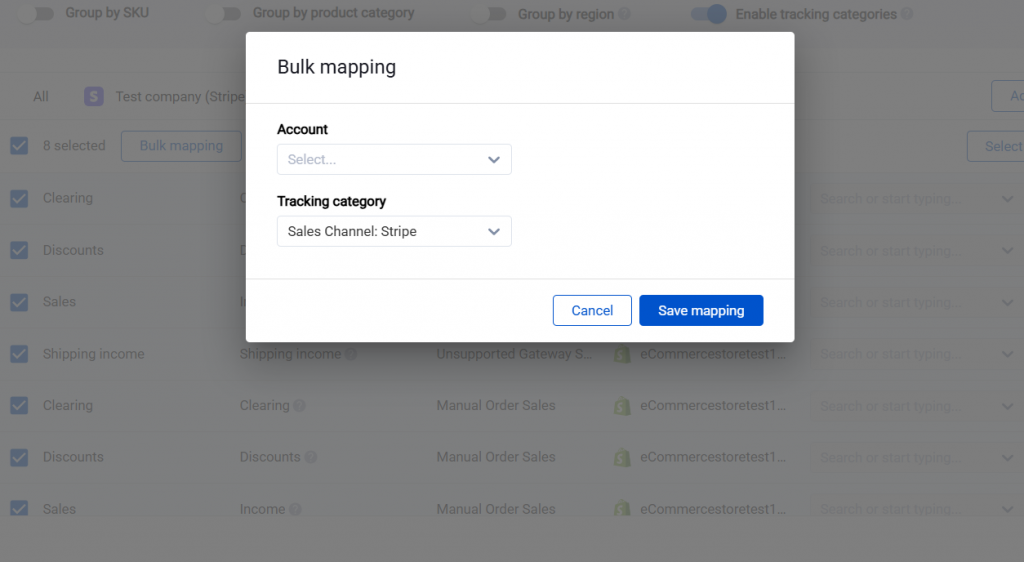
Yes. To assign the same tracking category to multiple mapping lines at once:- Select the mapping groups you need in the Mappings list.
- Click Bulk Mapping.
- Choose the tracking category you want to apply.
- Can I change tracking categories after syncing summaries?
Yes, but changes do not apply automatically to previously synced summaries. To update them:- Adjust the tracking category in the mapping line in Synder.
- Resync the summary to apply the changes.
Reach out to the Synder Team via online support chat or email with any questions — we are always happy to help!
