

To reconcile clearing accounts for integrations, download a summary report from QuickBooks Online.
This guide explains how to:
- Find the clearing account used by your integration.
- Run a summary report for the clearing account.
- Calculate the gross amount captured by the clearing account for a selected period.
Shopify is used as an example. The same steps apply to other supported integrations.
Use this guide if
- You use QuickBooks Online with Synder.
- You need to reconcile one or more clearing accounts.
- You need a QuickBooks Online report for reconciliation troubleshooting.
After completing this guide, you will have a clearing account summary report ready for reconciliation.
Download your clearing account report
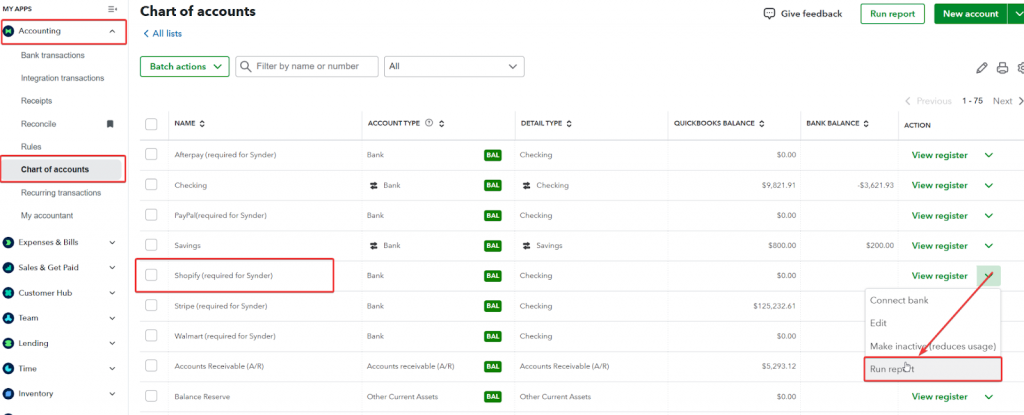
- In QuickBooks Online, go to Chart of Accounts.
- Find your clearing account(s). It’s typically named with the following format, like Shopify (required for Synder).
Note: You may have multiple clearing accounts if you process different currencies. - Click on the drop-down menu.
- Click Run Report.
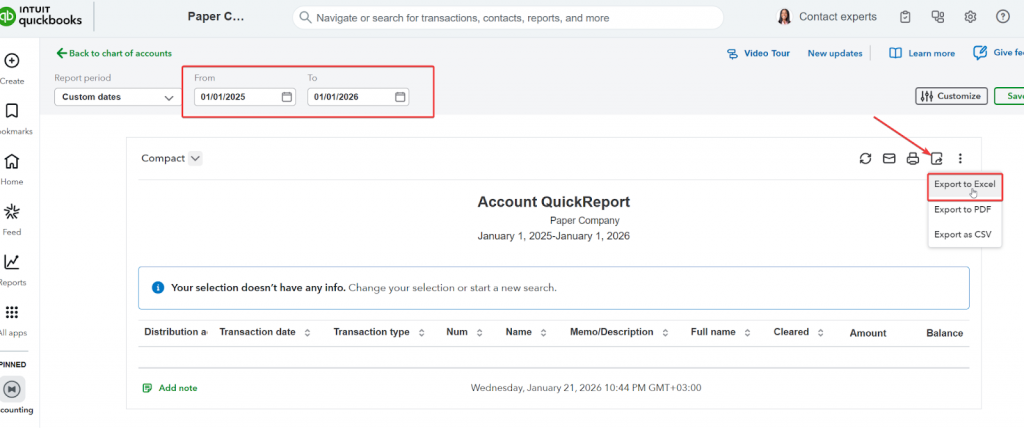
- Set the date range that you want to check/reconcile.
- Export to Excel.
Note: If the clearing account contains tens of thousands of transactions, the export may be incomplete. After exporting, verify that the report includes all expected transactions. If data is missing, use an alternative export method.
How to calculate the gross sum of all transactions
- Open the document you exported.
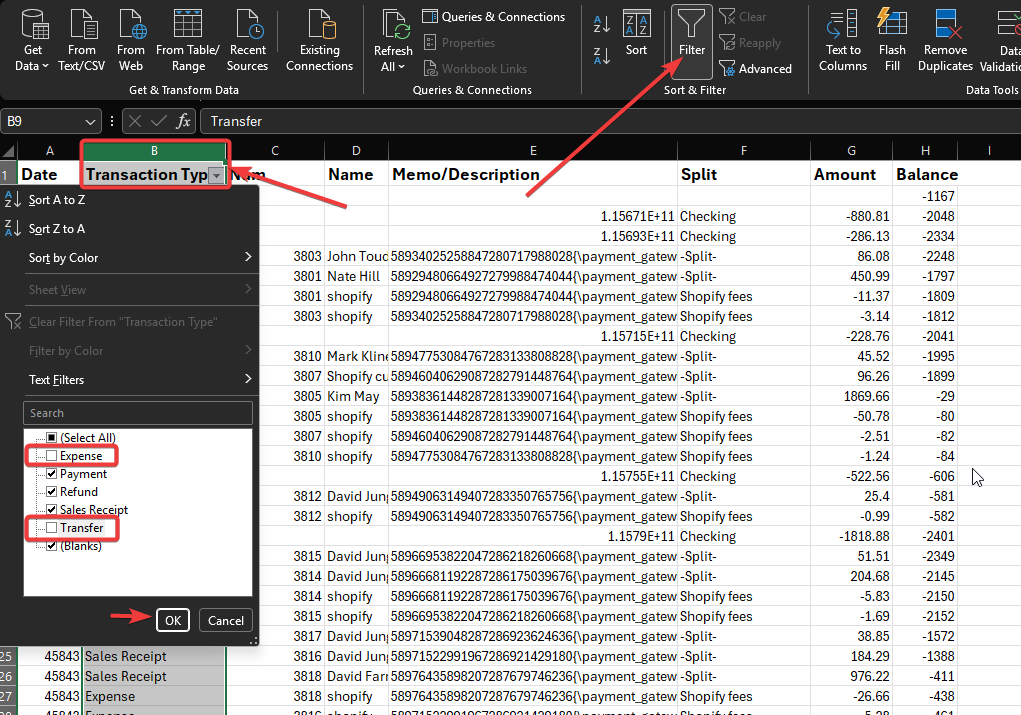
- Filter the Transaction Type column to exclude Expenses and Transfers.
The totals you should compare depend on how the source platform calculates them (gross vs. net), so adjust the excluded transaction types accordingly.
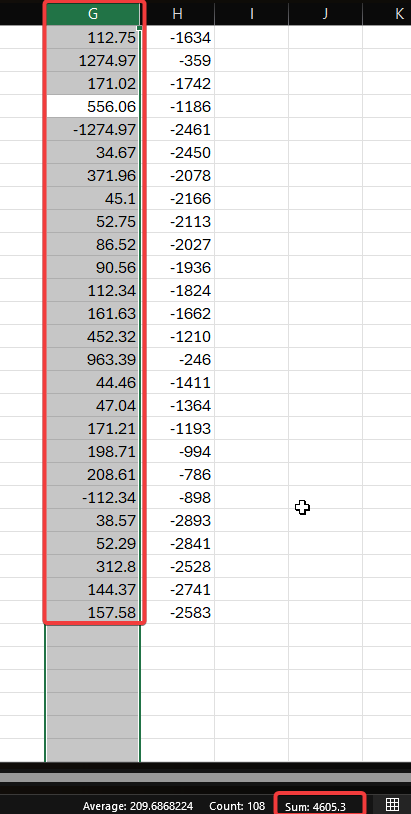
- Sum the amounts column.
Reach out to Synder Team via online support chat, phone, or email with any questions you have – we are always happy to help you!
