

- Overview
- Case 1: One admin account with two Shopify stores
- Case 2: Two different admin accounts with two different Shopify stores
- FAQ
Overview
This guide shows you how to connect a second Shopify store to your existing Synder account. Depending on your Shopify setup, you may run into different situations during the process. Below, we cover the two most common cases with step-by-step instructions for each.
Use this guide if:
- You already have one Shopify store connected to Synder and need to add a second one
- You are getting an error when trying to connect your second Shopify store
- You have multiple Shopify stores under one or more admin accounts
Case 1: One admin account with two Shopify stores
In this scenario, you have one admin account with access to multiple Shopify stores. However, a connection issue can occur because of how the OAuth authorization flow works.
How the OAuth flow works
When you click Connect in Synder, Shopify generates an authorization URL that contains the name of the store you are currently logged into. As a result, Synder authorizes itself specifically for that store.
What can go wrong
After you successfully connect your first store, clicking Connect again will cause Shopify to redirect you to the same store you were already logged into — not the second one you want to add.
Important: If you try to switch stores using the Shopify dropdown menu while on the Synder authorization page, Shopify will invalidate the authorization token. This means:
- The new store will not connect.
- Your previously connected store may also lose its connection in Synder.
How to fix this
- First, verify that your first store is still connected to Synder by checking the Organization settings page. If the connection dropped, reconnect it before proceeding.
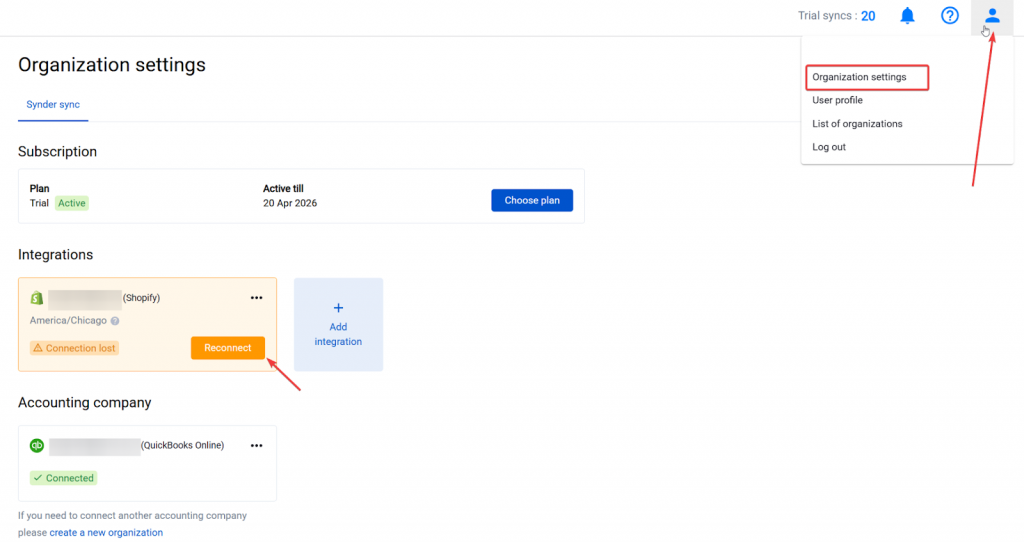
- Without clicking Add integration in Synder yet, go to Shopify directly and switch to your second store.
- Make sure this is the only browser tab where Shopify is open, to avoid any conflicts.
- Now go back to Synder and start the connection flow (Organization settings → Add integration → Shopify → Connect). Because you already switched to the second store in Shopify, Synder will redirect you there and the connection should complete successfully. Your first store will remain connected as well.
Case 2: Two different admin accounts with two different Shopify stores
In this scenario, you have two separate Shopify admin profiles, and each one controls a different store. You want to connect both stores to the same Synder organization.
Example: Admin account A is logged into Store 1 and is already connected to Synder. Admin account B has access to Store 2, which you now want to connect.
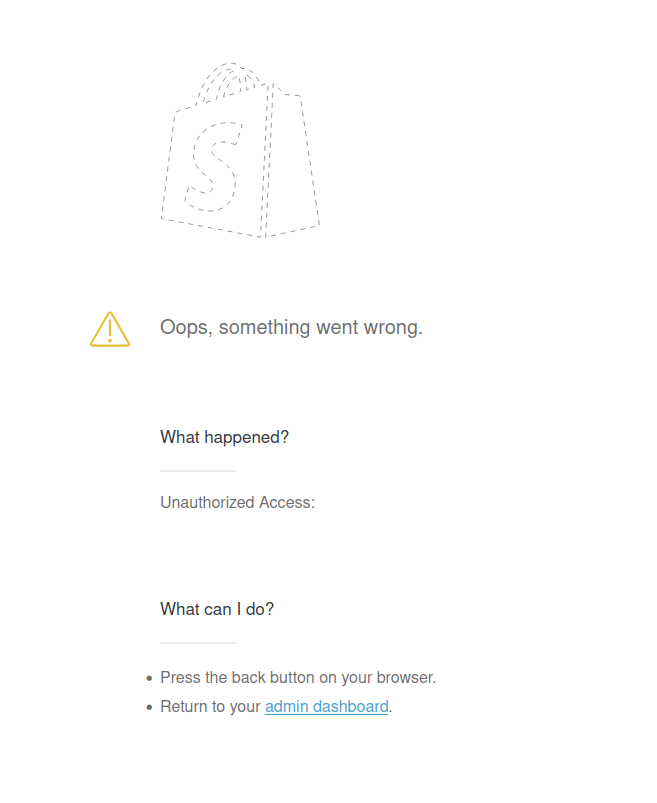
What happens: When you try to connect the second store, you will see an error. This occurs because your browser still has admin account A active, so Shopify tries to connect Store 1 again instead of Store 2.
How to connect it properly
- From the error page, click the link to return to the Shopify admin dashboard.
- Select the store that you already connected to Synder (Store 1).
- Log out of Shopify by clicking the profile icon in the top-right corner and selecting Log out.
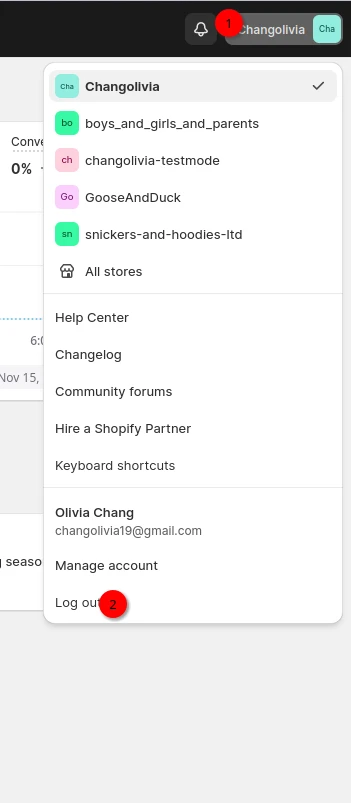
- Log back in to Shopify using the admin account that controls the second store (Store 2).
- Go back to Synder and follow the standard connection flow: My account → Add integration → Shopify → Connect.
- This time, Shopify will direct you to the correct store under the correct admin account, and the connection should complete successfully.
FAQ
Why am I getting an error when trying to connect my second store?
This usually happens because your browser is still logged into the admin account linked to your first store. To resolve this, follow the steps in Case 1 or Case 2 above.
Will connecting a second store affect my first store’s connection?
Not if you follow the steps correctly. However, in Case 1, switching stores using the Shopify dropdown while on the Synder authorization page can cause the first store to lose its connection. To avoid this, always switch stores in Shopify before starting the connection flow in Synder.
Do I need separate Synder organizations for each store?
No. You can connect multiple Shopify stores to the same Synder organization. Just make sure you are logged into the correct Shopify admin account and store before you start the connection flow.
If you need any assistance connecting your Shopify stores, reach out to our Synder Support Team – we’re happy to help.
