

If your business uses Shopify Capital, Synder handles the repayment flow automatically. When Shopify deducts a capital repayment from your payout, Synder syncs it as an expense. If Shopify reverses or refunds a repayment, Synder syncs it as a deposit.
Synder creates the following transaction types from Shopify Capital activity:
- Lending Capital Payment — a repayment deducted from your payout → synced as an expense
- Lending Capital Reversed Payment — a repayment returned to you → synced as a deposit
- Lending Credit Payment — a credit repayment deducted from your payout → synced as an expense
- Lending Credit Reversed Payment — a credit repayment returned to you → synced as a deposit
To make sure these transactions land in the right accounts in your books, follow the steps below.
Step 1: Set up the Lending Capital Loan account in Fees settings
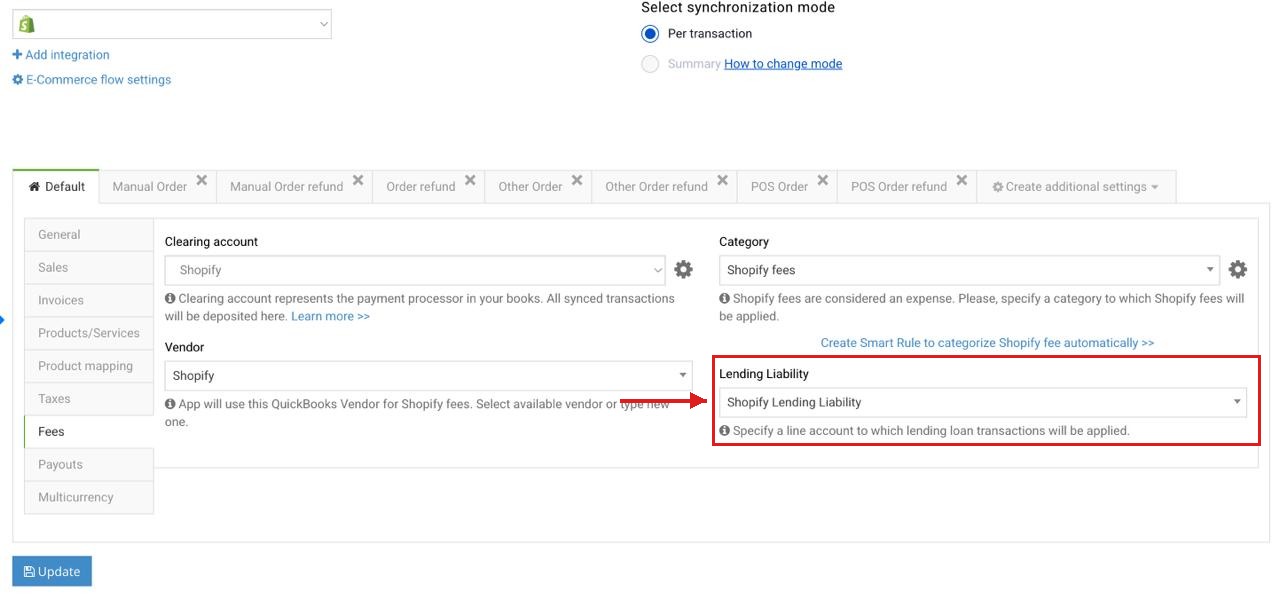
Synder has a dedicated Lending capital loan field in your Shopify integration settings. Set it once, and Synder will apply all Lending Capital transactions to that account automatically.
- Go to Synder → Settings → select your Shopify integration.
- In the left menu, click the Fees tab.
- Find the Lending capital loan field.
- Select the account where Synder should post lending transactions — typically a Loan Payable or Long Term Liabilities account.
- Click Update.
Step 2: Record the initial loan in your books manually
When Shopify deposits the advance into your account, Synder does not create a separate transaction for it. You need to manually record the initial loan in your accounting platform. Use the same account you set up in Step 1. That way, as Synder syncs each repayment, your outstanding loan balance decreases automatically. This makes it easy to track how much you have left to pay off.
Step 3: Sync Lending Capital transactions
Once your settings are in place, sync your Lending Capital transactions:
- Go to the Platform transactions and look for the Lending Capital Payment, Lending Capital Reversed Payment, Lending Credit Payment, or Lending Credit Reversed Payment transaction types for Shopify.
Note: If you don’t see them, use the manual import option in the top-right corner of the Platform Transactions tab. - Select the transactions and sync them to the books: Actions → Sync.
- Check that the created expenses and deposits are correctly categorized in the books.
Summary Sync users
On Summary sync, Lending Capital transactions appear as a separate Loans group in your daily summary mapping table. Map the Loans group to the appropriate liability account. Use the same account where you posted your loan advance. This keeps your outstanding balance accurate as Synder syncs each repayment.
That’s it! Now you know how to handle Shopify Capital payments in Synder.
Reach out to the Synder Team via online support chat, phone, or email with any questions you have – we’re always happy to help you!
