

- Overview
- Sales Tax Calculation Logic
- QuickBooks Desktop United States
- Sales Tax Settings (US)
- QuickBooks Desktop Canada
- Sales Tax Settings (Canada)
- Important Notes
- FAQ
This guide explains how sales tax is recorded in QuickBooks Desktop when using Synder in Per-Transaction mode.
Use this guide if:
- You use Per-Transaction mode in Synder.
- You use QuickBooks Desktop (US or Canada edition).
- You need Synder to match tax items or tax codes in QuickBooks Desktop correctly.
Overview
In Per-Transaction mode, configure one of the following options:
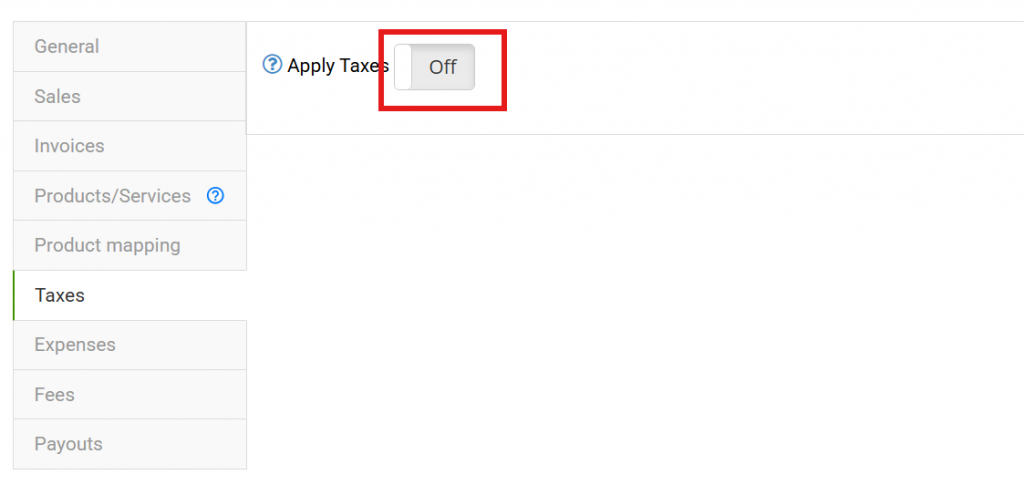
- Option 1: Apply Taxes – Disabled.
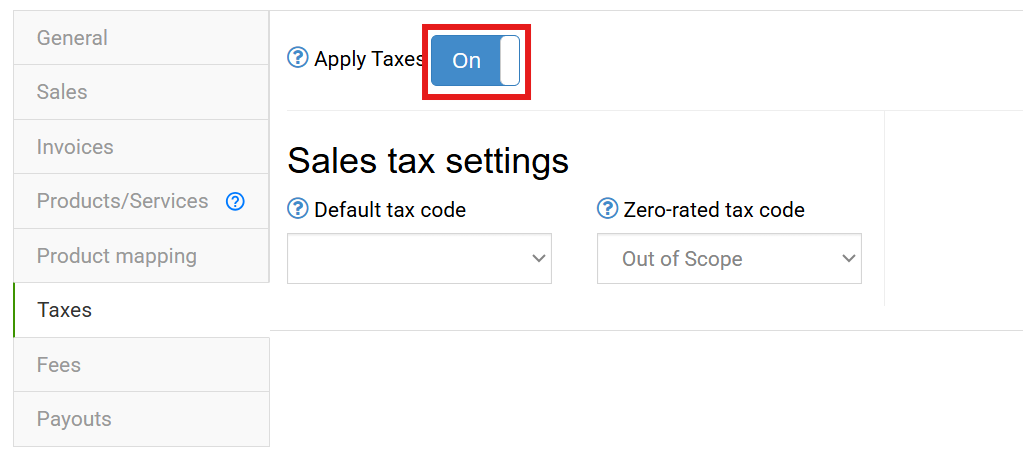
- Option 2: Apply Taxes – Enabled.
Option 1: Apply Taxes Disabled
Use this configuration when the tax should be included in the sales total.
When “Apply Taxes” is disabled, Synder records tax as a separate line item in the transaction, and no tax code or sales tax item is applied.
Option 2: Apply Taxes Enabled
Use this configuration when tax details must be transferred to QuickBooks Desktop and tax codes or sales tax items must be applied.
Sales Tax Calculation Logic
In Per-Transaction mode, Synder performs the following actions:
- Receives the sales total and tax amount from the payment processor.
- Calculates the tax rate from the transaction data.
- Matches the rate to existing tax items or tax codes in QuickBooks Desktop.
- Records the transaction with the corresponding tax configuration for the QuickBooks Desktop edition (US or Canada).
Synder does not calculate taxes independently. It uses the tax amount provided by the sales channel unless override settings are configured.
Sales tax assignment depends on the QuickBooks Desktop region.
QuickBooks Desktop United States
In the US edition, Synder uses Sales Tax Items and supports both Single Sales Tax Items and Sales Tax Groups.
When a transaction includes tax, Synder determines which tax item to apply based on the QuickBooks Desktop tax configuration.
Scenario 1: Matching Single Tax Item Exists
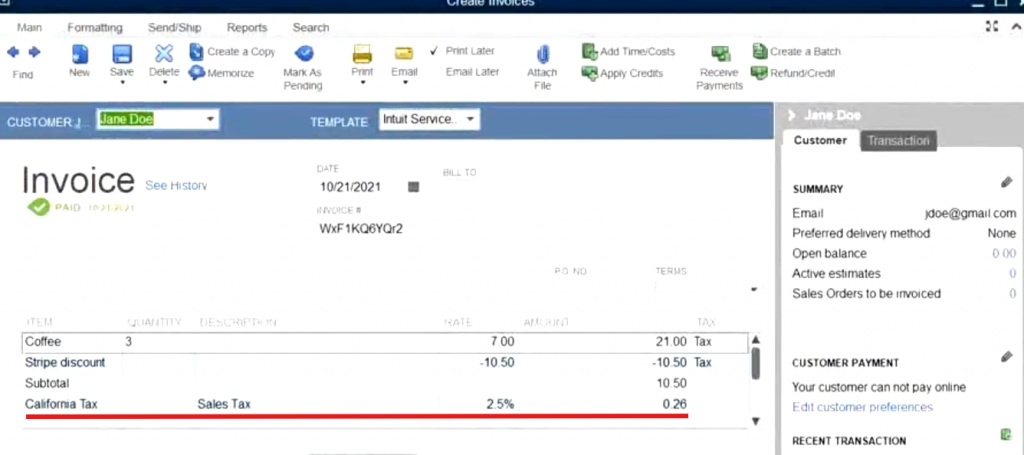
If a single tax item matches the calculated rate, Synder applies that item, and the sales tax line appears under the Subtotal line in QuickBooks.
Scenario 2: No Matching Single Item, but Group Exists
If no matching single tax item is found but a matching group tax exists, Synder applies the group tax. Individual tax items that make up the group appear under the Subtotal.
Scenario 3: Both Single Tax item and Group Exist at the Same Rate
If both a single sales tax item and a Sales Tax Group share the same rate, Synder applies the tax specified in your Default tax code setting.
This setting determines which tax structure is used.
Example transaction with recorded sales tax
Sales Tax Settings (US)
You can configure the following settings to control sales tax behavior.
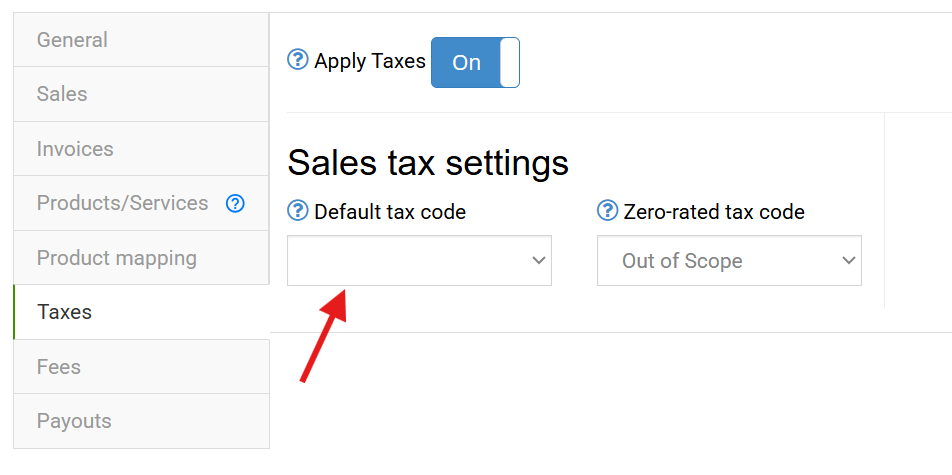
- Default Tax Code
The default tax code chosen in settings will be used if a matching tax rate is not found in QuickBooks Desktop. This prevents sync failures due to missing tax items.
Note: Group taxes are available in the dropdown and labeled (Group).
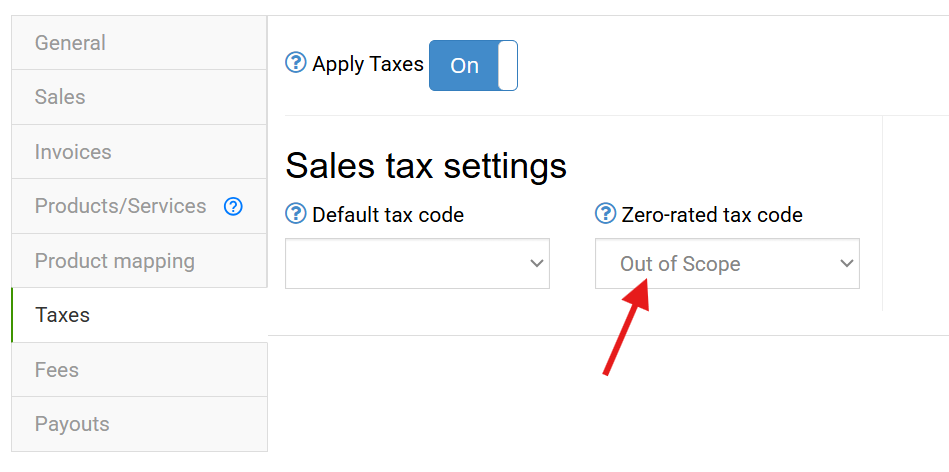
- Zero-Rated Tax Code
The Zero-Rated Tax Code is applied when the tax amount received from the payment processor is $0.
This ensures transactions are recorded with the correct tax classification, such as Exempt, Non-taxable, etc.
QuickBooks Desktop Canada
In Canada edition, Synder uses Tax Codes. Tax Codes are assigned to line items and determine how GST/HST/PST is calculated.
When tax is present in the sales channel transaction, Synder assigns tax codes to line items in the transaction.
Sales Tax Settings (Canada)
Configure the following settings to control tax behavior:
- Default Tax Code
The default tax code chosen in settings will be used if a matching tax rate is not found in QuickBooks Desktop. This prevents sync failures due to missing tax items. - Zero-Rated Tax Code
The Zero-Rated Tax Code is applied when the tax amount from the payment processor is $0.
This ensures the transaction is recorded correctly as zero-rated. - Fees (Canada)
Unlike the US edition, you can select a zero-rated tax code for fees. This ensures compliance if fees must be recorded as non-taxable.

Important Notes
- For complex multi-state tax mapping or inconsistent tax data from payment processors, use the Smart Rules add-on to adjust taxes. For more details on how Smart Rules work for QuickBooks Desktop, check out this guide. When updating taxes with Smart Rules:
- Canada edition: use Update Current or Update Line
- US edition: use Update Current
- Taxation type (Tax Inclusive or Tax Exclusive) cannot be configured in Synder. The system applies the taxation type based on how tax was charged by the payment processor.
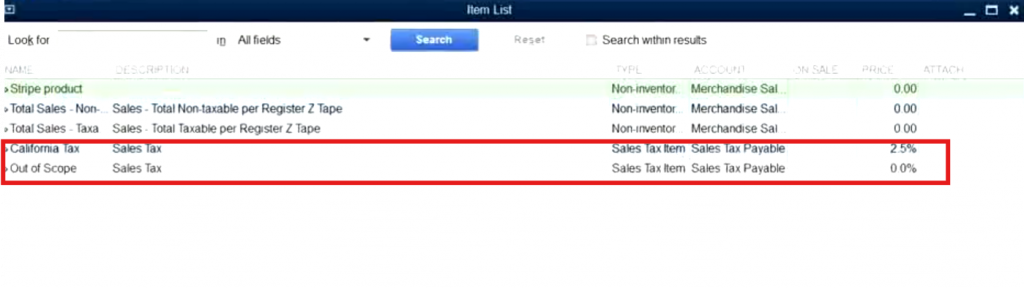
- Tax configuration must already exist in QuickBooks Desktop before syncing transactions.
Ensure Sales Tax Items or Tax Codes are configured in QuickBooks Desktop.
Example of Sales Tax Items
FAQ
- Transactions fail to sync due to a Missing Tax Item, what can I do?
Use one of the following options:- Create the missing Sales Tax Item or Tax Code in QuickBooks Desktop and resync the transaction.
- Configure the Default Tax Code in Synder Sales Tax Settings and resync the transaction.
- After the sync, the group tax was applied to the transaction instead of a single Sales Tax Item. Why?
If a Sales Tax Group and a Single Sales Tax Item share the same percentage, Synder applies the tax specified in the Default Tax Code setting.
Verify the setting, adjust the assigned tax code if required, and resync the transaction. - Zero-Tax Transactions Use “Out of Scope” Instead of “Exempt”. How can I fix this?
Configure the Zero-Rated Tax Code in Synder settings for transactions with $0 tax.
Set the tax code to Exempt, then resync the transaction.
Reach out to Synder Team via online support chat or email with any questions you have – we are always happy to help you!
