

Period lock stops Synder from changing a closed accounting period. You set a lock on each integration, and Synder will not add, change, or move any data dated inside the locked period — whether it arrives through a regular sync, a resync, a historical import that syncs, or a late dispute or refund.
It solves a real problem: once you have reconciled or filed a month, late activity — disputes, refunds, marketplace adjustments — can otherwise still land in that month and change numbers you already reported. Period lock keeps a sealed month sealed. It works in both sync modes and on every integration: Per Transaction and Summary Sync, with QuickBooks Online, QuickBooks Desktop, Xero, and more.
The two kinds of lock
- Hard lock (available now). If any part of a sync is dated in the locked period, Synder cancels the entire sync — including the parts that fall in the open period. The transaction gets the status Canceled.
- Soft lock (coming soon). Synder will instead move late data to a date you choose in the open period, so nothing is lost. This option shows as Coming soon in the app and cannot be selected yet. We will announce it when it ships.
Before you start
- Who can use it: all users — Manager, Member, and Synder admins can set, change, and disable a lock. No user or tool can bypass an active lock.
- The lock is per integration. Each connected integration has its own lock, and each can be left Off.
- It survives reconnection. If you reconnect an integration, its lock (and other settings) stays.
Where to set Period lock
Go to Transactions → Period lock. This opens the Period lock list — every connected integration with its current Mode, Locked through date, Next auto-lock, and Last changed. Each integration is locked separately, and each can be Off.
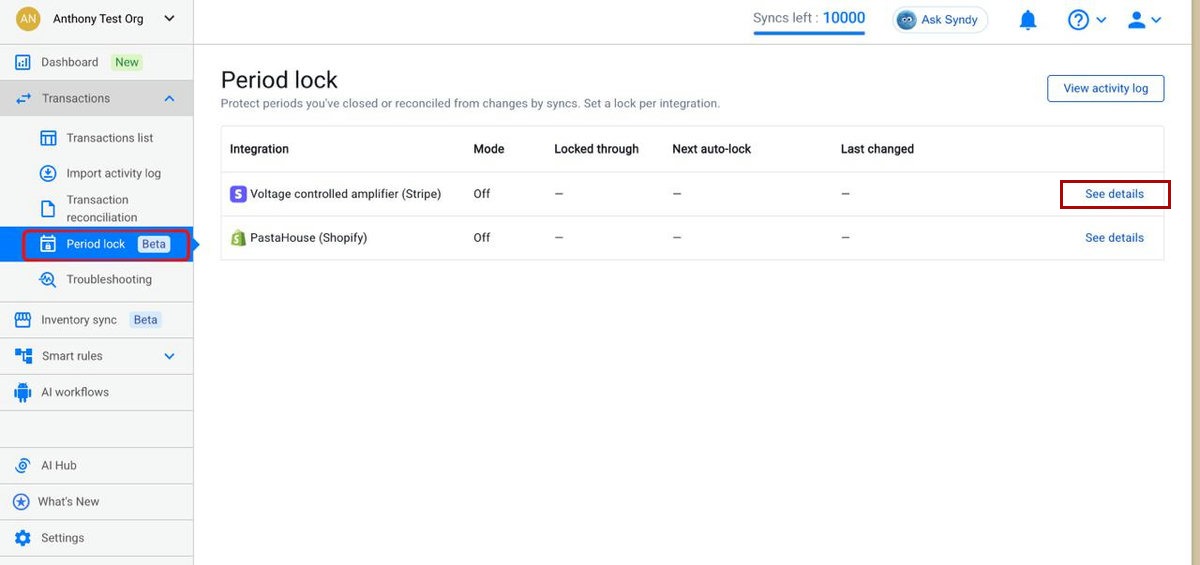
Select See details on the integration you want to lock. On its settings page, turn the Period lock toggle on, then choose a Mode and a Schedule.
Mode:
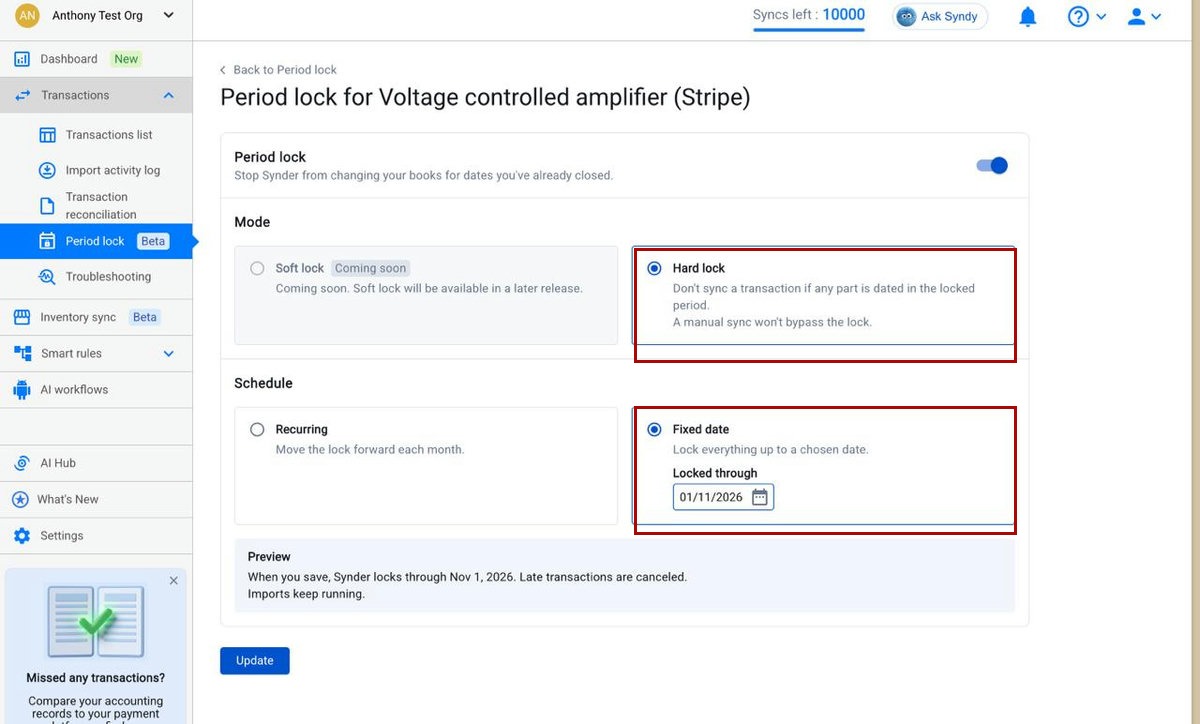
- Hard lock (available now) — Synder will not sync a transaction if any part of it is dated in the locked period. A manual sync will not bypass the lock.
- Soft lock — shown as Coming soon and not selectable yet.
Schedule — choose one:
Option A — Fixed date
Lock everything up to a chosen date. Pick the date under Locked through. The Preview box confirms the result — for example: When you save, Synder locks through Nov 1, 2026. Late transactions are canceled. Imports keep running.
Option B — Recurring
Move the lock forward automatically each month. Set On day [N] lock the previous month (N is 1 to 28). On save, Synder applies the last run day that is today or earlier, and the Preview plus the list’s Next auto-lock column show the actual dates. For example, day 28 locks through Sep 30, 2026, and the next auto-lock on Nov 28, 2026 locks through Oct 31, 2026.
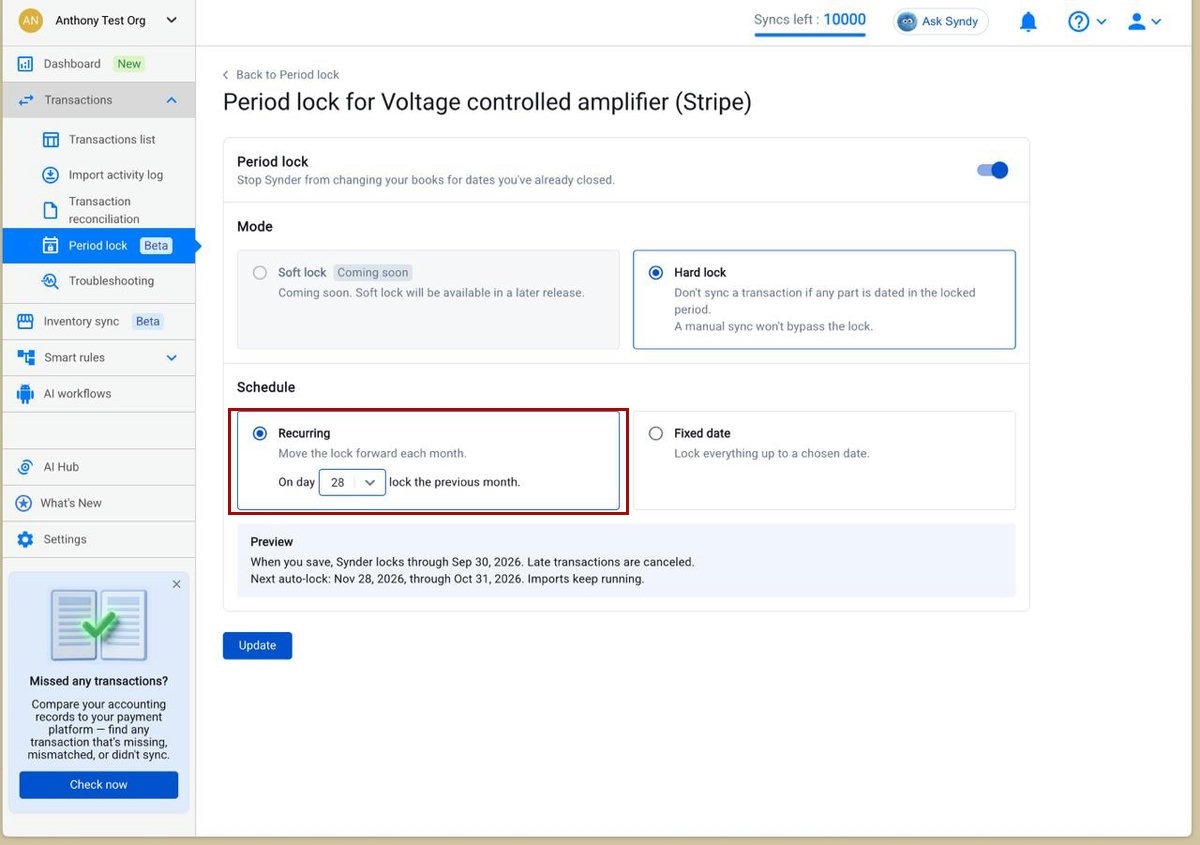
Select Update to save.
Shortcut from a reconciliation: after you reconcile a period, selecting Lock period on the reconciliation result opens these settings with the lock date pre-filled to the reconciliation end date — a quick way to lock exactly what you just reconciled.
What happens when data hits a locked period (hard lock)
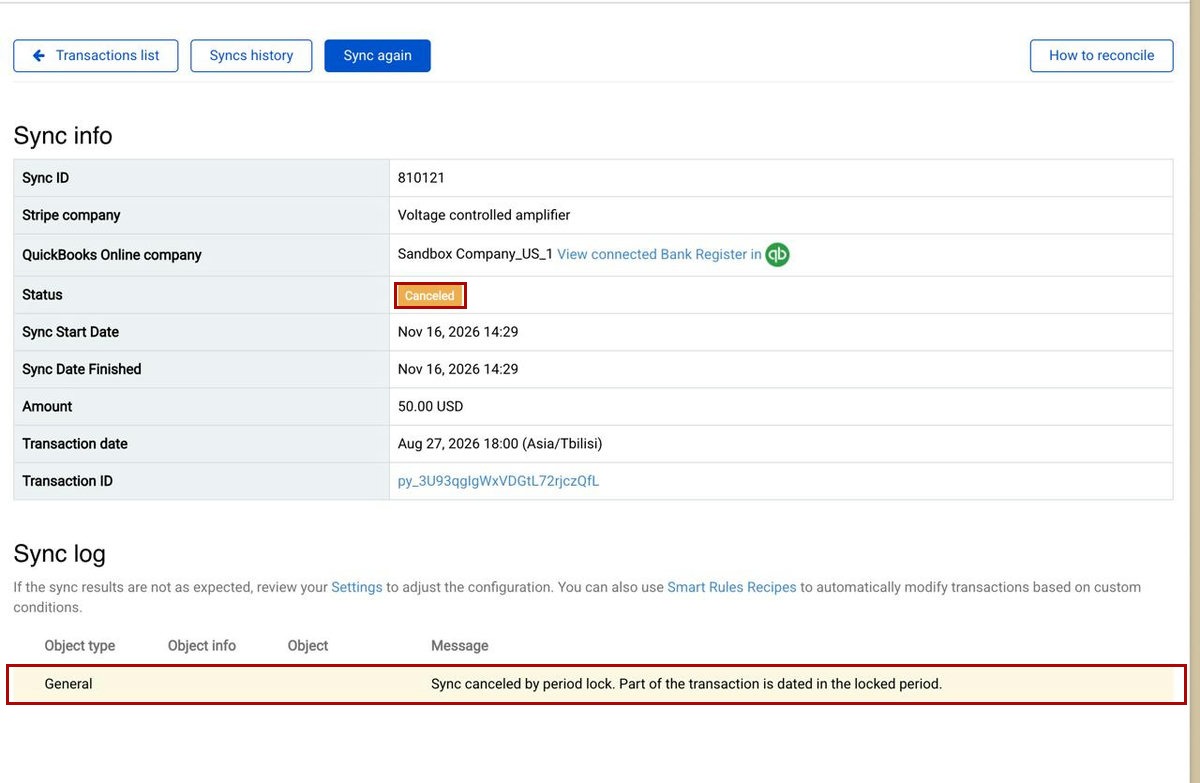
- The whole sync is canceled. Even parts dated in the open period are not posted. The status is Canceled, and no accounting entries are created.
- Where you see it: open the transaction’s Sync info — the Status shows Canceled, and the Sync log has one highlighted row with the message Sync canceled by period lock. Part of the transaction is dated in the locked period. In Per Transaction, canceled syncs also group under this message in Sync Issues; in Summary Sync, the locked day’s summary lists them under Pending transactions.
- Rollback: if a rollback’s webhook date is in the locked period, its status is Rollback canceled. Other transactions roll back normally.
Imports and Period lock
- Imports always continue — the lock never blocks the import itself, even for a closed period.
- But a sync that runs after an import obeys the lock: with a hard lock, those syncs are Canceled.
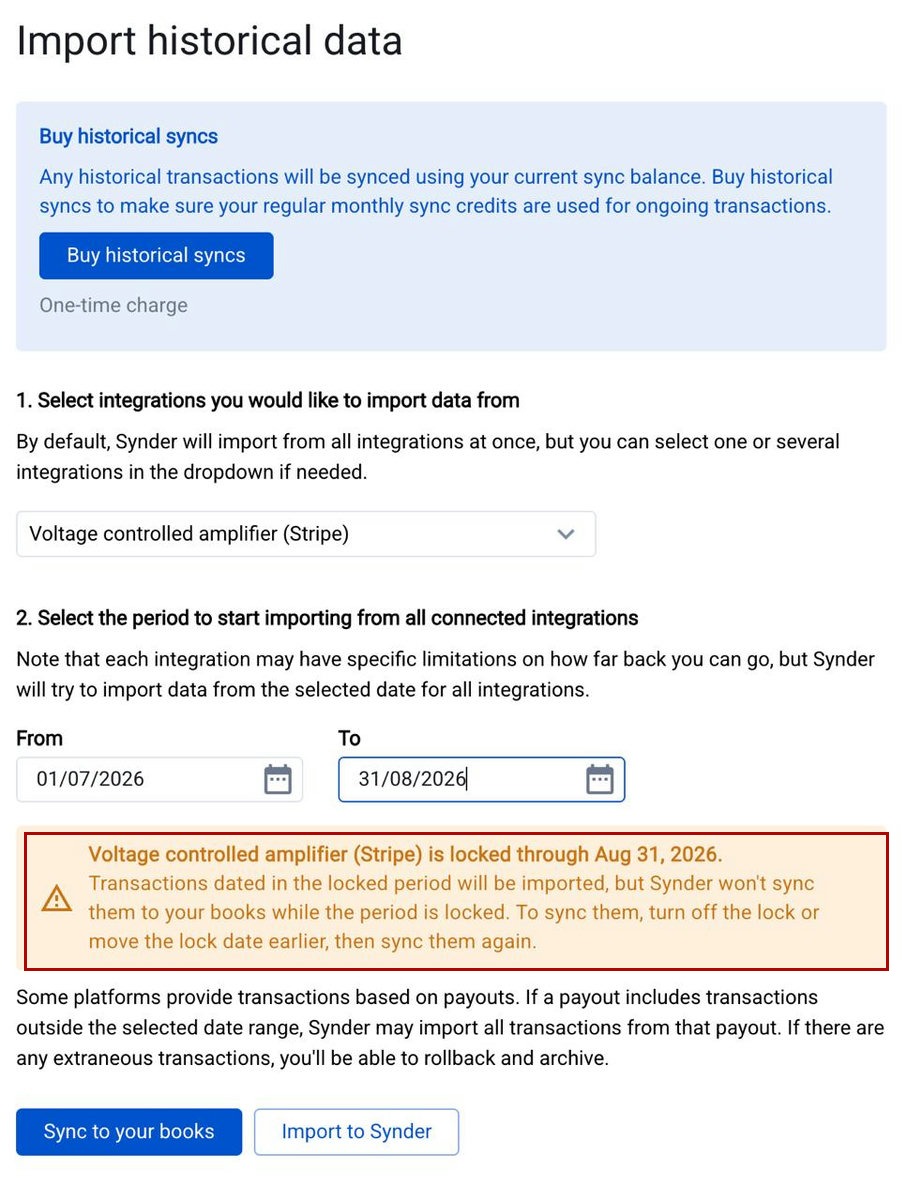
- If your import range falls inside a locked period, Synder shows an orange warning on the Import historical data page, naming the integration and its lock date and explaining that those transactions will import but will not sync to your books while the period is locked.
Good to know
- Timezone: the lock uses the date you see in the source dashboard (the integration’s timezone), not raw UTC.
- Turning the lock off (or setting an earlier date) does not undo past results. Canceled syncs stay Canceled; Synder does not automatically resync them.
- Lock scope follows the integration that syncs the transaction. For example, a PayPal payment for a Shopify order — Synder syncs the PayPal transaction, so the PayPal lock applies, not the Shopify one.
- Stripe credit note void: the lock checks the credit note’s date, not the void date. If that date is locked, the void is Canceled and the credit note stays.
What Period lock does not cover for now: historical imports themselves (only the sync after obeys the lock), Summary sync to accounting, Invoicing, COGS cost updates on Summary Sync, and manual journal entries on Summary Sync.
Frequently asked questions
Does Period lock work in both sync modes? Yes — Per Transaction and Summary Sync, on any connected accounting platform.
Can I unlock a period later? You can turn the lock off or move the date, but that does not restore syncs that were already Canceled — those stay Canceled and are not resynced automatically.
Why was my sync Canceled? Part of it was dated inside a locked period. Check the Sync log for Sync canceled by period lock.
When is the soft lock available? It is marked Coming soon in the app today; we will let customers know when it ships.
