

If your business participates in the PayPal Working Capital financing program, Synder handles the loan repayment flow automatically — but only on the PayPal API connection (not the legacy Classic PayPal connection). When PayPal deducts a loan repayment from your balance, Synder syncs it as an expense. If PayPal reverses a repayment and returns funds to you, Synder syncs it as a deposit.
Synder creates the following transaction types from PayPal Working Capital activity:
- PayPal Working Capital loan payment — a repayment deducted from your PayPal balance → synced as an expense
- PayPal Working Capital reversed payment — a repayment returned to you → synced as a deposit
To make sure these transactions land in the right accounts in your books, follow the steps below.
Step 1: Set up the Lending Liability account in Fees settings
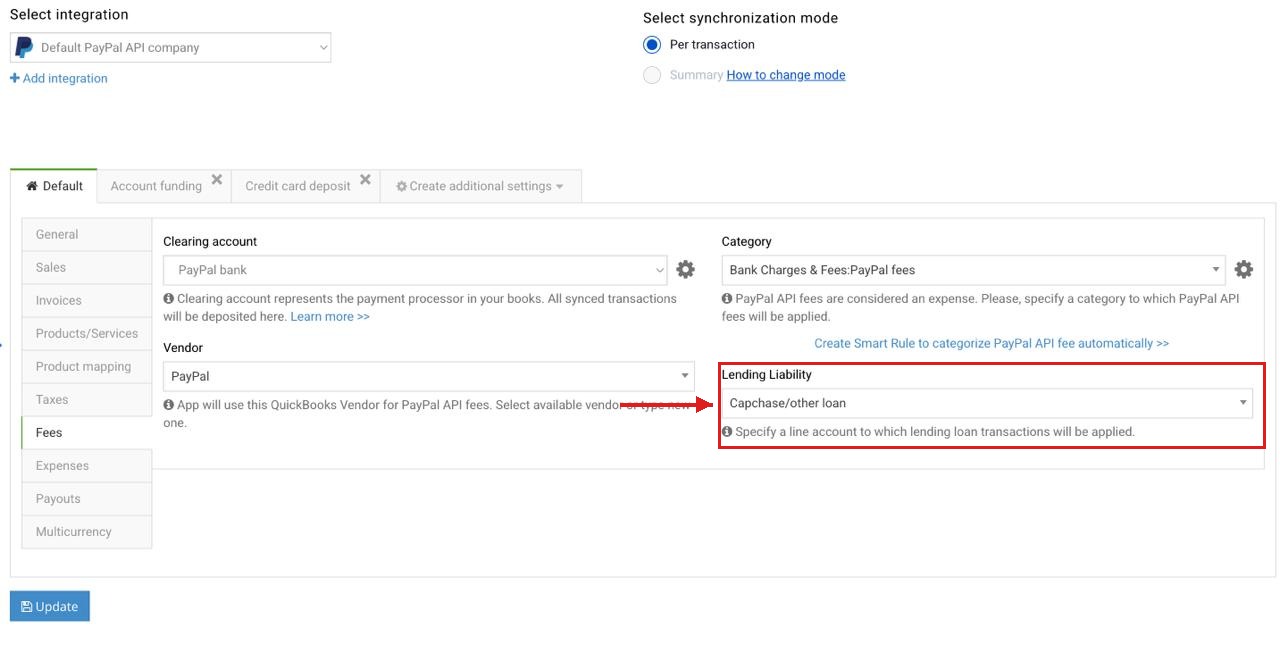
Synder has a dedicated Lending Liability field in your PayPal API integration settings. Set it once, and Synder will automatically route all PayPal Working Capital transactions to that account.
- Go to Synder → Settings → select your PayPal API integration.
- In the left menu, click the Fees tab.
- Find the Lending Liability field.
- Select the account where Synder should post lending transactions — typically a Loan Payable or Other Current Liability account.
- Click Update.
Step 2: Record the initial loan in your books manually
When PayPal deposits the Working Capital advance into your account, Synder does not create a separate transaction for it. You need to manually record the initial loan amount in your accounting platform. Use the same account you set up in Step 1. That way, as Synder syncs each repayment, your outstanding loan balance decreases automatically — making it easy to track how much you have left to pay off.
Step 3: Sync PayPal Working Capital transactions
Once your settings are in place, sync your PayPal Working Capital transactions:
- Go to Platform transactions and look for PayPal Working Capital loan payment transactions.
Note: If you don’t see them, use the manual import option in the top-right corner of the Platform Transactions tab. - Select the transactions and sync them to the books: Actions → Sync.
- Check that the created expenses and deposits are correctly categorized in the books.
Summary Sync users
On Summary Sync, PayPal Working Capital repayments for the day appear as a separate Loans group in your daily summary mapping table. Map the Loans group to the appropriate liability account — the same account where you recorded your initial loan advance. This keeps your outstanding balance accurate as Synder syncs each repayment.
That’s it! Now you know how to handle PayPal Working Capital loan repayments in Synder.
Reach out to the Synder Team via online support chat, phone, or email with any questions you have – we’re always happy to help you!
