

- What the setting does
- How to Enable the Setting
- How to Confirm It Worked
- Limitations and Important Notes
- Troubleshooting: Restoring a Continuous Sequence
- FAQ
By default, Synder’s Summary Sync writes its own formatted document numbers — like ST13Jun26USD — onto every Journal Entry it posts to QuickBooks Online. This breaks QuickBooks Online’s native numbering. Once Synder posts a Journal Entry, the next number QuickBooks Online assigns inherits Synder’s pattern instead of continuing the sequence. This happens even for a manual entry or another tool’s entry in the same company. It can also cause Duplicate Document Number errors during Summary Sync.
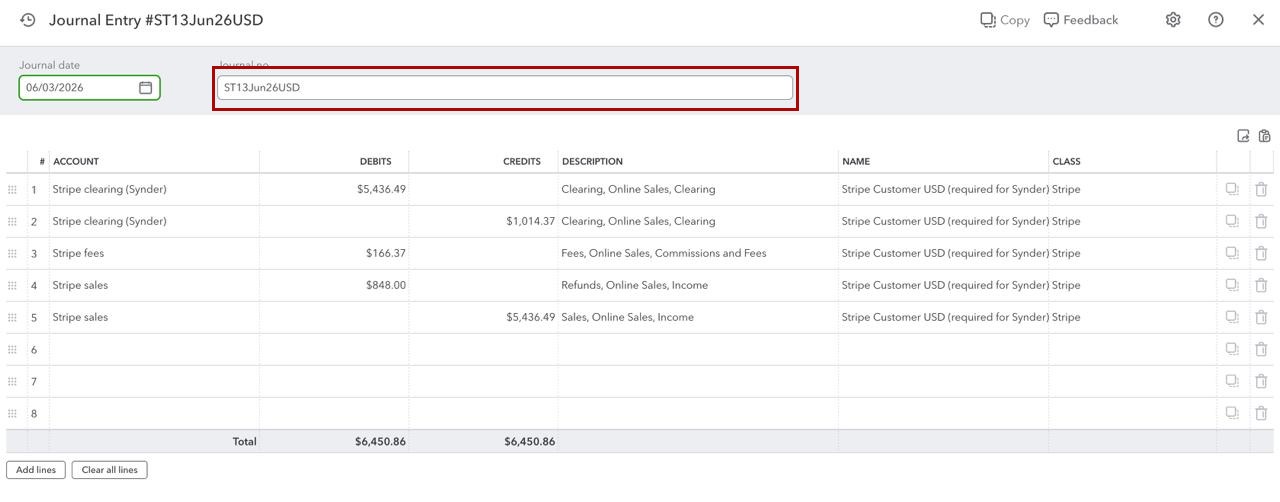
What the journal entry number sequence setting does
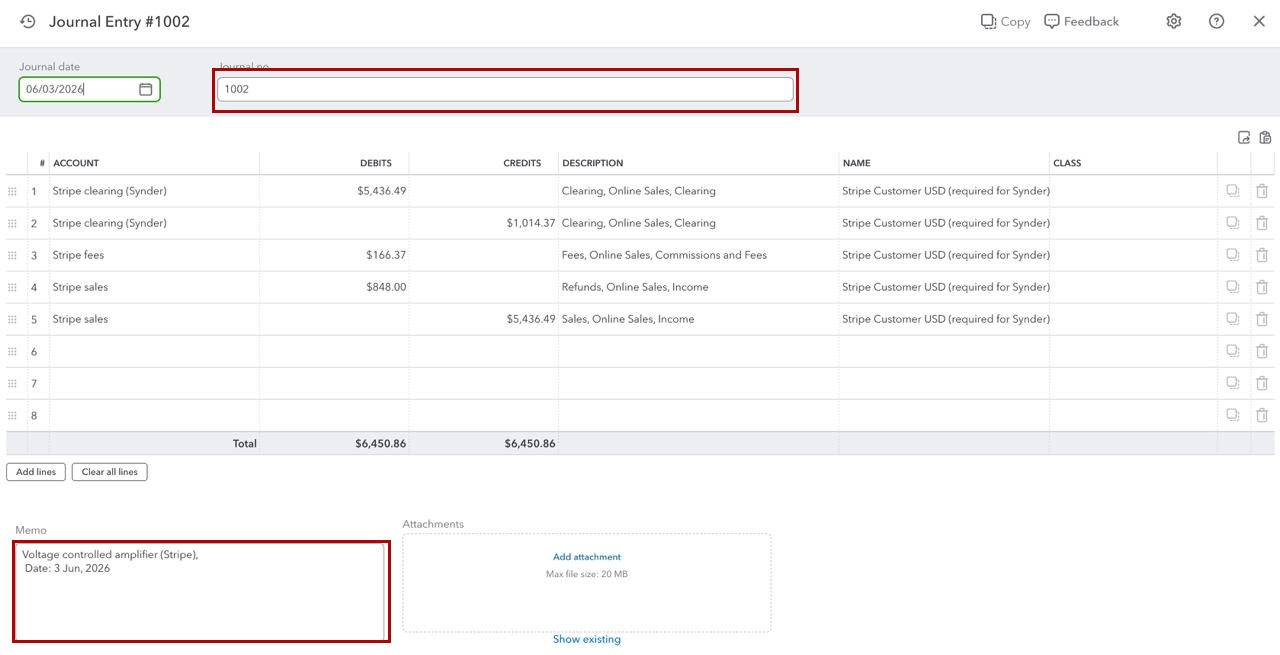
The QuickBooks Online JE number sequence setting hands numbering back to QuickBooks Online. When enabled, QuickBooks Online assigns Journal Entry numbers from its own running sequence. At the same time, Synder moves the integration name and date period to the Journal Entry’s Memo field, so Synder keeps the entry traceable.
Use this if:
- Your QuickBooks Online Journal Entry numbers are broken or contain Synder-formatted strings
- You share your QuickBooks Online company with other tools that also write Journal Entries
- You are receiving Duplicate Document Number errors during Summary Sync
- You want Journal Entries to match the numbering style of manually-created entries in QuickBooks Online
Don’t use this if:
- You rely on Synder’s encoded document numbers to find or filter Journal Entries inside QuickBooks Online (for example, in custom reports that reference the No. column)
- Your accounting platform is not QuickBooks Online — this setting is not available for Xero or other integrations
- You are not using Summary Sync mode — this setting applies to Summary Sync Journal Entries only
How to Enable the Journal Entry Number Sequence Setting
- Open Settings in Synder.
- Go to the General tab.
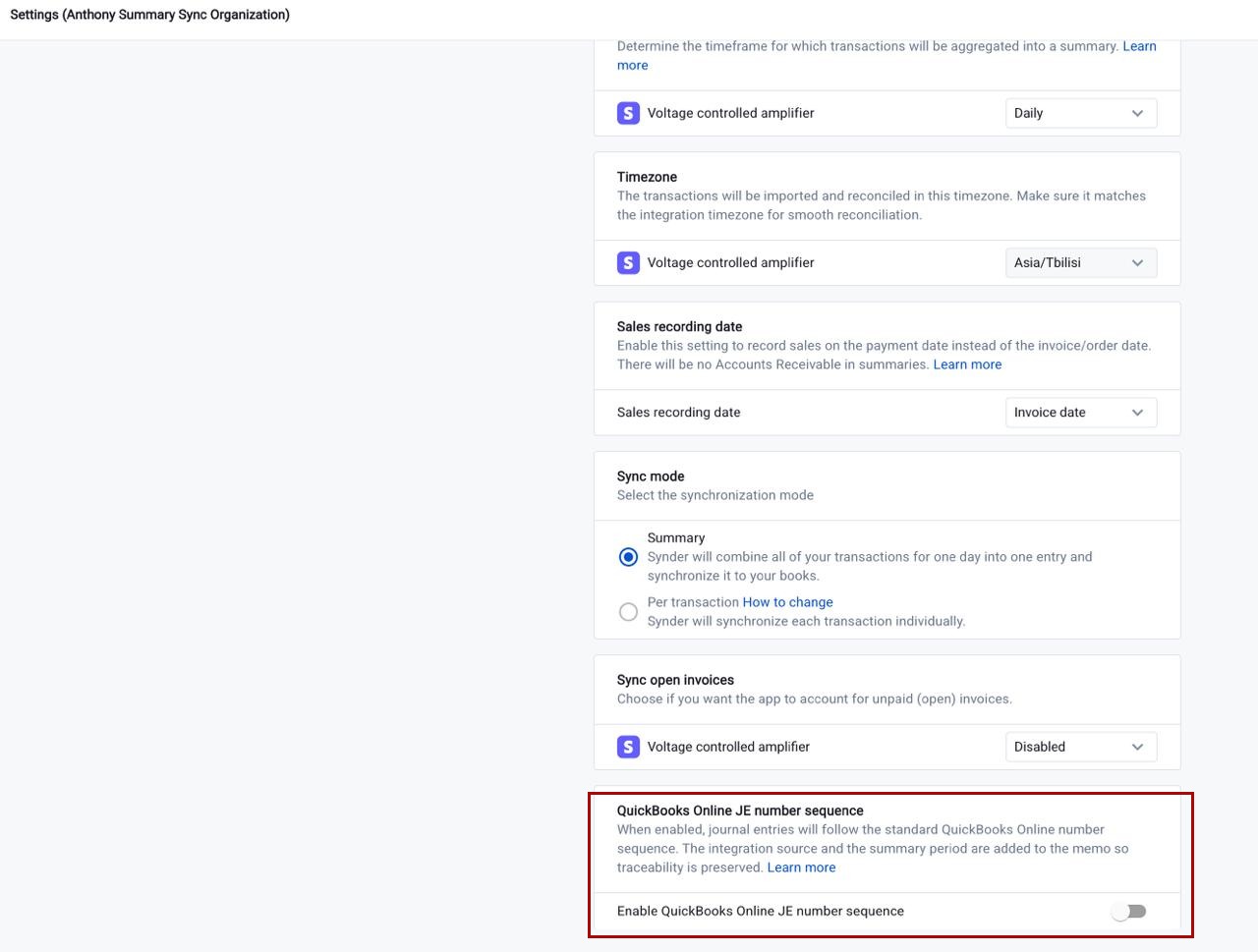
- Find the Enable QuickBooks Online JE number sequence toggle (it appears last on the tab).
- Turn the toggle on.
- Click Update to save.
From this point forward, every new Journal Entry Synder creates in QuickBooks Online will be numbered by QuickBooks Online itself.
How to Confirm It Worked
After enabling the setting and running your next Summary Sync, open a newly created Journal Entry in QuickBooks Online.
- The No. column shows a plain sequential number — for example, 1003 — instead of a Synder-formatted string like ST13Jun27USD.
- The Memo field shows the integration name and the period covered — for example, Stripe, Date: December 26, 2024 on a daily summary, or Stripe, Date: December 3, 2025 – January 5, 2026 on a per-payout summary.
If the No. column still shows Synder-formatted numbers, confirm the setting is saved and that the Journal Entry was created after the setting was turned on to reset the document number sequence on QBO — it is forward-only and does not apply to entries already posted.
Limitations and Important Notes
- Forward-only. Journal Entries posted before the setting was turned on keep their original Synder-formatted numbers. Synder does not renumber them afterward, in either direction.
- QuickBooks Online only. This toggle only appears when your accounting integration is QuickBooks Online. It is not available for Xero or other platforms.
- Summary Sync only. This setting applies to Summary Sync Journal Entries only. It has no effect on per-transaction syncs.
- Off by default. The setting is off for all organizations — new and existing. It must be enabled manually.
- QuickBooks Online seeds the sequence from your most recently created Journal Entry. When you run your first sync after enabling this setting, QuickBooks Online continues from the most recently created Journal Entry — regardless of which tool created it, and regardless of whether that number is higher or lower. This means that if your most recent entry is still a Synder-formatted one (for example ST13Jun26USD), QuickBooks Online will keep extending that same format (ST13Jun27USD, and so on) even with the setting on. To move onto a clean native sequence, first make a manually-numbered Journal Entry the most recent entry — even a single test entry is enough to reset what QuickBooks Online remembers. See the Troubleshooting section below.
Troubleshooting: Restoring a Continuous Sequence
If you already have Synder-formatted Journal Entries in QuickBooks Online and want future entries to continue a clean native sequence, you need to control what QuickBooks Online sees as its most recent Journal Entry before your first sync with the setting on. There are three ways to do this.
Important: Whichever method you use, the entry that sets the sequence must be the most recent Journal Entry in QuickBooks Online at the time of your next sync.
Method A — Roll back and resync
Best when only a few summaries were posted and you want no Synder-formatted numbers remaining in your books.
- In Synder, roll back the affected summaries. This removes the corresponding Journal Entries from QuickBooks Online.
- In QuickBooks Online, confirm the most recent Journal Entry is the one you want the sequence to continue from (for example, 1002). Edit or create one manually if needed.
- Enable the QuickBooks Online JE number sequence setting in Synder.
- Resync the summaries. QuickBooks Online assigns 1003, 1004, 1005, and so on from there.
Method B — Edit the existing Journal Entries in QuickBooks Online
Best when you want to keep the existing entries but bring their numbers into the native sequence.
- In QuickBooks Online, open each Synder-posted Journal Entry and replace its Synder-formatted number with the next value in your desired sequence (for example, change #SH923Apr-29Apr25USD to 1003, the next one to 1004, and so on).
- Enable the QuickBooks Online JE number sequence setting in Synder.
- Future syncs will continue the sequence from the most recent Journal Entry’s number.
Method C — Seed the sequence with a placeholder Journal Entry
Best when there are many existing entries and you’d rather not edit or roll back anything.
- Leave all existing Synder-posted Journal Entries as they are.
- In QuickBooks Online, manually create one new Journal Entry with the document number you want Synder’s future entries to continue from (for example, 1003). A zero-balance entry works — its only purpose is to set the next number in the sequence.
- Enable the QuickBooks Online JE number sequence setting in Synder.
- Future syncs pick up at 1004, 1005, and so on.
FAQ
Compatibility and related settings
Does this setting affect Xero or other accounting platforms?
No. The QuickBooks Online JE number sequence toggle only appears when your accounting integration is QuickBooks Online. It has no effect on Xero or any other platform.
Is this the same as the “Enable QuickBooks Doc Numbers” setting for per-transaction sync?
It is the Summary Sync counterpart of the same idea. In per-transaction sync, Enable QuickBooks Doc Numbers decides whether Synder’s own reference or QuickBooks Online’s native numbering is used. This setting does the same job for Summary Sync. The only difference is scope: Summary Sync creates Journal Entries only, so this setting governs Journal Entry numbering specifically.
Applying it to existing Journal Entries
Will Synder go back and renumber Journal Entries it already posted?
No. The setting is forward-only. Journal Entries created before the toggle was turned on keep their original numbers — turning the setting back off will not change anything already posted in either direction.
Can I apply this to Journal Entries I’ve already synced?
Not automatically — the setting is forward-only. To bring already-synced summaries onto QuickBooks Online’s native numbering, roll those summaries back and resync them with the setting on (see Method A above). On a company that previously synced with Synder, also make sure a manually-numbered Journal Entry is the most recent entry first, so QuickBooks Online doesn’t simply continue the old Synder-formatted number.
Rollback, resync, and troubleshooting
Will rollback and resync still work for Journal Entries created while the setting is on?
Yes. Synder identifies its Journal Entries by an internal ID, not by the document number. Rollback, resync, and summary patches all behave the same whether the setting is on or off.
I turned the setting on but new Journal Entries still show Synder-formatted numbers — what should I check?
Confirm the setting was saved by clicking Update after enabling it. Then verify when the Journal Entry was created — the setting is forward-only and only applies to entries posted after it was turned on.
