

This guide explains the Apply expenses to unpaid Bill transactions setting for QuickBooks Online. When it is on, Synder automatically applies a synced expense to a matching open Bill in QuickBooks — closing the Bill as a Bill Payment — so your Accounts Payable stays accurate without manual matching.
- Applies to: QuickBooks Online only, in Per-Transaction sync mode.
- Confirmed for Stripe and PayPal expenses. Stripe Transfers need one extra config — see the Stripe note below.
- Plan requirement: available on Essential and higher (not Basic).
What this setting does
When a synced expense matches a vendor who has an open Bill in QuickBooks, Synder applies the expense to that Bill — paying it down as a Bill Payment — instead of leaving the expense and the Bill sitting separately. This keeps your Accounts Payable accurate without manual matching.
How to enable the setting
- First, go to Settings in Synder and select your integration.
- Next, open the Expenses tab.
- Turn on Apply expenses to unpaid Bill transactions.
- Finally, click Update.
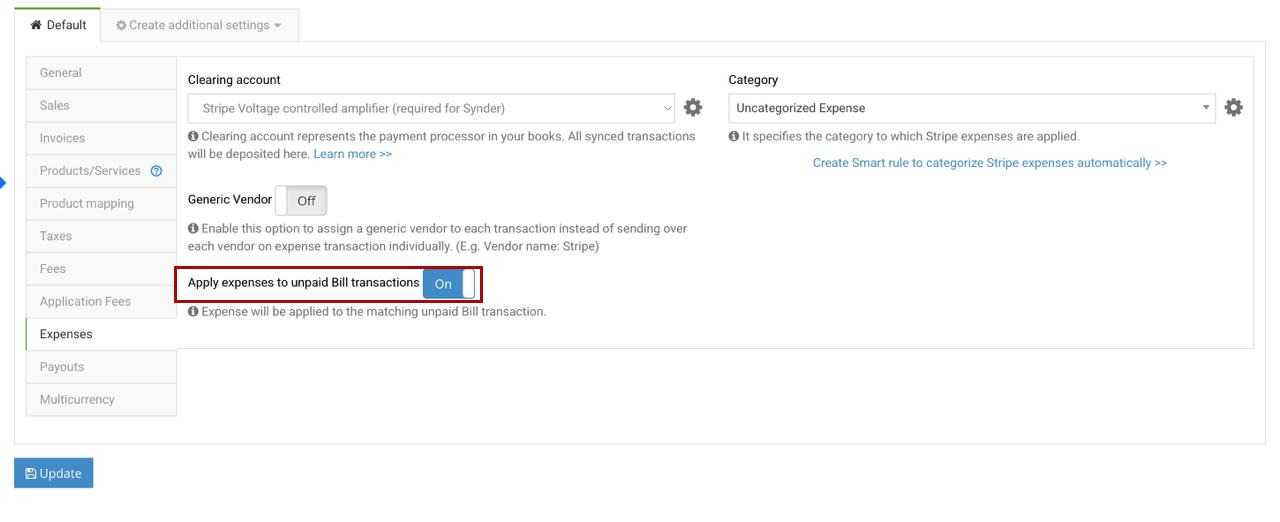
The setting is off by default, and existing organizations stay off until someone turns it on.
Keep “Generic Vendor” off for vendor matching. On the same Expenses tab, the Generic Vendor option (when on) assigns a single generic vendor to every expense — for example, “Stripe”. For expenses to match the correct vendor’s Bill, leave Generic Vendor off so each expense keeps its own vendor name.
How the matching works
- Synder matches when the expense’s name equals the Vendor’s name in QuickBooks (case-insensitive).
- The expense is applied as a Bill Payment that closes the Bill for that amount.
- If the vendor has several open Bills, Synder pays the chronologically oldest one first.
- One expense applies to one Bill; partial payments and overpayments are handled.
Worked example
1. You have an open Bill in QuickBooks. Here a Bill is waiting to be paid for the vendor below.

2. The Bill is now closed in QuickBooks. Once the matching expense syncs, it posts as a Bill Payment against the open Bill, closing it — no unapplied balance left behind.

Stripe Connect and Transfers
On Stripe, this is especially relevant for Stripe Connect, where a platform pays out money to its connected accounts as Transfers. These Transfers are effectively what the platform owes its connected sellers, which is exactly the kind of expense you may want to apply against a Bill.
The catch: the setting works on genuine purchase expenses, not on fees. By default Synder syncs Stripe Transfer transactions as Fees, so they are not treated as expenses and will not apply to a Bill. To route Stripe Transfers into this flow, a custom configuration syncs them as Purchase Receipts (and Transfer reversals as Purchase Refunds) so they land on the Expenses tab and can be applied to a matching Bill. This is enabled by your Synder account manager — reach out to the Synder Team if you need it.
For how Stripe Connect syncs to your books, see Synder: Stripe Connect Account Sync to Books.
FAQ
Which accounting platforms support this?
QuickBooks Online only, in Per-Transaction mode.
Which payment platforms does it work for?
Confirmed for Stripe and PayPal expenses. Stripe Transfers need the extra custom configuration above.
What if the vendor has more than one open Bill?
Synder applies the expense to the chronologically oldest open Bill first.
Will it change my existing setup?
No. The setting is off by default and only affects new syncs after you turn it on.
Reach out to Synder Team via online support chat or email with any questions you have — we are always happy to help you!
