

You’ve connected everything, maybe even synced some test transactions successfully — but now some transactions are missing. They show up in Shopify/Stripe/Amazon, but they’re not in your accounting software. Here’s how to track down what happened.
—
Check 1: Are the Transactions in Synder at All?
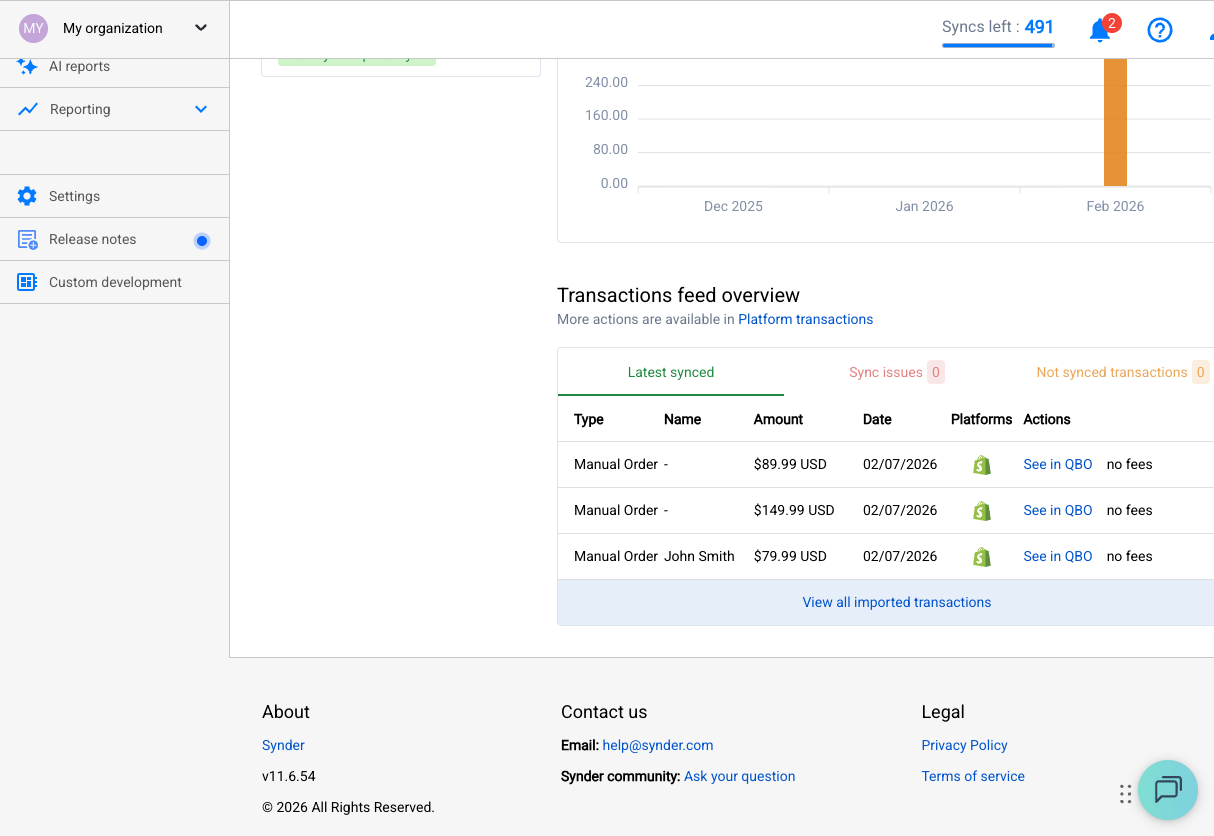
Go to the Transactions tab in Synder and look for the missing transactions.
If they’re NOT in Synder:
- The transaction may be too recent. Synder fetches transactions from your platforms periodically — give it a few minutes to an hour.
- Your platform connection may have dropped. Check Settings → Integrations — is the platform still showing as connected?
- The transaction type might not be supported. Synder handles sales, refunds, payouts, and fees. Some platform-specific transaction types (like Amazon advertising charges) may need specific configuration.
- Date range: If you’re looking for historical transactions, you need to use Historical Import. Auto-sync only captures transactions from when it was enabled.
If they ARE in Synder but show as “Pending”:
- The transaction hasn’t been synced yet. If auto-sync is on, it should process soon. If not, you can sync it manually.
If they ARE in Synder but show as “Failed”:
- There was a sync error. Click the transaction to see the error message. See our [Common Sync Errors](common-sync-errors.md) guide.
If they ARE in Synder and show as “Synced”:
- The transaction made it to your accounting software. If you can’t find it there, check the date — it might be recorded on a different date than expected (processing date vs. order date). Also check if it was categorized to an unexpected account.
—
Check 2: Is Auto-Sync Actually On?
This is the #1 reason transactions go missing. Auto-sync has multiple layers:
- Global auto-sync — Settings → General → Auto-sync toggle
- Per-transaction-type — Payments, Refunds, Expenses may each have their own toggle
- Per-integration tabs — Additional settings tabs can override the default
The sneaky part: Auto-sync might be ON now, but it could have been OFF when the transaction came in. Check the Changelog (Settings → Changelog) for any recent changes.
Remember: Auto-sync only processes transactions going *forward* from when it was enabled. If it was off for a day, those transactions need manual syncing.
—
Check 3: Is the Right Platform Connected?
Common scenarios where transactions get missed:
“I sell on Shopify but customers pay via PayPal”
You need both Shopify and PayPal connected. If only Shopify is connected, you’ll get order data but might miss the payment details (or vice versa).
“I have Shopify Payments AND Stripe”
Shopify Payments runs on Stripe. You might only need the Shopify connection (which includes Shopify Payments data). Connecting Stripe separately could cause duplicates OR confusion about which connection handles what.
“My Amazon transactions are missing”
Amazon data can be delayed. It’s normal for Amazon transactions to appear in Synder hours or even a day after they occur. If using Daily Summary mode, transactions that arrive late will cause “partially synced summaries.”
“My Shop Pay orders aren’t showing”
Shop Pay transactions should come through the Shopify connection. If they’re missing, check that your Shopify integration is authorized to access payment data (not just order data).
—
Check 4: Did Synder Skip Them as Duplicates?
Synder has built-in duplicate detection. If a transaction already exists in your accounting software (maybe you entered it manually), Synder will skip it rather than create a duplicate.
Check for “Skipped” status in the Transactions tab. If you see it, the transaction is already in your books — Synder just didn’t create a second copy.
—
Check 5: Is There a Product/Mapping Issue Blocking the Sync?
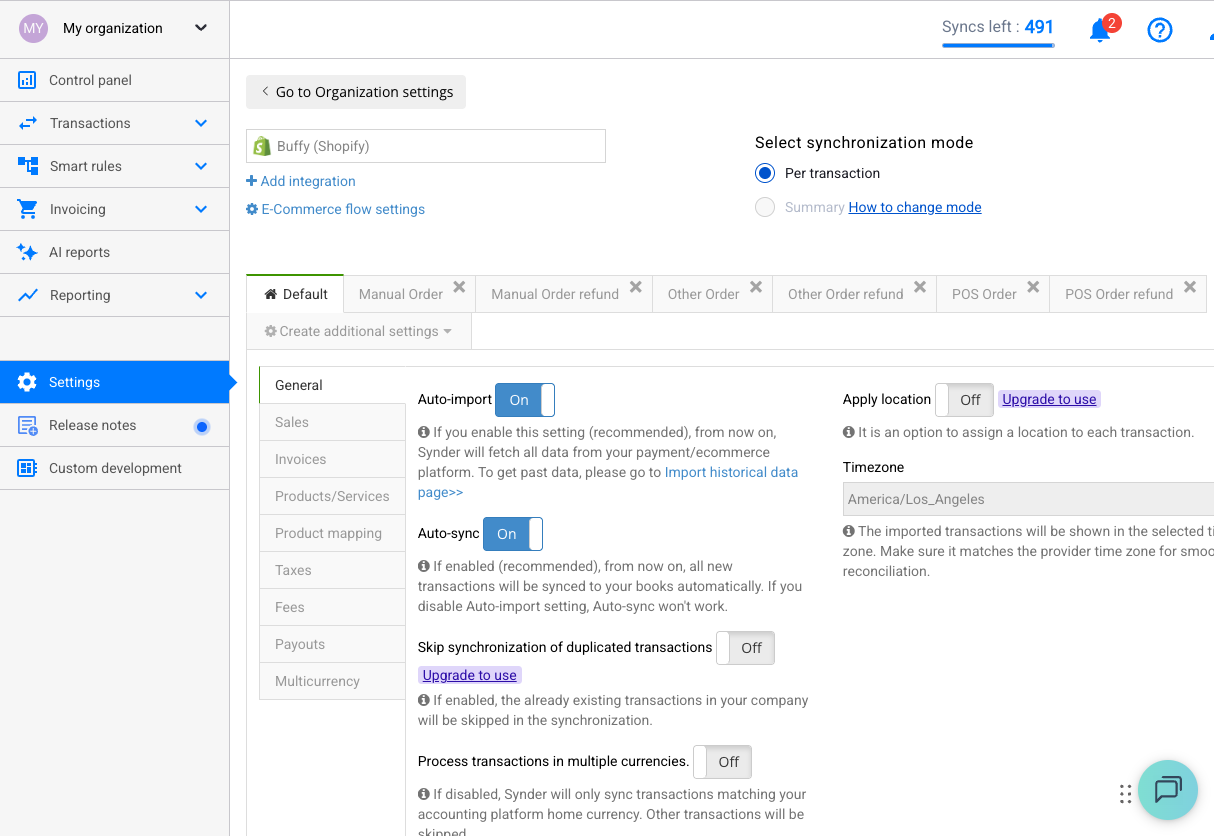
If your settings say “cancel sync if product not found,” transactions with unrecognized products will silently fail. Check:
- Settings → Products section for your integration
- Look for any “cancel if not found” type settings
- Consider enabling “Common Product” or auto-creation to prevent this
—
Check 6: Was the Transaction Within Synder’s Sync Window?
- Auto-sync captures transactions from when it was enabled
- Historical Import is needed for anything before that date
- Some platforms have limits on how far back you can fetch (e.g., Amazon’s historical data access)
If you just connected a platform today and expect transactions from last month — you need Historical Import, not auto-sync.
—
Check 7: Connection Was Temporarily Broken
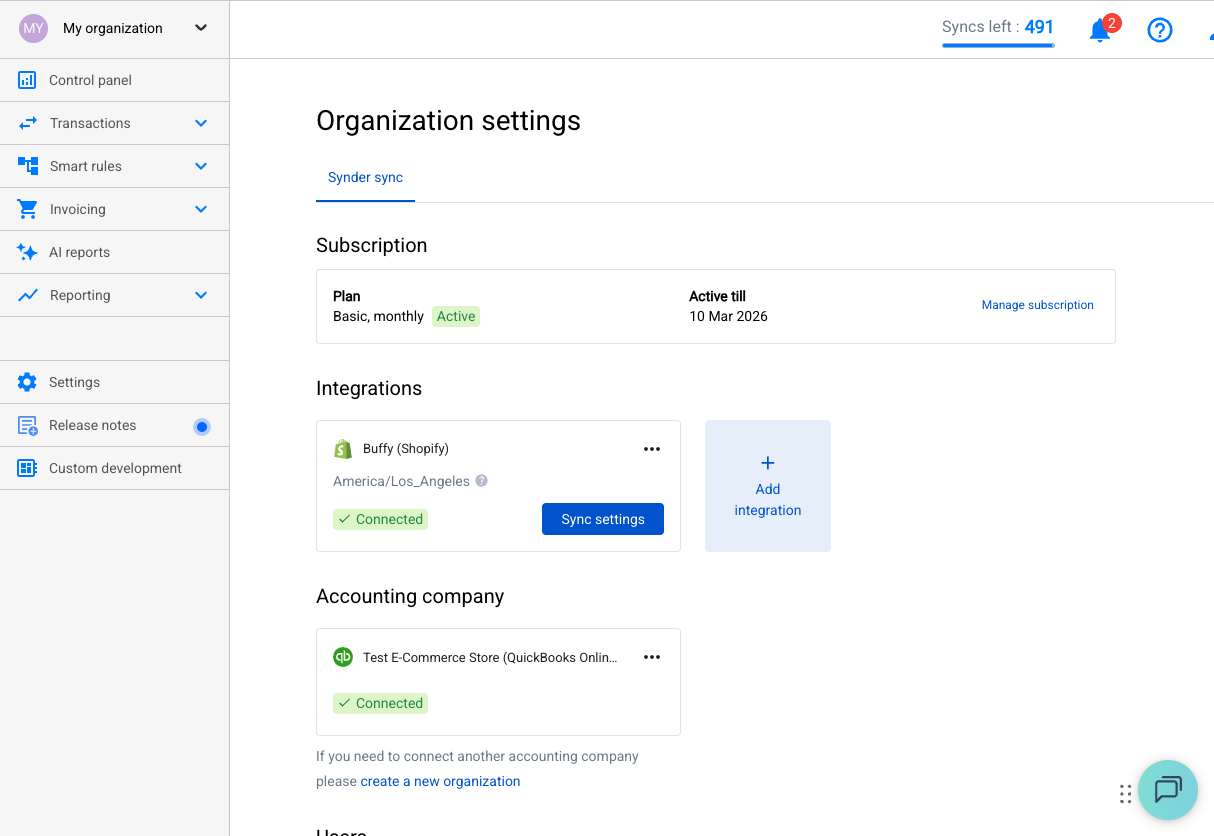
OAuth connections can silently expire. Your platform might have been disconnected for hours or days without you noticing.
How to check:
- Settings → Integrations — current status
- If you’re a bookkeeper/accountant: check if your client changed their password or revoked access
How to fix:
- Re-authorize the connection
- Manually sync any transactions from the disconnection period
—
Still Can’t Find Them?
If you’ve checked all of the above and transactions are genuinely missing:
- Note the specific transaction — order number, date, amount, platform
- Check the platform directly — is the transaction actually there? (Sometimes orders get canceled on the platform side)
- Contact support at [[email protected]](mailto:[email protected]) with:
- Transaction details (order ID, date, amount)
- Which platform and accounting software
- Screenshot of your Synder Transactions tab filtered to that date range
The support team can look at the back-end logs to trace exactly where the transaction went (or didn’t go).
—
Prevention: How to Avoid Missing Transactions
- Check connections weekly — a 30-second look at Settings → Integrations
- Don’t toggle auto-sync casually — if you turn it off, write yourself a note to turn it back on
- Set up all transaction type toggles when you first configure — not just payments, but refunds, expenses, etc.
- For Amazon sellers: Expect some delay in data. Don’t panic if today’s sales aren’t in Synder yet.
- Use Historical Import for your initial setup — don’t rely on auto-sync to “catch up”
