

What this guide is for
Synder’s Transaction Reconciliation tool compares the data in your accounting software against the original records from your payment platform. As a result, it shows you exactly which transactions matched, which have amount differences, and which are missing. As a result, you can close out periods with confidence.
Use this if:
- You want to verify that what Synder synced matches your payment platform
- You need to finalize month-end close and want certainty that no transactions are missing or mismatched
- You use Stripe, PayPal, or Shopify with QuickBooks Online
Don’t use this if:
- You need general information about how Synder syncs transactions — see the Per Transaction Sync User Guide or Summary Sync User Guide
- You need help with bank reconciliation inside QuickBooks or Xero
Prerequisites:
- At least one payment platform (Stripe, PayPal, or Shopify) connected to Synder
- An accounting platform (QuickBooks Online) connected to Synder
- Transactions already synced for the period you want to reconcile
How to confirm it worked
Your reconciliation is complete when:
- The Discrepancy tab shows zero transactions
- The Not Matched tab shows zero transactions
- The reconciliation status changes to “Reconciled”
If items remain, you can resolve them or use Bulk-Ignore for non-material differences.
Comparison depends on your Sync mode of Synder
Per Transaction mode: Synder compares your clearing account report from QuickBooks Online against the payment platform report. This directly verifies that what is recorded in your books matches the original payment platform data.
Summary mode: Synder compares the data imported into Synder against the payment platform report. This verifies that Synder received and processed all transactions correctly.
Supported integrations and automation levels
The level of automation depends on your payment platform. Specifically, there are three modes:
Automated — Synder downloads files from both the payment platform and your accounting software automatically. No file uploads needed.
Standard — You upload a specific predefined report from the payment platform. Synder handles normalization, column mapping, and comparison automatically.
Manual — You upload any CSV or XLSX file (up to 100 MB) and manually map the columns to the required fields.
Mode availability by platform
| Platform | Automated | Standard | Manual |
|---|---|---|---|
| Stripe | ✅ | ✅ | ✅ |
| PayPal | ❌ | ✅ | ✅ |
| Shopify | ❌ | ✅ | ✅ |
| All other integrations | ❌ | ❌ | ✅ |
For Automated and Standard modes, Synder assigns column mappings automatically by Synder. You do not need to map anything manually.
How to reconcile Stripe transactions (Automated)
For Stripe, reconciliation is fully automated. Synder downloads both the Stripe data and your accounting file without any manual steps.
- Go to Transactions → Transaction Reconciliation in the left sidebar.
- If this is your first reconciliation, click “Start reconciling” on the welcome page. Otherwise, click “Add reconciliation” in the top-right corner.
- Next, set the date range for the period you want to reconcile. Note: you cannot select today’s date — the payment platform may not have finalized today’s transactions yet.
- Under Accounting, Synder pre-selects your connected accounting platform. Set the Automation mode to “Automated”.
- Under Integration, select Stripe as the payment platform.
- Select the clearing account used for Stripe transactions.
- Set the Integration Automation mode to “Automated”.
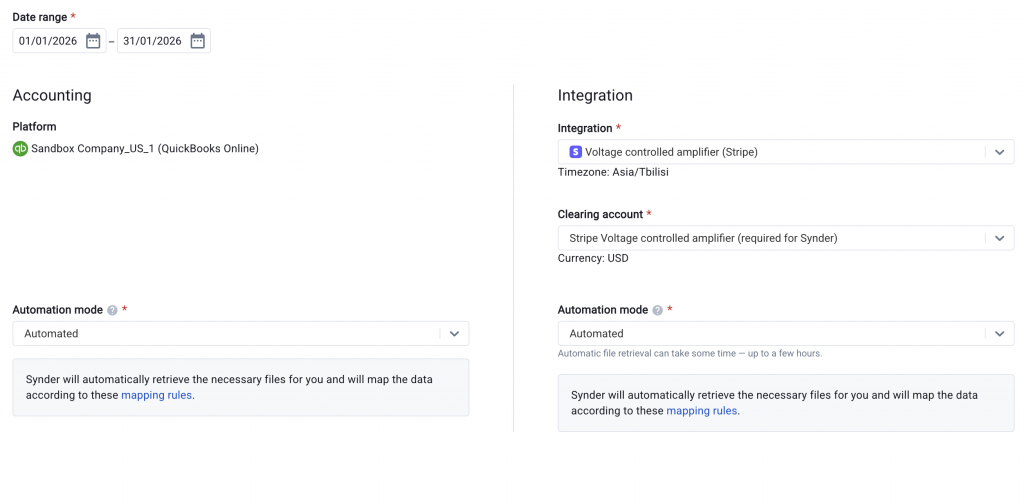
- Finally, click “Start matching”.
- Synder downloads the Balance Change from Activity report and the Payouts report from Stripe automatically. It also pulls your clearing account details from QuickBooks Online. This process may take a few minutes to an hour, depending on transaction volume.
- Once processing is complete, you will see your results. See “Understanding your results” below.
How to reconcile PayPal transactions (Standard)
PayPal does not support automatic report downloads. You need to upload your PayPal report manually. After that, Synder handles everything else.
- Go to Transactions → Transaction Reconciliation in the left sidebar.
- Click “Add reconciliation” (or “Start reconciling” if this is your first time).
- Set the date range for the period you want to reconcile.
- Under Accounting, set the Automation mode to “Automated” (Synder will pull this file automatically).
- Under Integration, select PayPal.
- Select the clearing account used for PayPal transactions.
- Set the Integration Automation mode to “Standard”.
- You will see instructions for which report to download. Follow these steps:
- Log in to your PayPal account.
- Go to Reports → Activity Download.
- Select “Balance affecting” as the transaction type.
- Set the date range to match your reconciliation period.
- Download the report in CSV format.
- Then, upload the downloaded file to Synder using the file upload area.
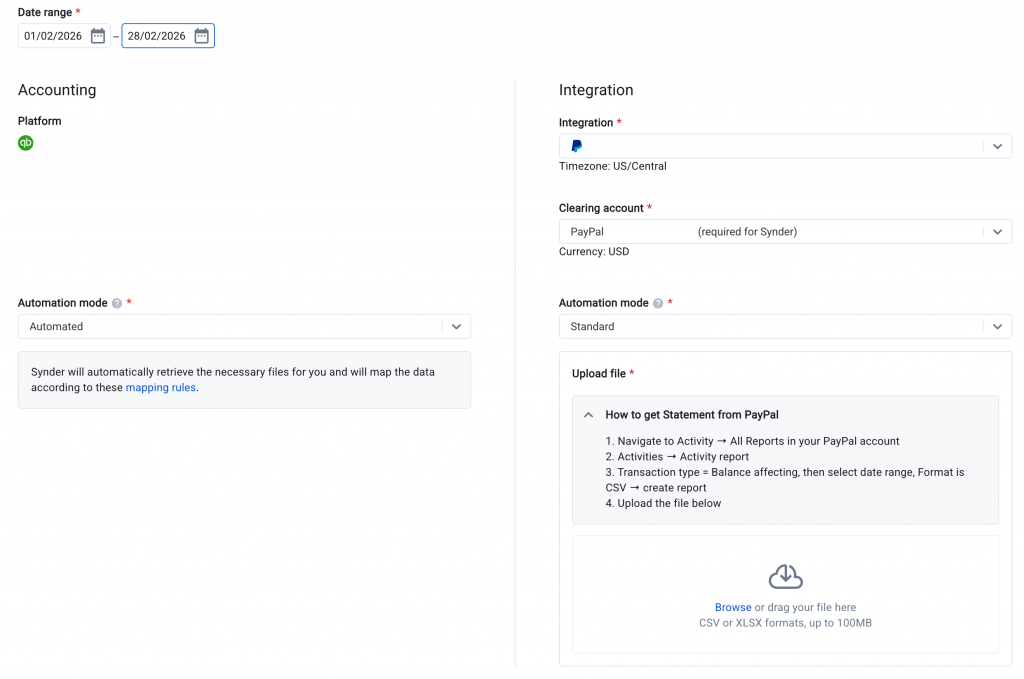
- Click “Start matching”.
- Synder then normalizes both files, maps the columns, and runs the comparison automatically.
- Once processing is complete, go ahead and review your results.
How to reconcile Shopify transactions (Automated)
Shopify reports cannot be downloaded automatically. You need to download and upload the report yourself. Synder then handles normalization, mapping, and comparison.
- Go to Transactions → Transaction Reconciliation in the left sidebar.
- Click “Add reconciliation”.
- Set the date range for the period you want to reconcile.
- Under Accounting, set the Automation mode to “Automated”.
- Under Integration, select Shopify.
- Select the clearing account used for Shopify transactions.
- Set the Integration Automation mode to “Automated”.
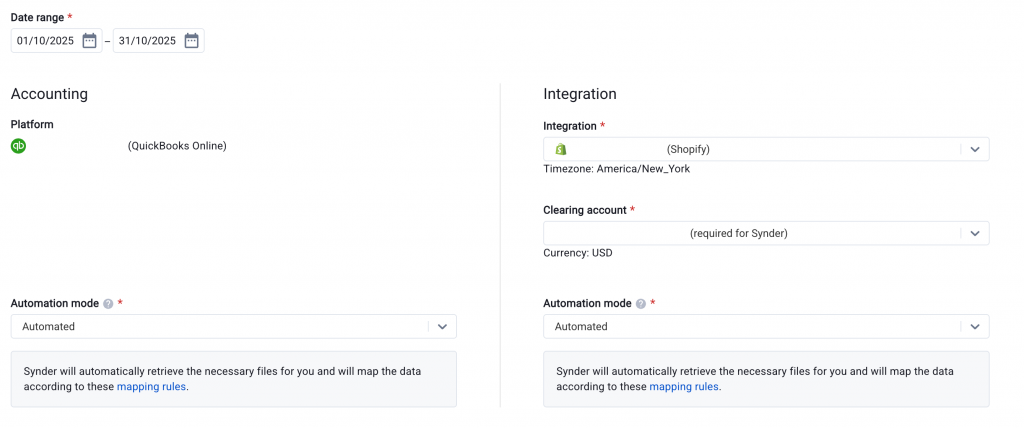
- Click “Start matching”.
- Synder will automatically download the Transactions and associated payouts report from Shopify, as well as your clearing account details from QuickBooks Online. This may take a few minutes to an hour, depending on the volume of transactions.
- Review your results once processing is complete.
Important: Shopify reconciliation covers the Shopify Payments clearing account only. This does not include other payment gateways like manual orders or POS with external payment methods.
How to reconcile other integrations (Manual)
Some integrations do not offer Automated or Standard modes. Examples include Square, WooCommerce, and others. For these, use Manual mode. You upload your own CSV or XLSX file and map the columns yourself.
- Go to Transactions → Transaction Reconciliation.
- Click “Add reconciliation”.
- Set the date range.
- Under Accounting, set the Automation mode to “Automated” (or “Manual” if you want to upload your own accounting file too).
- Under Integration, select your payment platform.
- Set the Integration Automation mode to “Manual”.
- Upload your CSV or XLSX file (up to 100 MB).
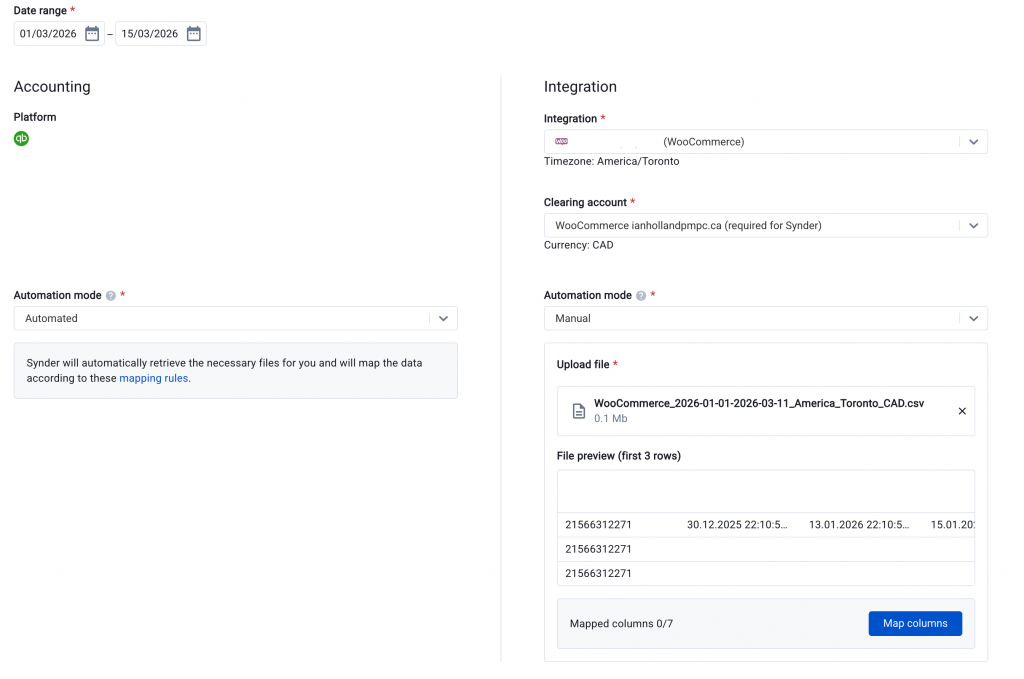
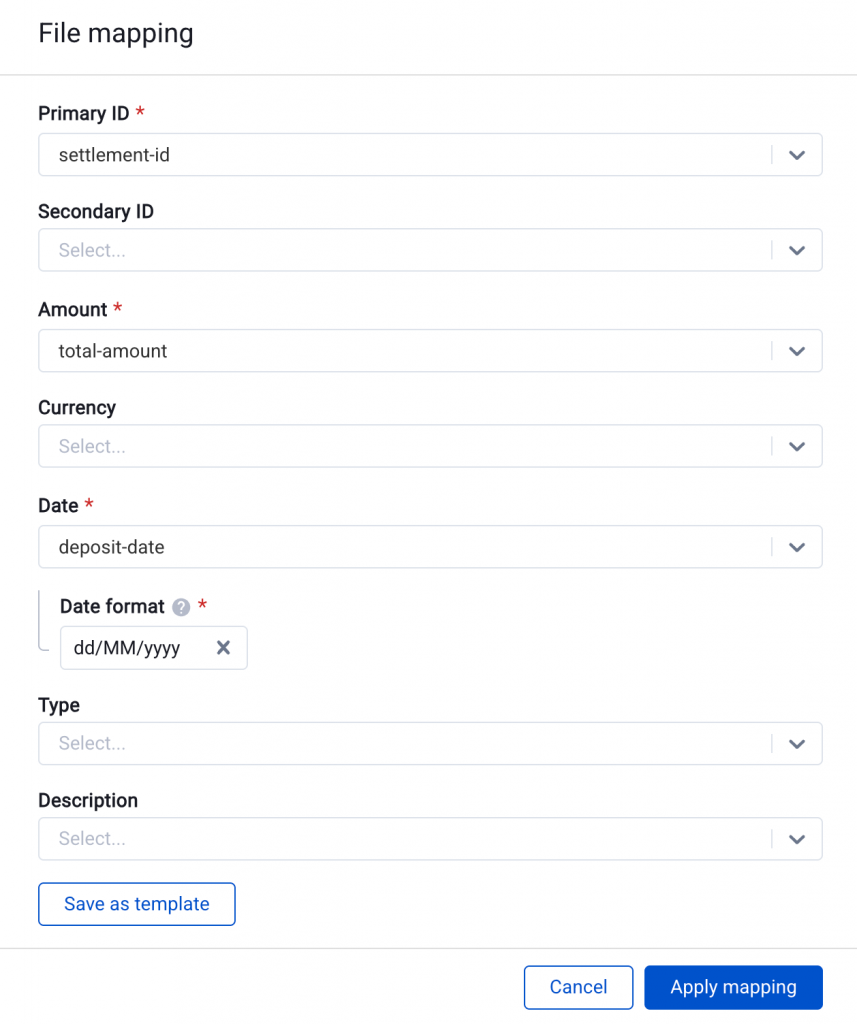
- Click “Map columns”. You will see a list of fields — some are mandatory (Primary ID, Amount, Date) and others are optional (Secondary ID, Transaction type, Description, Currency).
- Map each required field to the corresponding column in your file.
- Optional: Save your mapping as a template so you can reuse it for the same integration in the future.
- Click “Apply mapping”, then “Start matching”.
- Review your results.
Understanding your results
After the comparison is complete, Synder organizes your results into four tabs:
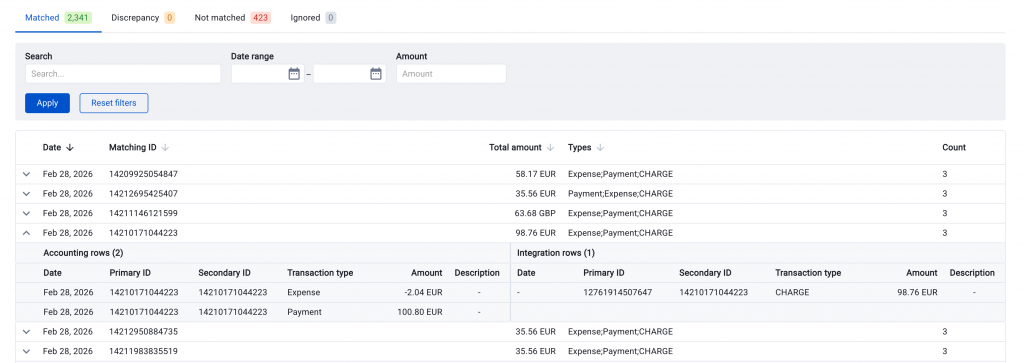
Matched
These transactions appear in both sources with matching IDs and amounts. They are fully reconciled. No action needed.
Moreover, you can expand any matched row to see the individual accounting and integration line items that make up the match, along with their Primary ID, Secondary ID, Transaction type, and Amount.
Discrepancy
These transactions matched by ID, but the amounts differ. Therefore, review them to understand the cause. For instance, common reasons include partial payments, currency differences, or fee adjustments.
Not Matched
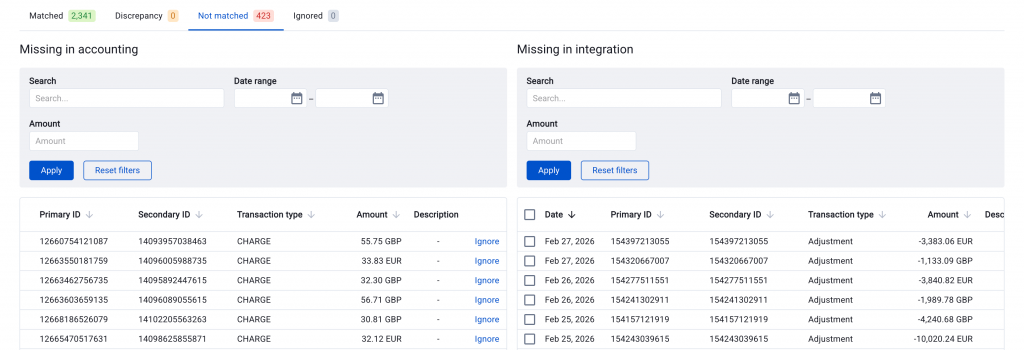
These transactions could not be found in the opposite source. The tab splits into two sections:
- Missing in Accounting — transactions that exist in the payment platform but not in your accounting records. They may have been skipped during sync, excluded by a filter, or fall outside your sync date range.
- Missing in Platform — transactions in your accounting records that were not found in the payment platform report.
Additionally, each section has its own search, date range, and amount filters to help you investigate.
Ignored
These are transactions you manually marked as “ignored.” Use this tab for known or non-material discrepancies. You can move items here from the Discrepancy or Not Matched tabs by clicking “Ignore” or using Bulk-Ignore. If needed, you can un-ignore them later.
How Synder matches transactions
Synder runs a three-pass comparison based on transaction IDs:
- Pass 1: Primary ID (Accounting) ↔ Primary ID (Platform)
- Pass 2: Primary ID (Accounting) ↔ Secondary ID (Platform)
- Pass 3: Secondary ID (Accounting) ↔ Secondary ID (Platform)
When Synder finds a match, it groups all related rows by that ID. Then it compares the total amounts. If the totals match, the group goes to Matched. If the totals differ, it goes to Discrepancy. If no match is found after all three passes, the transaction goes to Not Matched.
Important: Transaction dates are not used for matching. Matching is based on IDs and amounts only.
Managing your reconciliations
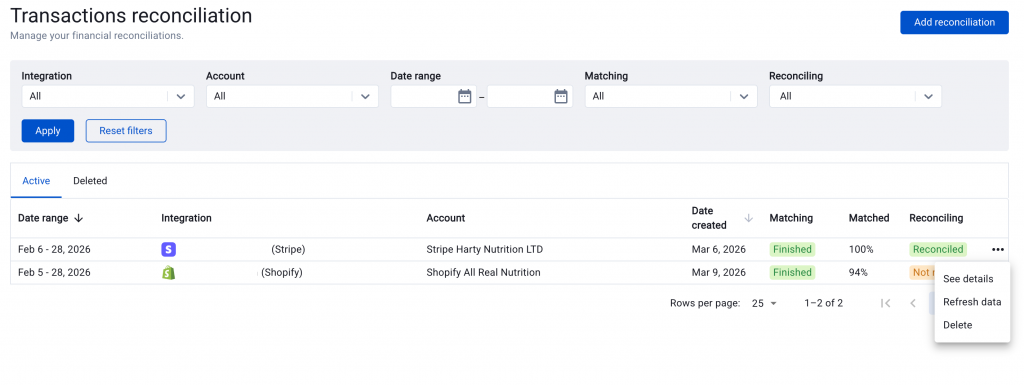
The main Transaction Reconciliation page lists all your reconciliations. You can filter them by integration, account, date range, matching status, and reconciling status.
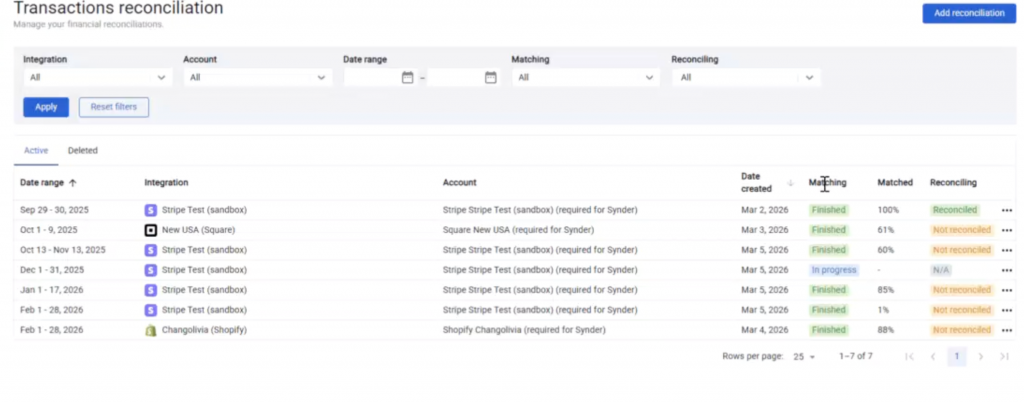
Each reconciliation shows:
- Date range — the period covered
- Integration — which payment platform
- Account — which clearing account
- Matching status — Finished, In Progress, Failed, or Cancelled
- Matched % — percentage of transactions that matched
- Reconciling status — Reconciled, Not Reconciled, or N/A
Refreshing your results
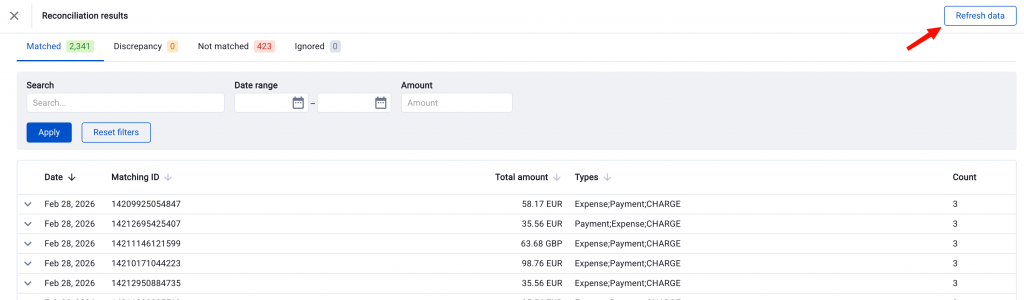
Sometimes you make changes in your accounting software after running a reconciliation. For example, you might sync missing transactions. In that case, use the “Refresh data” button. Specifically, it re-downloads only the accounting file without pulling data from the payment platform again. This saves time and replaces your previous results with updated ones.
Deleting and cloning reconciliations
To remove a reconciliation, click the three-dot menu on the list page and select Delete. Deleted items move to the “Deleted” tab, where you can still view results. Furthermore, you can clone a deleted reconciliation. This creates a new one with the same settings pre-filled.
Exporting results
Click the “Export” button on the results page to download your data. You can export each tab separately (Matched, Discrepancy, Not Matched, or Ignored). Alternatively, use “Export all” to get a 4-tab Excel file with all categories.
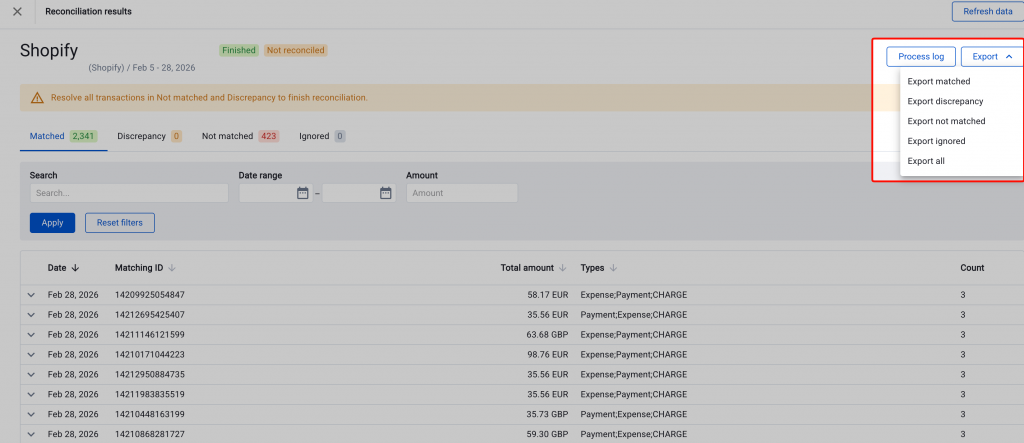
In addition, you can download normalized and mapped source files from the Process Log.
Limitations & Important Notes
- In Summary mode, reconciliation compares data imported into Synder (not your accounting ledger) against the payment platform. A “Reconciled” result does not confirm the data was correctly synced to your books. If Transaction Reconciliation shows “Reconciled” but you see discrepancies in your accounting software, check that your summaries are synced and your clearing account mapping is correct. If the issue persists, contact Synder support with the specific differences so we can investigate and guide you through the mapping.
- Reconciliation periods cannot overlap for the same clearing account.
- Stripe automation may take up to an hour for large date ranges.
- PayPal and Shopify reports must be uploaded manually — automatic download is not available for these platforms.
- Synder automatically excludes certain PayPal transaction types, such as Currency Conversion and Account Holds. This prevents false discrepancies.
- For Shopify, reconciliation covers the Shopify Payments clearing account only — not other payment gateways.
- Synder matches based on IDs and amounts only. It does not compare transaction dates.
- For multi-currency accounts, make sure the currency in your payment platform report matches your accounting records.
- You cannot select today’s date for a reconciliation period. The payment platform may not have finalized today’s transactions yet.
- A period is marked as “Reconciled” only when zero transactions remain in the Discrepancy and Not Matched tabs.
FAQ
Q: How long does Stripe reconciliation take?
A: Anywhere from a few minutes to an hour, depending on transaction volume and date range.
Q: Can I reconcile multiple platforms at once?
A: No. Each reconciliation covers one payment platform and one clearing account. Run them separately.
Q: What do “Missing in Accounting” transactions mean?
A: These exist in your payment platform but were not found in your accounting records. Check if they were skipped during sync, excluded by a filter, or fall outside the sync date range.
Q: Can I undo an ignored transaction?
A: Yes. Go to the Ignored tab and un-ignore it. It will move back to its original category.
Q: What if I cannot resolve a discrepancy?
A: If it is non-material, ignore it. If significant, compare the transaction details in both your accounting software and payment platform to find the root cause.
Q: Do I need to map columns manually?
A: Only in Manual mode. For Automated and Standard modes, Synder assigns column mappings automatically.
Q: Can I save my column mapping for future reconciliations?
A: Yes. When using Manual mode, you can save your mapping as a template and reuse it later for the same integration.
Reach out to the Synder Team via online support chat or email with any questions you have — we are always happy to help you!
