

This guide shows how to set up and manage Cost of Goods Sold (COGS) tracking when using Summary Sync in Synder. It explains where to enable COGS, how to add or update product costs, how COGS appears in mapping, and what happens when costs change.
Use this guide if:
- You use Summary Sync in Synder
- You want COGS included in synced summaries
- You manage or review product costs for accounting purposes
Don’t use this guide if:
- You use Per Transaction Sync
- You don’t track COGS or inventory costs
After completing this setup, you will be able to track your cost of goods sold with the new lines on your Mapping page, and synced summaries will start including COGS amounts.
Set Up COGS Tracking
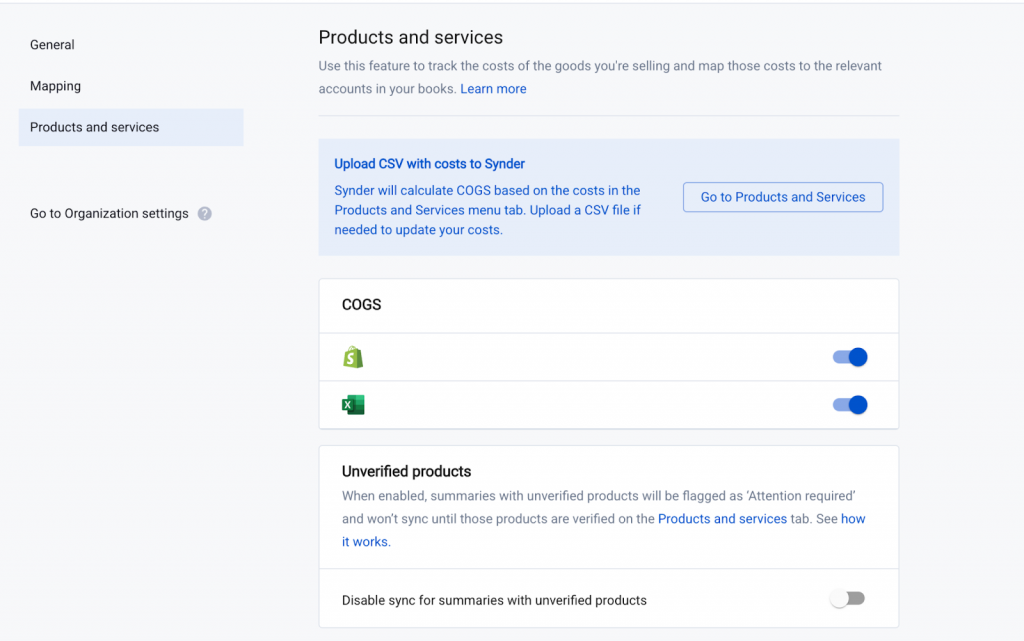
1. Enable COGS tracking
COGS tracking is enabled per integration.
- Open Settings
- Go to Products and services
- In the COGS section, enable COGS tracking for each integration where you want costs included
2. Review detected products
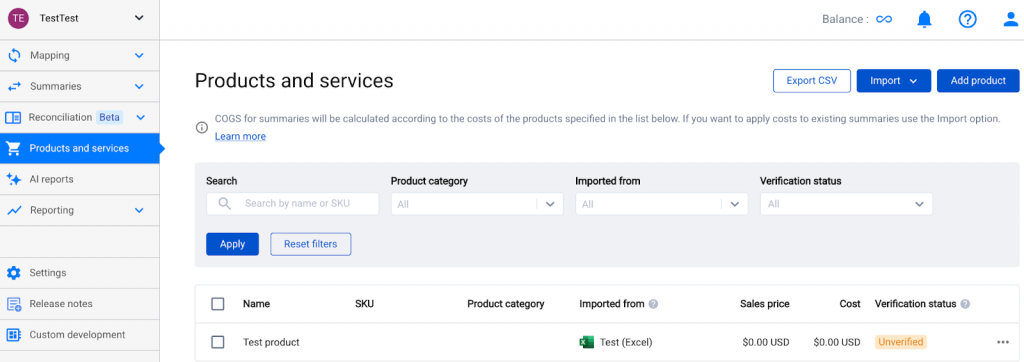
Synder automatically detects products from previous syncs.
- Open the Products and Services tab
- Review the list of detected products
- Check which products already have costs and which don’t
- Identify products that need cost updates or confirmation
3. Add or update product costs
You can update costs individually or in bulk.
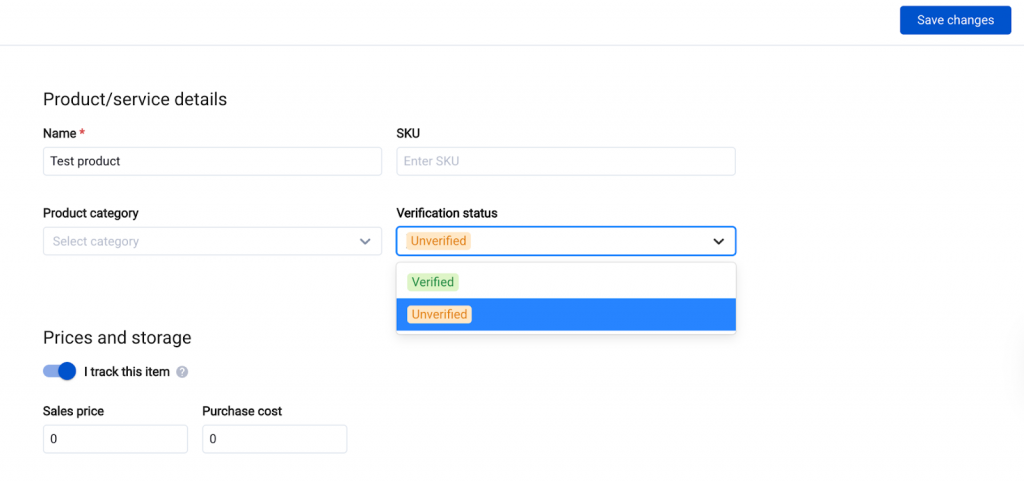
Option A — Update costs in the interface (Individually)
- Open a product from Products and services
- Review the current cost
- Update the cost if needed and save
- Mark the product as Verified
Option B — Update costs via CSV (Bulk)
- Click Export CSV to download all products with current costs
- Update cost values in the file
- Click Import → Import CSV and upload the file
- You also have the option to download a clean template for your upload
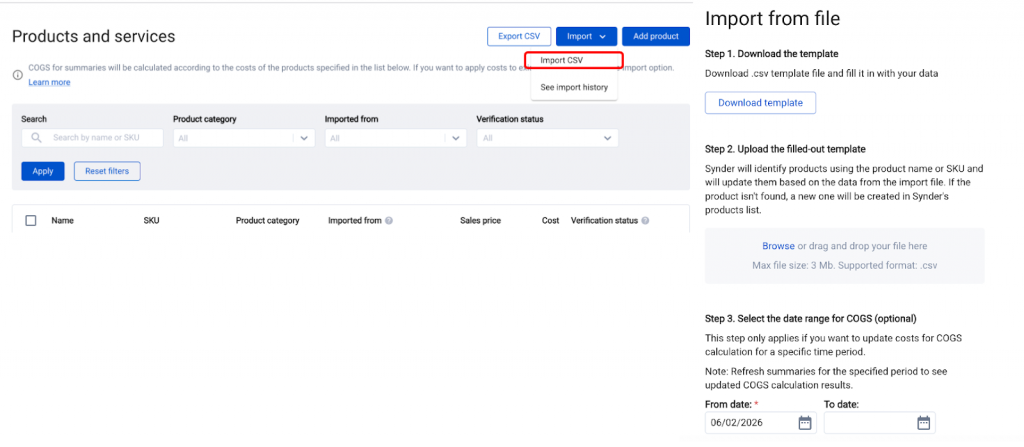
When importing via CSV, you can specify the date from which the cost applies. The updated cost will be used for COGS calculations going forward.
4. Map COGS related accounts
Once product costs exist, Synder adds COGS-related lines to Mapping.
- Open Mapping
- Locate the new lines:
- Cost of Goods Sold
- Inventory Assets
- Map each line to the correct account in your accounting platform
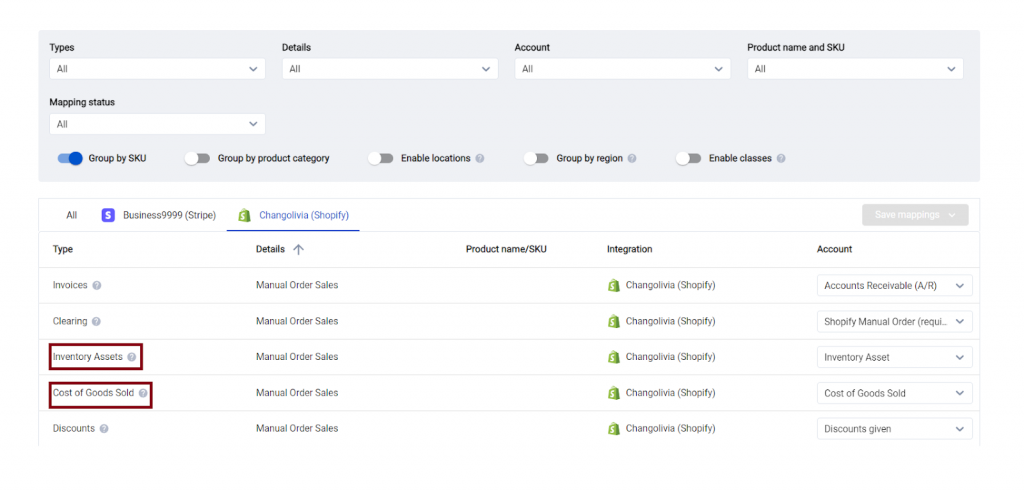
Important: Summaries that include costs will not sync until these lines are mapped.
5. Sync summaries
After costs are verified and mapping is complete, sync your summaries as usual.
After syncing a summary, open it in your accounting platform and confirm that a COGS line is present and the mapped COGS account contains amounts.
Congratulations! COGS tracking is set up correctly.
Important Behavior
If you update costs for past dates
If you apply a cost with an effective date that affects past transactions, Synder will rebuild non-synced summaries, and synced summaries will stay with past data
To make changes to the summaries that are already in your books, make sure to roll back and rebuild them
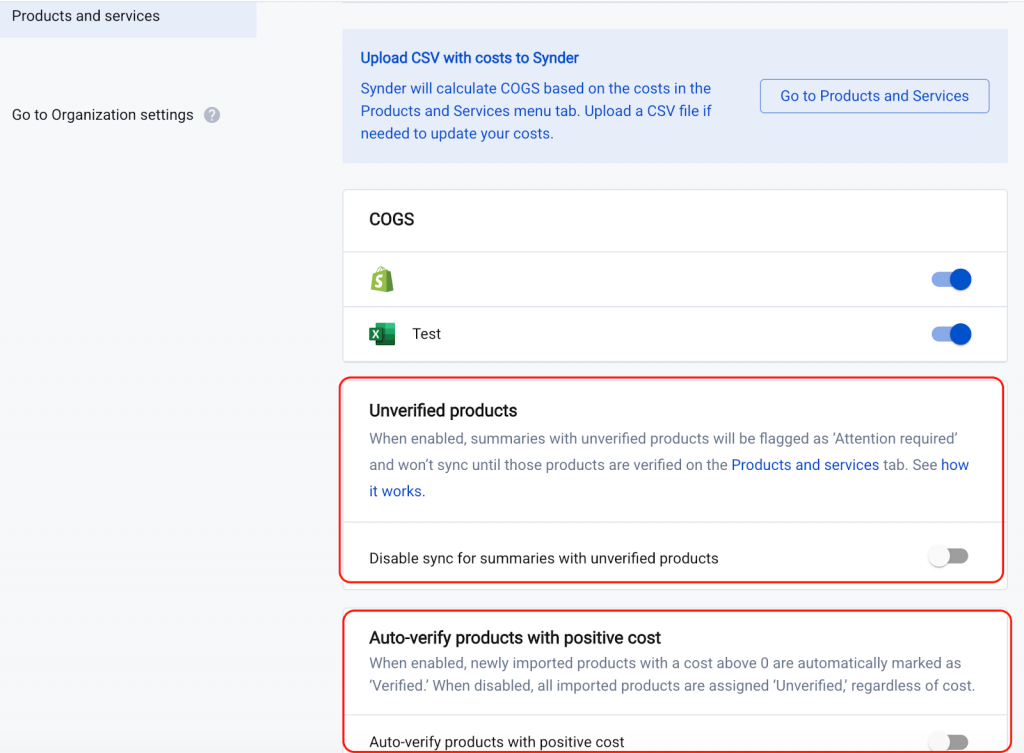
Unverified products and “Attention required” summaries
You can control whether summaries are allowed to sync when product costs are not confirmed.
- If Unverified products are enabled:
- Summaries containing unverified products are flagged as Attention required
- These summaries won’t sync until the products are verified
Optional automation:
- Enable Auto-verify products with positive cost to automatically verify products with a cost above 0
Updating costs in your sales platform
If you update product costs directly in your sales platform (for example, Shopify), you must also update them in Synder. Otherwise, COGS in summaries will not match up with your integrated platform.
Troubleshooting
Summaries show “Attention required” due to unverified products
- Open Products and services
- Find products marked as unverified
- Add or confirm costs
- Verify the products (individually or in bulk)
- Return to Summaries and sync again
I updated costs and historical data changed
If you updated costs with a past effective date, Synder may rebuild affected transactions.
- Review the affected accounting period
- Reconcile again after the updated data is posted
COGS is zero
COGS is calculated only when product costs exist.
- Check that product costs are added
- Confirm costs are greater than 0
- Verify products before syncing summaries
Reach out to Synder Team via online support chat or email with any questions you have – we are always happy to help you!
