

- Prerequisites
- Reconciling deferred revenue
- Detailed comparison view
- Validation & maintenance
- Outdated status
- Reconciliation statuses
- Limitations & known constraints
This guide explains how Synder Summary sync users can use the Deferred Revenue Reconciliation Report to compare Synder’s internal deferred revenue balance with Synder Revenue Recognition (RevRec).
In the Summary Sync mode, Synder posts aggregated journal entries to QuickBooks instead of individual transactions. Because QuickBooks does not contain transaction-level deferred revenue detail in this mode, the reconciliation is performed against Synder’s internal balance sheet, which is built from the underlying transactions processed by Synder.
Use this report if you:
- Use the Synder Summary Sync mode
- Want to confirm the deferred revenue accuracy inside Synder
- Need transaction-level details for discrepancies
- Support the month-end close with confidence
This report will not work for you if you:
- Run RevRec without an accounting platform
- Expect current-month totals to fully match
- Use multiple unrelated Deferred Revenue accounts
After using this report, you can:
- Confirm that deferred revenue in QuickBooks matches RevRec
- See exact transactions causing differences
- Complete month-end reconciliation with confidence
Prerequisites
Before using the Deferred Revenue Reconciliation Report in Summary Sync mode, make sure your Synder and accounting setup meets the conditions below:
- Synder RevRec enabled
- QuickBooks Online connected as your accounting platform
- Deferred revenue recorded in liability accounts (other current liability or long-term liability)
Reconciling deferred revenue
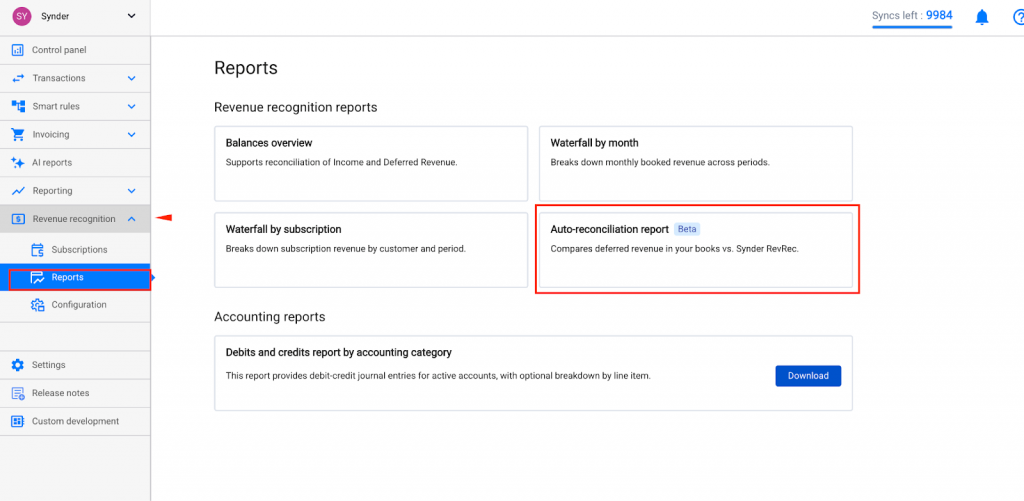
Step 1: Open the report
Go to Reports → Deferred Revenue Reconciliation.
Step 2: Select your Deferred Revenue account
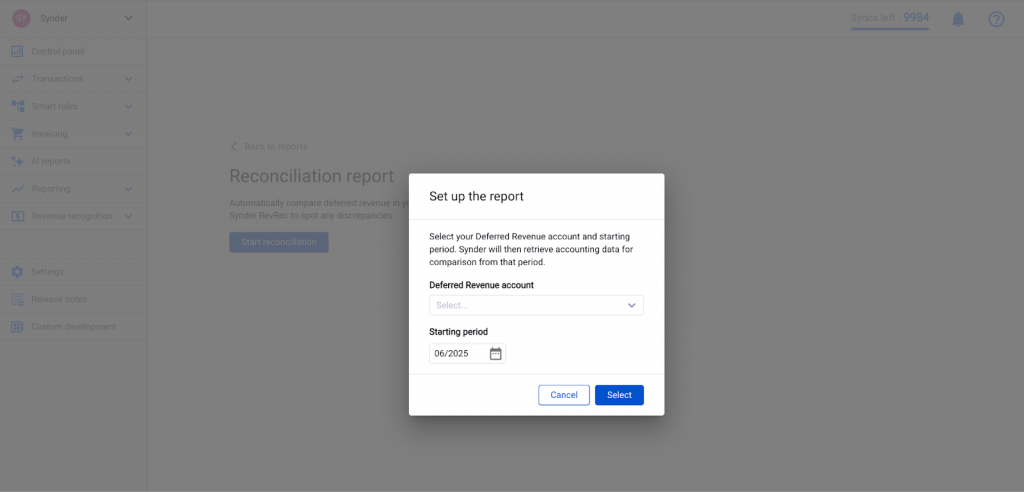
The first time you open the report:
- Choose your Deferred Revenue account from QuickBooks.
- Select the starting reconciliation period.
Important:
- If you use multiple Deferred Revenue accounts, they must be subaccounts of one parent.
- Select the parent account.
- Your selection is saved automatically.
Step 3: Choose the month(s) you want to reconcile
Select only completed months for reconciliation. While the current month may be visible in the report, do not use it to validate balances. Revenue recognition journal entries are generated and synced to QuickBooks only after the month closes, so current-month totals will not match RevRec until then.
Step 4: Review differences
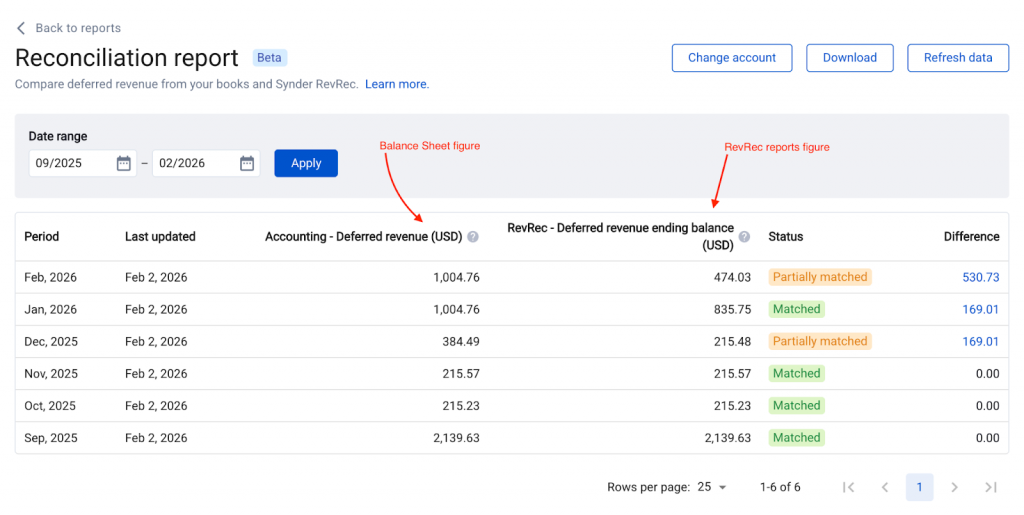
For every month, you’ll see three columns for your deferred revenue reconciliation:
| Column | Description |
| Accounting – <selected account name> | Selected account balance from your QuickBooks balance sheet by month |
| RevRec – deferred revenue ending balance | Synder RevRec ending balance of deferred revenue by month |
| Difference | The delta between the two balances |
Clicking the difference takes you to the detailed comparison view of your revenue. We’ll discuss this page in detail in the next chapter.
Detailed comparison view
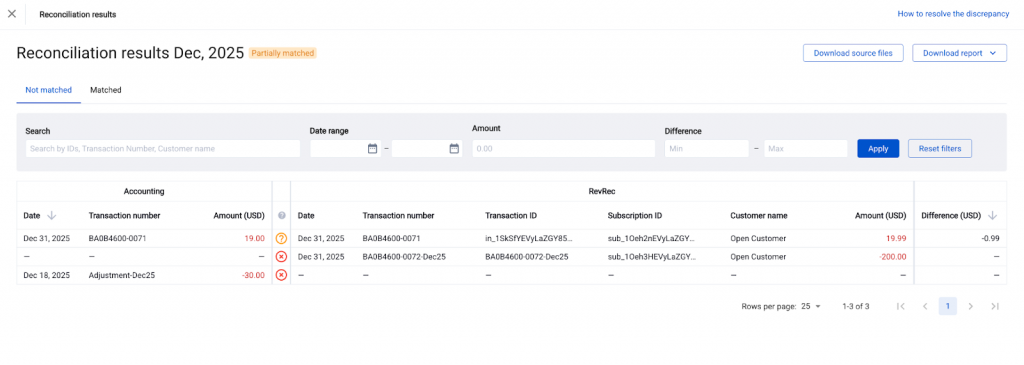
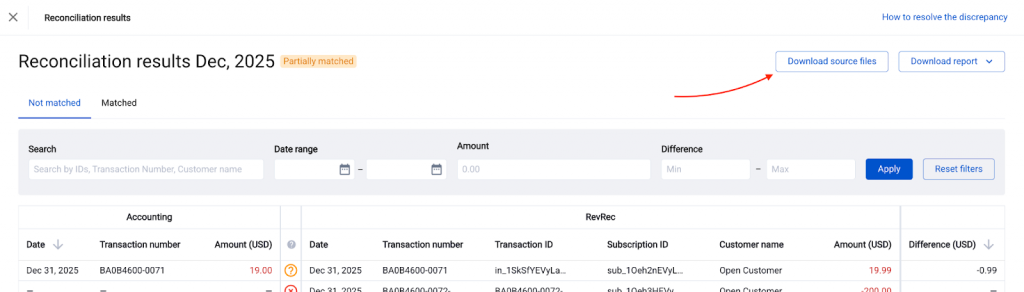
If you have a difference between your QuickBooks accounting and Synder, you can view line-by-line matching between them by clicking on the amount of the difference.
You’ll see two tabs:
- Matched
The tab lists all lines perfectly aligned: same ID, same amount.
Note: if multiple lines from the report share the same ID, the app will collapse those lines into a single line, summing up all the amounts.
- Not matched (default view)
This tab shows:
- Lines with the same ID but mismatched amounts
- Lines missing from either Synder or the accounting software
- Lines requiring review (e.g., amount differences, missing IDs)
This page helps you pinpoint exactly which transactions in QuickBooks and RevRec do not align. Copy their IDs or Numbers to find the records in the systems and investigate the differences.
Validation & maintenance
This section explains how to keep the Deferred Revenue Reconciliation Report up to date and ensure it continues to reflect the most accurate RevRec and accounting data over time.
Refreshing the report
The report refreshes automatically on the 5th of each month. You can also trigger a manual refresh:
- From a specific date, or
- From the RevRec start date
Large refreshes may take additional time. Synder will notify you by email once the refresh is complete.
Outdated status
The app checks the numbers from the balance sheet and revenue recognition every 24 hours.
A report is marked Outdated if balance sheet data or RevRec data changed. Manually refresh the report since the first outdated period to get the new numbers and updated reports matched.
Downloading source files
At any time, you can export all raw reports used in the reconciliation to your email address:
- RevRec Incoming Revenue (Itemized)
- RevRec Recognized Revenue by Entry
- QuickBooks export from the selected Deferred Revenue account
Reconciliation statuses
Each month, the report will display one of the following:
| Status | Meaning |
| Matched | The app matched all transactions by transaction number and totals. |
| Partially matched | The app matched some transactions, but some are not matched. |
| Not matched | No matching transactions were found at all. |
| Retrieving data | Synder is fetching Balance Sheet numbers and reports for comparison from RevRec and from accounting. |
| Comparing data | Synder is comparing the reports received from accounting and from RevRec module. |
| Failed | Synder couldn’t retrieve or process the data. |
| Outdated | Figures in the Balance Sheet or in RevRec reports changed – refresh is required. |
Limitations & known constraints
The following scenarios describe common setup constraints that can affect how the Deferred Revenue Reconciliation Report behaves. Review them to understand when results may not fully align and what configuration changes are required to restore accurate reconciliation.
If QuickBooks Doc Numbers are enabled
When QuickBooks document numbers are enabled, transaction-level matching may fail because QuickBooks replaces Synder transaction numbers, making ID-based matching impossible.
How to fix:
Disable Doc Numbers in QuickBooks so Synder IDs remain intact.
What still works:
You can still compare monthly totals, but not line-by-line matching.
If invoices were uploaded to RevRec via Excel and not synced
Totals will not match because RevRec includes these invoices, while they do not exist in the Deferred Revenue account in QuickBooks.
How to fix:
Ensure those invoices hit the Deferred Revenue account with matching IDs.
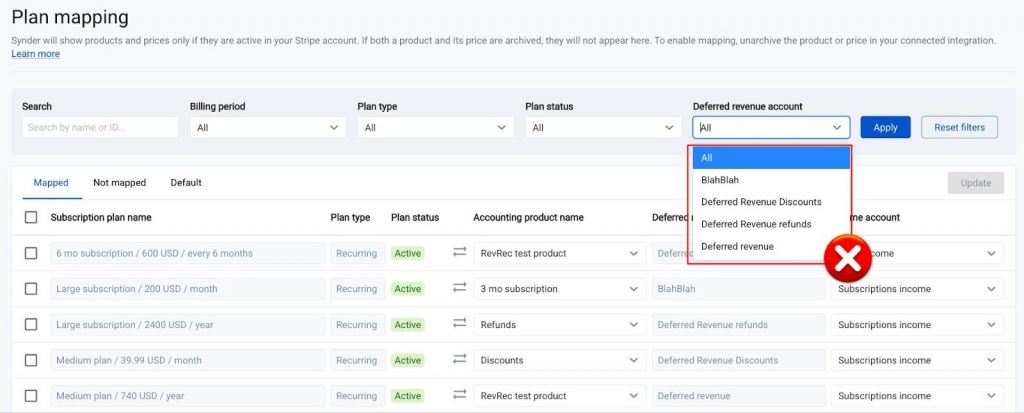
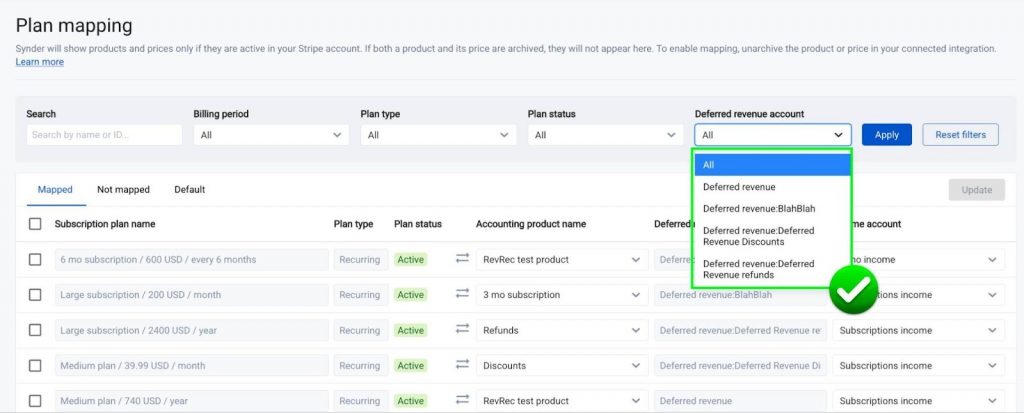
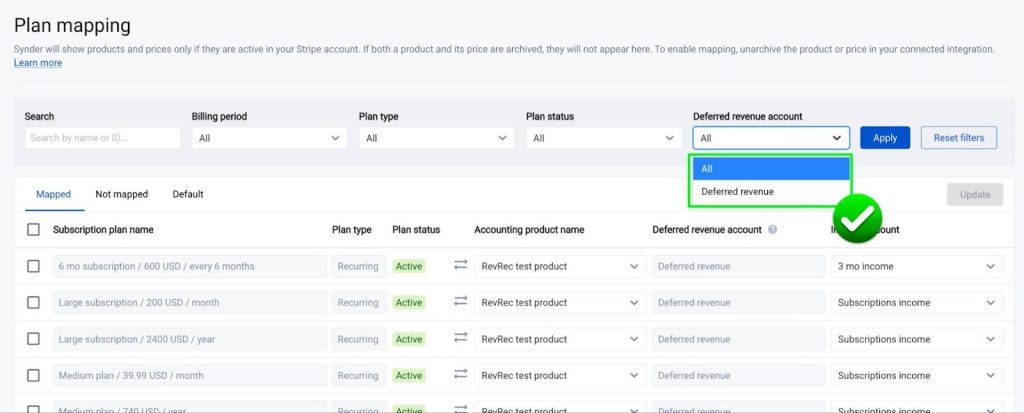
If you use multiple Deferred Revenue accounts
The report will not reconcile correctly because it supports only a single Deferred Revenue account.
How to fix:
Create a parent Deferred Revenue account and make all others sub-accounts. Go to Chart of Accounts -> click Edit for the needed account -> check the box Make this a subaccount and select which account should be a parent account.
If you have any questions about your reconciliation results or need help interpreting any differences, reach out to Synder Support – we’re always here to help.
