

This guide explains how to use the Sync only Payments/Deposits setting for Shopify in Synder. It’s designed for workflows where invoices are created outside of Synder, but Shopify payments still need to be recorded and matched in your accounting platform.
When this setup makes sense
Use this setting if your invoices come from another system and Shopify payments need to be applied to them manually. It’s especially useful when invoice formats don’t match, and automatic matching isn’t possible.
What you’ll get
After enabling this setting, Shopify payments sync as standalone deposits. They can be manually matched to existing invoices.
How to enable Sync only Payments / Deposits
- Open Synder and go to Settings.
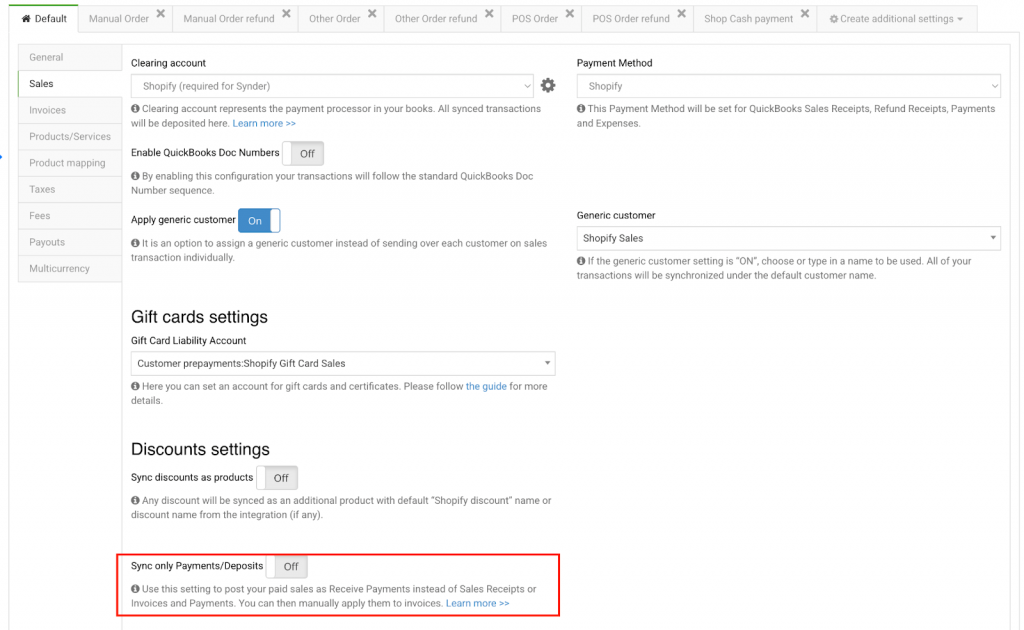
- Open the Sales tab.
- In the Shopify settings, turn Sync only Payments/Deposits ON.
- Save your changes and run a Shopify sync.
By default, this setting is turned off.
How payments are recorded after sync
When this setting is enabled, Synder changes how Shopify payments are sent to your accounting platform.
If you use QuickBooks Online, Synder creates a Receive Payment without creating an invoice or sales receipt. If you use another accounting platform, Synder creates a Deposit instead.
The payment is sent to the clearing account selected in your Sales tab settings, keeping it available for manual matching. If needed, you can redirect payments to other account types (for example, asset accounts) using Smart Rules.
Note: This setup does not support invoices that are closed using multiple payments.
Once the sync is complete, open your accounting platform and apply or match the synced payment or deposit to the correct open invoice.
Reach out to the Synder team via online support chat, phone, or email with any questions you have – we’re always happy to help you!
