

- How Synder handles Sales Tax for Sage Intacct
- Option 1: Manual Groups
- Option 2: Enable Group by region
- Important Notes
- FAQ
This guide explains how to configure sales tax tracking in Synder Summary Sync when posting summaries to Sage Intacct.
Use this guide if:
- You use Summary Sync in Synder.
- Sales tax must appear correctly in Sage Intacct.
- You use Sage Intacct as an accounting platform.
How Synder handles Sales Tax for Sage Intacct
Sage Intacct does not allow tax codes in journal entries. Synder posts sales tax amounts directly to Sales Tax Payable liability accounts. As a result, the tax amount appears as a separate line in the journal entry and is recorded in the Sales Tax Payable account defined in the mapping settings. No tax codes are applied.
If you collect tax in multiple states/regions, configure one of the following:
- Manual Groups
- Group by region
Option 1: Manual Groups
Use Manual Groups for granular mapping based on custom conditions.
You can filter transactions by:
- ZIP code
- City
- Customer
- State
- Any other applicable condition.
Set up mapping groups according to your required conditions.
Example manual group based on Shipping City
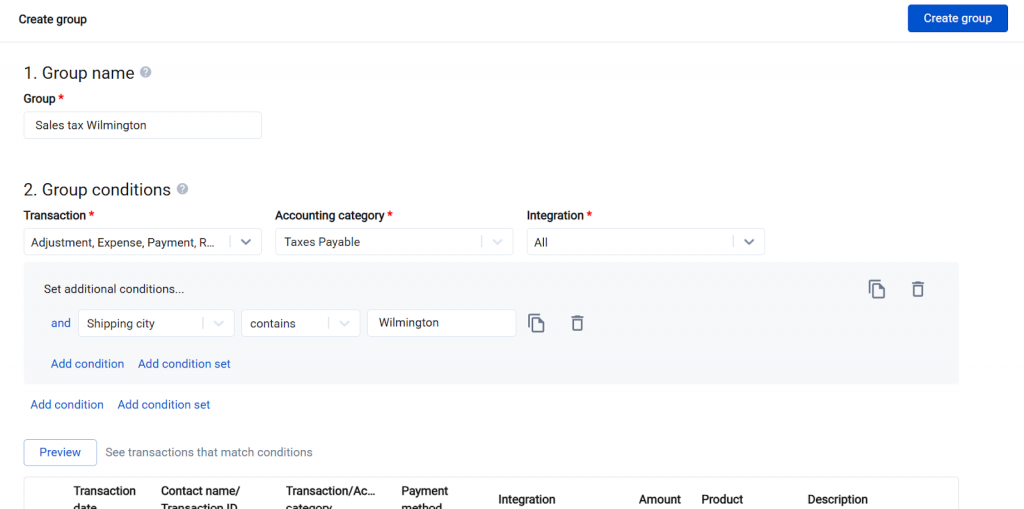
Note: Choose “Taxes Payable” under the accounting category to create the manual group specifically for tax mapping.
For more details on creating the mapping group, refer to this guide.
Option 2: Enable Group by region
Use this option to split tax by state automatically.
- Click on the Mapping dropdown in the left-side menu.
- Click the Mappings list.
- Enable Group by region.
- Assign a dedicated Sales Tax Payable liability account for each state.
- Save changes.
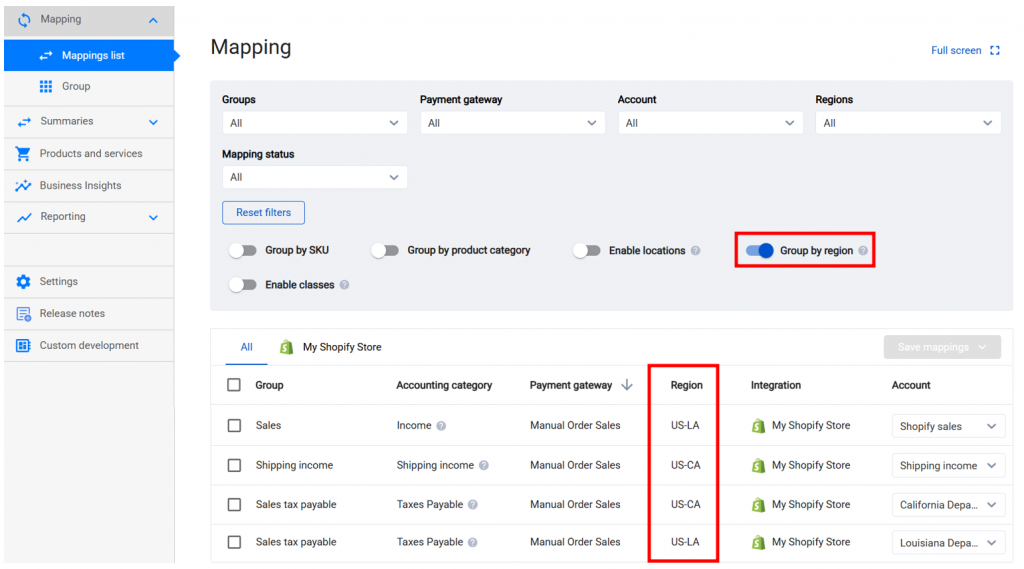
With this configuration, Synder will:
- Use the shipping address to determine the region.
- Post tax amounts directly to region or state-specific liability accounts.
- Split tax correctly if multiple states/regions appear in one summary.
All newly generated summaries will reflect the updated mapping. Rebuild the existing summaries to reflect the updates. Refer to this guide on how to rebuild.
Note: Enabling Group by region also groups Sales, Refunds, Shipping income, and other mapping lines by region.
Important Notes
- Tax codes on expenses are not supported on Summary sync. Consider accounting for taxes on expenses manually. Synder records total fees in synced journal entries. Calculate tax separately based on the applicable percentage.
- For Multi-State Mapping, one of the options is to enable Group by region. After enabling Group by region, you may encounter the following regions:
- “Unknown” – Missing or unrecognized state/country information. Use the manual groups feature to assign taxes to such mapping lines based on other available conditions in transactions.
- “N/A” – No shipping address is available (e.g., for adjustments).
FAQ
- Why doesn’t Synder apply tax codes to journal entries in summary sync?
Sage Intacct does not allow tax codes on general journal entries by design. As a result, Synder posts the tax amount directly as a line in the journal entry with a Sales Tax Payable account. - Will enabling Group by region update historical summaries?
No, already synced summaries remain untouched. Roll back, rebuild, and sync summaries again to apply the updates. - Why does Synder post tax to a single liability account instead of separate ones?
By default, one liability account is assigned to the Sales Tax Payable mapping group. To assign multiple liability accounts, use Manual Groups or enable Group by region.
Reach out to Synder Team via online support chat or email with any questions you have – we are always happy to help you!
