

This guide explains how to configure Summary Sync in Synder to record income on a cash basis in QuickBooks Online without using Accounts Receivable (AR).
Use this setup if:
- You use Summary Sync in Synder
- You report income on a cash basis
- You manage AR outside QuickBooks (or don’t use AR at all)
- You want to avoid open AR balances in your books
Do not use this if:
- You rely on invoice tracking inside QuickBooks
- You need customer-level AR aging reports
- You follow an accrual-based workflow
After you complete the setup, income will be recorded on the payment date, no open AR balances will be created, and Journal Entries will post directly to income and cash accounts.
Main Setup Flow
The process depends on whether you are a new user or if you already have the summaries synced to your books.
For New Users
If you are a new user and don’t have any summaries synced to your accounting software, follow these steps:
- Go to Summary Sync settings from the left-side menu.
- Locate the Sales Recording Date option.
- Change the setting from Invoice Date to Payment Date.
- Save settings.
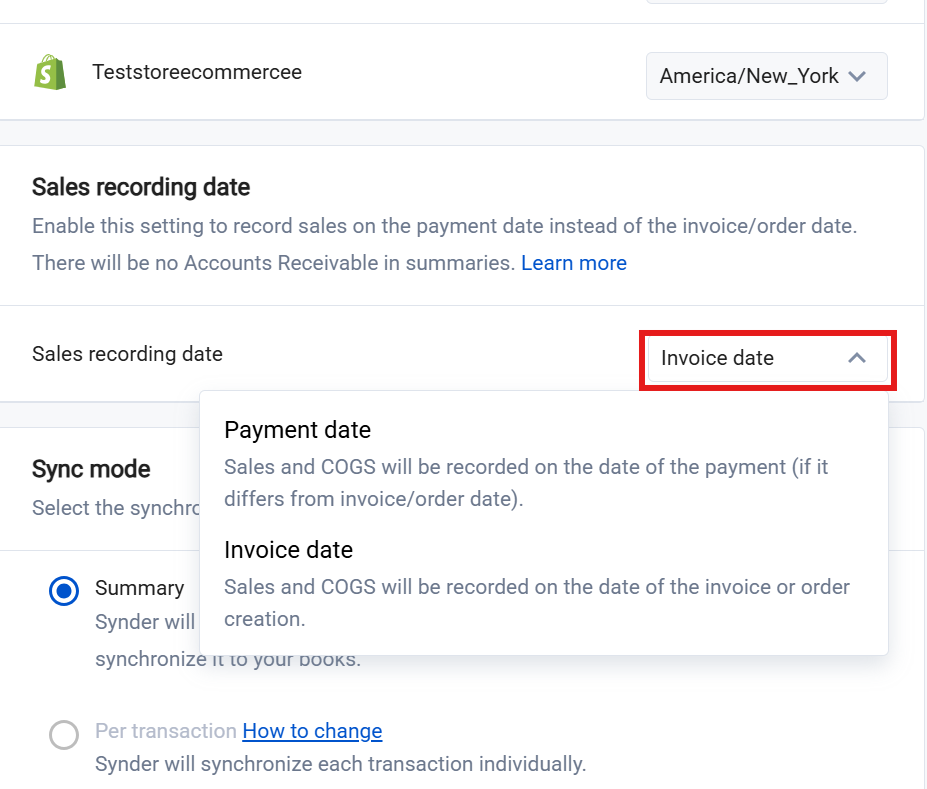
That’s it! From this point forward, Synder will record income only when payment is received, skipping AR entirely. Journal Entries will post directly to income and cash accounts.
For Existing Users
If you previously synced data using Invoice Date, change the method carefully to avoid duplicates or reporting inconsistencies.
Depending on how you would like the historical data to be recorded, choose one of the following options:
- Option A – Full Method Switch (Clean Reset)
- Option B – Switch Starting From a Specific Date
Option A – Full Method Switch (Clean Reset)
Use this option to use the Payment Date as the recording date for all historic transactions.
Step 1: Change the Sales Recording Date
- Go to Summary sync settings from the left-side menu
- Locate the Sales Recording Date option.
- Change the setting from Invoice Date to Payment Date.
- Save settings.
Step 2: Roll Back Synced Summaries
After changing the setting, access your Summaries list page from the left side menu and roll back all synced summaries.
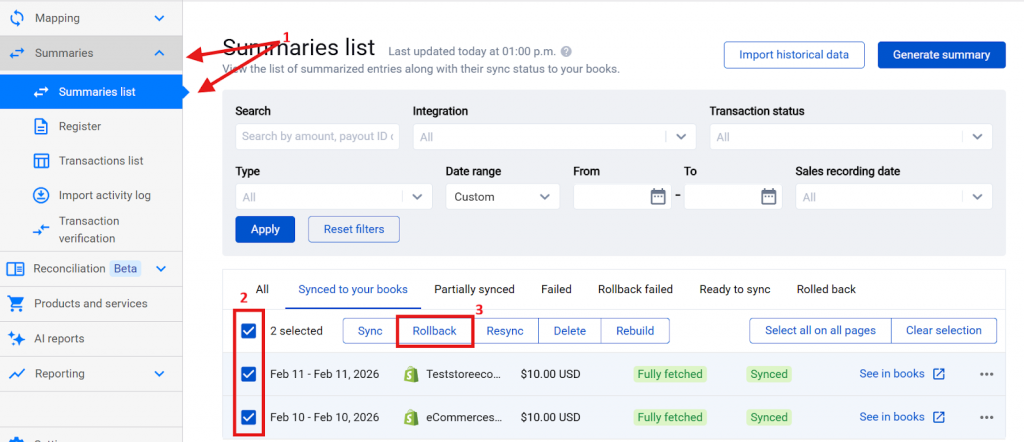
Step 3: Rebuild summaries
Select all summaries (including the ones on “Ready to sync” status) and rebuild them to apply the adjustment to the sales recording date.
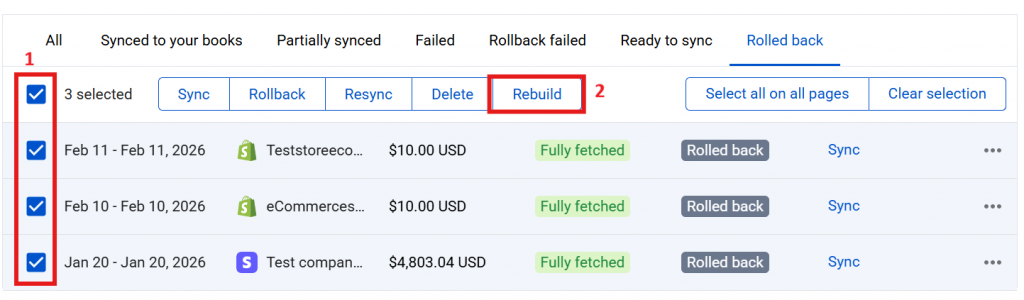
Step 4: Resync Summaries
Select all summaries and sync again.
All summaries will now follow the Payment Date method. No mixed invoice-date and payment-date logic will exist in your books!
Option B – Switch From a Specific Date
Use this option to keep historical data unchanged and switch methods from a defined date.
E.g., everything in 2025 stays on the invoice date, and from January 1, 2026, you switch to the payment date.
Setting this up requires a one-time adjustment. Follow the steps below:
Step 1: Identify Cross-Date Transactions
Use the Register Table in Synder to find invoices created before the switch date but paid after.
- Go to Register from the left side menu.
- Apply the following filters:
- Sales Recorded Date = Invoice Date
- Accounting Category = Accounts Receivable
- Date range = After your switch date
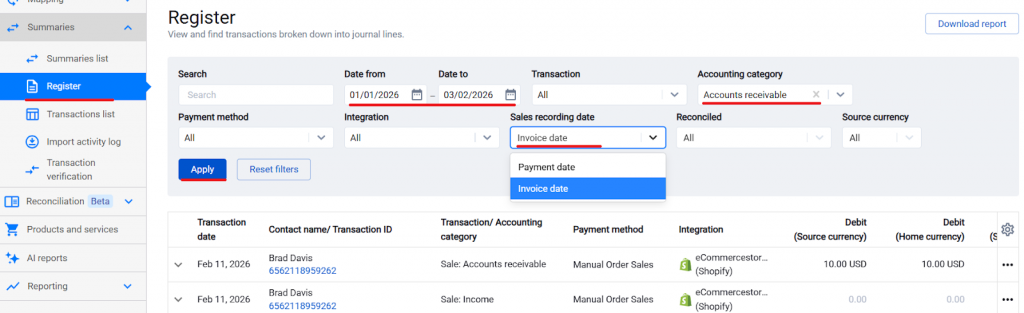
These filters display payments received after the switch date for invoices recorded before the switch.
Step 2: Create a One-Time Journal Entry in QuickBooks
For invoices created before the switch date and paid after it, create a manual Journal Entry in QuickBooks Online for the total payment amount:
- Credit Accounts Receivable
- Debit Sales (Income)
This entry removes the original AR and sales impact to prevent double-counting income after the switch.
Step 3: Rebuild and Resync Summaries
Rebuild all summaries after the switch date and sync again.
Thats it. From this point onward, starting from the switch date all your summaries will be recorded using the Payment Date!
Important Notes
- Make this change at the start of a fiscal period for a cleaner transition.
- If you go with Option B, add a memo to your one-time adjustment Journal Entry (e.g., “AR switch adjustment – Jan 2025”) for later reference.
- If you track AR in a separate system, like spreadsheets, keep it fully disconnected from Synder to avoid confusion.
FAQ
- I switched the setting “Sales recording date” to “Payment date”, but the synced invoices didn’t update. Why?
Synder doesn’t touch already synced data. Rollback, rebuild, and sync the summaries to reflect the change. - Do I need to resync even the “Partially synced” summaries to reflect the setting change?
Yes, every generated summary must be rebuilt and synced again, regardless of the status.
- What happens with partial payments or deposits?
With payment-date recording, Synder will record income only when funds are received (regardless of invoices). Partial payments will post multiple entries, matching each payment date.
Reach out to the Synder Team via online support chat or email with any questions you have – we are always happy to help you!
