

You connected your platforms, hit sync, and got a red error. Don’t panic — this is one of the most common first-time experiences with Synder, and it’s almost always fixable in a few minutes.
—
Step 1: Read the Actual Error Message
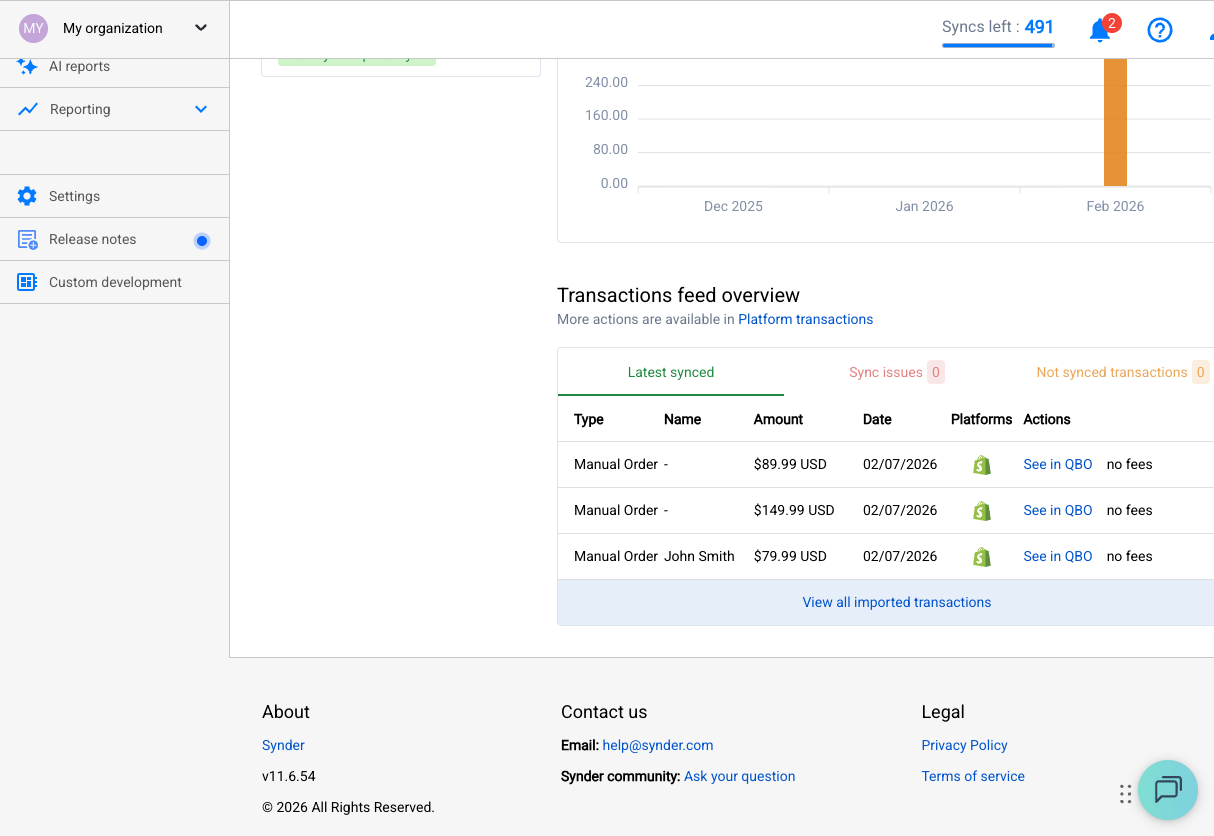
This sounds obvious, but most sync failures tell you exactly what went wrong. In Synder:
- Go to the Transactions tab
- Find the failed transaction (it’ll have a red status)
- Click on it to expand the details
- Read the error message
The error message is your roadmap. Here are the most common ones and what to do:
—
“Entity cannot be synchronized without Product or Service”
What it means: Synder tried to create a sales receipt or invoice in your accounting software but couldn’t find a matching product/service, and your settings say “don’t create new ones.”
Fix:
- Check the transaction details — what product name is it trying to sync?
- Either:
- Create that product in QBO/Xero manually, then re-sync
- Enable “Common Product” in Synder settings (Settings → your integration → Products section) — this maps all items to one generic product
- Change the setting to allow Synder to auto-create products
Most common cause: You just connected Synder and your accounting software doesn’t have the products from your store yet.
—
“No matching product found in accounting”
What it means: Similar to above — Synder searched for the product by name and/or SKU in your accounting software and couldn’t find it.
Fix:
- Check if the product exists in QBO/Xero with the exact same name (or SKU). Even small differences matter — “Blue Widget” ≠ “blue widget” in some cases.
- If the product was recently created in your accounting software, it might not have existed at the time of the sync. Just re-sync the transaction.
- If you’re using SKU matching: make sure your e-commerce platform was connected when the transaction synced. If Shopify was disconnected, Synder couldn’t pull the SKU data.
—
“Auto-sync didn’t work” / Transactions Not Syncing
What it means: Auto-sync was either disabled at the time, or disabled for that specific transaction type.
Fix:
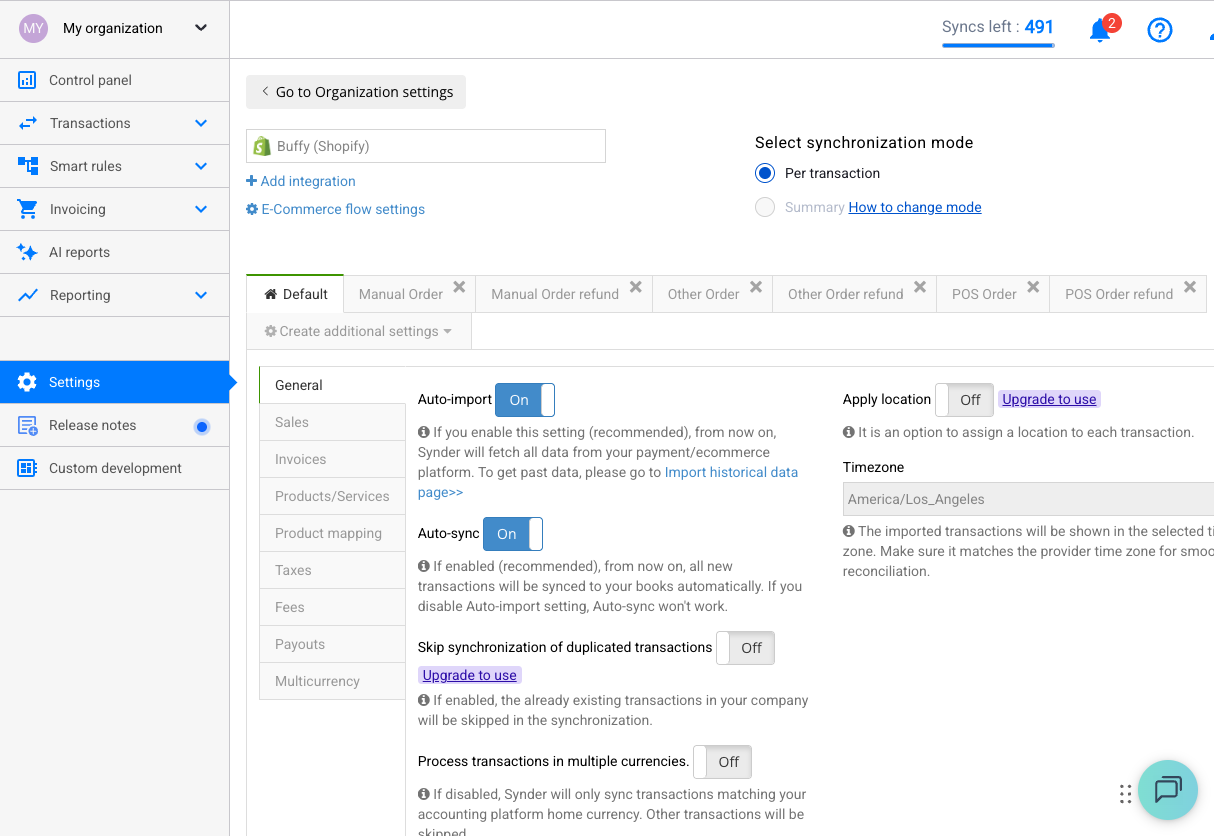
- Go to Settings → General and check that Auto-sync is enabled
- Check each transaction type tab — auto-sync for payments might be on, but refunds might be off
- Check the Changelog (Settings → Changelog) to see if auto-sync was recently disabled or re-enabled
- Important: Auto-sync only processes *new* transactions going forward. It does not retroactively sync old ones. If transactions were missed while auto-sync was off, you need to sync them manually.
—
“Failed Excel import”
What it means: You tried to import transactions via Excel/CSV and the file had issues.
Fix:
- Check your column mapping — especially discount fields. Synder expects both “Line Discount” and “Total Discount” columns if you’re including discounts. Missing one will break the import.
- Use Synder’s template — download the import template from the import screen and match your data to it exactly
- Test with a small batch — import 5 rows first. If those work, do the rest.
—
“Partially synced summary”
What it means: You’re using Daily Summary mode, and some transactions within a day’s summary weren’t available when the summary was generated.
Why it happens: In “Every day auto-sync” mode, Synder generates the daily summary at a set time. If some transactions haven’t been processed by your payment platform yet (common with Amazon), they get left out.
Fix:
- Re-sync the summary once all transactions are available
- This is expected behavior, not a bug — especially with Amazon, which can delay transaction data
—
General Troubleshooting Steps
If your error doesn’t match any of the above:
1. Check Your Connections
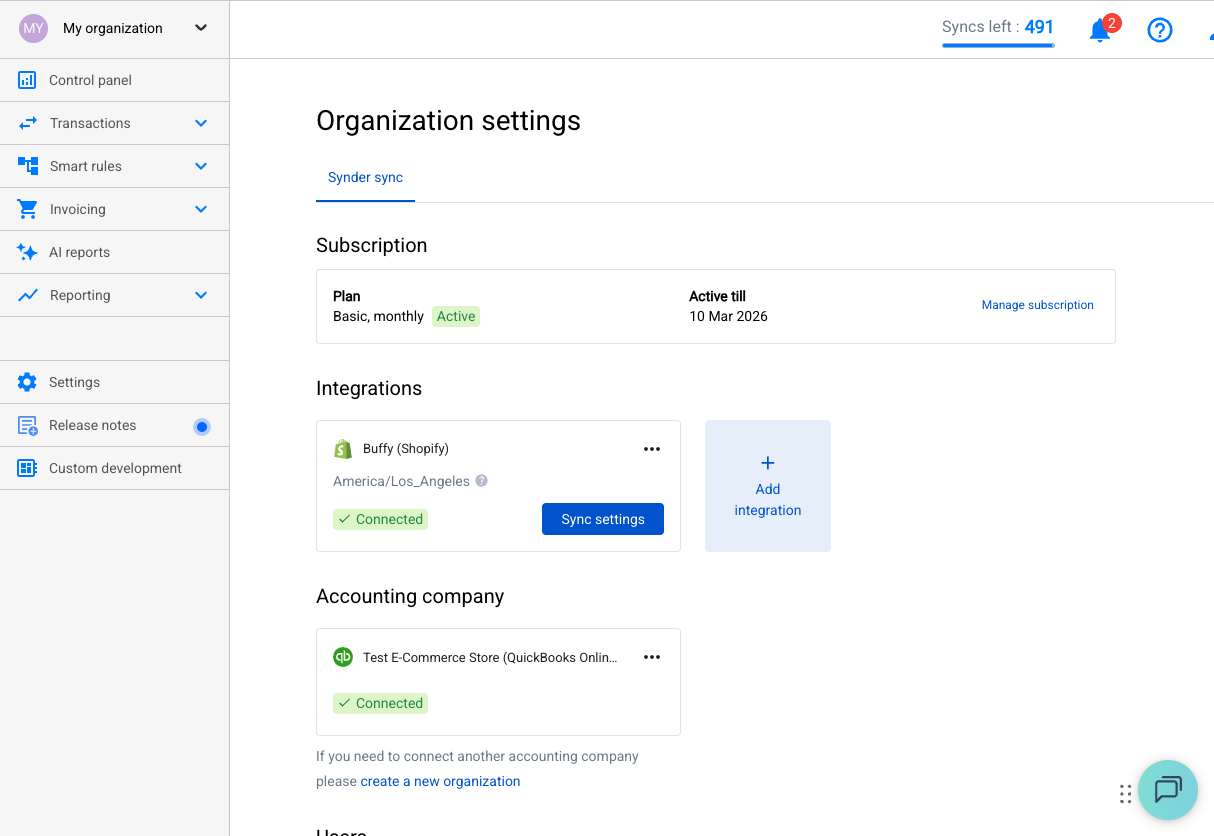
Go to Settings → Integrations. Are all your platforms showing as connected (green)? OAuth tokens expire — you may need to re-authenticate.
2. Check Your Account Mapping
Is every transaction type mapped to a valid account in your accounting software? Unmapped accounts = failed syncs.
3. Try a Rollback + Re-sync
If a transaction synced incorrectly:
- Click on the transaction
- Click Rollback (this removes it from your accounting software)
- Fix whatever setting caused the issue
- Re-sync the transaction
4. Check for Duplicates
If Synder says it skipped a transaction, it may have found a duplicate already in your accounting software. This is actually Synder *protecting* you from double entries.
5. Look at the Internal Transaction
For advanced troubleshooting, click “Show” near “Cached internal transactions” on the transaction detail page. This shows the raw data Synder is working with — useful for identifying data mismatches.
—
When to Contact Support
Reach out to [[email protected]](mailto:[email protected]) if:
- The error message doesn’t make sense after reading this guide
- You’ve tried re-syncing after fixing settings and it still fails
- You see the same error across many transactions (might be a settings issue worth having someone review)
- Your platform connection keeps disconnecting
When you contact support, include:
- The exact error message
- Which platform and accounting software you’re using
- A screenshot of the failed transaction detail
—
Remember: Rollback Is Your Safety Net
The best thing about Synder is that mistakes aren’t permanent. Every synced transaction can be rolled back — it gets removed from your accounting software cleanly. So experiment, test, break things, and roll back. That’s how you find the right settings.
