

Synder syncs sales, refunds, and fees for Walmart (US). For Walmart Canada, the integration is sales-only: Synder syncs sales and refunds but does not sync fees. You must manually record Walmart Canada payouts and fees.
This guide will help you in:
- Record Walmart Canada payouts manually
- Record Walmart Canada fees manually
- Reconcile your Walmart clearing account
How the Walmart (US) integration works
Synder syncs the following automatically:
- Sales
- Refunds
- Fees
How the Walmart Canada integration works
Synder syncs the following data automatically:
- Sales
- Refunds
Synder does not sync:
- Fees
What this means for your books
Because Synder does not sync Walmart Canada fees, it cannot fully reconcile your Walmart clearing account using synced data alone. To keep the clearing account accurate, you must manually record:
- Walmart Canada payouts
- Walmart Canada fees
After completing this guide, your Walmart clearing account will reconcile, and your books will accurately reflect sales, payouts, and fees.
How to record payouts manually
Enter payout entries manually to clear out the Walmart clearing account balance.
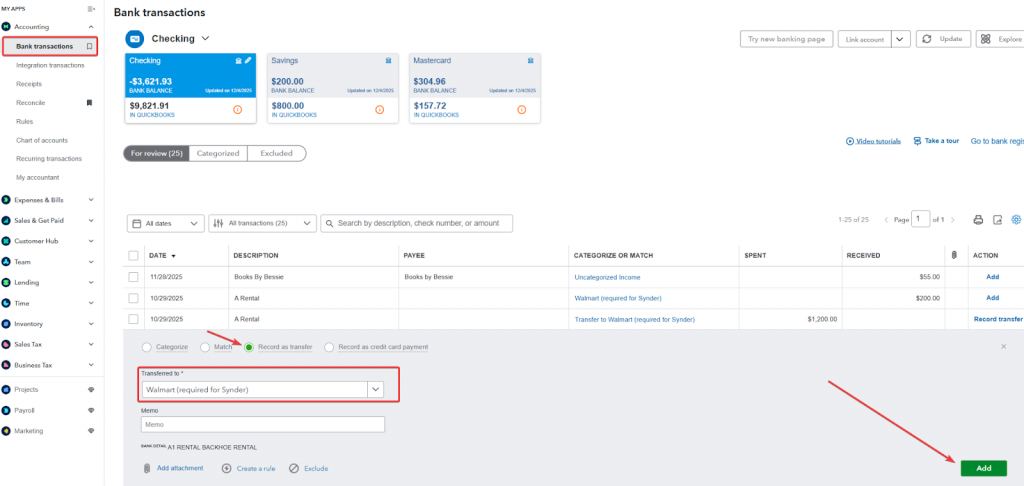
- Log in to QuickBooks Online and go to Accounting.
- Select Bank transactions, then select the bank account that receives Walmart payouts.
- On the For review tab, select the deposit to categorize.
- Select Record as transfer.
- In Transferred to, select the Walmart clearing account (required for Synder).
- Select Add.
Some accounting platforms support rules or other automation for posting payouts. Use the guide for integrations without payout support to configure automation.
How to record fees manually
Expense information can be found in the Walmart Statements report. Here’s how:
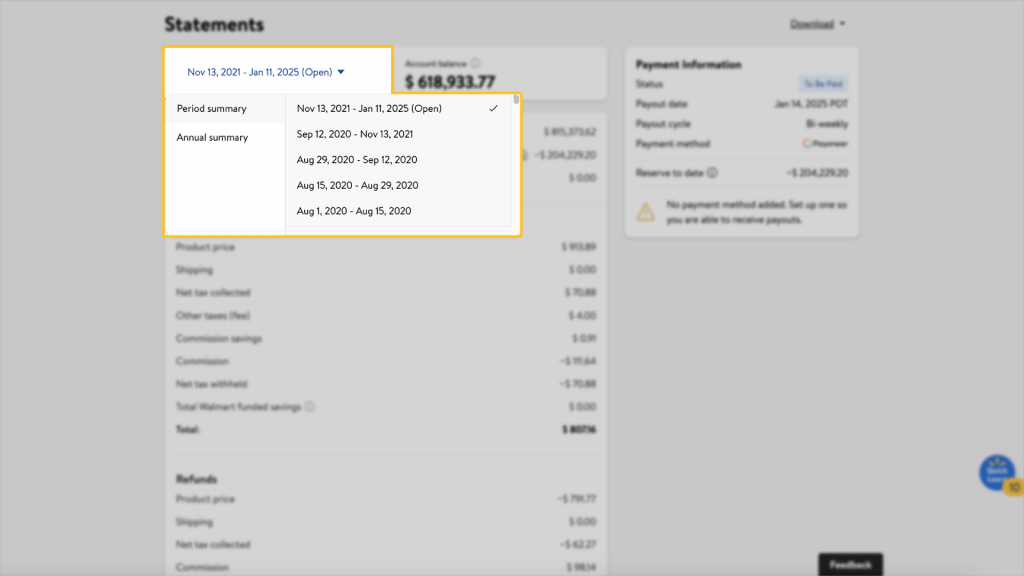
- Log in to your Walmart Seller Center account and navigate to the Payments dashboard to view a summary of your payment activity per settlement cycle.
- Use the settlement period dropdown to select your desired time range.
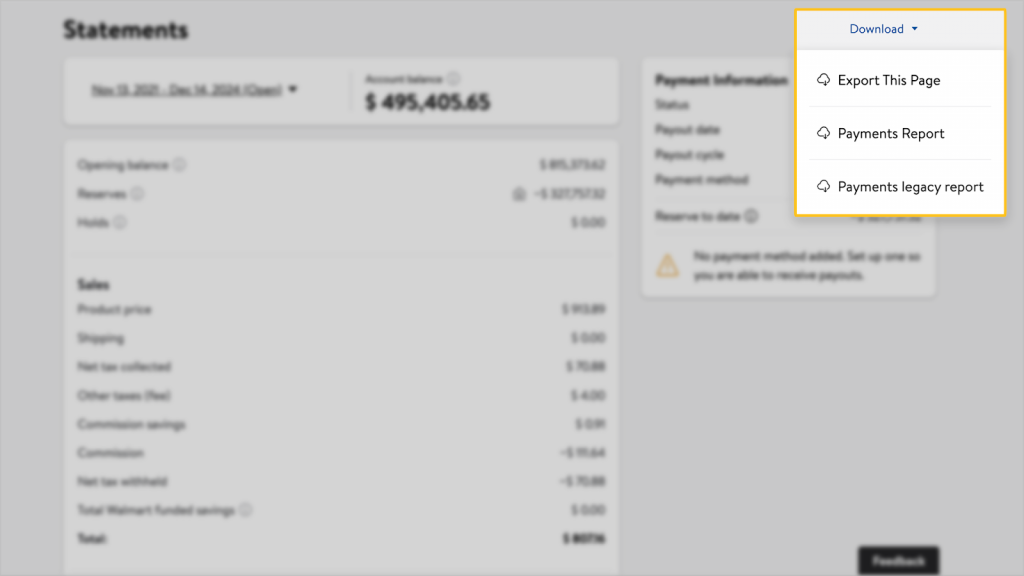
- Click on Download in the top-right corner
- Select the Payments Report.
- Open the downloaded report in Excel and find the Amount Type column.
- Apply a filter to it, selecting only: Commission on product, Fee/reimbursement, WFS Inventory Fee.
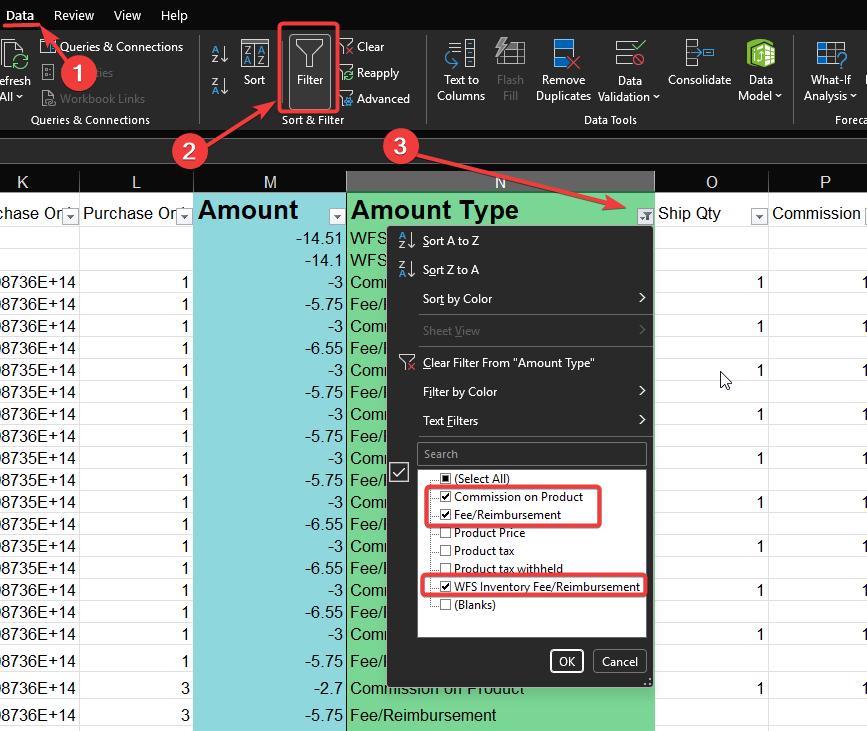
- Find the Amount column and sum up all the values
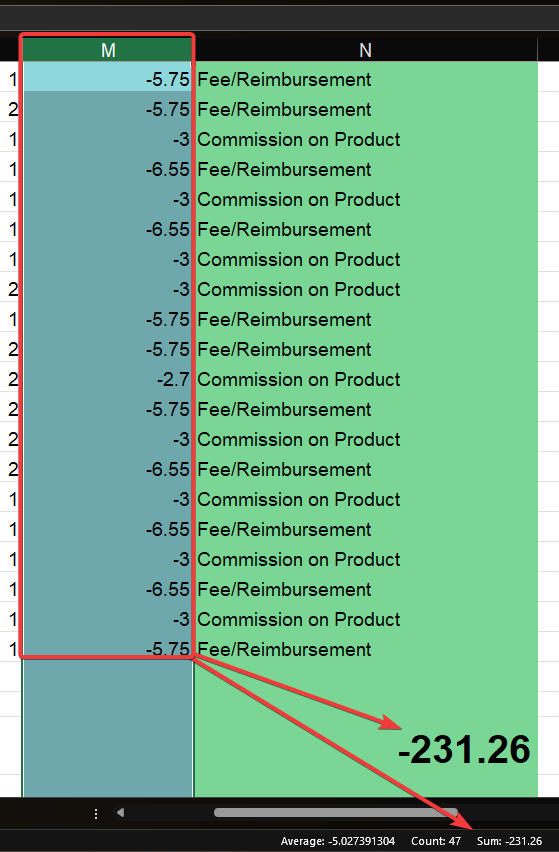
The number you received is your total Walmart fee for the selected month. Record it in your books by creating a journal entry: debit the Walmart fees expense account and credit the Walmart (required for Synder) Clearing account for that amount.
Reconciliation
When payouts and fees are recorded, and Synder data is synced, the clearing account balance should match the expected ending balance.
After a cycle closes, the Walmart and the QuickBooks Online clearing account balance will be zero.
Congratulations! Your account balance is reconciled.
Note: In Walmart, the entire amount converts into a scheduled payout. If a balance remains, it indicates adjustments Walmart applied to a later cycle and should be reviewed in subsequent settlements.
Important notes
If your Walmart and QuickBooks Online balances do not match, please refer to this guide on how to identify potential issues, starting from the section titled “If your clearing account does not reconcile“
Reach out to Synder Team via online support chat or email with any questions you have – we are always happy to help you!
