

This guide explains how to apply updated grouping rules to existing summaries using the Rebuild action in Synder.
Use it when you’ve changed groups (created, edited, enabled, or disabled them) and need those changes reflected in summaries that already exist.
Use this guide if:
- You created, edited, enabled, or disabled groups
- You want earlier summaries to reflect the current grouping setup
- You need to verify which group the system assigned the transaction to
Don’t use this guide if:
- You only want to pull new data into a summary without changing the grouping.
- You created, edited, enabled or disabled groups, but don’t need the existing summaries to update.
How to assign groups to existing summaries
When customizing your mapping, you can create new groups, disable unneeded ones or adjust the conditions in existing groups. To apply the changes to existing summaries, you need to rebuild them.
After making changes to your groups, follow these steps to rebuild:
- Click on “Go to summaries list”.
- Select one or more summaries you want to update.
- Click “Rebuild” in the actions list.
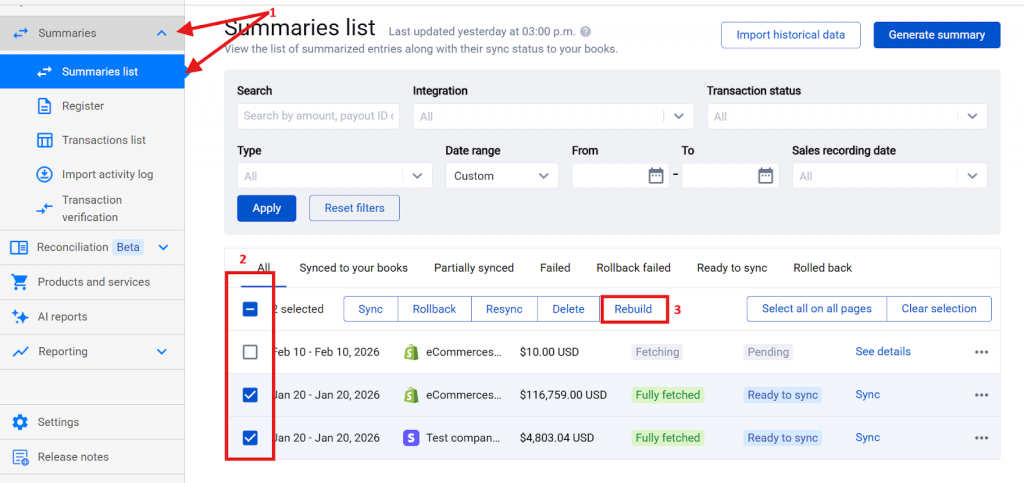
That’s it! After following these steps, the system applies updates to the selected summaries using your latest group setup and current settings.
What rebuilding summaries changes
Rebuilding the summaries will result in updating the summary lines according to your current setup:
- If you disabled a group, it will no longer appear in the summary after rebuilding.
- If you created a new group, Synder will apply it to the rebuilt summary (if applicable).
- If you edited the group conditions, the summary lines will update to reflect these changes accordingly.
What Rebuild doesn’t do:
- It does not keep the old grouping logic.
- It does not partially update groups; the system fully rebuilds the summary using the latest grouping, settings, and platform data.
Example scenario for the successful rebuild
You created a new group in the mapping list and want it applied to one of the summaries:
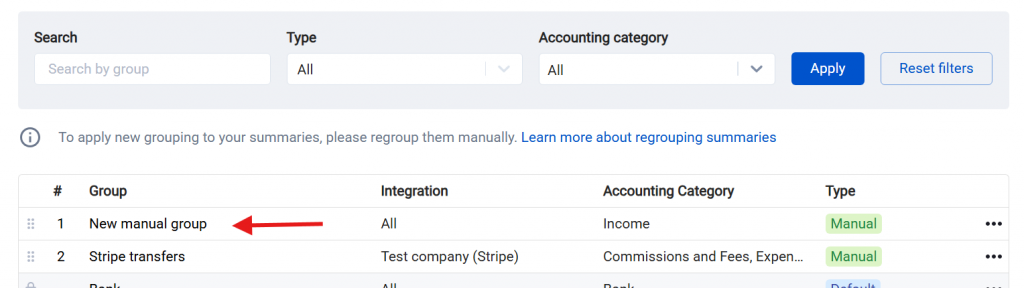
After you rebuild the summary, Synder assigns the new group to it:

Important notes
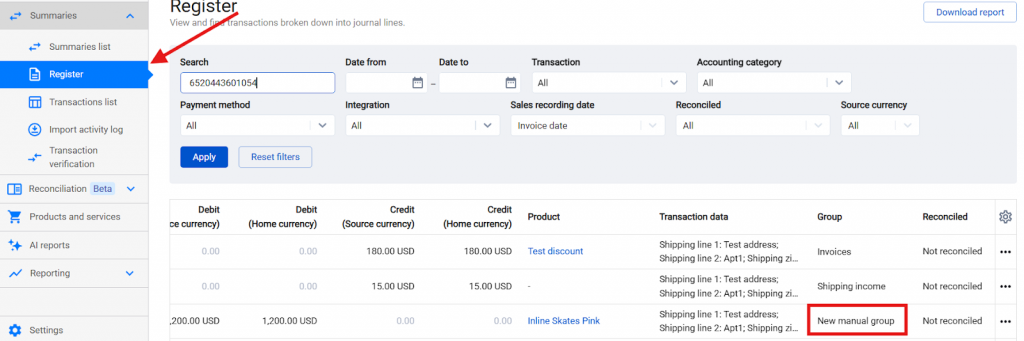
- To check which group the system assigned to a transaction line, use the Register table. Click on “Summaries” → “Register” → find the transaction using search (ID or amount) → check the “Group” column.
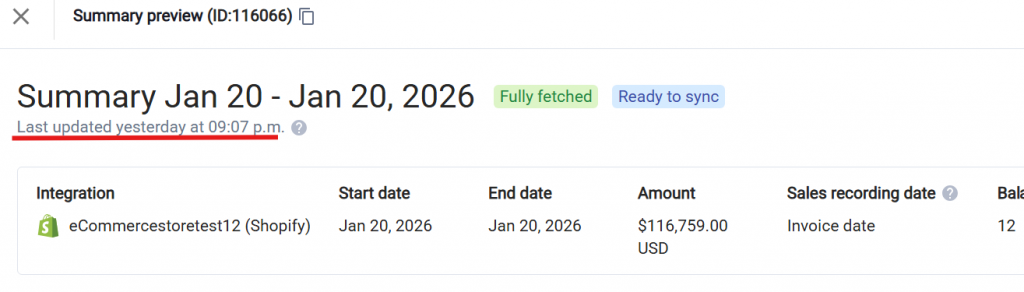
- You can confirm whether the summary uses the latest grouping by checking the “Last updated” timestamp in the summary preview.
FAQ
- How will the rebuild update the summary grouping if one transaction line meets the conditions of several manual groups?
The groups are applied in priority order – if the transaction line falls under several group conditions, the higher priority group will override and will be applied. - If I have daily or fully-fetched Auto-sync enabled, is there any way for the existing summaries to be updated automatically?
No, already generated summaries will NOT be updated regardless of the synchronization mode. Only “Rebuild” action will update the data according to the latest group or settings setup.
Reach out to Synder Team via online support chat or email with any questions you have – we are always happy to help you!
