

This guide explains how Synder handles sales tax in Per-Transaction (PT) mode and how it interacts with Xero.
Use this guide if:
- You use Per-Transaction mode in Synder
- You use Xero as an accounting platform
- You sync transactions from payment processors (Stripe, PayPal, Square, etc.)
- You need sales taxes to appear correctly in your accounting platform
- You want to understand how Synder calculates, maps, and applies tax codes
Per-Transaction Mode Overview
In Per-Transaction mode, configure one of the following options:
- Option 1: Apply Taxes – Disabled.
- Option 2: Apply Taxes – Enabled.
Option 1: Apply Taxes Disabled
Use this configuration when the tax should simply be included in the sales total.
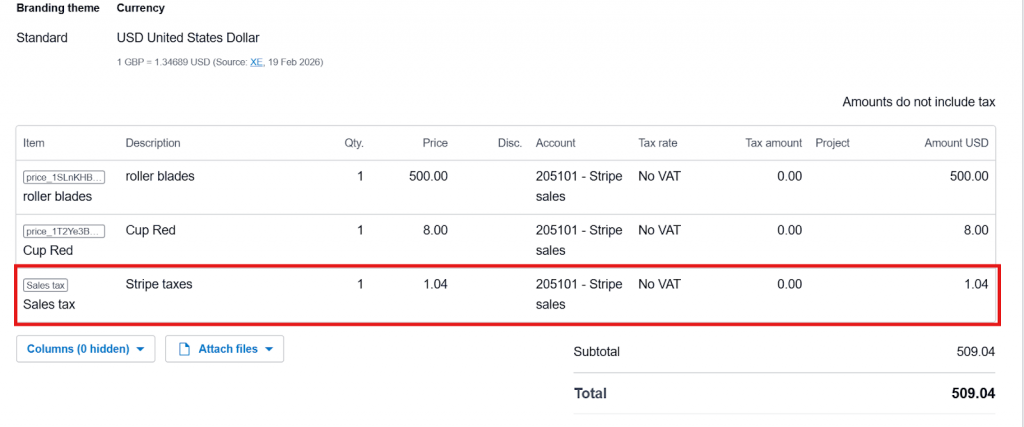
When you disable Apply Taxes, Synder records tax as a separate line item in the transaction without applying a tax code.
Example transaction with Apply Taxes Disabled
Option 2: Apply Taxes Enabled
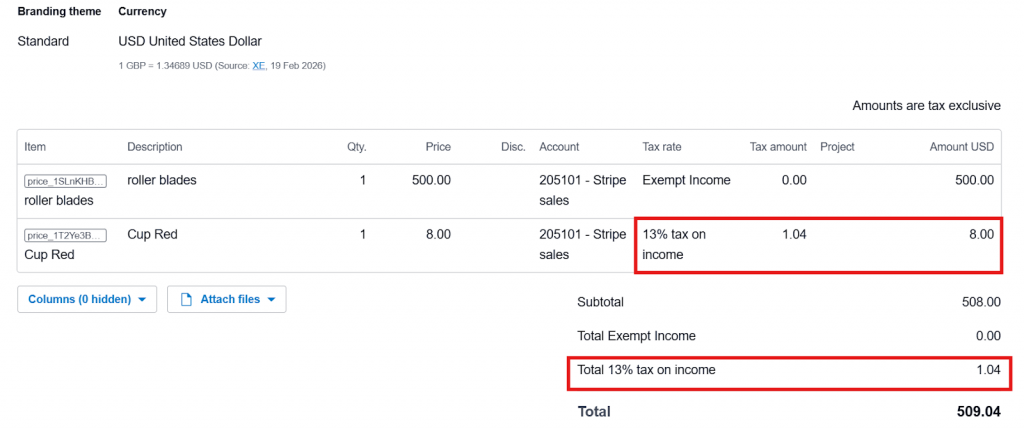
Use this configuration when you need to transfer tax details to Xero and apply tax codes.
Example transaction with Apply Taxes Enabled
Sales Tax Calculation Logic
Synder does not calculate taxes independently. Instead, it determines the tax rate based on information received from the payment processor.
The process works as follows:
- The payment platform sends Synder:
- Transaction total
- Tax amount
- Synder calculates the tax rate (%) from this data.
- Synder attempts to match the calculated rate with a tax code in your accounting system.
Sales Tax Settings
For Xero, you usually calculate taxes in the payment processor or e-commerce platform. Synder records them directly in the accounting platform.
Tax Behavior
- Synder automatically detects whether the transaction is Tax Inclusive or Tax Exclusive
- This is determined based on the original transaction, not configured in Synder
Configuring Tax Settings in Synder
To access tax configuration, enable Apply Taxes in settings. Once enabled, additional tax options become available to control sales tax behavior.

Generic Tax Code
The Generic tax code allows you to apply a specified tax code to all transactions based on certain conditions.
This option can be used in three ways:
- Apply Generic Tax if a Transaction Contains Taxes
If configured, Synder will ignore the tax rate from the payment processor and replace it with the selected generic tax code.
This is useful when correcting incorrect tax calculations from the payment platform. - Apply Generic Tax if the Transaction Does Not Contain Taxes
If enabled, Synder will apply a tax code only to transactions that do not include tax. - Apply Generic Tax to Shipping amount if the Transaction Contains Shipping
This option applies a specific tax code to shipping amounts.
Expense Tax Settings
Some jurisdictions require businesses to pay tax on payment processor fees. Synder allows you to apply taxes to transaction fees recorded as expenses. The Generic tax code settings are available for Expense tax settings as well.
For step-by-step instructions on how to configure taxes on fees, refer to this guide.
Important Notes
- Synder cannot match tax codes by jurisdiction name when the tax percentage is identical across multiple jurisdictions.
If a transaction includes 4% tax and you have 4% tax across several jurisdictions, Synder applies the first tax code alphabetically. - Smart Rules cannot apply tax by country or region, as this add-on is not available for Xero. For complex tax configurations, contact the support team to evaluate a custom approach.
- Synder cannot dynamically create tax codes based on city, country or district. All tax codes must already exist in the accounting platform.
FAQ
- Where do the tax codes in Synder settings come from?
The tax codes available in Synder are pulled directly from your accounting platform.
If the required tax code is missing, you need to create it first in Xero before selecting it in Synder.
- Do the changes to the tax settings apply to historical transactions?
No. The setting only affects transactions synced after the adjustment. To apply it to previously synced transactions, rollback and resync them. - Does the generic tax code apply to refunds?
Yes. If the original transaction had a tax applied through the generic tax code, the same tax structure will be reflected in the refund transaction synced to Xero. - Can I apply different generic tax codes for different payment platforms?
Yes. If you have multiple payment integrations connected to Synder (for example, Stripe, PayPal, or Square), you can configure separate tax settings for each integration profile.
Reach out to Synder Team via online support chat or email with any questions you have – we are always happy to help you!
