

You: You manage books for multiple e-commerce clients. Each one sells on different platforms, uses different accounting software, and has different needs. You’re spending hours manually entering their transaction data — or worse, cleaning up their DIY attempts.
Synder lets you manage all your clients’ e-commerce integrations from one dashboard. Here’s how to set it up so you’re not drowning in data entry.
—
Why Synder Works for Multi-Client Practices
- One login, multiple organizations — switch between clients without logging in and out
- Each client gets their own integrations and settings — no cross-contamination
- You control the sync — choose what gets recorded, how it’s categorized, and when it syncs
- Rollback capability — made a mistake? Undo synced transactions without touching the accounting file manually
—
Step 1: Create Your Synder Account
- Go to [go.synder.com/signup](https://go.synder.com/signup)
- Sign up as Accountant/Bookkeeper (this gives you the multi-org dashboard)
- Use your firm’s email
—
Step 2: Set Up Your First Client (Organization)
Each client is a separate organization in Synder:
- Click + New Organization
- Name it (e.g., “Smith’s Pet Supplies” — use the client’s business name)
- Select their country and accounting platform
—
Step 3: Connect the Client’s Platforms
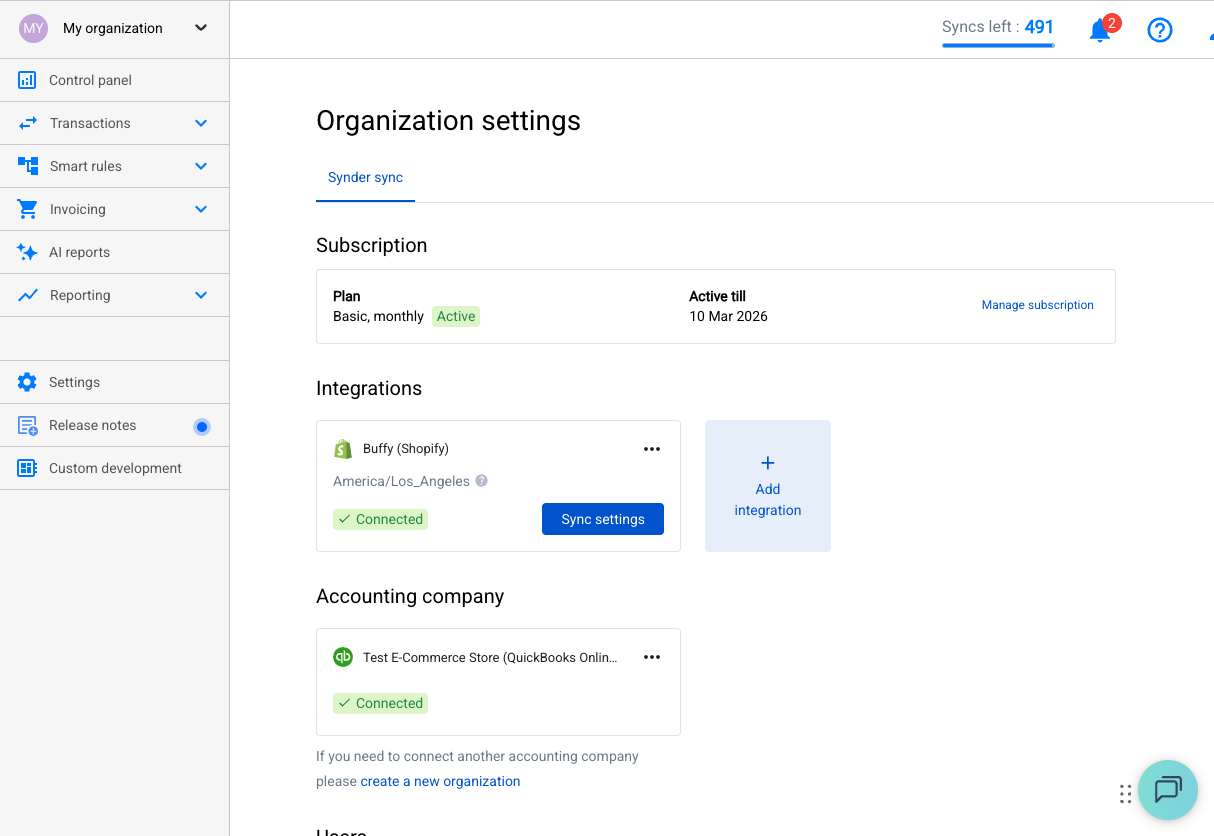
For each client organization, connect:
Their payment/sales platforms:
- Shopify, Amazon, eBay, Stripe, Square, PayPal — whatever they use
Their accounting software:
- QBO, Xero, or Sage
How to get access:
- You’ll need the client to authorize each connection (Shopify admin access, Stripe account access, QBO company access)
- For QBO: If you’re already the client’s accountant in QBO, you can connect using your accountant login
- For Shopify: The client needs to invite you as a staff member, or you do the connection during a screen-share
Pro tip: Set up connections during your onboarding call with the client. It takes 5–10 minutes per platform and avoids back-and-forth emails about authorization.
—
Step 4: Choose the Right Sync Mode Per Client
Different clients need different approaches:
| Client Type | Recommended Mode | Why |
|————-|—————–|—–|
| Low volume (<100 tx/month) | Per-Transaction | Full detail, easy to audit |
| Medium volume (100–1000 tx/month) | Per-Transaction or Daily Summary | Depends on client’s reporting needs |
| High volume (1000+ tx/month) | Daily Summary | Keeps their books clean, not cluttered |
| Bank reconciliation focused | Payout | Matches bank deposits exactly |
Conversation to have with your client: “Do you want to see every individual sale in QuickBooks, or are daily totals enough?” Their answer determines the mode.
—
Step 5: Configure Settings for Clean Books
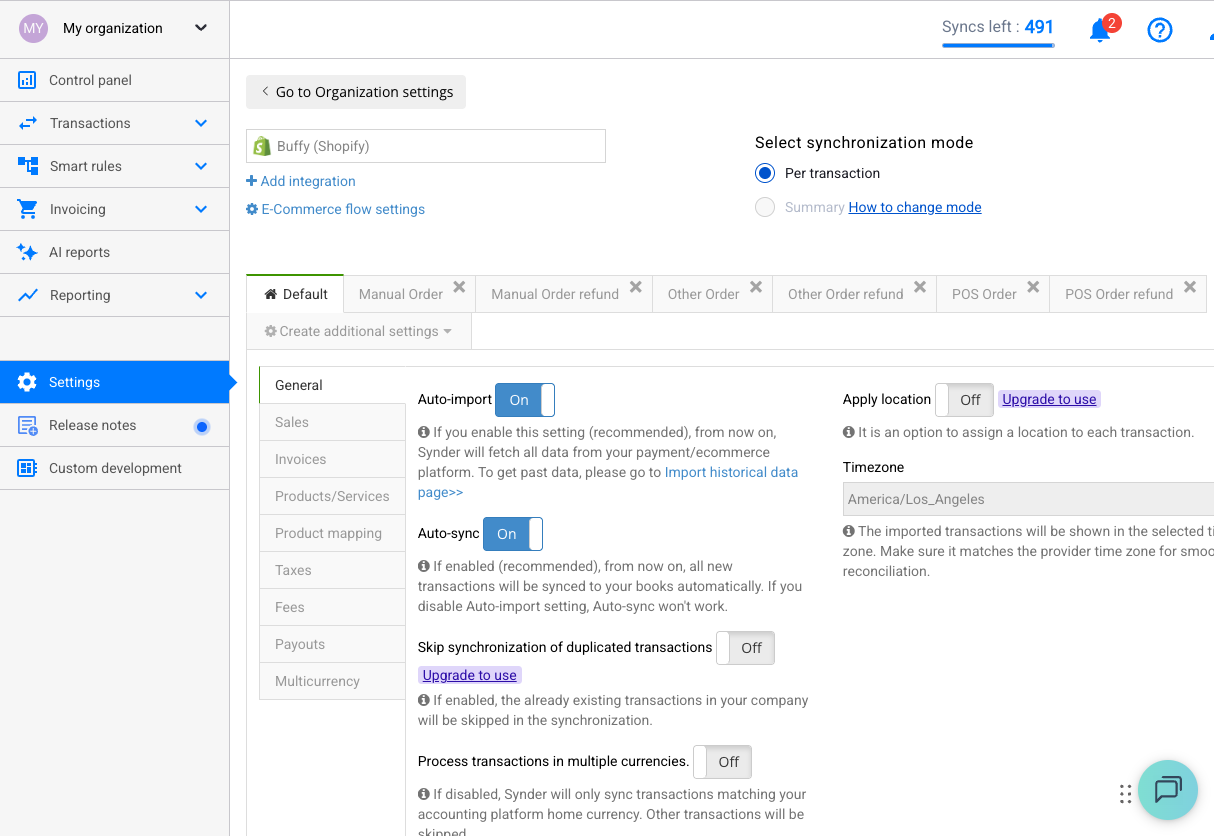
This is where your expertise matters. Before syncing anything:
Account Mapping
Map each transaction type to the right accounts in the client’s chart of accounts:
- Sales income → their revenue account (not “Uncategorized Income”)
- Processing fees → Merchant Fees or Bank Service Charges
- Shipping → Shipping Income
- Tax → Sales Tax Payable
- Clearing → platform-specific clearing account
Product Mapping
Decide how to handle products:
- Match by name/SKU: Synder finds existing products in the accounting software
- Common Product: Maps everything to one generic product (simpler, less detail)
- Create if not found: Synder auto-creates products (can get messy if the client has hundreds of SKUs)
Recommendation for most clients: Use “Common Product” unless the client specifically needs per-product tracking in their accounting software.
Customer Names
- E-commerce clients (B2C): Consider mapping all transactions to one customer (e.g., “Shopify Customers”) to avoid creating thousands of customer records
- B2B clients: Keep individual customer names for AR tracking
—
Step 6: Test Before Going Live
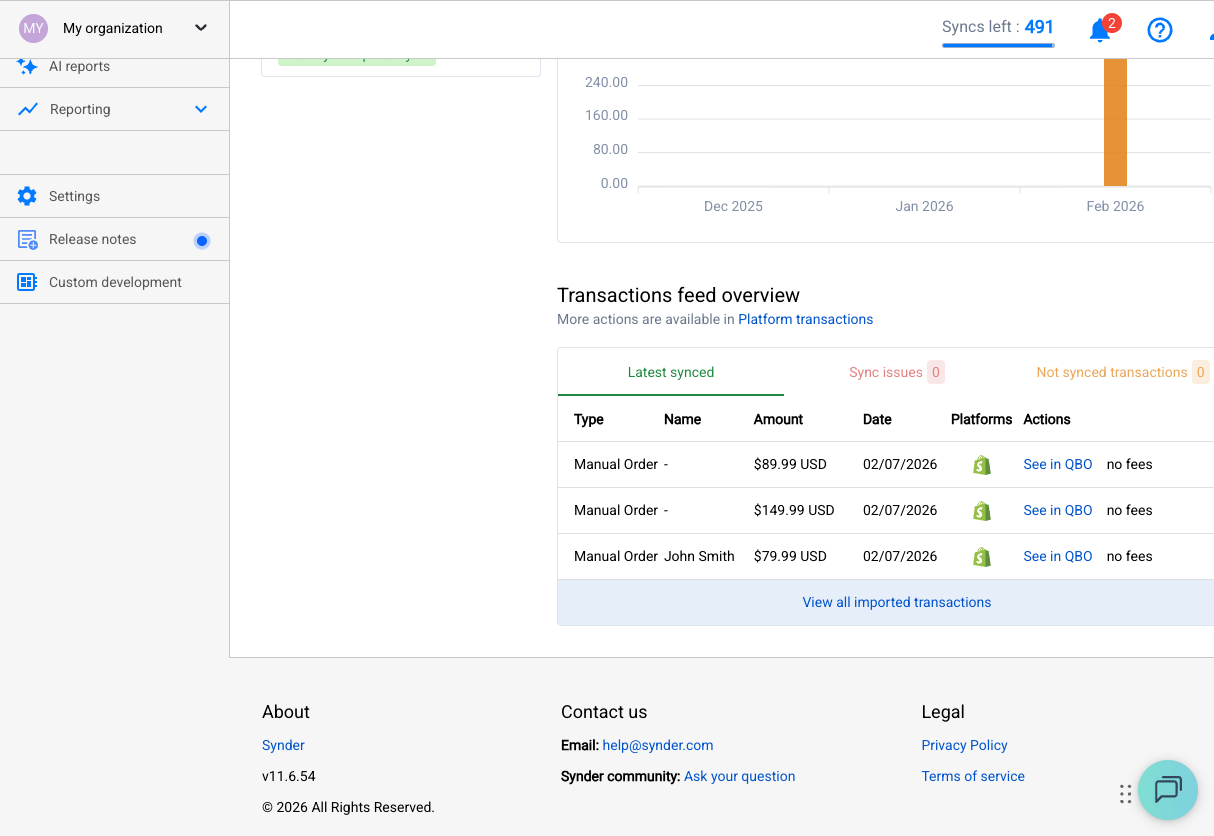
For each new client:
- Sync 5–10 transactions manually
- Review in their accounting software
- Check with the client: “Does this look right?”
- Adjust settings as needed
- Rollback test transactions if you want a clean start
Only then enable auto-sync.
—
Step 7: Set Up Auto-Sync and Walk Away
Once settings are dialed in:
- Enable auto-sync for each integration
- Verify it’s on for all relevant transaction types (payments, refunds, expenses)
- Check the Changelog occasionally to make sure nothing was accidentally disabled
Auto-sync runs continuously — new transactions appear in the client’s books within minutes to hours.
—
Managing Multiple Clients: Daily Workflow
Your Dashboard
Switch between client organizations from the top navigation. Each organization shows:
- Recent sync activity
- Failed or pending transactions
- Connection health (are all integrations still connected?)
Weekly Check-In Routine (Per Client)
- Check for sync errors — any red/failed transactions?
- Review new transactions — do amounts and categories look correct?
- Verify connections — still authenticated? (OAuth tokens can expire)
- Check for partially synced summaries (Daily Summary mode) — re-sync if needed
Monthly Close Routine (Per Client)
- Review all transactions for the period
- Re-sync any failed transactions
- Reconcile clearing accounts (each platform’s clearing account should zero out after payouts)
- Run Synder’s discrepancy reports if available
- Proceed with normal month-end close
—
Handling Client Onboarding at Scale
When you bring on a new e-commerce client:
- Discovery call: What platforms do they sell on? What accounting software? What’s their volume?
- Set up their organization in Synder (5 min)
- Connect platforms together — either on a screen-share or send them connection instructions (10–15 min)
- Configure settings based on their needs (15 min)
- Test sync and verify (10 min)
- Enable auto-sync and schedule a follow-up check in 1 week
Total setup time per client: 30–45 minutes once you know the workflow.
—
Pricing Note for Practices
Synder offers plans for accountants/bookkeepers managing multiple clients. Check current pricing at [synder.com](https://synder.com) — the multi-org feature may require a specific plan tier.
Tip: Some bookkeepers pass the Synder cost through to clients as part of their service fee. Others absorb it as a tool cost since it saves hours of manual work.
—
Common Situations
“My client disconnected their Shopify and didn’t tell me.”
You’ll see failed syncs. Re-authorize the connection. Set a reminder to check connection health weekly.
“Client wants historical data imported.”
Use Historical Import per platform. Go month by month for large imports. Test a small batch first.
“Client’s products keep showing as ‘Created by Synder’ in QBO.”
The products don’t exist in QBO yet. Either create them manually in QBO first, or use Common Product mapping.
“Two clients use the same accounting platform but different plans.”
Each client is a separate Synder organization with its own settings. They don’t affect each other.
—
You’re Set
You now have a scalable system for managing e-commerce clients’ accounting data. New client? 30 minutes to set up. Monthly maintenance? A quick weekly check per client.
The hours you used to spend on manual data entry? Bill them for advisory work instead.
Need help? [[email protected]](mailto:[email protected])
