

A quick-reference guide to the most frequent Synder sync errors. Find your error, follow the fix.
—
Product & Service Errors
“Entity cannot be synchronized without Product or Service”
Cause: The transaction references a product that doesn’t exist in your accounting software, and Synder’s settings prevent auto-creation.
Fix: Expand the error message — there’s usually a more specific sub-error. Then:
- Create the missing product in QBO/Xero and re-sync, OR
- Enable “Common Product” in Settings to use a catch-all product, OR
- Allow auto-creation of products in your integration settings
—
“No matching product found in accounting”
Cause: Synder searched by product name and/or SKU and found nothing in your accounting software.
Fix:
- Verify the product exists in QBO/Xero with the exact name (check spelling, capitalization)
- If using SKU matching: confirm the e-commerce platform (e.g., Shopify) was connected at sync time. Disconnected platforms can’t supply SKU data.
- If the product was recently created, it may not have existed during the original sync attempt. Re-sync.
—
“Created by Synder product is mapped to the wrong income account”
Cause: Synder auto-created a product and assigned it to a default income account that isn’t what you wanted.
Fix:
- Open the product in QBO/Xero and change its income account
- To prevent this: set up Product Mapping rules in Synder before syncing, or use Common Product
—
“Product Mapping is not working for Shipping item”
Cause: Shipping items sometimes follow different mapping rules than regular products.
Fix: Check if there’s a separate shipping mapping in your integration settings. Map it explicitly.
—
Auto-Sync Errors
“Auto-sync didn’t work”
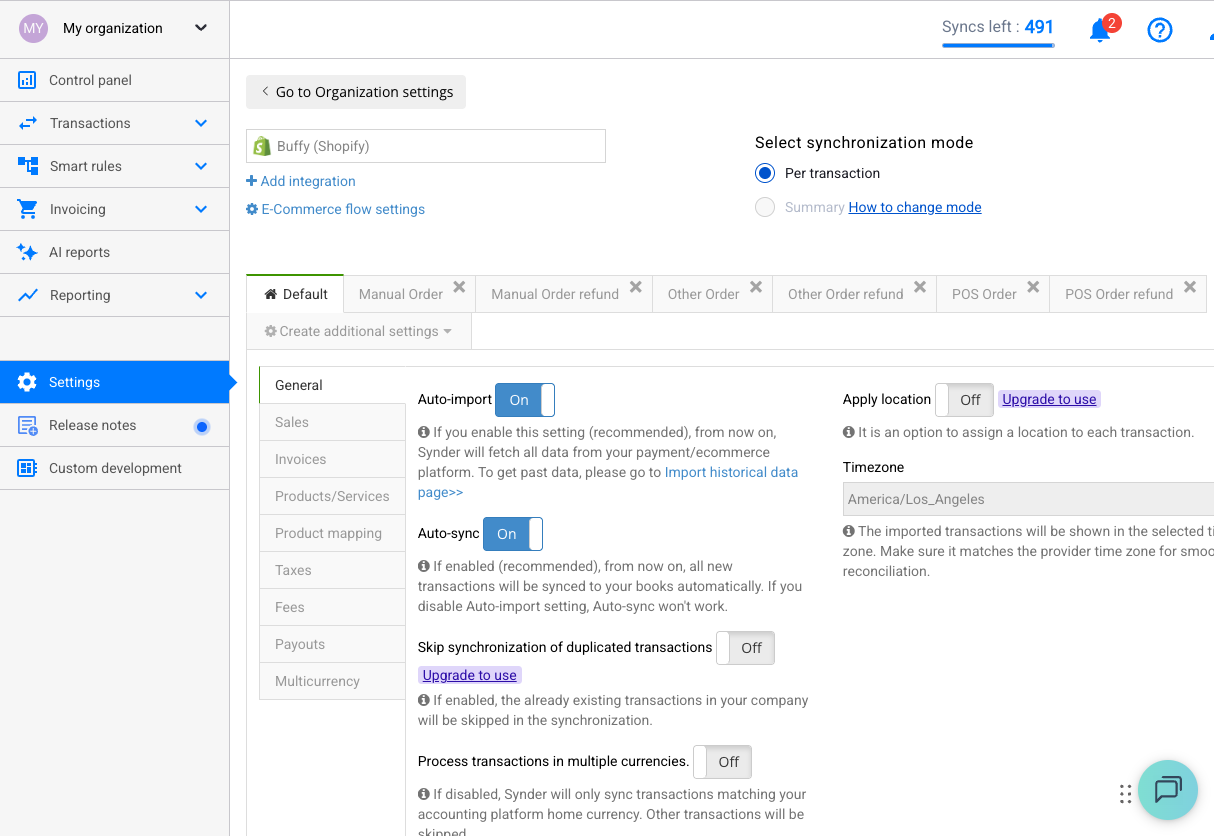
Cause: Auto-sync was disabled — either globally or for a specific transaction type — at the time the transaction came in.
Fix:
- Check Settings → General — is auto-sync enabled?
- Check each transaction type tab (Payments, Refunds, etc.) — each has its own toggle
- Check the Changelog to see if it was recently toggled off
- Remember: auto-sync only works *forward*. Missed transactions need manual sync.
—
“Auto-sync was disabled not by user”
Cause: Synder automatically disabled auto-sync, usually due to a connection issue or repeated sync failures.
Fix:
- Check your platform connections (Settings → Integrations) — re-authenticate if needed
- Resolve any underlying errors first
- Re-enable auto-sync
—
Summary Mode Errors
“Partially synced summary”
Cause: In Daily Summary mode with “every day auto-sync,” the summary was generated before all transactions were available from the platform.
Fix:
- Wait for all transactions to become available, then re-sync the summary
- This is common with Amazon (delayed data) — it’s expected behavior, not a bug
—
“Summary failed with ‘Record all customer and supplier transactions in the currency assigned to them'”
Cause: Multi-currency conflict in QBO. A transaction’s currency doesn’t match what’s assigned to the customer/vendor in QBO.
Fix:
- Check the customer/vendor record in QBO — what currency are they set to?
- Make sure your Synder multi-currency settings align with your QBO setup
- You may need to enable multi-currency in QBO first (Settings → Advanced → Currency)
—
Data Mismatch Errors
“Customer name is different in Invoice and Payment”
Cause: The customer name on the invoice (from e-commerce) doesn’t match the customer name on the payment (from payment gateway).
Fix: This usually resolves with Smart Reconciliation enabled. If not, check customer name search priority in settings.
—
“Invoice number is not matching”
Cause: Synder tried to match a payment to an existing invoice but the reference numbers don’t align.
Fix: Check the invoice in your accounting software — does the document number match what the payment platform sent? You may need to adjust your numbering settings.
—
“Payment is not matched with Invoice”
Cause: Synder found an invoice but couldn’t apply the payment to it (amount mismatch, customer mismatch, or invoice already paid).
Fix:
- Verify the invoice is still open (unpaid) in your accounting software
- Check that amounts match
- Check that customer names match between invoice and payment
—
Tax Errors
“Sales Tax going to the incorrect Sales Tax Account”
Cause: Tax mapping isn’t configured correctly for your integration.
Fix: Go to your integration’s settings → Tax section. Map tax to the correct Sales Tax Payable account.
—
“Stripe tax discrepancy”
Cause: The tax amount Stripe reports differs from what’s expected based on order data.
Fix: Check if Stripe Tax is enabled vs. manual tax calculation. Compare the tax in Stripe dashboard with what Synder pulled. This may require reviewing the internal transaction data.
—
Import Errors
“Failed Excel import”
Cause: Column mapping issues in your import file, usually related to discount fields.
Fix:
- Ensure you have both “Line Discount” and “Total Discount” columns if using discounts
- Use Synder’s provided Excel/CSV template
- Test with a small sample (5 rows) first
—
Connection Errors
Platform shows as disconnected
Cause: OAuth token expired, password changed, or platform revoked access.
Fix:
- Go to Settings → Integrations
- Click the disconnected platform
- Re-authorize the connection
- After reconnecting, manually sync any transactions that were missed
—
Quick Fix Checklist
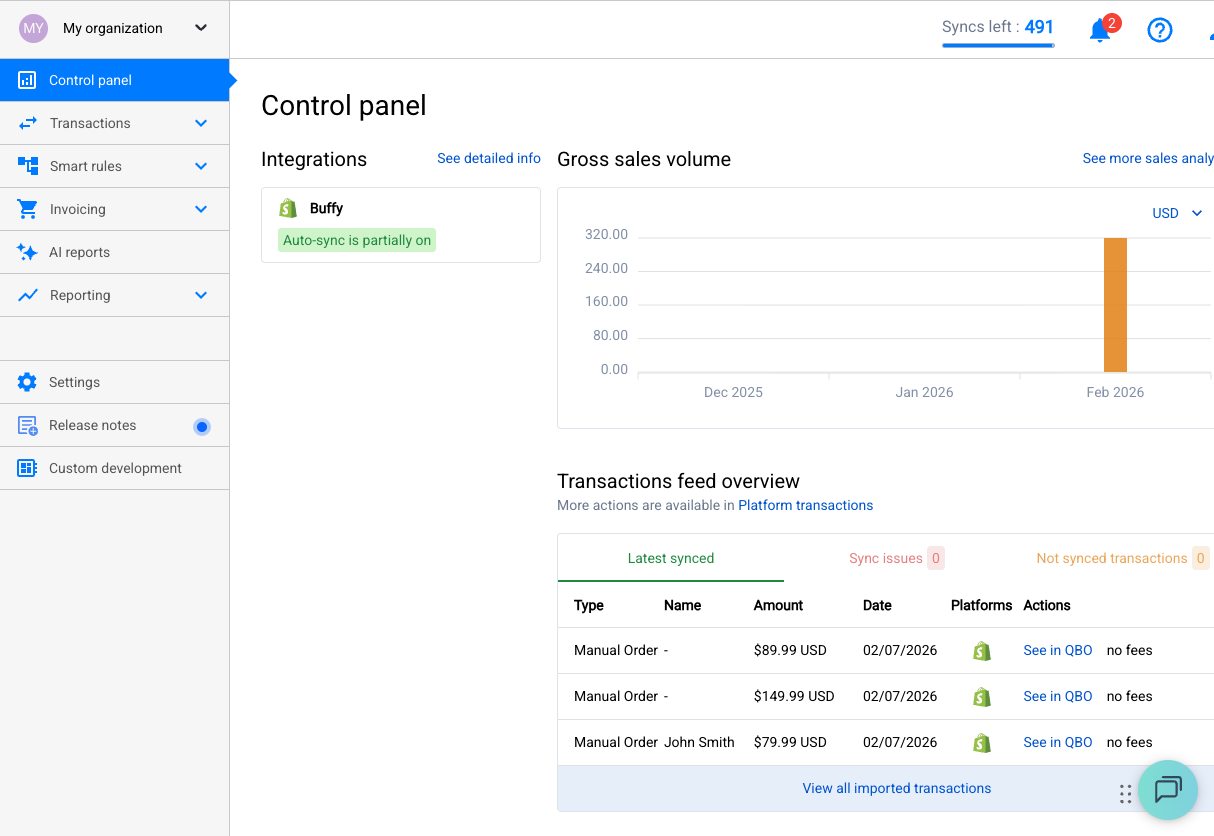
When you hit any sync error, run through this:
- ☐ Read the full error message (click to expand)
- ☐ Check connections — all platforms green?
- ☐ Check account mapping — all accounts assigned?
- ☐ Check product mapping — products exist in accounting software?
- ☐ Check auto-sync settings — enabled for all transaction types?
- ☐ Try rollback + re-sync after fixing settings
- ☐ Check the Changelog for recent setting changes
Still stuck? Email [[email protected]](mailto:[email protected]) with the error message and a screenshot.
